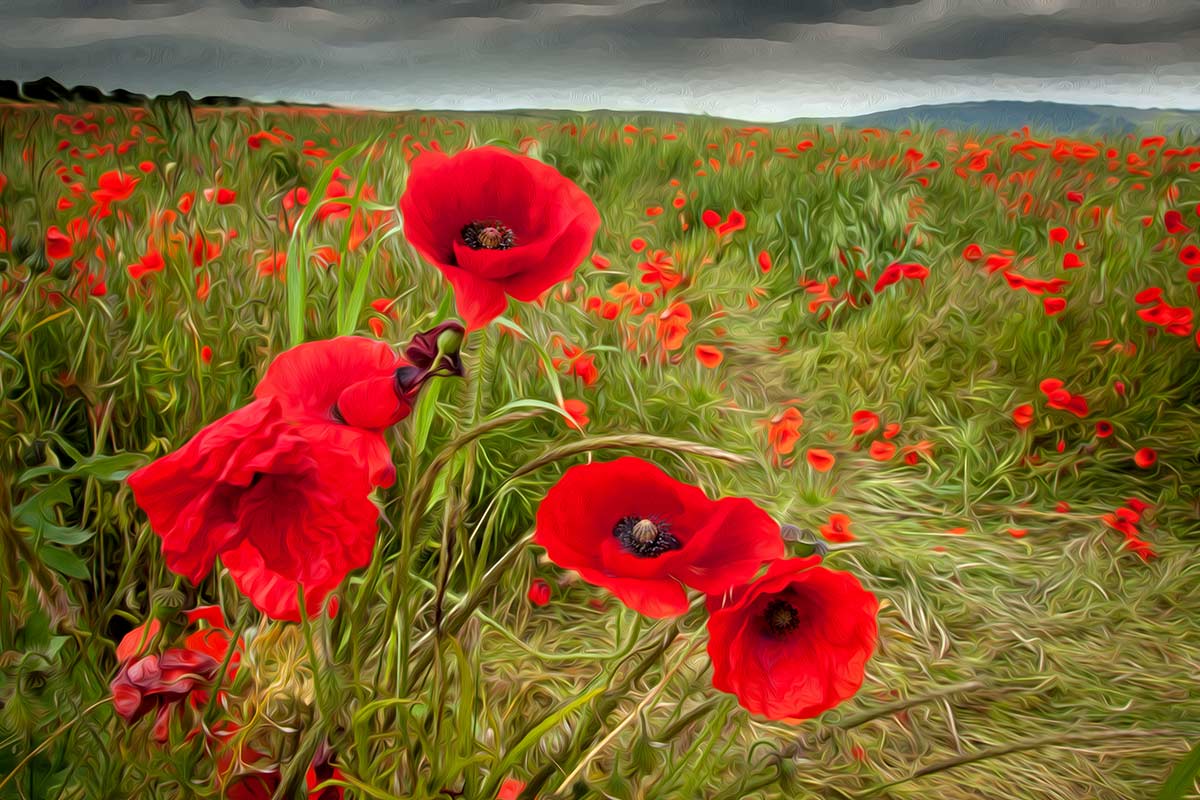
Poppy field – 15 Minute Photo Challenge

Not so long ago I added a new 15 minute photo challenge to Adorama TV, if you can see the video below in case you missed it.

This time I visited a field of poppies growing on the south downs just outside of Brighton, Sussex.

I’m a sucker for poppies, may be it’s the bright red colour, which always looks great in photos. May be it’s the beauty of the poppies themselves. Either way I can’t resist photographing them and I wasn’t alone. In the sort time I was at the field I bumped in to several other photographers who couldn’t resist the lure of a field full of poppies either.

[youtube]http://www.youtube.com/watch?v=Xmz2ZVy1Ykw&feature=c4-overview&list=UU8Pksdbj37CdE00kmE7Z1dw[/youtube]

Can’t see the video? Click Here http://youtu.be/Xmz2ZVy1Ykw
15-Min-Poppy-Oil-PaintEquipment used in this video:
Adobe Photoshop CS6 http://www.adorama.com/searchsite/default.aspx?searchinfo=photoshop+cs6&category=4294967278+11&KBID=67338

Canon 60D http://www.adorama.com/ICA60D.html?KBID=67338

Canon 24-105L f/4 IS http://www.adorama.com/CA24105AFU.html?KBID=67338

Rounded Corner Border – Creative Lightroom Episode 6

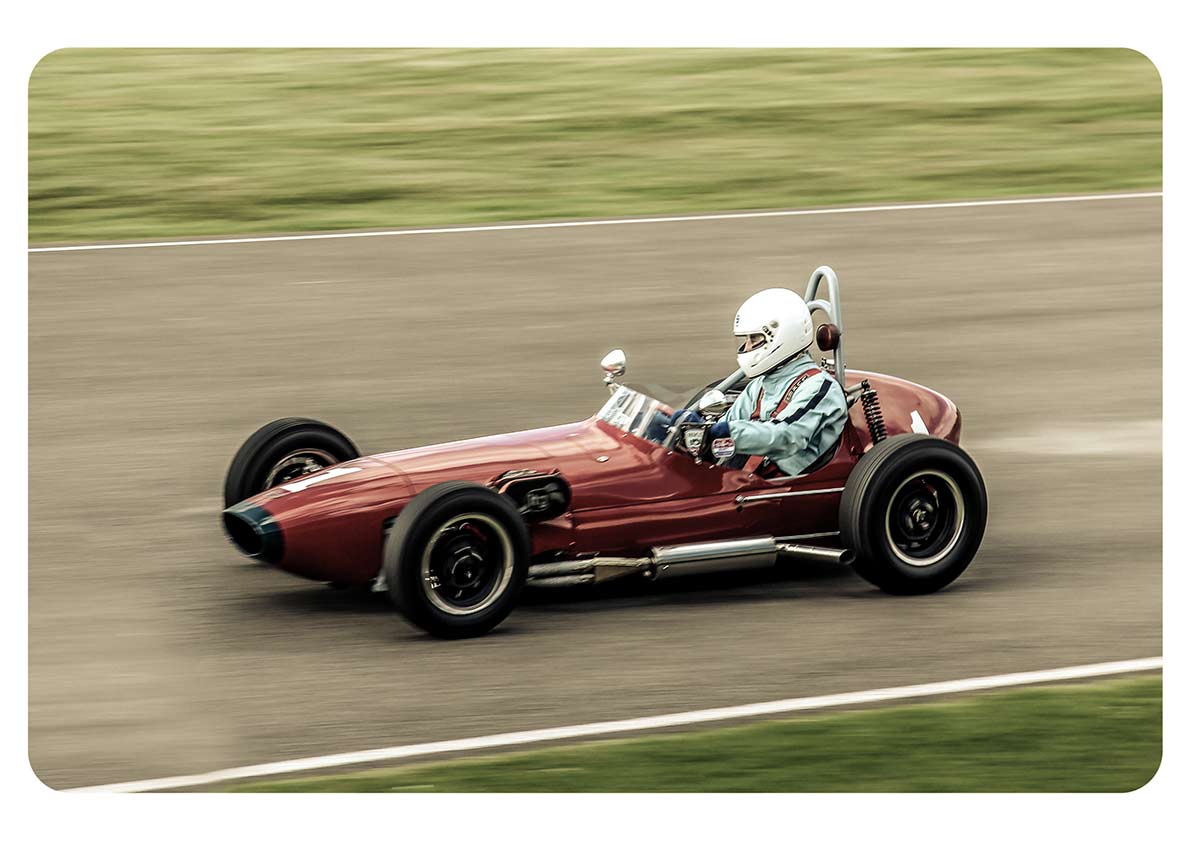
cl-7-FINALThis weeks episode of Creative Lightroom has a super quick but very smart looking border effect.

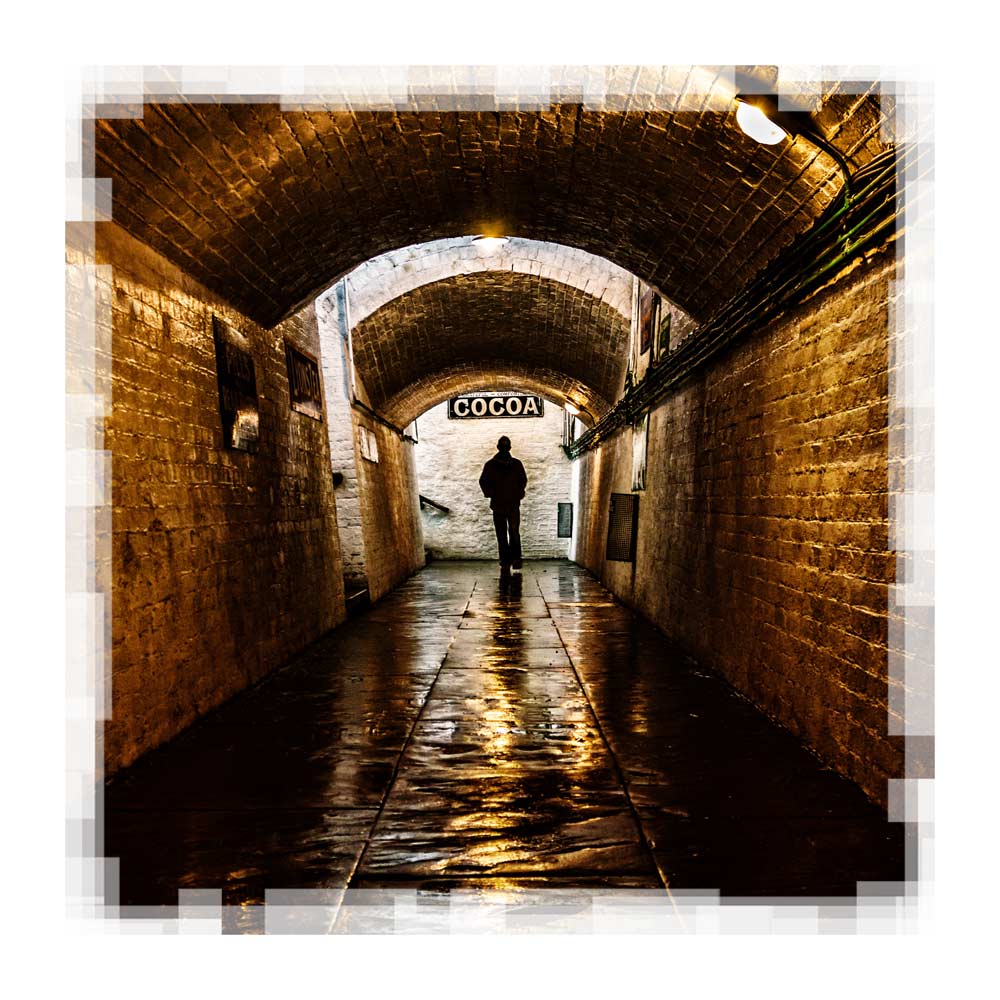
Rounded rectangle borders like this look amazing not only on vintage and retro photos but are just great with any photo. Back when I started taking photos as a VERY young child all the prints would have rounded corners just like this.

In the video I show you just how quick this effect can be made, plus some variations on the look. OK I say variations but in reality you can have a black or white border that’s either soft or heard edged. You can also choose the roundness of the corners too.

To create this effect you’ll need either Lightroom 5, Lightroom 4 or Lightroom 3

In the video I mention my hand painted border effect from episode 2, which you can see here www.gavtrain.com/?p=3162

As always it’s worth mentioning that if you’re a Photoshop user rather then Lightroom user, EVERYTHING I show in the video is the same as Adobe Camera RAW in Photoshop CS6 and Photoshop CC. It’s also possible to pull off the same trick with older version of Photoshop from CS4 onwards.

[youtube]https://www.youtube.com/watch?v=8F_xj4NSb7Y[/youtube]

Can’t see the video? Click here: http://youtu.be/8F_xj4NSb7Y

Squared edged border action

Square-Edge-LargeThis weeks Friday Freebie is a work in progress from my next action set. The new set won’t be ready just yet but once completed it will be the successor to my hugely popular Amazing Borders Set 1.  A good border can really set off a photo but making an action that adds a reasonably border to pretty much any photo you can find is tougher then you might image!

You can download the action here:
Squared edged border action

This action makes a eroded edge border that has a blocky, square edge feel. Personally I blame Minecraft for making blocks fashionable once again 😉 The Action makes a copy of your photo so the original will be untouched. It also flattens the photo at the end, so if you wish to modify the border press CTRL+Z to undo that step.

The action will work with Photoshop CC, CS6, CS4, CS4, CS3, CS2 etc and will work with Elements11 and older versions, if you can jump through the hoops that older Elements put in place to add actions.

If you create a great photo with my action then feel free to link to it by leaving a comment below.

Usage rules
The action is copyright Gavin Hoey 2013. Use is limited to any personal, non-commercial purposes. Please share the Friday Freebie by linking back to this page. Do not redistribute the original action without my permission.

Download instructions
The direct link to download the actions is https://www.gavtrain.com/free/square-border-gavtrain.zip

No support is provided with the Friday Freebies. If you need help Google or YouTube the question and you’ll almost certainly find the answer 🙂

Pseudo HDR – Creative Lightroom Episode 5

CL-final-5Creative Lightroom has new reached episode 5, the half way point. In this weeks episode I’ve got a quick Lightroom trick which gives your photos a little bit of HDR magic.

When I say HDR don’t think for a second that this is a replacement to the traditional HDR technique of taking multiple images and merging the exposure together in Photoshop, Photomatix or Nik HDR Pro. No what it does is to pull the maximum detail from the shadows and highlights from a single image.

By far the best photos to play with are RAW files that are correctly exposed or a bit underexposed.

To fully pull off this effect you’ll need Lightroom 5 or Lightroom 4.

As always it’s worth mentioning that if you’re a Photoshop user rather then Lightroom user, EVERYTHING I show in the video is the same as Adobe Camera RAW in Photoshop CS6 and Photoshop CC. It’s also possible to pull off the same trick with Elements 11 (but not the vignette in RAW)

[youtube]http://www.youtube.com/watch?v=NJvQWenordQ[/youtube]

Can’t see the video? Click here: http://youtu.be/NJvQWenordQ

Water shaped heart

I love photographing water. Technically it’s not hard to do and even with basic equipment the results can be amazing but water is a challenging subject if you want consistency. Every drip, splash or droplet of water will be a little different to the last and that element of slight unpredictability is what makes every water photo unique.

In this tutorial I make use of the uniqueness of a water splash by throwing some in the air and freezing it with a burst of flash. Repeating the action produces more splashes of a similar, yet different shape and then it’s into Photoshop to make this amazingly beautiful water heart.

[youtube]http://www.youtube.com/watch?v=LrY78qEw68s&feature=c4-overview&list=UU8Pksdbj37CdE00kmE7Z1dw[/youtube]

Can’t see the video? Click Here http://youtu.be/LrY78qEw68sWater-Heart-Final1024

Equipment used in this video:
Adobe Photoshop CS6 http://www.adorama.com/searchsite/default.aspx?searchinfo=photoshop+cs6&category=4294967278+11&KBID=67338

Canon 60D http://www.adorama.com/ICA60D.html?KBID=67338

Canon 24-105L f/4 IS http://www.adorama.com/CA24105AFU.html?KBID=67338
Vanguard ABEO Plus 283CT Tripod http://www.adorama.com/VGABEO283CT.html?KBID=67338

Vanguard GH-300 head http://www.adorama.com/VGGH300T.html?KBID=67338

Two Curves Tricks – Creative Lightroom Episode 4

CL-final-4-1000In the fourth episode of Creative Lightroom, I have not one but two creative techniques and both of them involve using Curves.

You can still catch the first three episodes here
episode 1, Light leak effect
episode 2, Painted border
episode 3, Selective colour

The two effects couldn’t be more different even though the same tool is used to make them. The first technique is a very gritty posterization effect which looks amazing on the right image. The second effect is perfect for anyone who scans or copies old negatives and wants to make them back into a positive.

As always it’s worth mentioning that if you’re a Photoshop user rather then Lightroom user then remember EVERYTHING I show in the video is the same as Adobe Camera RAW in Photoshop CS3, CS4, Cs5, CS6 and Photoshop CC.

[youtube]http://www.youtube.com/watch?v=IsDg8EV-Byw[/youtube]

Can’t see the video? Click here: http://youtu.be/IsDg8EV-Byw

UPDATE
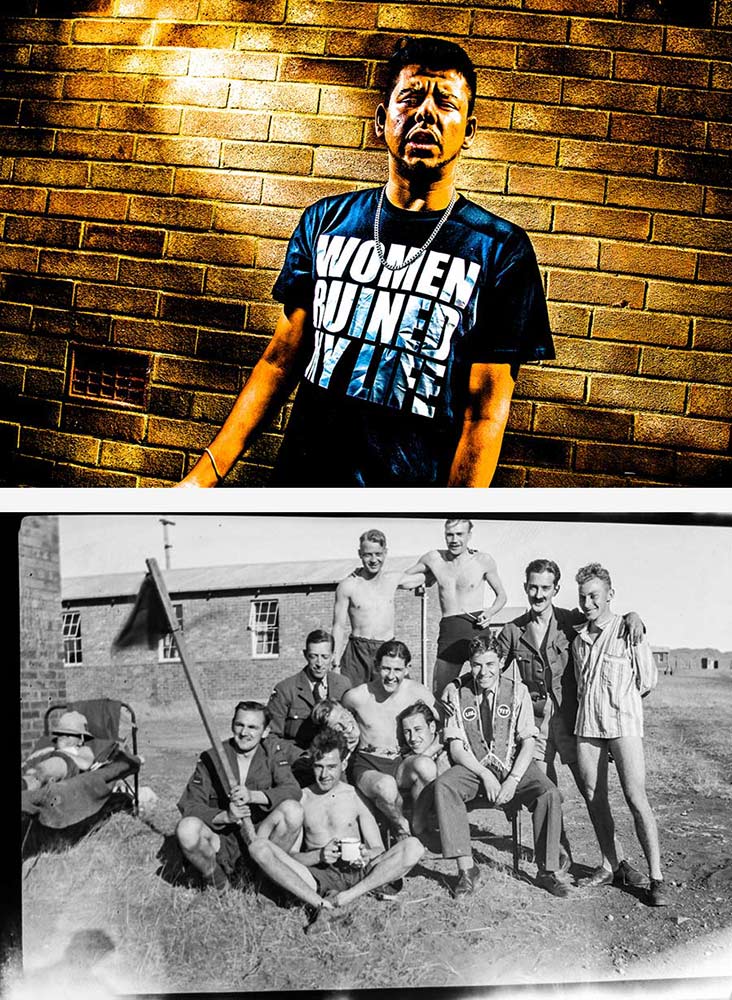
Lots of you have been guessing which of the men in the old photo is my Grandad. The answer is he’s the tallest one, in the middle holding his trademark pipe. As for the question of why the guy on thr right is without trousers, I’m not 100% sure. It’s probably a combination of the heat (they were in South Africa) and being taken in 1943, there was a war on!

Coffee Stain Photoshop Brushes

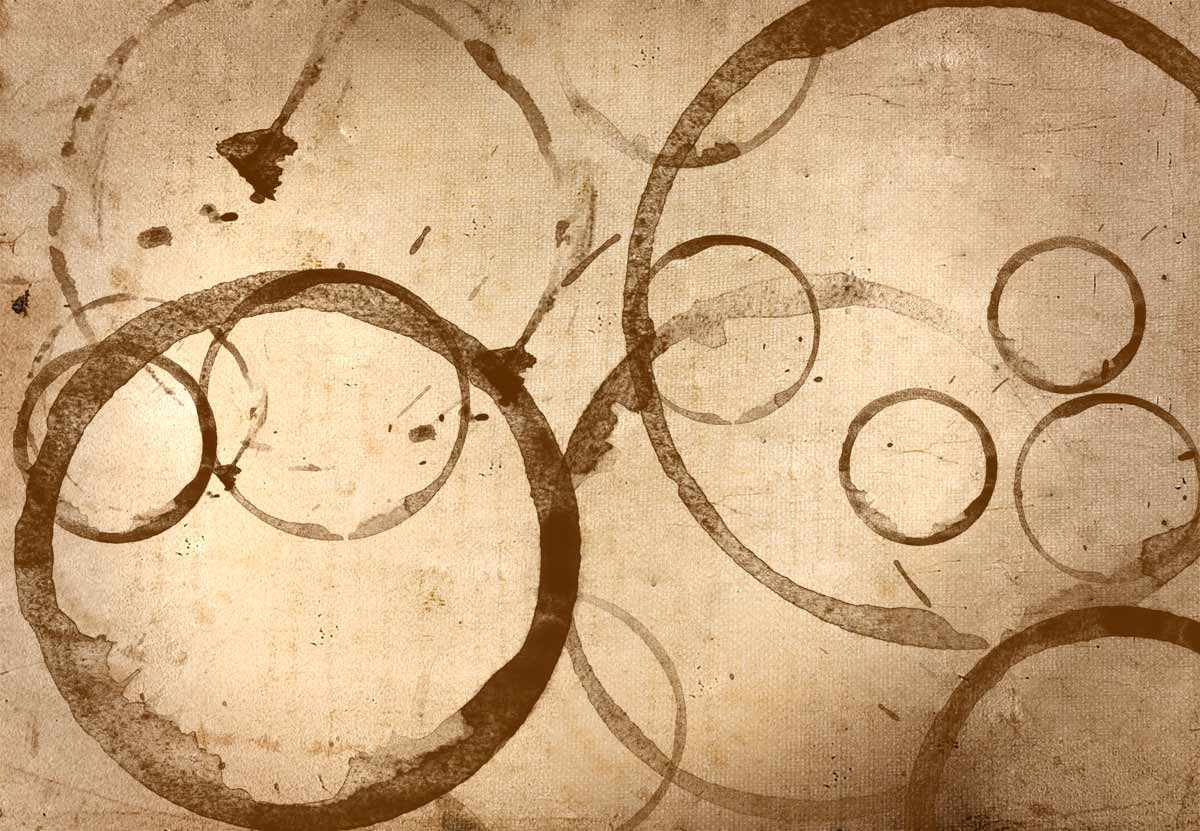
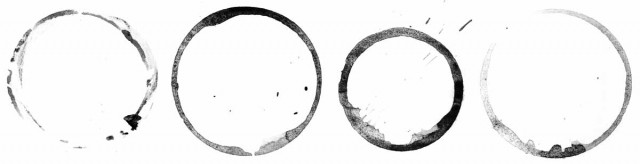
FF-Coffee-brush-1This weeks Friday Freebie is a set of four high resolution Photoshop brushes. What they do is probably pretty obvious but if you can’t see the photo then the words coffee cup rings should explain everything.

 Click Here To Download the Coffee ring brushes

These brushes were hand crafted in my studio using only the finest tea stains (I’m not a coffee drinker) which I photographed and turned into very high resolution brushes. They are the perfect compliment to your grungy images and add some instant aging to your retro images. They work brilliantly with the ageing texture that I ran as the Friday Freebie a few weeks back. It’s also the same texture I used on the photo opposite.

Once downloaded, the brushes will need to be unzipped before they are installed. The brush set is  compatible with all versions of Photoshop and Photoshop Elements. If you need help installing them then remember to search on Google and YouTube for the answers.

If you create a photo using the Friday Freebie then let me (and everyone else) know by leaving the link in the comments below.

FF-Coffee-brush-2

Usage rules
The brushes are copyright Gavin Hoey 2013. Use is limited to any personal, non-commercial purposes. Please share the Friday Freebie by linking back to this page. Do not redistribute the original image without my permission

Just one colour – Creative Lightroom Episode 3

CL-final-3-1200pxIn the third episode of Creative Lightroom, I have a very quick trick for reducing the number of colour tone ranges in your image to just one.

This is a really quick and simple technique that works with all versions of Lightroom including the latest and greatest version, Lightroom 5.

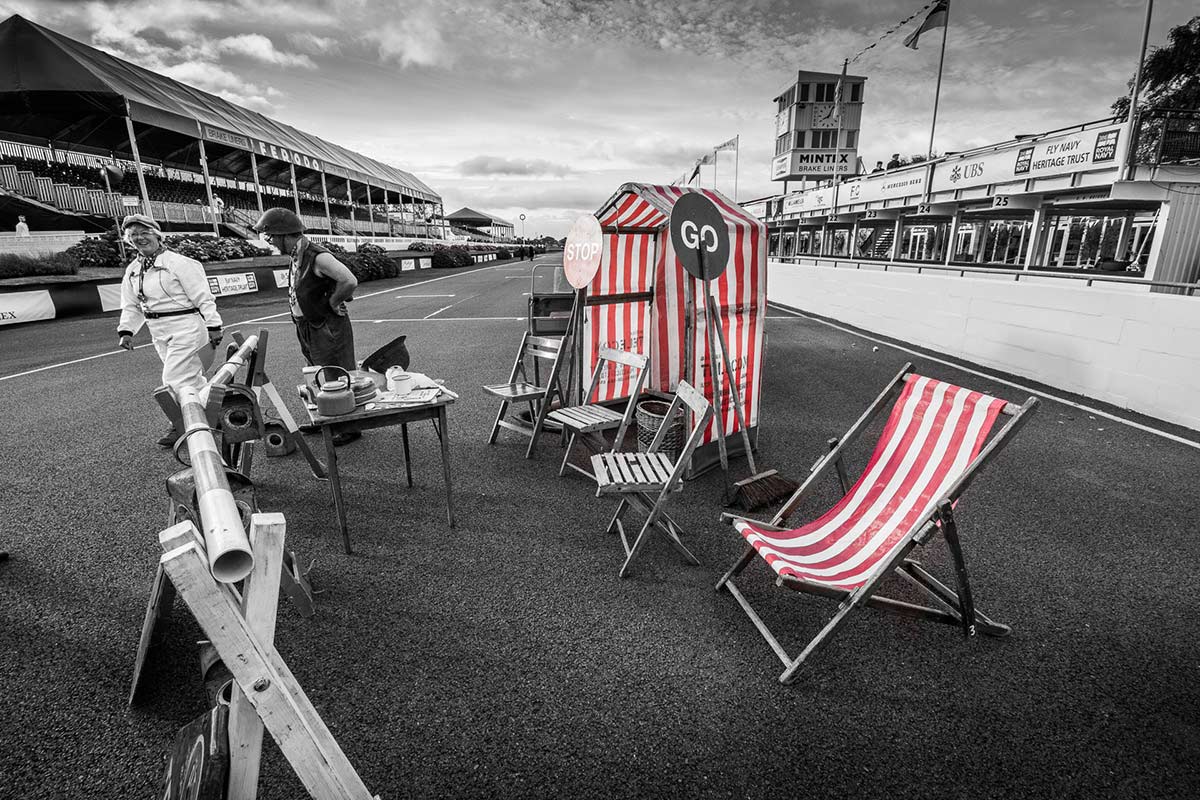
In the video I show you how to remove almost all the colour and leave just the reds in an image but you can just as easily leave blues, yellows or greens. I then go on to show you how to quickly tidy up any stray colour areas with the adjustment brush.

It’s worth mentioning that if you’re a Photoshop user rather then Lightroom user then remember EVERYTHING I show in the video is the same as Adobe Camera RAW in Photoshop CS3, CS4, Cs5, CS6 and Photoshop CC.

[youtube]http://www.youtube.com/watch?v=wr6fSZY57R0&feature=youtu.be[/youtube]

Can’t see the video? Click here: http://youtu.be/wr6fSZY57R0

Industrial Template

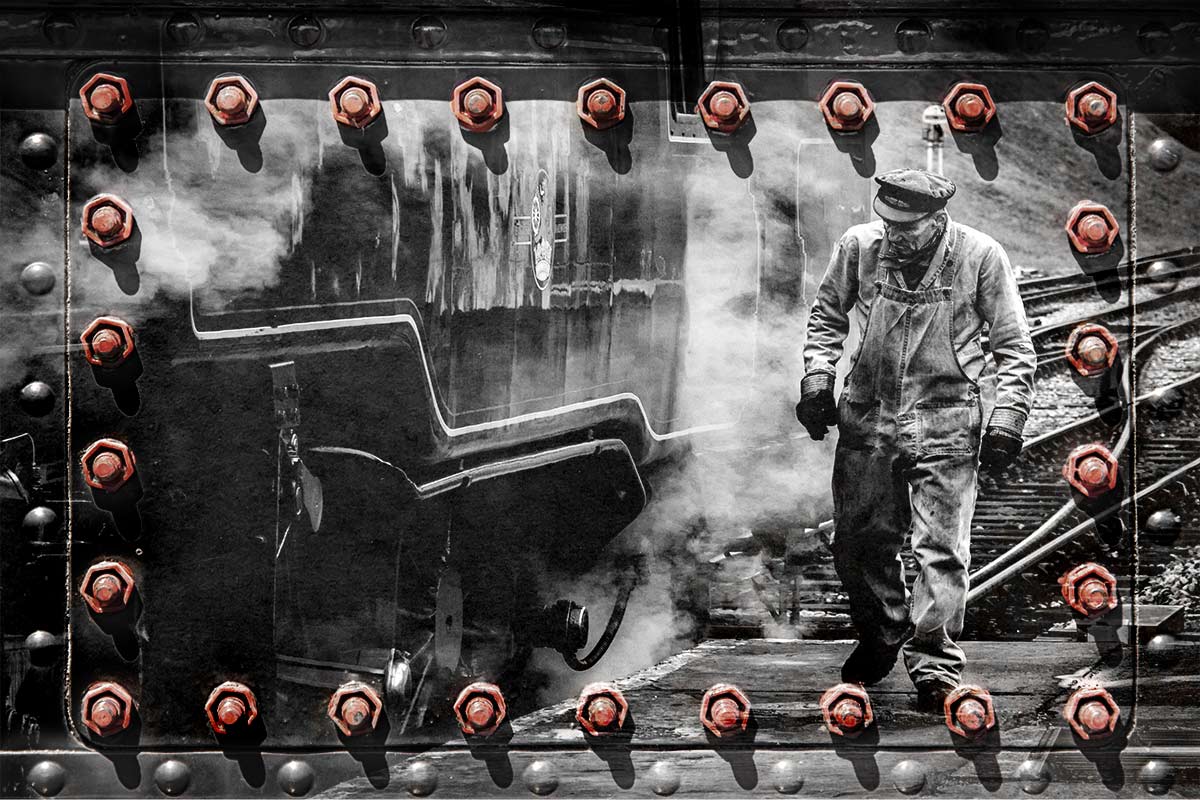
Red-Bolts-FF-FinalThis weeks Friday Freebie is an industrial style border and texture which has a wonderful 3D feel. The standout feature must be the rectangle of red bolts. There’s no Photoshop here’s that’s exactly as I found them.

Click Here To Download the industrial template

With those bright red bolts and the metal texture the sort of photo that’s likely to work best is something with an industrial feel. I found mono images worked well but don’t let that limit your imagination. If the red bolts are a bit too bright then reduce the templates saturation value to suit your taste.

The sample image here was simply placed above the template, resized to fit and the layer blending mode was changed to Overlay. Other blending modes will also work so experiment away.

If you create a photo using the Friday Freebie then let me (and everyone else) know by leaving the link in the comments below.

Usage rules
The template is copyright Gavin Hoey 2013. Use is limited to any personal, non-commercial purposes. Please share the Friday Freebie by linking back to this page. Do not redistribute the original image without my permission

Bringing back Photoshop’s missing filters

Missing-Filters-1When Adobe moved from Photoshop CS5 to Photoshop CS6 they gave the interface a long overdue facelift. The most obvious change is the new default dark interface but to make that happen the Photoshop engineers had to remake 1000’s of buttons, icons and panels from scratch.

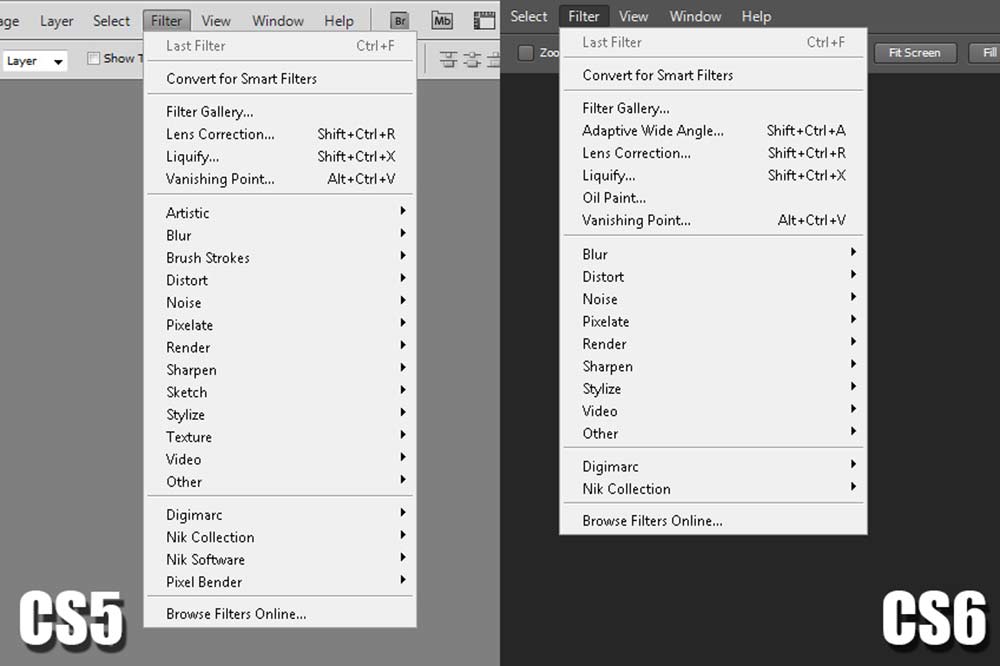
As if that wasn’t enough Adobe decided that now was also good time to do a spot of Photoshop spring cleaning and one place where that’s most obvious is in the filter menu. In fact at first glance you might well think that half the filters have been removed.

Take a quick glance down the filter list of Photoshop CS6 and Photoshop CC and you won’t find the Artistic, Brush Strokes, Sketch, Stylize or Texture filters listed. They’re still in the Filter Gallery, just not on the filer group list.

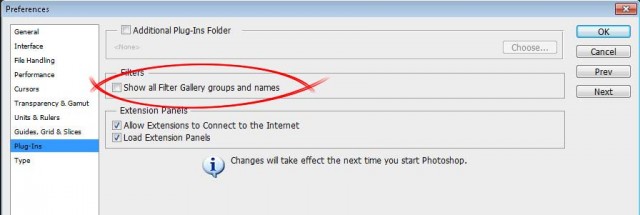
So how do you get the full list back? The answer is hidden away in the preferences.

The option to switch on the full filter list is under:
PC Users  Edit – Preferences – Plug-Ins
Mac Users  Photoshop – Preferences – Plug-Ins 

Tick the box marked Show all Filter Gallery groups and names, then restart Photoshop. Your complete list of filters will now be back.Missing-Filters-2