Colourful Background Projection Image

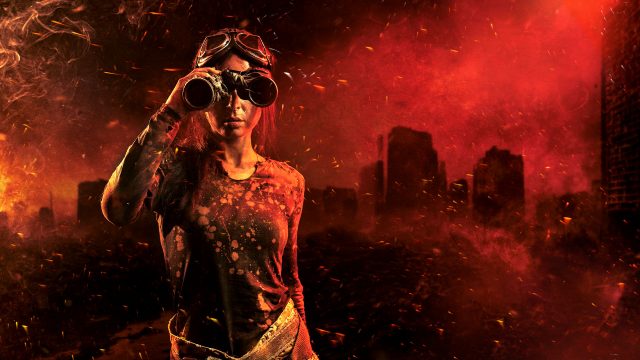
Back projecting an image through smoke is a classic technique that looks amazing with the right image.
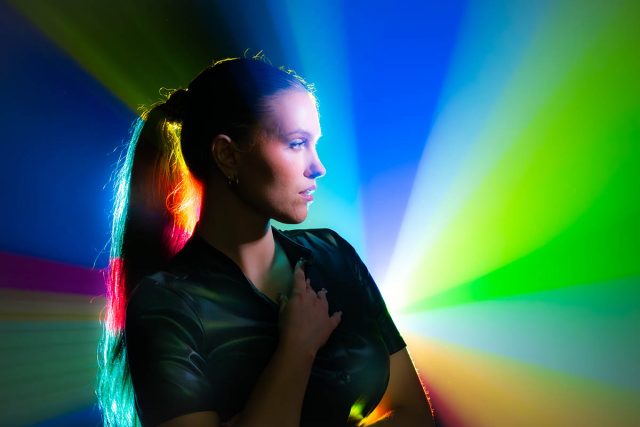
So here’s one to start your collection off. It’s colourful and it’s hi-res which makes it zoomable. You’ll need a data projector to make the image above and lots and lots of haze!

Download instructions
       1. Click on the download link below
https://drive.google.com/file/d/142uTIw1ObSo60wcPVunSdrSfDLc50_jc

  1. Click the Download button download_icon (top right of the screen)
  2. The download should start automatically
  3. Download the image
  4. No support is provided. If you need help Google or YouTube the question and you’ll almost certainly find the answer

 

Instant Light Rays – Photoshop Action

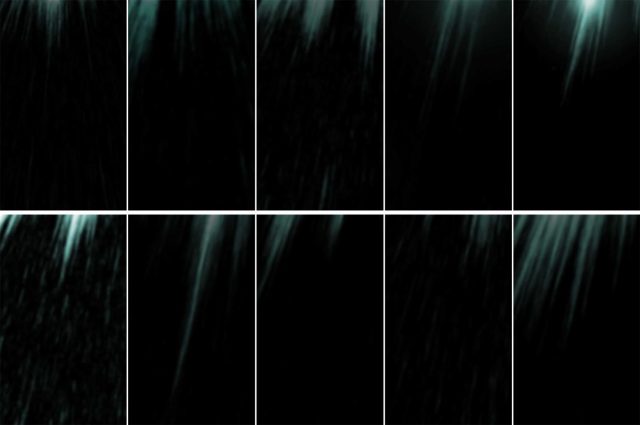
If you need a selection of rays of light for next Photoshop project and you need them in just one click, then this set of 10 Photoshop actions is for you… and yes, they’re 100% free!

The action does a few things you need to be aware of. First, your original image is always untouched. The action creates a duplicate of your image and flattens any layers on the new (duplicate) image before creating the light rays. Your original image is ALWAYS untouched!

Need more rays? Run the action again. The rays can be altered in position, size, opacity and colour

Download instructions
       1. Click on the download link below
https://drive.google.com/file/d/199eklVMe6OZVo4IzATrzkG0Hm_g5-yIo

  1. Click the Download button download_icon (top right of the screen)
  2. The download should start automatically
  3. Unzip the download and install the Photoshop Action
  4. No support is provided. If you need help Google or YouTube the question and you’ll almost certainly find the answer
Instant Cinder Photoshop Action

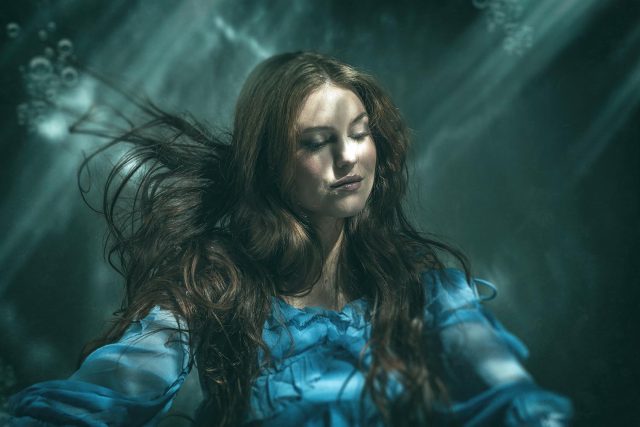
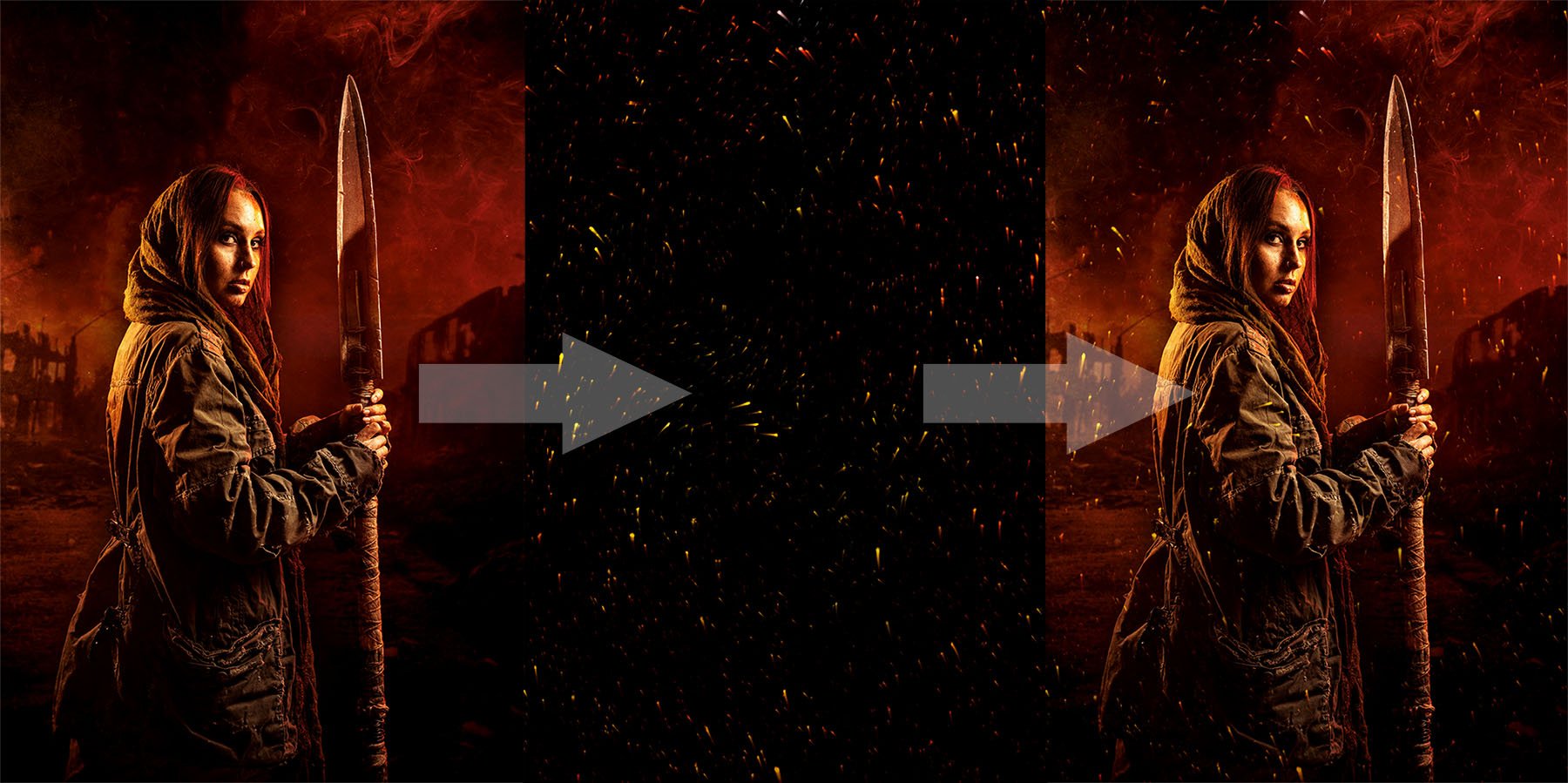
Hot embers floating through the air look beautiful and when you get the chance you should grab a photo. But if you want the look of hot embers without the need to rummage through you old photos, my Instant Cinder Fluffy action  (which I created for an Adorama TV Halloween themed video) does a great job. 

Instant-Cinders-Example

Image 1 of 1

The action does a few things you need to be aware of. First, your original image is always untouched. The effect is random, so running it a few times will give different patterns of embers. You’ll need to copy, paste and re-size the embers to fit your original image. Set the layer blending mode to “Screen” and adjust the layer opacity to taste.

Download instructions
       1. Click on the download link below
https://drive.google.com/file/d/1YX4F-4k8bT4nVEoifLbUG6HqUSt3Z2jZ

  1. Click the Download button download_icon (top right of the screen)
  2. The download should start automatically
  3. Unzip the download and install the Photoshop Action
  4. No support is provided. If you need help Google or YouTube the question and you’ll almost certainly find the answer
Frosty Frames

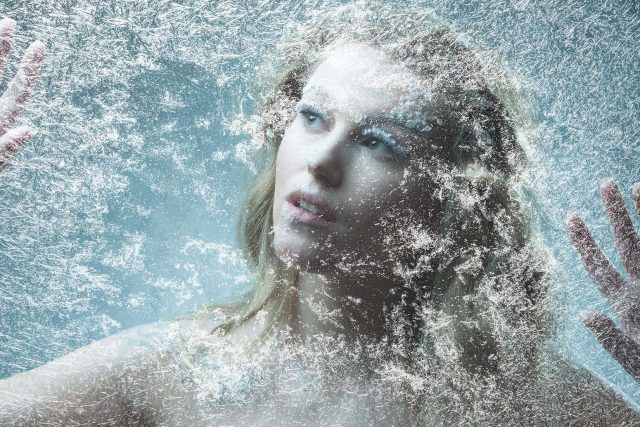
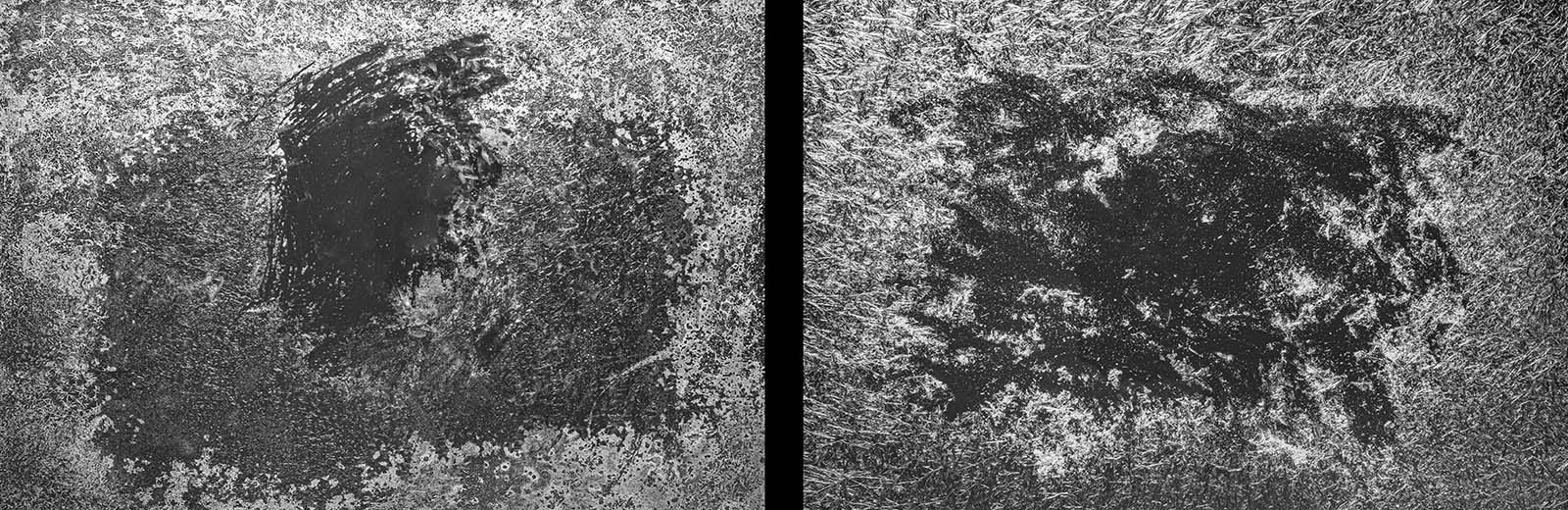
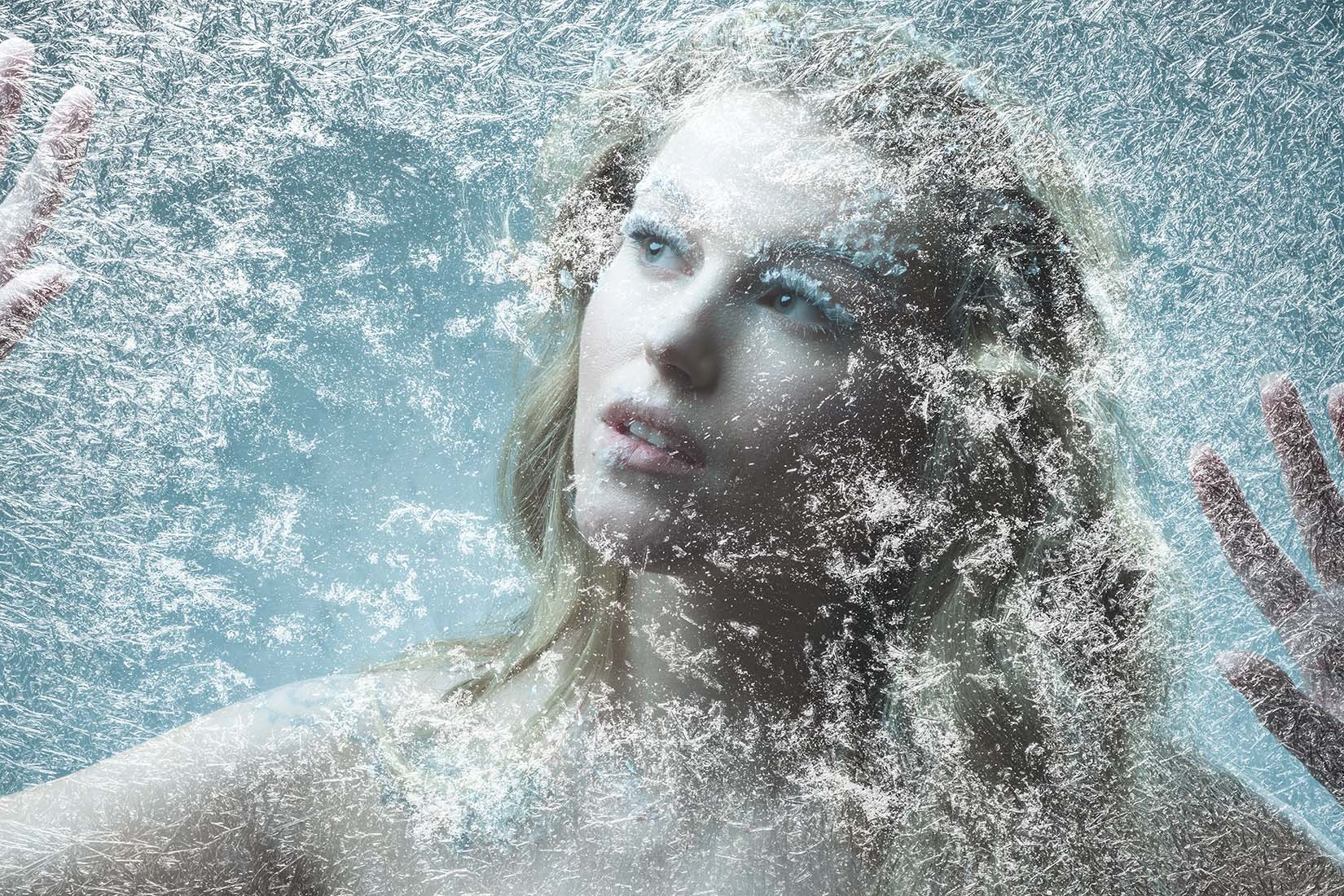
It takes a brave photographer to ask someone to model for them on a cold and frosty day. Luckily I have a solution that’s a lot warmer! For this Friday Freebie I’m giving away two hi-res images of frosty frames which I created for an Adorama TV video.

To use them in Photoshop simply copy and paste them onto your image. Use Edit – Transform – Free Transform to resize and rotate as needed and then change the Layer Blending Mode from Normal to Screen.

Download instructions
       1. Click on the download link below
https://drive.google.com/drive/folders/1_1ZwEvFMmWpc7ZY3voSEaqXHfrlKwEbS?usp=sharing

  1. Click the Download button download_icon (top left on thumbnail)
  2. The download should start automatically
  3. No support is provided. If you need help Google or YouTube the question and you’ll almost certainly find the answer
Instant Snow Flurry – Photoshop Action

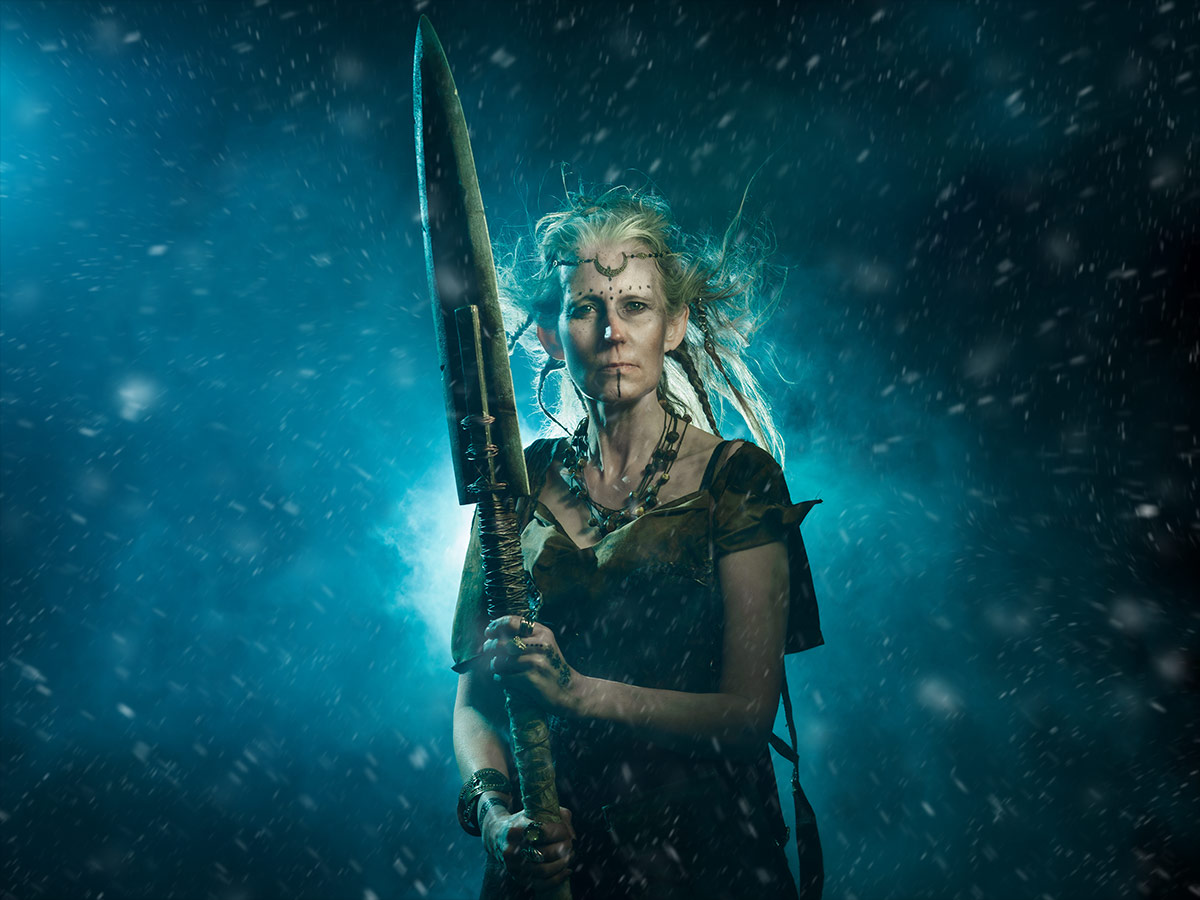
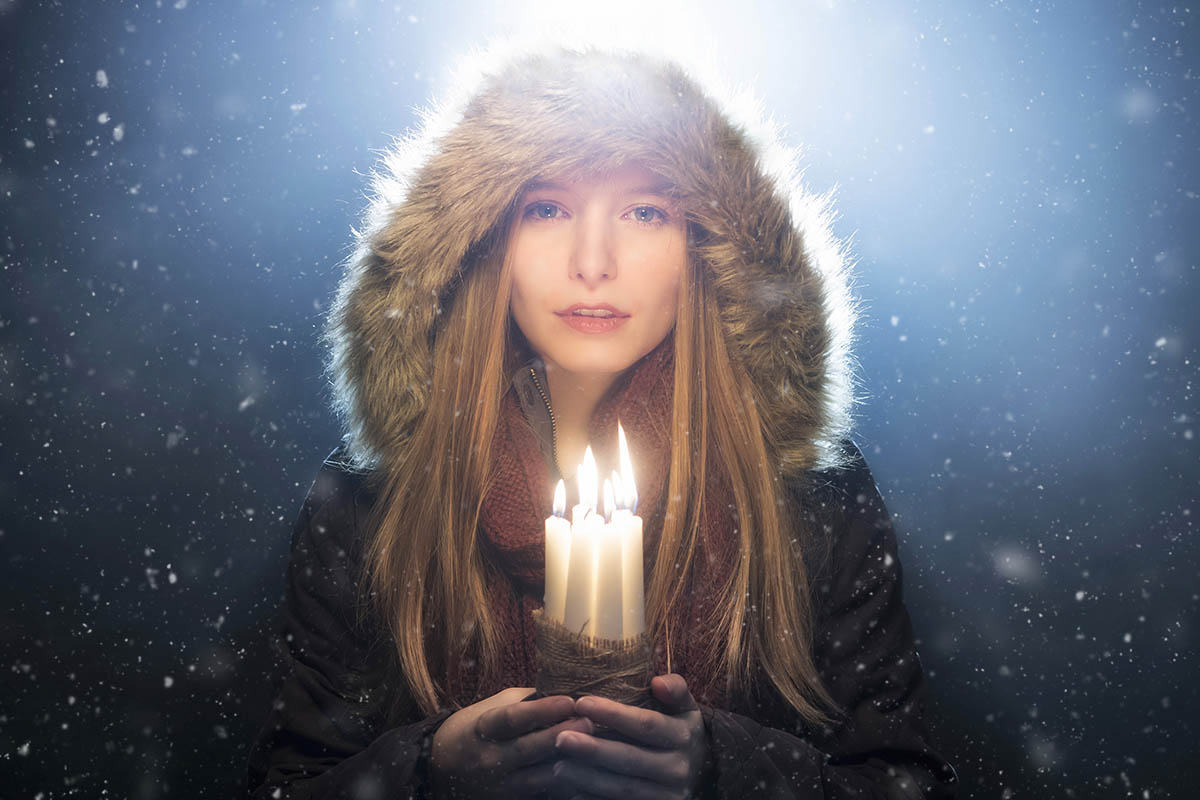
Over the years I’ve made several free instant snow Photoshop actions and they’re still some off the most popular downloads on the site. But they all had one thing in common… they were very static!

So now I’ve updated my Instant Snow V2 Photoshop action to include a little bit of movement and motion blur. Instant Snow flurry uses my tried and trusted random snow generator, so the position of the flakes will always be different and there’s a choice of four different amounts of snow to choose from.

The Photoshop action always makes a copy of your original image and leaves the snow layers intact for you to adjust, colour or copy, paste and re-size over your original image. Of course you don’t have to keep them as snow. With a little bit of re-working it could be snow, dust, embers or any particles you can imagine!

If you create a photo using the Friday Freebie then let me (and everyone else) know by leaving the link in the comments below.

Usage rules
The Photoshop Action is copyright Gavin Hoey 2021. Use is strictly limited to any personal but non-commercial purposes. 
Please share the Friday Freebie by linking back to this page. Do not redistribute the original action without my permission.

Download instructions
     1. Click on the correct download link below (no sign up is needed)
https://drive.google.com/file/d/1YFXWzmX3C-eJiNKd6hvZx9f7GnM5dtr0/view?usp=sharing

  1. Click the Download icon download_icon
  2. The download should start automatically
  3. Unzip the download and install the Photoshop Action
  4. When downloading, you may see a message saying “There was a problem with the network” Just ignore it
  5. No support is provided with the Friday Freebies. If you need help Google or YouTube the question and you’ll almost certainly find the answer
Instant (Overhead) Rain Action

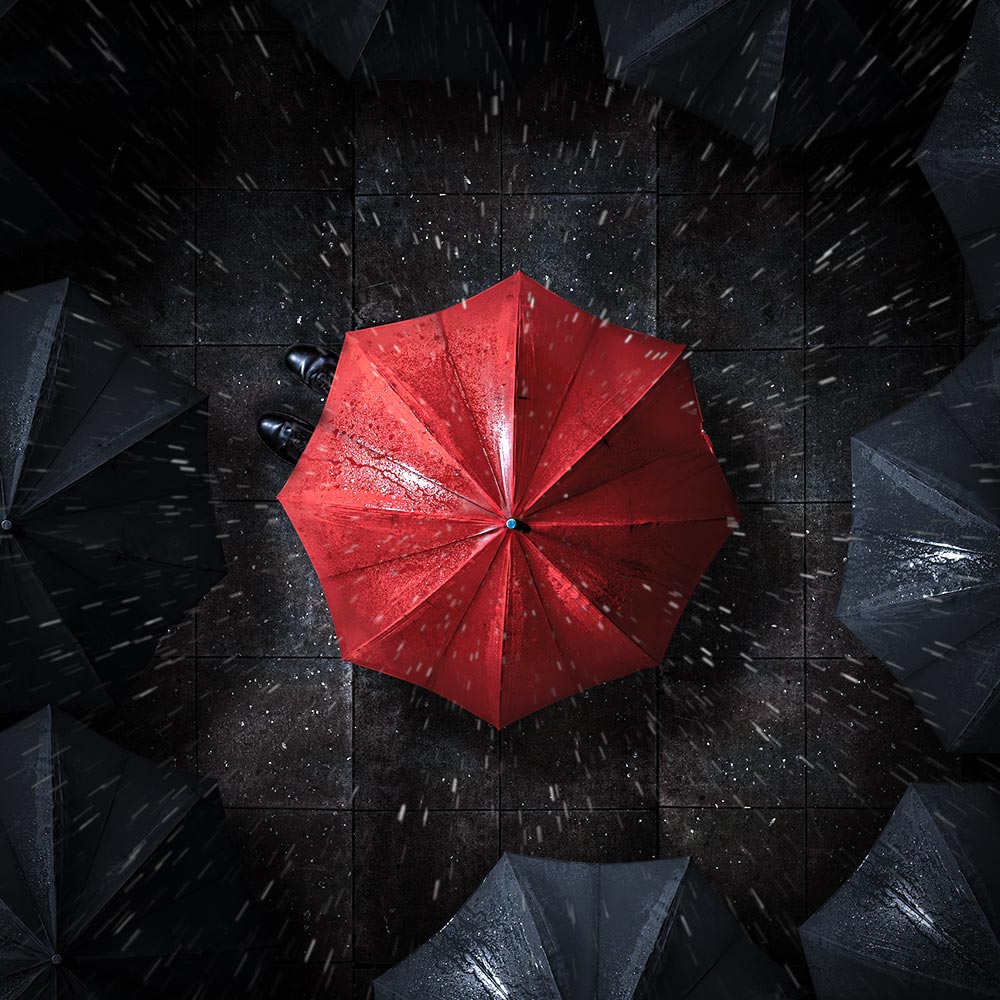
On a recent live stream I created an overhead, rainy day scene in my small home studio. If you missed it, I’ve added the video below. During the stream I added some rain using a Photoshop action and as promised, I’m sharing it here.

The action does a few things you need to be aware of. First it makes a duplicate of your image, so the original is always untouched. The effect is random, so running a few times will give different patterns of rain. I’ve also left the rain as layers, so you can fine tune as needs be and if you need a higher resolution version, you can copy, paste and re-size the rain to your original image.

If you create a photo using my Photoshop action then let me (and everyone else) know by leaving the link in the comments below.

Usage rules
The Photoshop Action is copyright Gavin Hoey 2020. Use is strictly limited to any personal but non-commercial purposes. 
Please share the action by linking back to this page. Do not redistribute the original action without my permission.
No technical support is provided.

Download instructions
     1. Click on the correct download link below (no sign up is needed)
https://drive.google.com/file/d/1wB5LoehRGOSYA1k3WF7suyNi94J3ep_e

  1. Click the Download icon download_icon
  2. The download should start automatically
  3. Unzip the download and install the Photoshop Action
  4. No support is provided with the Photoshop action.
  5. If you need help Google or YouTube the question and you’ll almost certainly find the answer
Tudor Style Flash to Candle Light

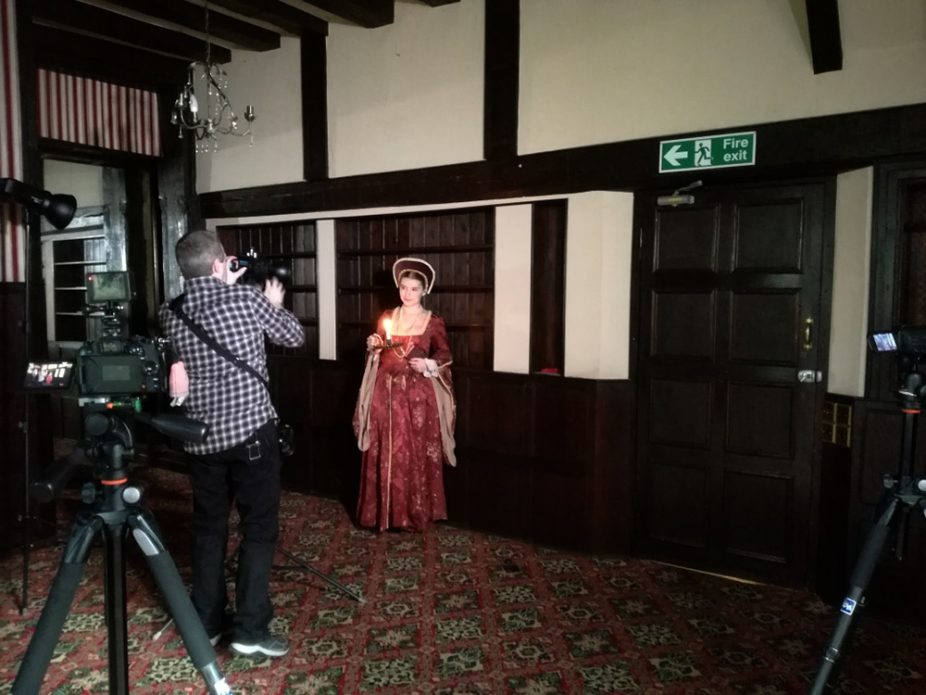
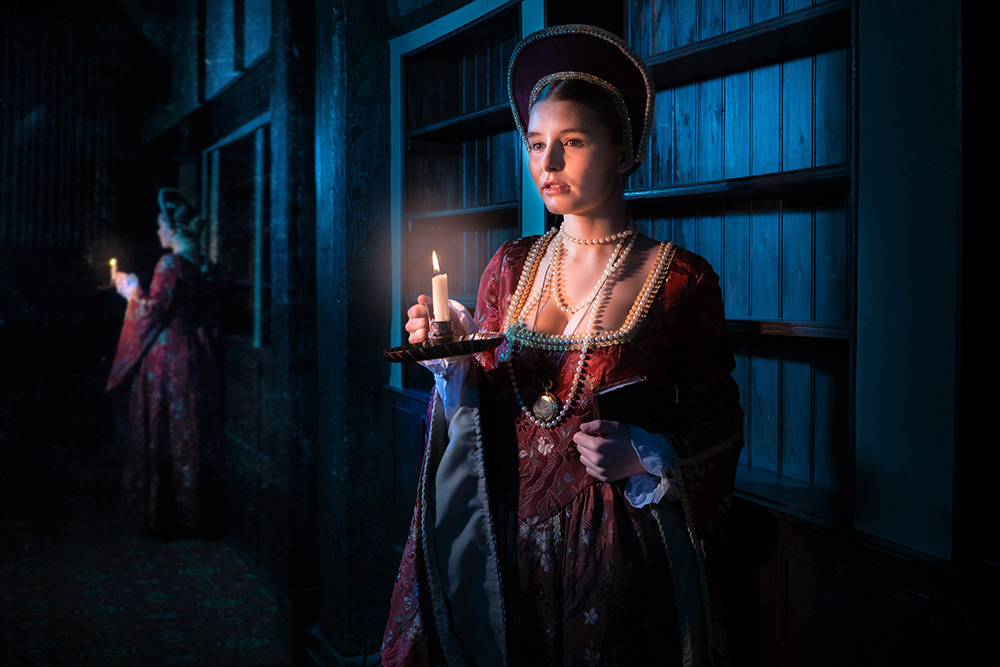
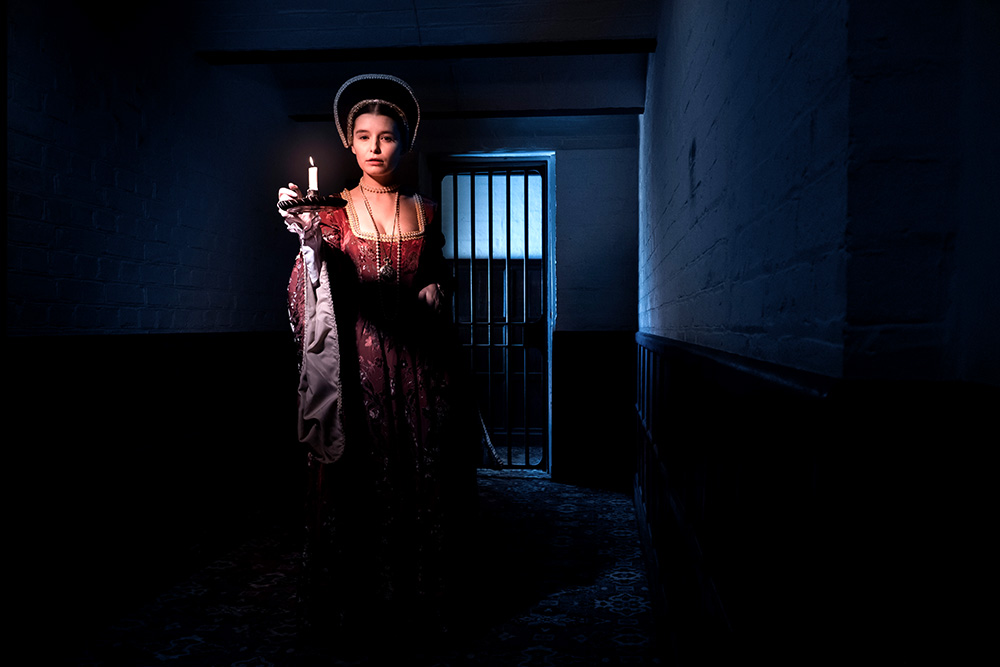
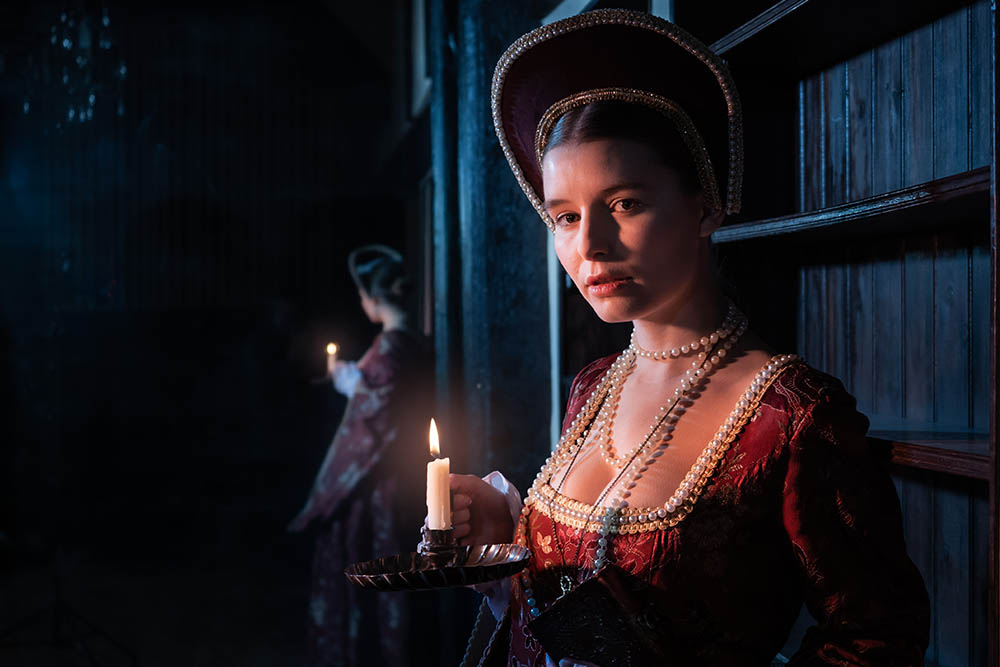
After having a recce at the amazing Rowfant House we knew that a Tudor style theme would work really well.

It also gave me a great excuse to hire a costume from a nearby theatre costume hire place based in the grounds at The Chequer Mead Theatre. The ladies running the place were super helpful and loved the prints I gave them when I returned the outfit.

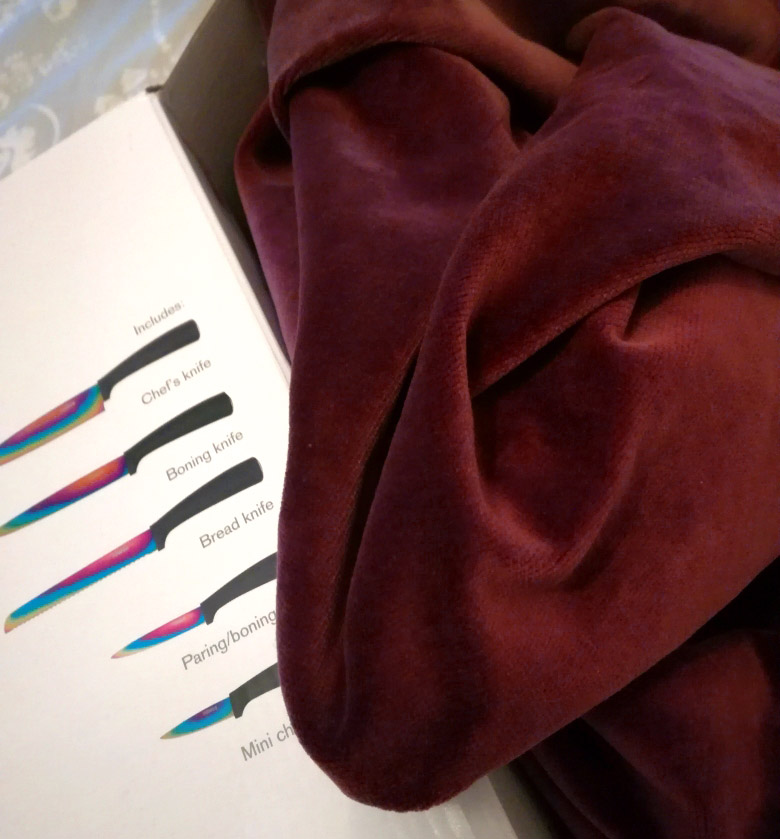
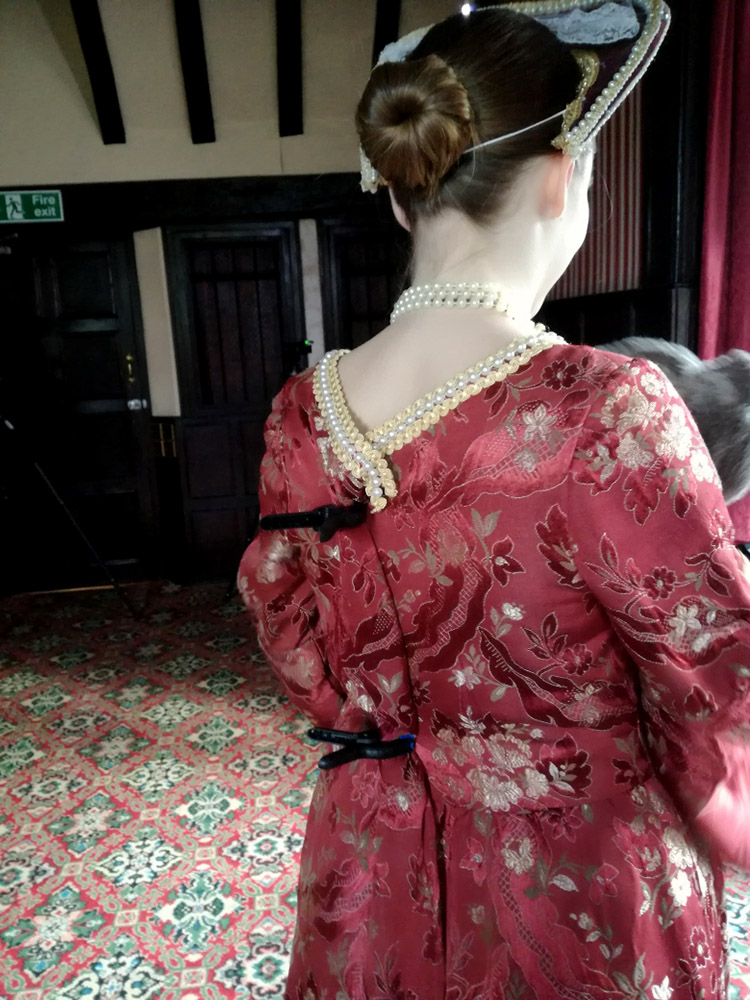
To make the headpiece I used an off cut of velvet fabric and the cardboard box my kitchen knives came in! Adding the lace and pearls really made it look the part, thank goodness for the glue gun! I also added a length of elastic which helped keep a good shape once it was in place.

As you can see it’s not always glamorous to be a model! The dress was far too large so we adjusted the fit using clamps (a studio must have). Our fabulous model Jade is also carrying a hot water bottle (the gray thing she’s holding) as it was very cold inside the manor house. Jade was a trooper and never complained about the cold, bless her.

[youtube]https://www.youtube.com/watch?v=M1MFgB6D2aQ[/youtube]

Festive Stars Template

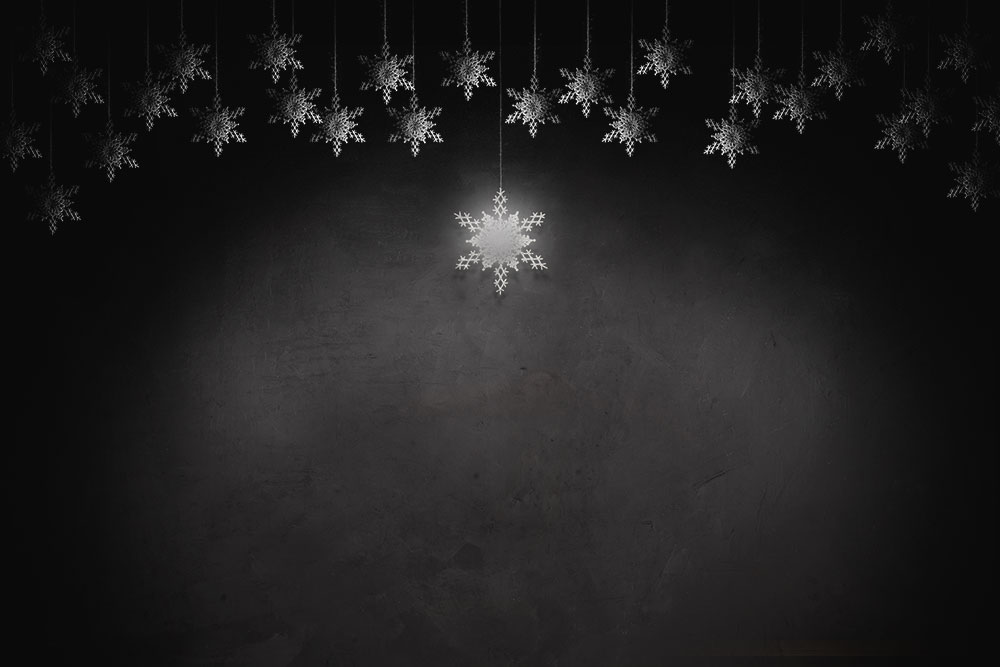
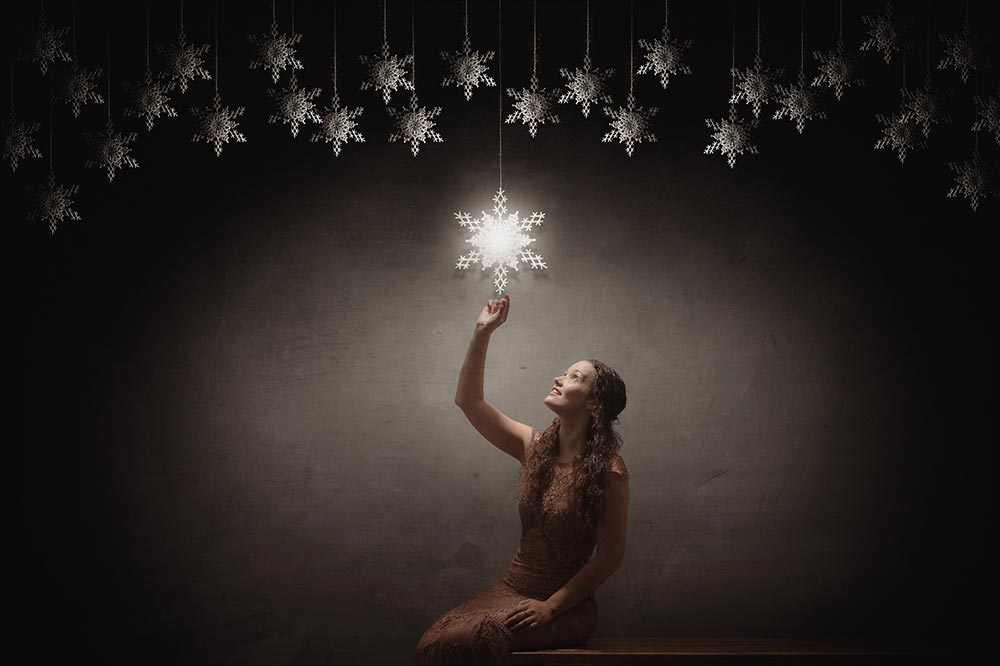
With the festive holidays fast approaching I thought I’d share my festive stars template. My planned use for this is that it will become a background for a fine art portrait but I’m pretty sure there’s plenty of other uses too.

To use this template, download it (see the link below) then open it in Photoshop. The template is made up of a bunch of layers, you need to paste your image into the one called “YOUR PHOTO HERE”. Make sure your photo stretches to the edges of the template and use a layer mask to hide or reveal whatever is under the stars.

You can see how I use it in this video https://www.youtube.com/watch?v=VNVOAJI7Q4w

You can download my festive stars template here
https://adobe.ly/2AY2nvZ

If you create a photo using the Friday Freebie then let me (and everyone else) know by leaving the link in the comments below.

Usage rules
The festive stars template is copyright Gavin Hoey 2018. Use is strictly limited to any personal but non-commercial purposes.
Please share the Friday Freebie by linking back to this page. Do not redistribute the original action without my permission.

Download instructions
     1. Click on the correct download link below (no sign up is needed)
https://adobe.ly/2AY2nvZ

  1. You may see a message saying “There was a problem with the network” Just ignore it
  2. Click the Download icon download_icon The download should start automatically
  3. Open the .PSD file in Photoshop
  4. Paste your photo into the layer “YOUR PHOTO HERE”
  5. No support is provided with the Friday Freebies. If you need help Google or YouTube the question and you’ll almost certainly find the answer
Instant Snow V2

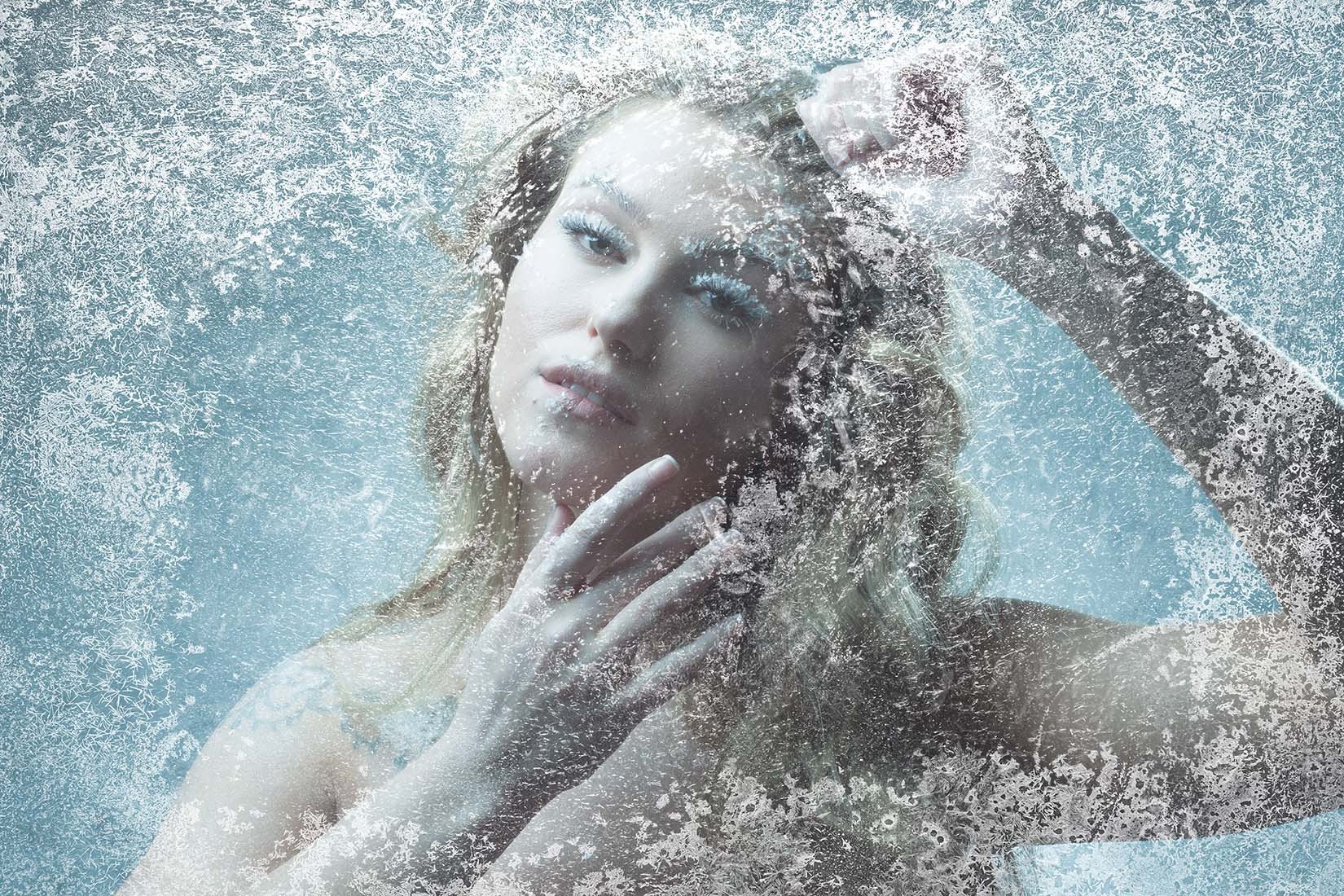
Way back in 2013 I made a simple Photoshop action that made snow. As it turns out it makes REALLY good looking snow and even today it’s regularly in the top three most visited pages of my blog.

The secret to it’s success is down to it’s one click simplicity which runs the action, makes three layers of snow and still keeps your original image intact. The snow it makes can then be tweaked, copied and saved for future use.

Five years on an I felt it was time for a refresh, so here it is. You can download Instant Snow V2 here:
https://drive.google.com/open?id=1s6EUBs5jFwPN-ZnszTTMB11W1ZT9_kuu

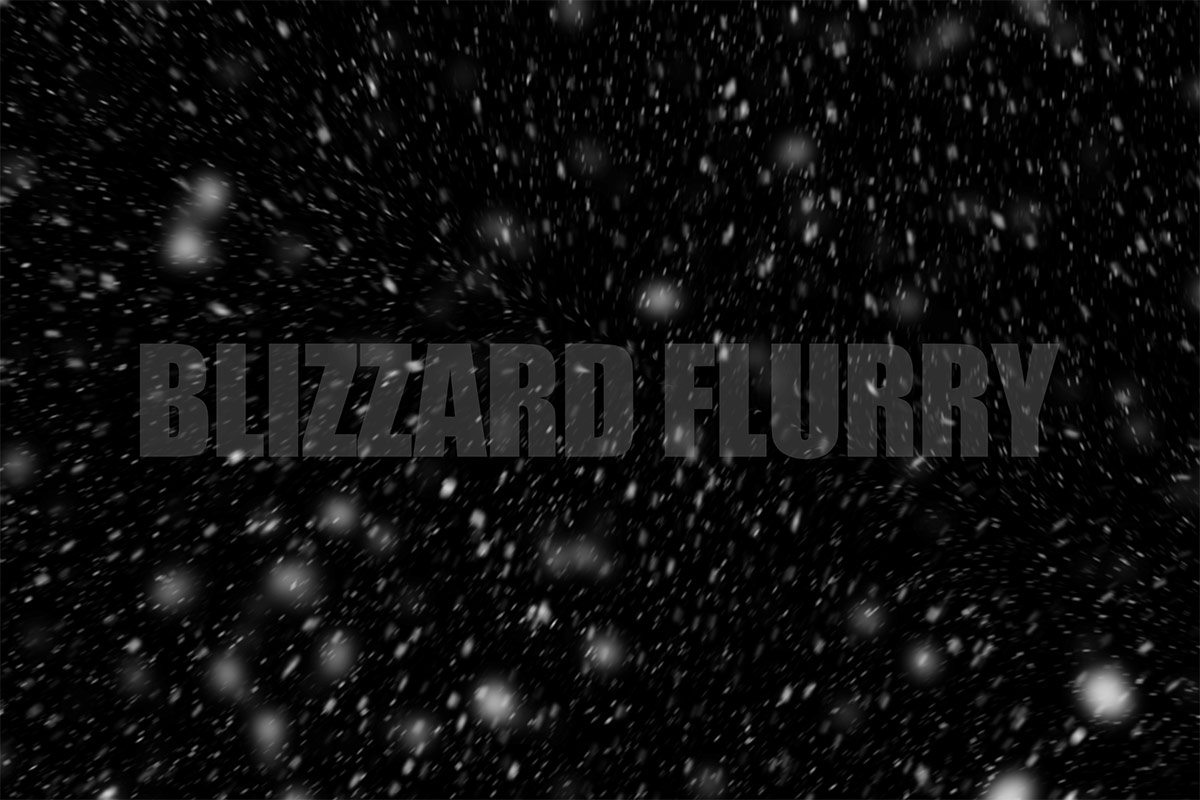
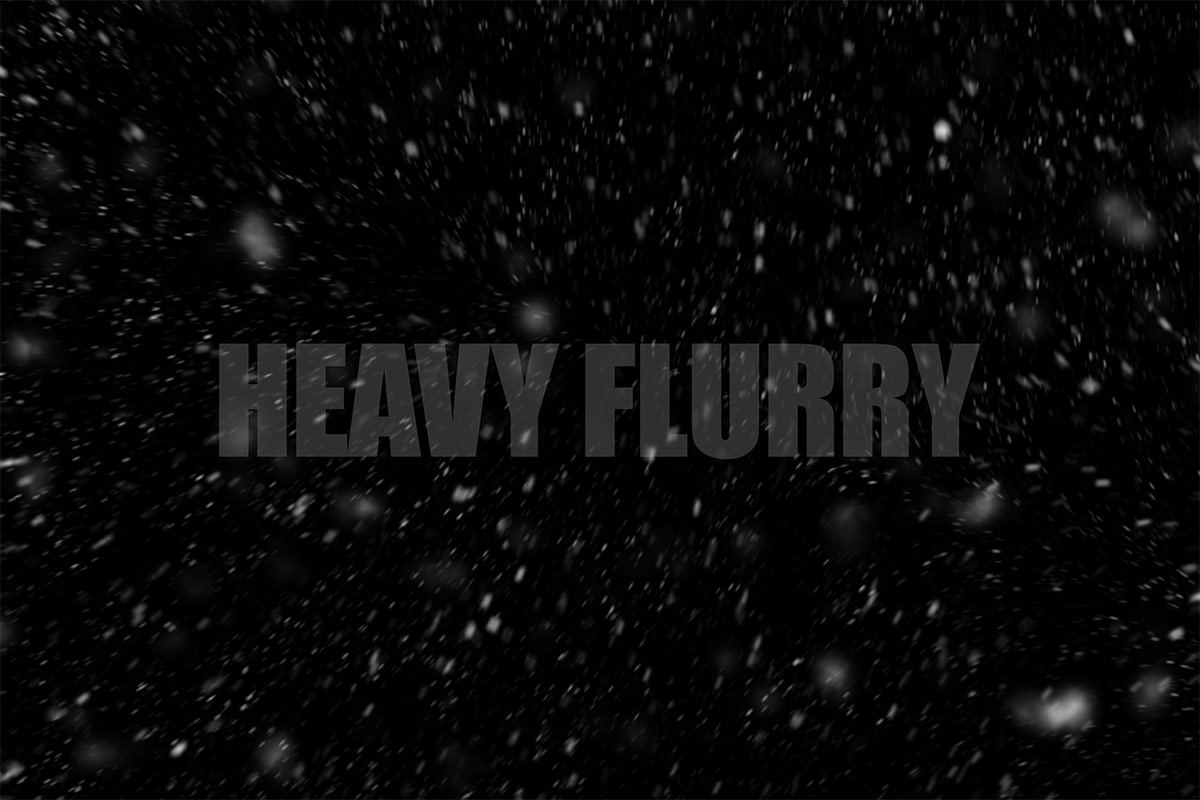
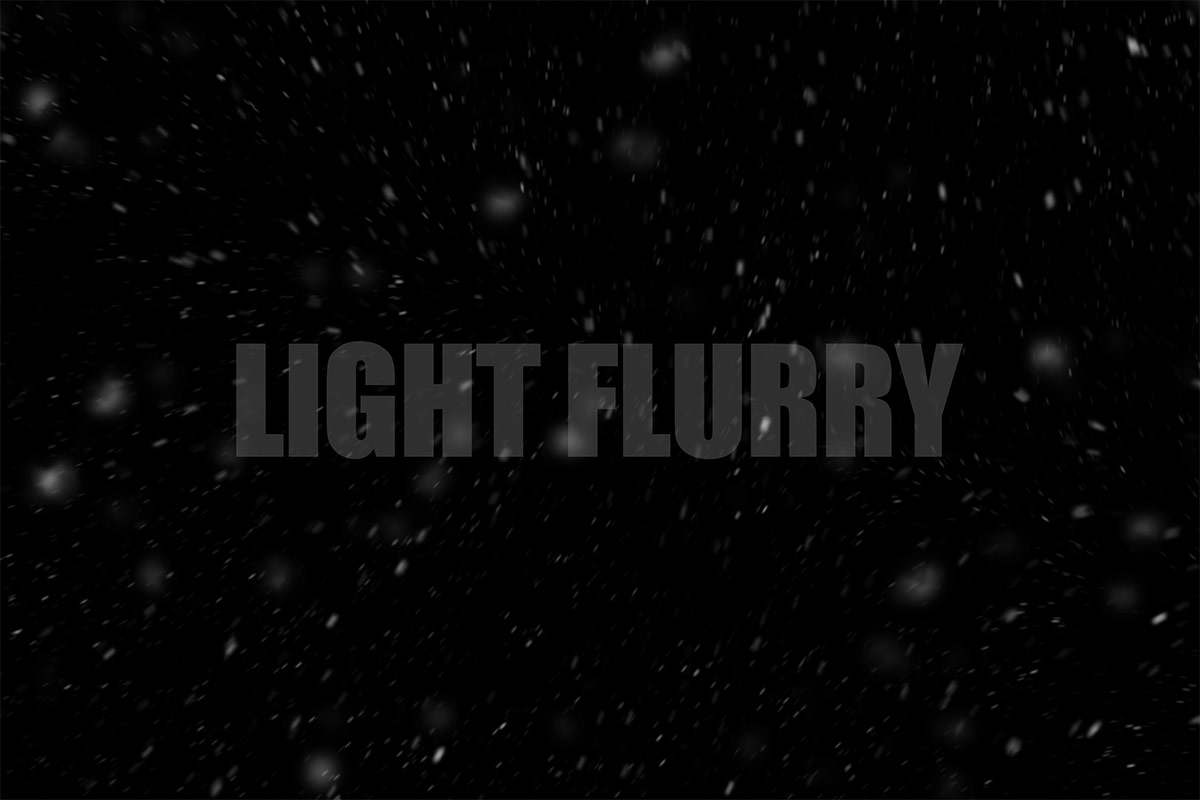
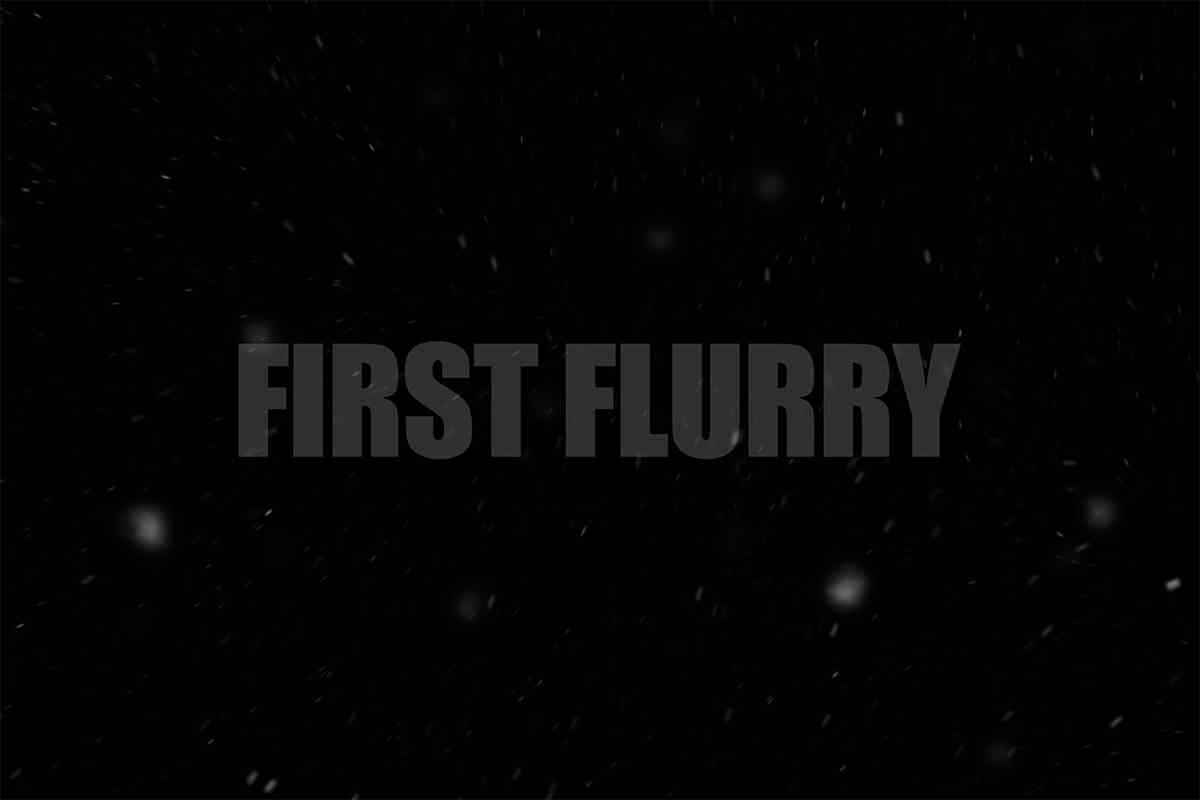
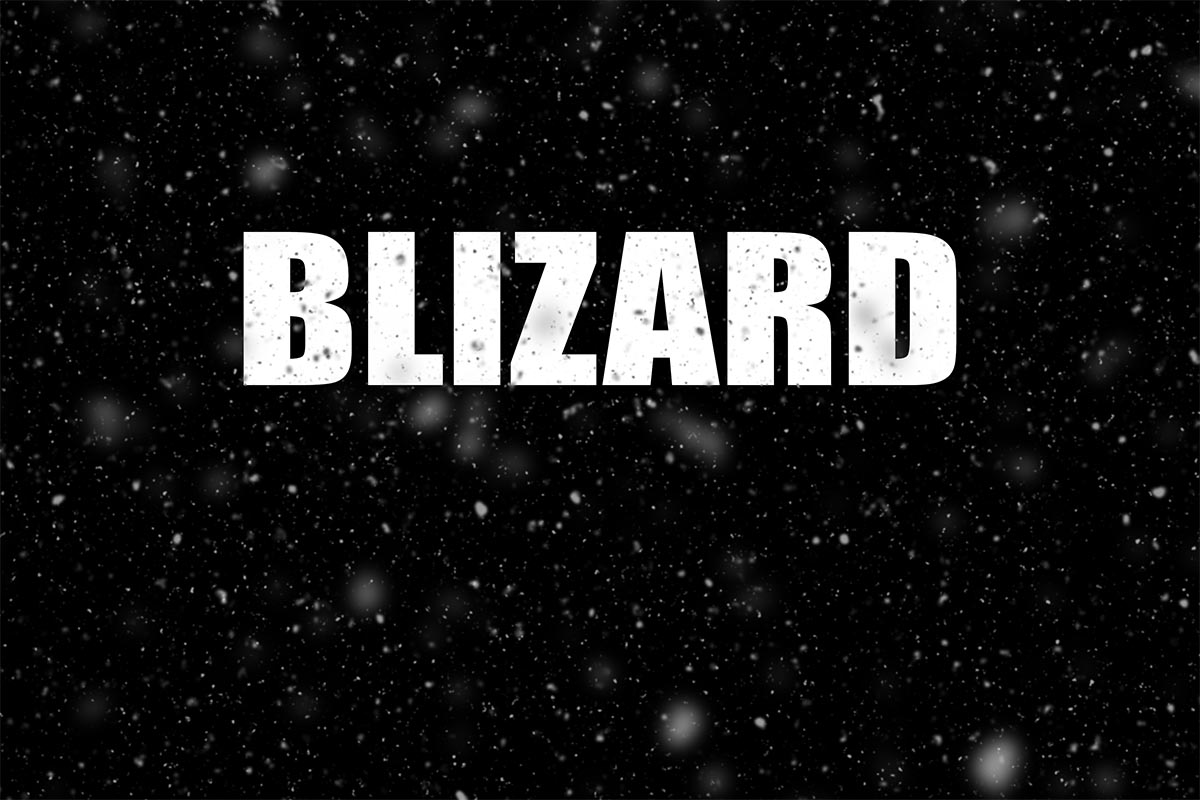
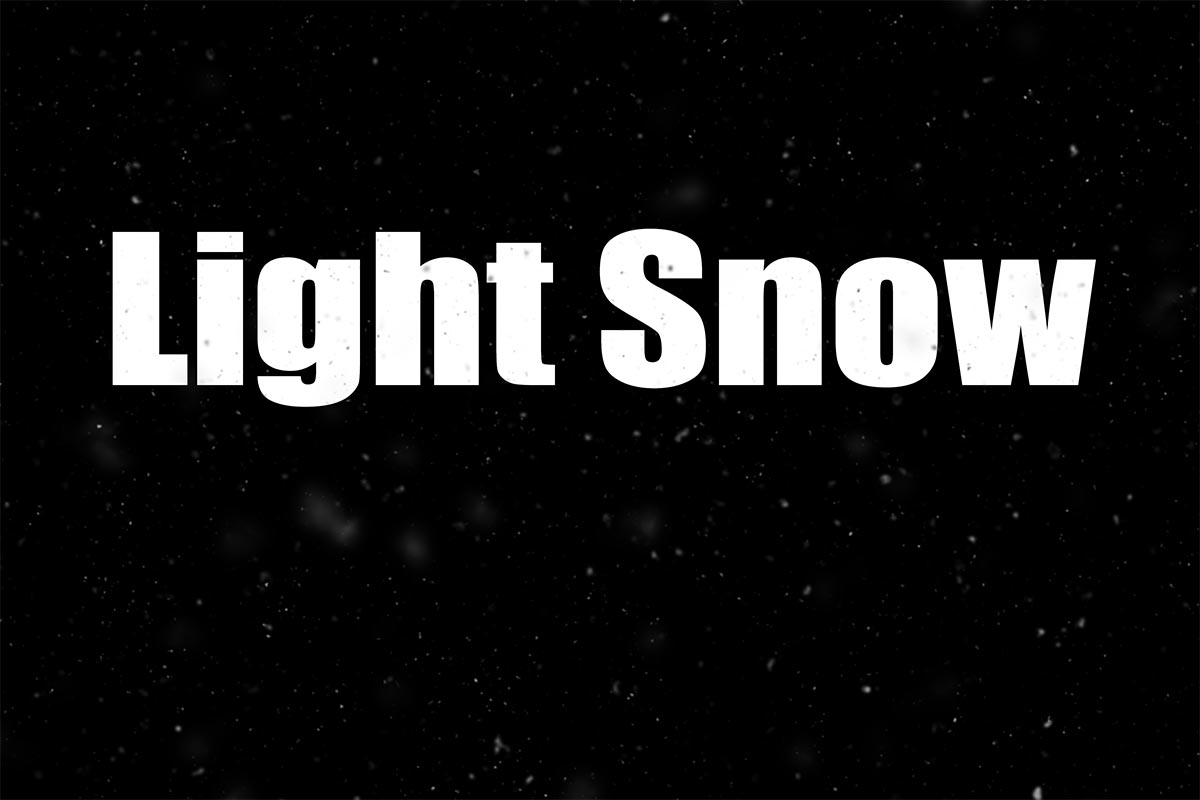
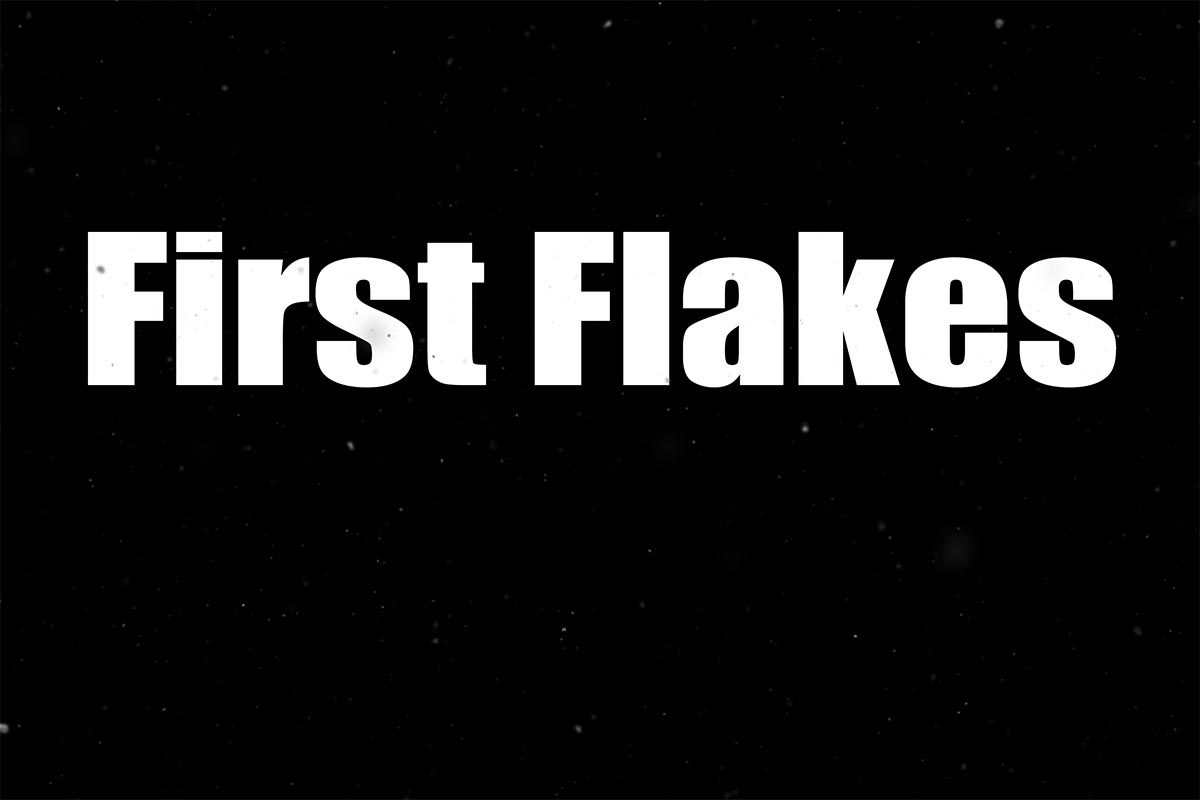
Instant Snow v2 now has four levels of snow effect. Blizzard, Heavy Snow, Light Snow and  First Flakes.

If you create a photo using the Friday Freebie then let me (and everyone else) know by leaving the link in the comments below.

Usage rules
The Photoshop Action is copyright Gavin Hoey 2018. Use is strictly limited to any personal but non-commercial purposes. A commercial license is available.
Please share the Friday Freebie by linking back to this page. Do not redistribute the original action without my permission.

Download instructions
     1. Click on the correct download link below (no sign up is needed)
https://drive.google.com/open?id=1s6EUBs5jFwPN-ZnszTTMB11W1ZT9_kuu

  1. You may see a message saying “There was a problem with the network” Just ignore it
  2. Click the Download icon download_icon
  3. The download should start automatically
  4. Unzip the download and install the Photoshop Action
  5. No support is provided with the Friday Freebies. If you need help Google or YouTube the question and you’ll almost certainly find the answer
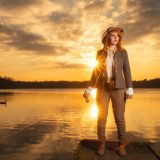
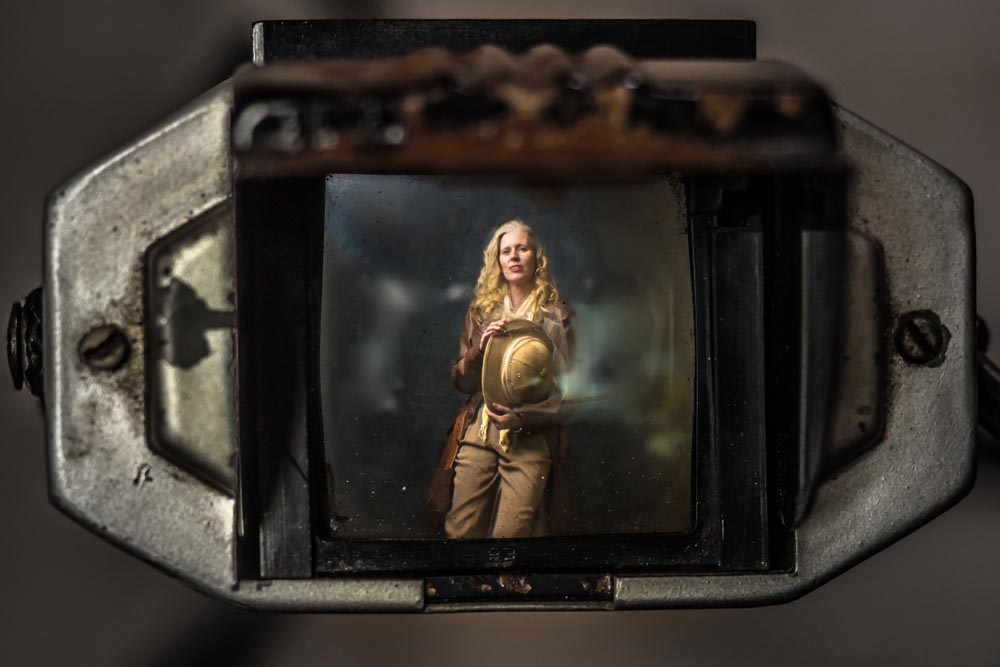
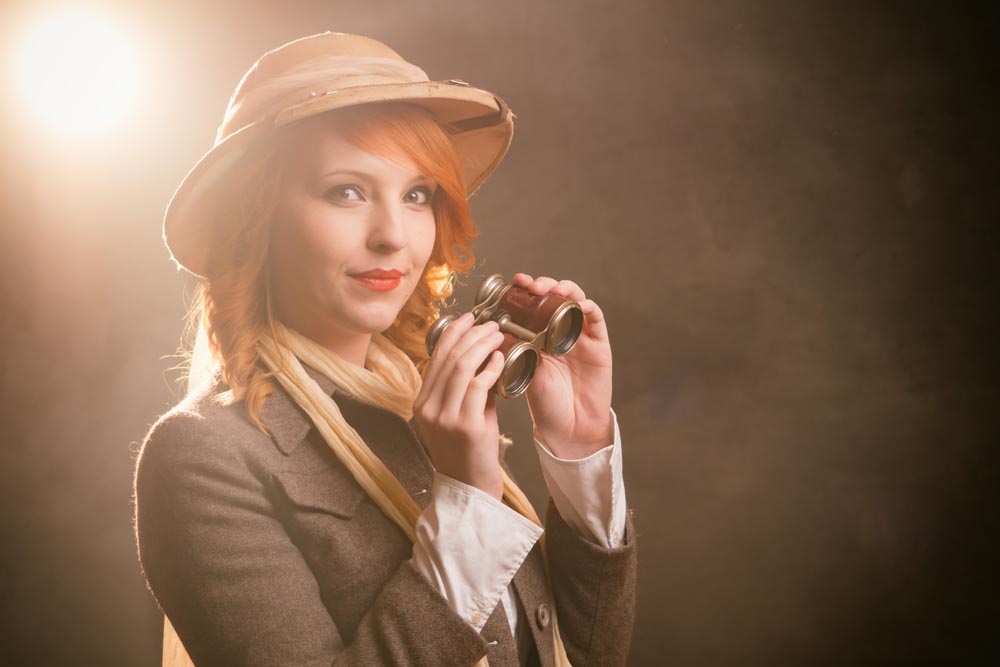
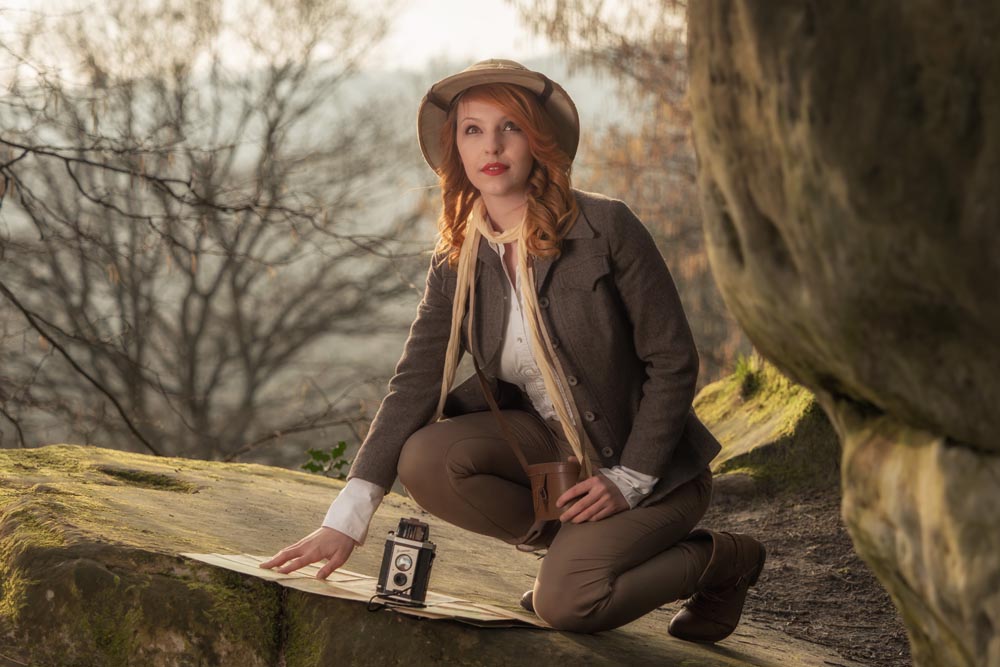
Vintage Explorer – Plan It, Shoot It, Edit
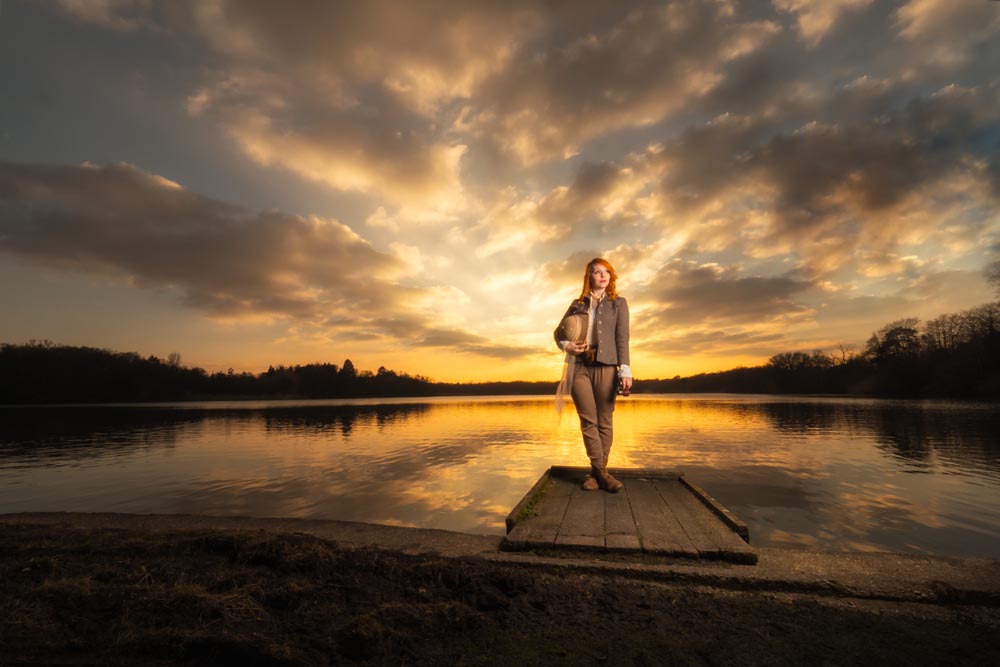
This is the first of a new series where I take you behind the scenes on one of my shoots. You get to come along for the ride as I plan the shoot, do the shoot and edit the photos.

The theme for the first “Plan It, Shoot It, Edit” is Vintage Explorer.

Plan It
It all starts with an idea, then there’s the preparation and planning. A location has to be found, props need making and finally there’s a test shoot to do. Of course not everything goes to plan, as you’ll see.

[youtube]https://www.youtube.com/watch?v=ri5f29WqWqs[/youtube]

Shoot It
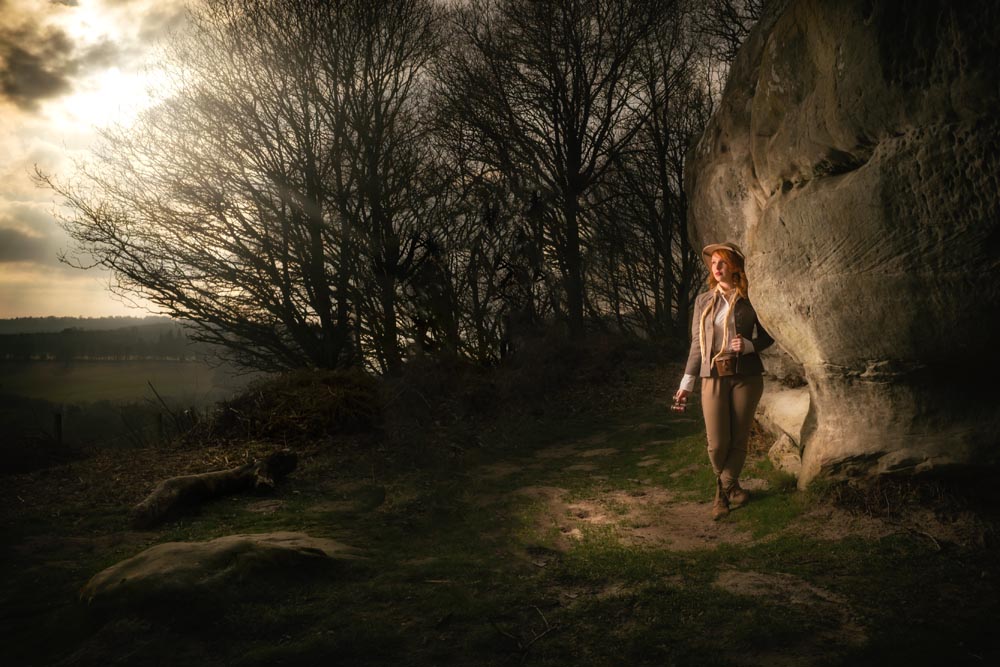
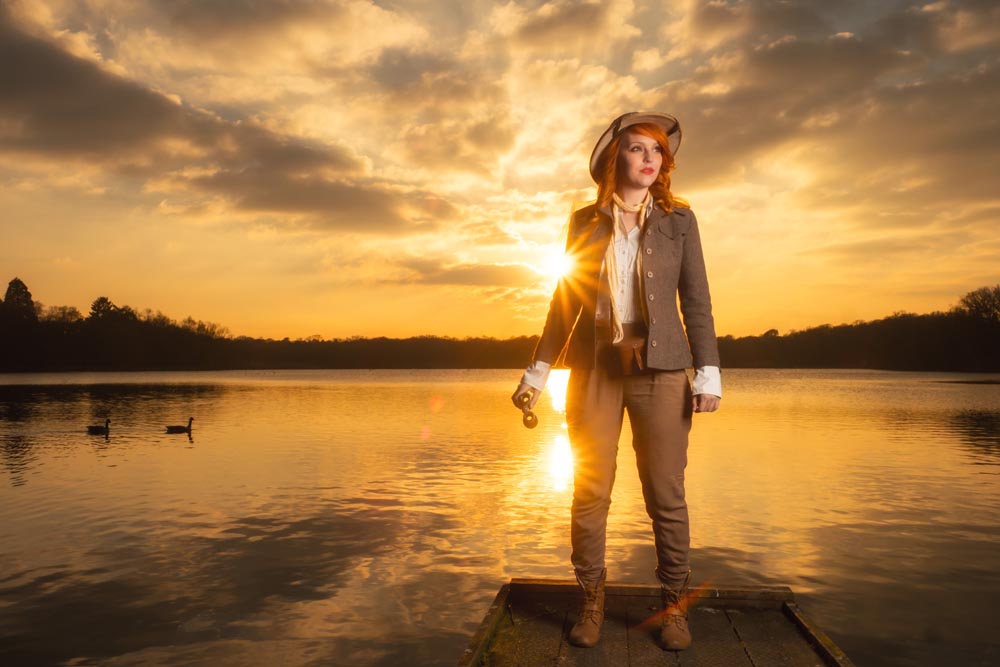
Now for the fun bit… the shoot itself. The weather was cold, so I decided to get some banker shots in my studio before heading out on location. Sometimes you just get lucky and on the way home I stop off to shoot against a spectacular sunset.

[youtube]https://www.youtube.com/watch?v=3dNqKYBZNus[/youtube]

Edit
Here’s where the photos come alive. Adding colour and contrast is all that most of the shots needed but if you want to shoot wide shots and light the model with a softbox, there’s bound to be a bit of Photoshop needed.

[youtube]https://www.youtube.com/watch?v=2onA5CUF2uk[/youtube]