Colourful Background Projection Image

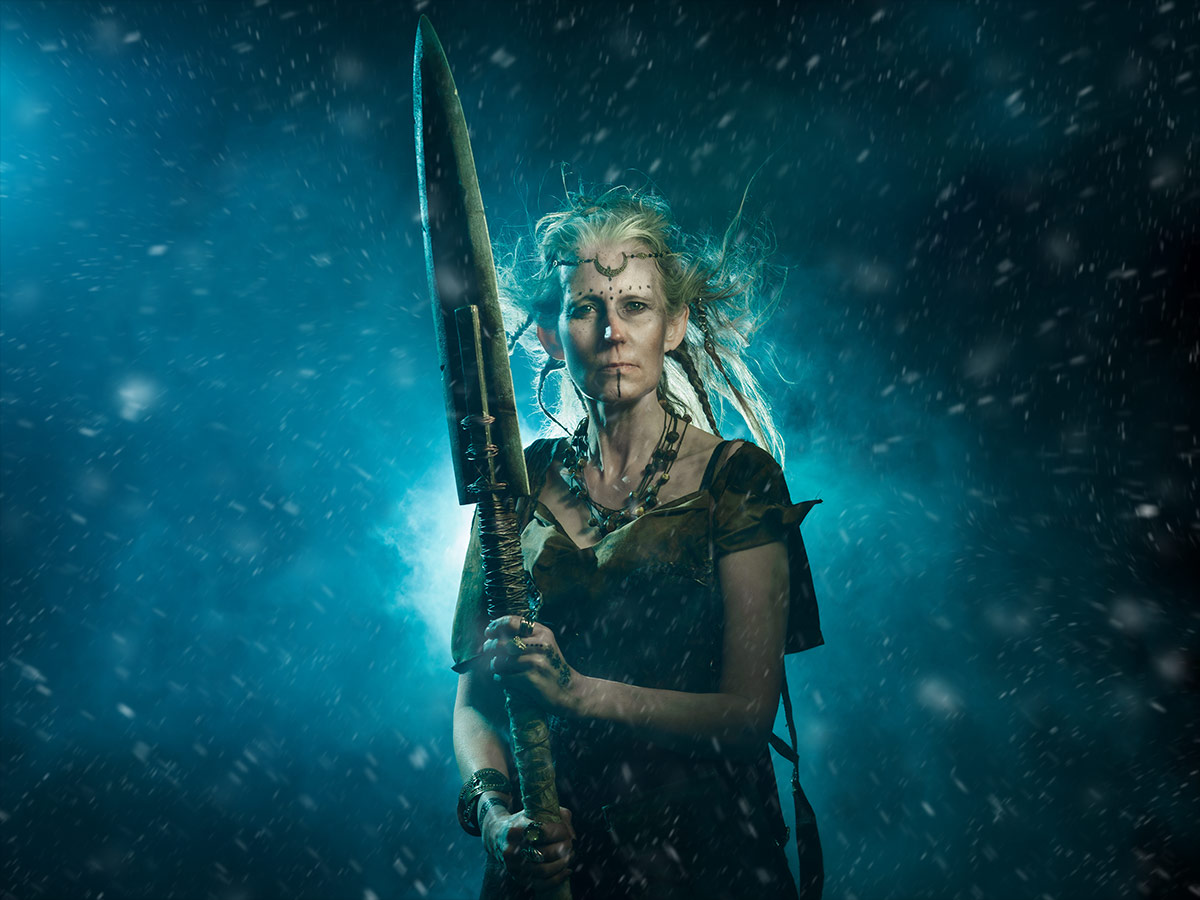
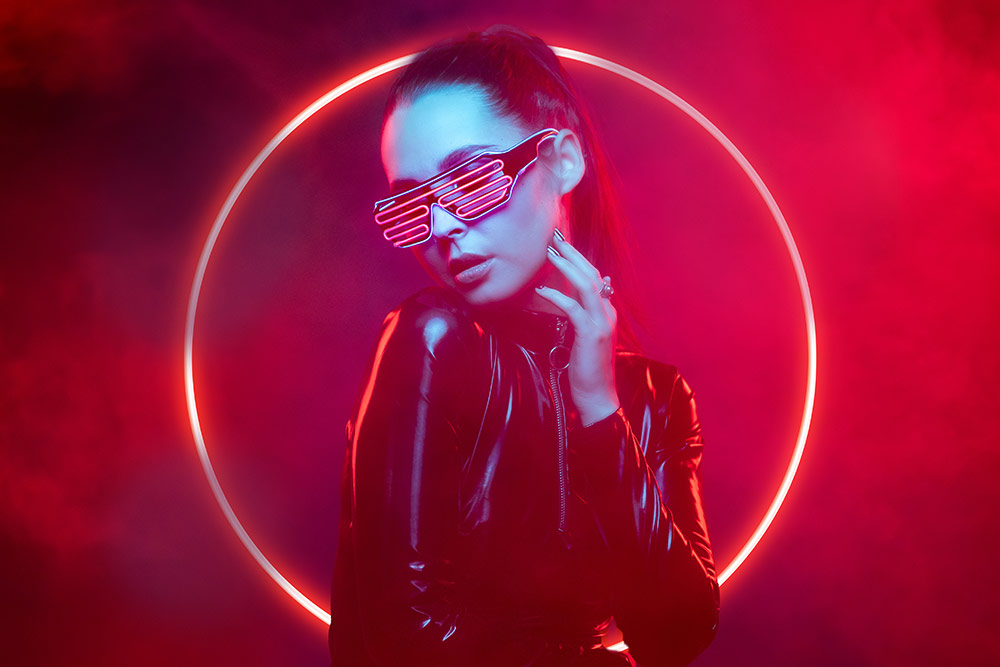
Back projecting an image through smoke is a classic technique that looks amazing with the right image.

So here’s one to start your collection off. It’s colourful and it’s hi-res which makes it zoomable. You’ll need a data projector to make the image above and lots and lots of haze!

Download instructions
       1. Click on the download link below
https://drive.google.com/file/d/142uTIw1ObSo60wcPVunSdrSfDLc50_jc

  1. Click the Download button download_icon (top right of the screen)
  2. The download should start automatically
  3. Download the image
  4. No support is provided. If you need help Google or YouTube the question and you’ll almost certainly find the answer


Instant Light Rays – Photoshop Action

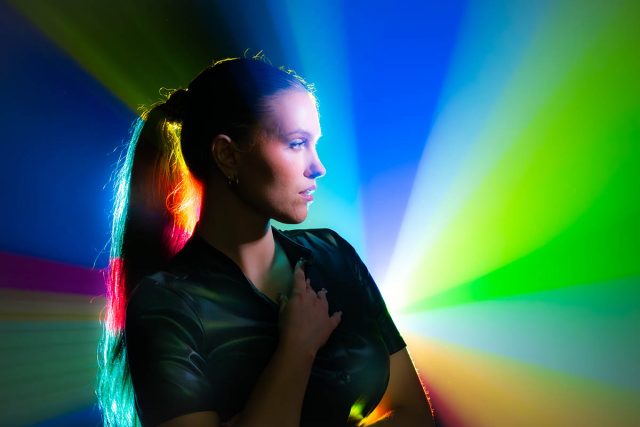
If you need a selection of rays of light for next Photoshop project and you need them in just one click, then this set of 10 Photoshop actions is for you… and yes, they’re 100% free!

The action does a few things you need to be aware of. First, your original image is always untouched. The action creates a duplicate of your image and flattens any layers on the new (duplicate) image before creating the light rays. Your original image is ALWAYS untouched!

Need more rays? Run the action again. The rays can be altered in position, size, opacity and colour

Download instructions
       1. Click on the download link below
https://drive.google.com/file/d/199eklVMe6OZVo4IzATrzkG0Hm_g5-yIo

  1. Click the Download button download_icon (top right of the screen)
  2. The download should start automatically
  3. Unzip the download and install the Photoshop Action
  4. No support is provided. If you need help Google or YouTube the question and you’ll almost certainly find the answer

Instant Cinder Photoshop Action

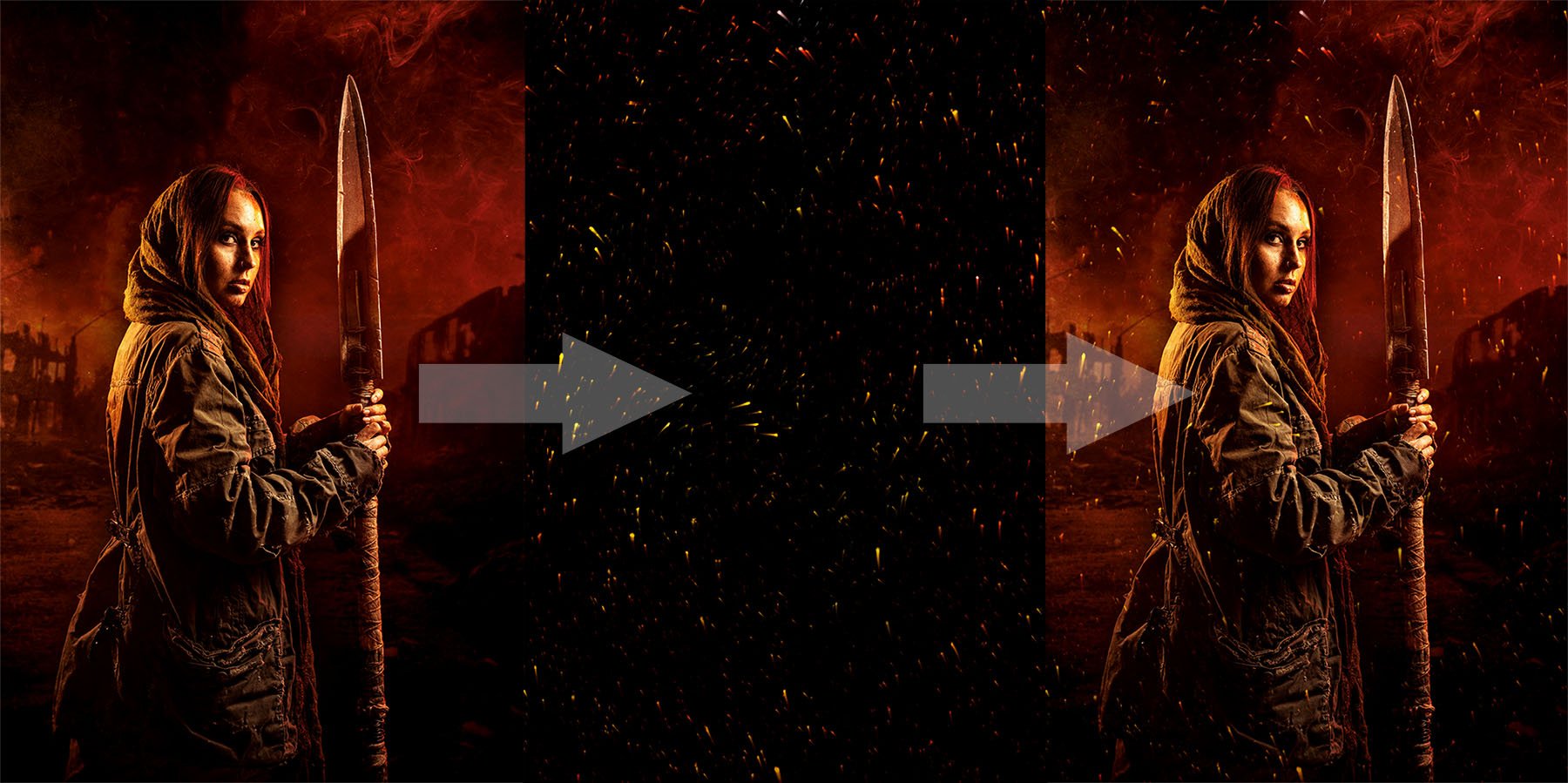
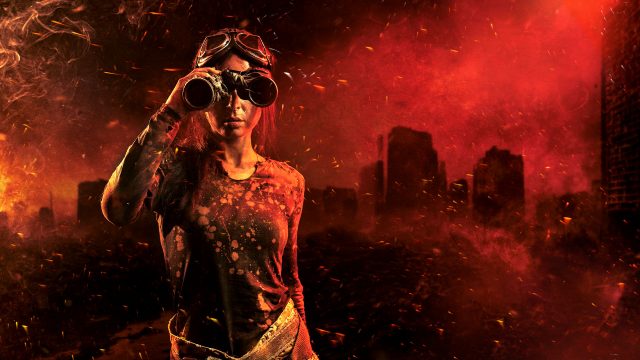
Hot embers floating through the air look beautiful and when you get the chance you should grab a photo. But if you want the look of hot embers without the need to rummage through you old photos, my Instant Cinder Fluffy action  (which I created for an Adorama TV Halloween themed video) does a great job. 

Instant-Cinders-Example

Image 1 of 1

The action does a few things you need to be aware of. First, your original image is always untouched. The effect is random, so running it a few times will give different patterns of embers. You’ll need to copy, paste and re-size the embers to fit your original image. Set the layer blending mode to “Screen” and adjust the layer opacity to taste.

Download instructions
       1. Click on the download link below
https://drive.google.com/file/d/1YX4F-4k8bT4nVEoifLbUG6HqUSt3Z2jZ

  1. Click the Download button download_icon (top right of the screen)
  2. The download should start automatically
  3. Unzip the download and install the Photoshop Action
  4. No support is provided. If you need help Google or YouTube the question and you’ll almost certainly find the answer

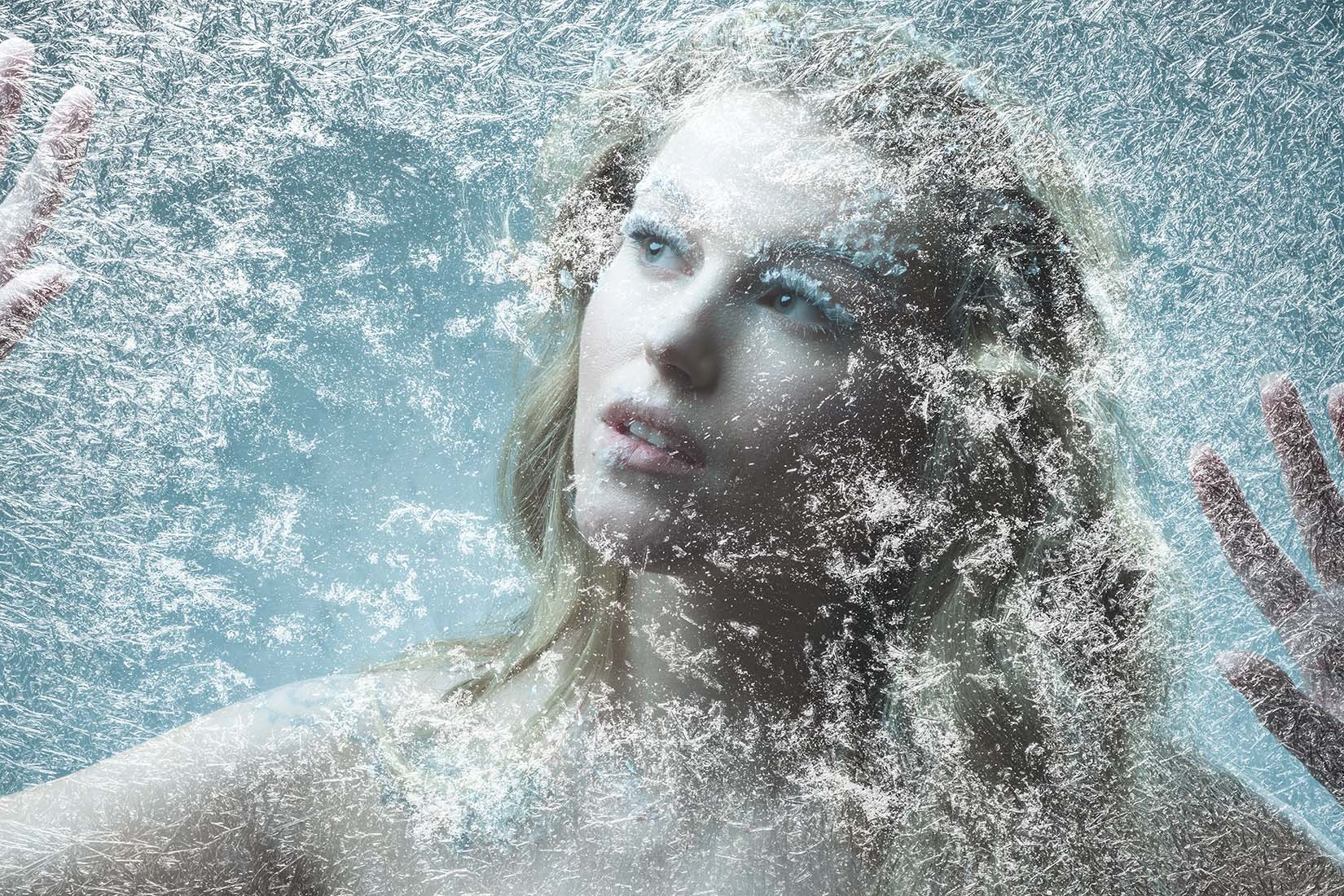
Frosty Frames

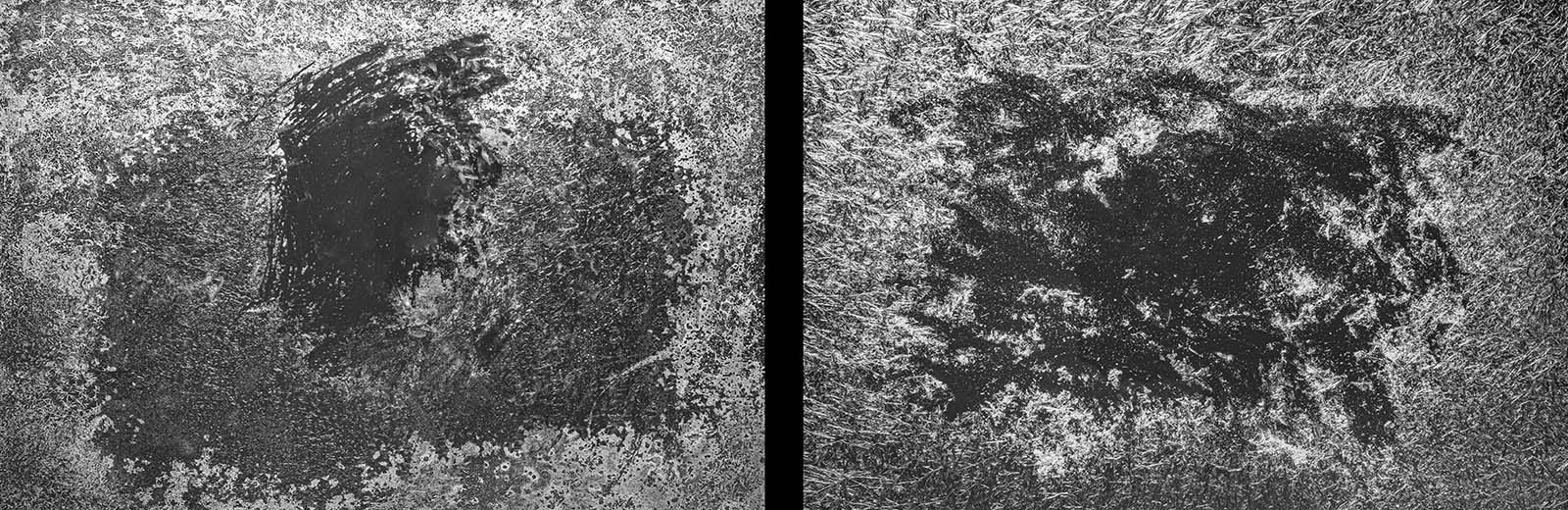
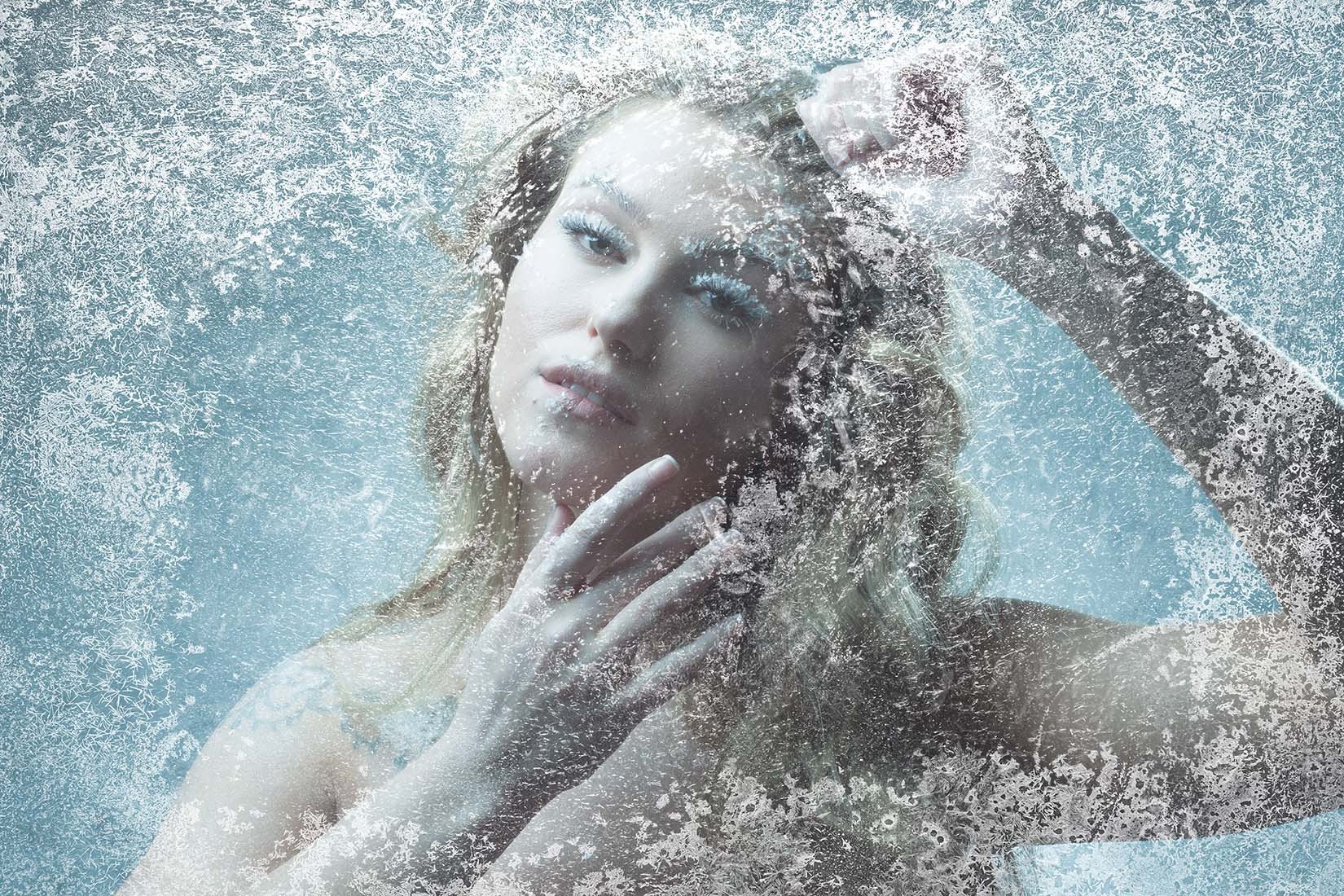
It takes a brave photographer to ask someone to model for them on a cold and frosty day. Luckily I have a solution that’s a lot warmer! For this Friday Freebie I’m giving away two hi-res images of frosty frames which I created for an Adorama TV video.

To use them in Photoshop simply copy and paste them onto your image. Use Edit – Transform – Free Transform to resize and rotate as needed and then change the Layer Blending Mode from Normal to Screen.

Download instructions
       1. Click on the download link below
https://drive.google.com/drive/folders/1_1ZwEvFMmWpc7ZY3voSEaqXHfrlKwEbS?usp=sharing

  1. Click the Download button download_icon (top left on thumbnail)
  2. The download should start automatically
  3. No support is provided. If you need help Google or YouTube the question and you’ll almost certainly find the answer

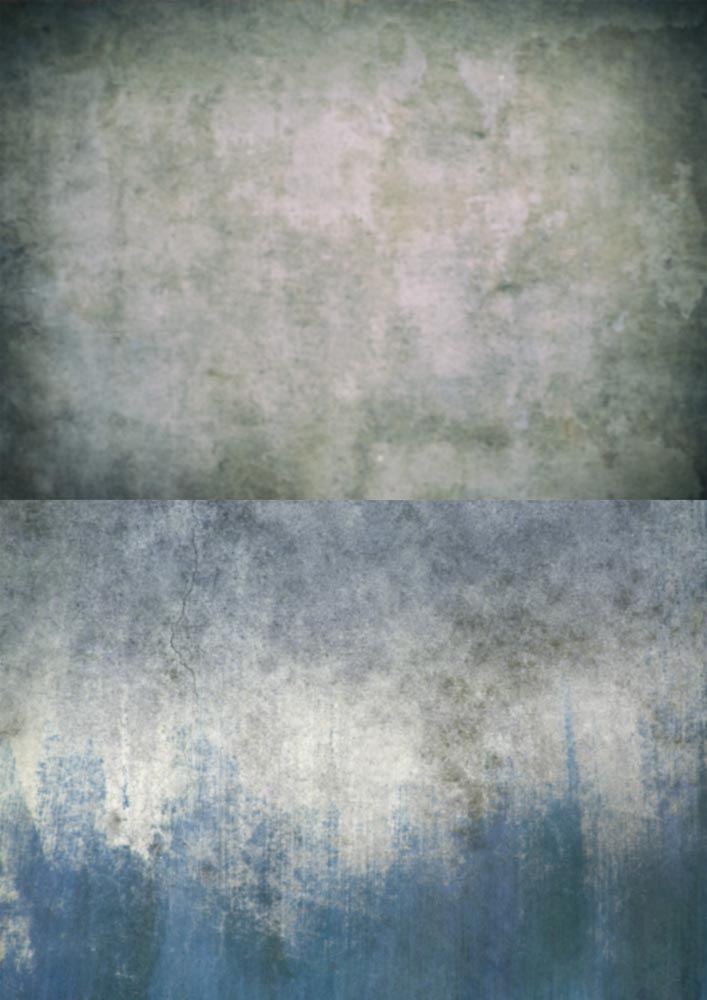
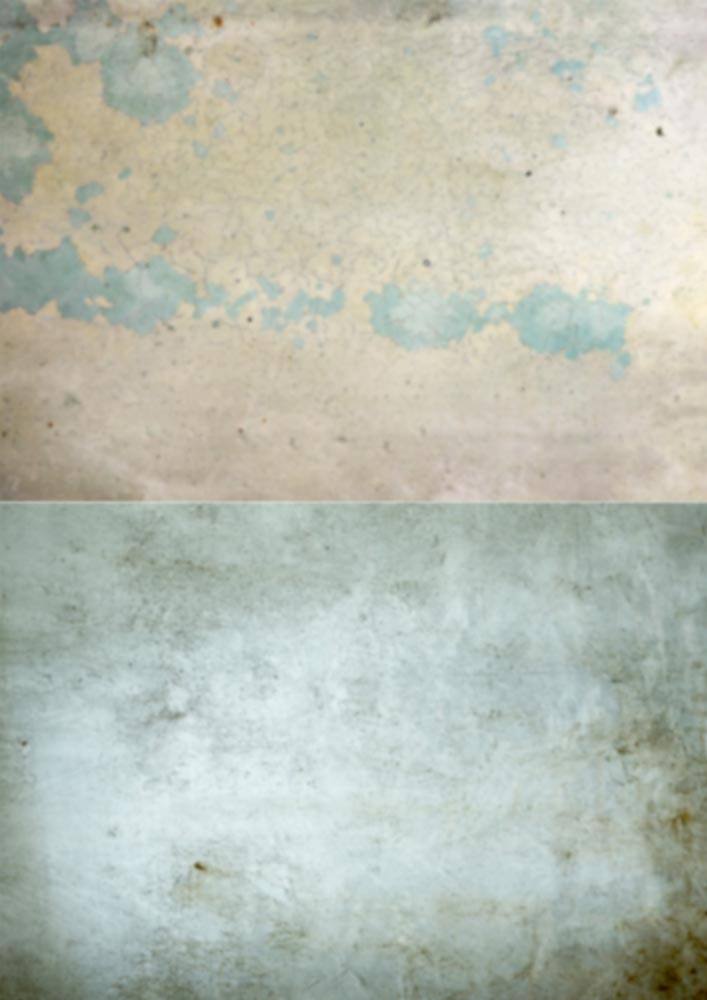
Textured Backgrounds For Flower Portraits

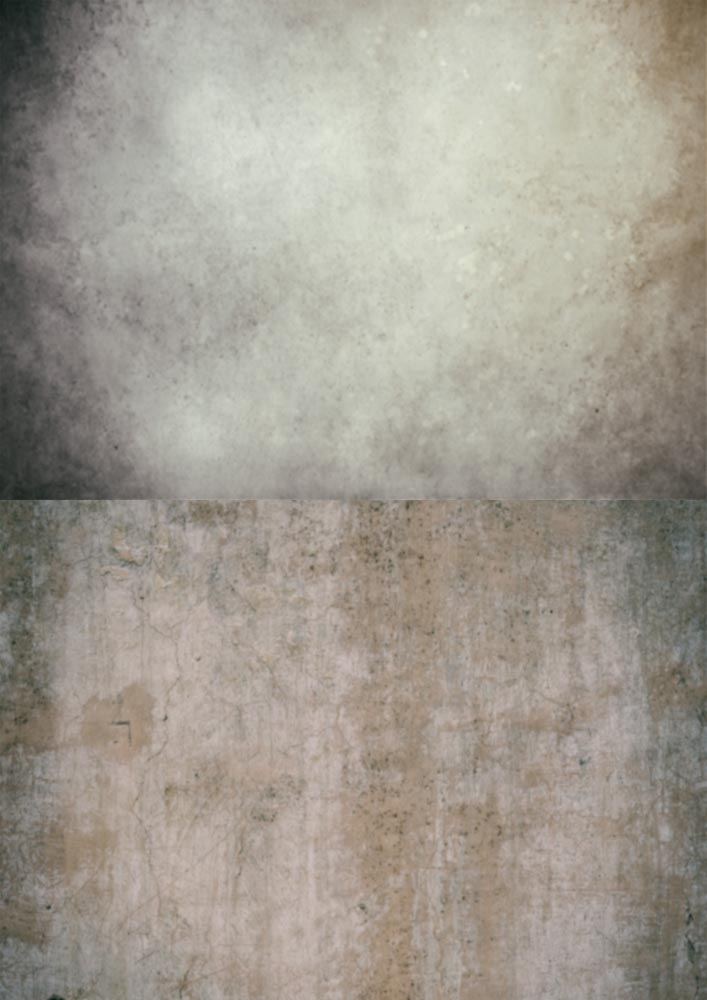
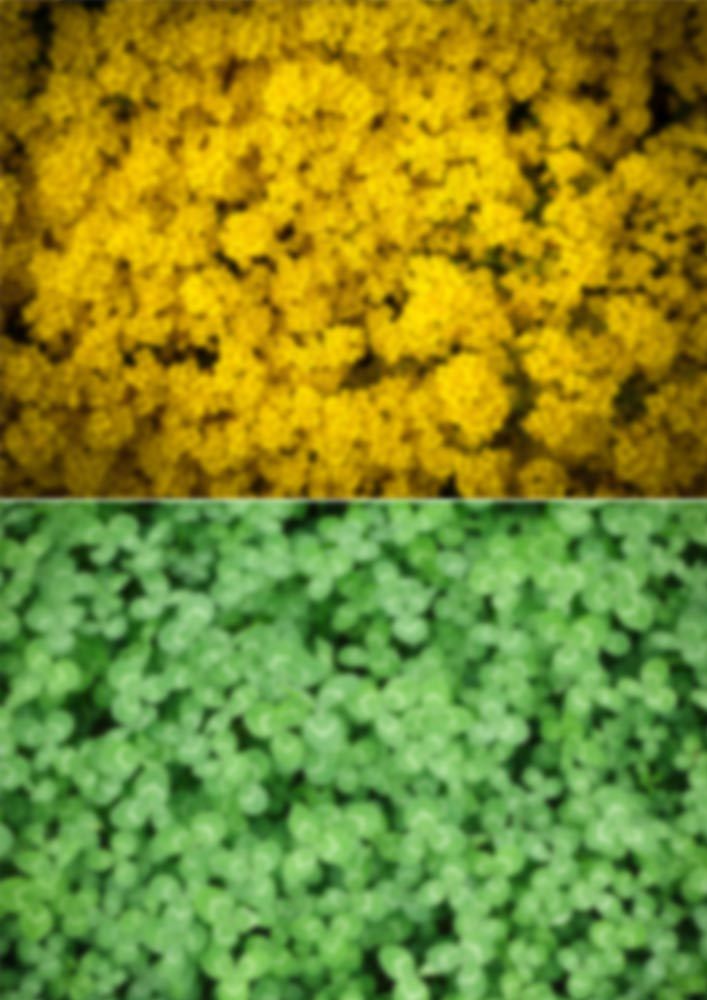
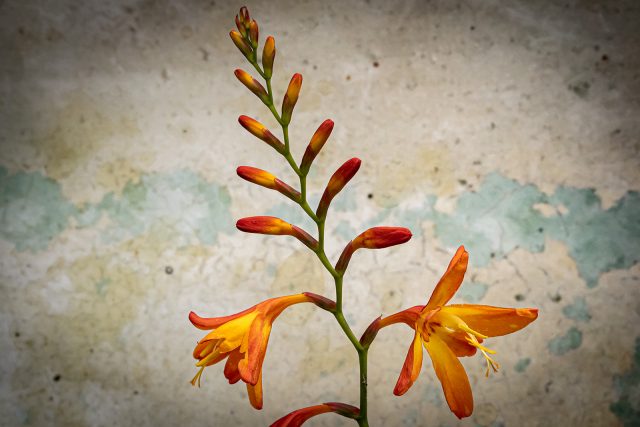
Backgrounds can make or break any photo. But if flowers and plants are your subject matter you’re somewhat stuck with the background that you find. That’s where these textures and patterns come in.

They’re pre-blurred for an instant depth of field effect. Simply print them out (they’re already sized for A4) on matte photo paper and pop one in behind your flower for an instant new background. I’ve sized these from small, single blooms, so that’s two backgrounds per A4 sheet, but you can crop and upscale as needed.

Download instructions
       1. Click on the download link below
https://drive.google.com/drive/folders/1_1ZwEvFMmWpc7ZY3voSEaqXHfrlKwEbS?usp=sharing

  1. Click the Download button download_icon (top right of screen)
  2. The download should start automatically
  3. No support is provided. If you need help Google or YouTube the question and you’ll almost certainly find the answer

Instant Snow Flurry – Photoshop Action

Over the years I’ve made several free instant snow Photoshop actions and they’re still some off the most popular downloads on the site. But they all had one thing in common… they were very static!

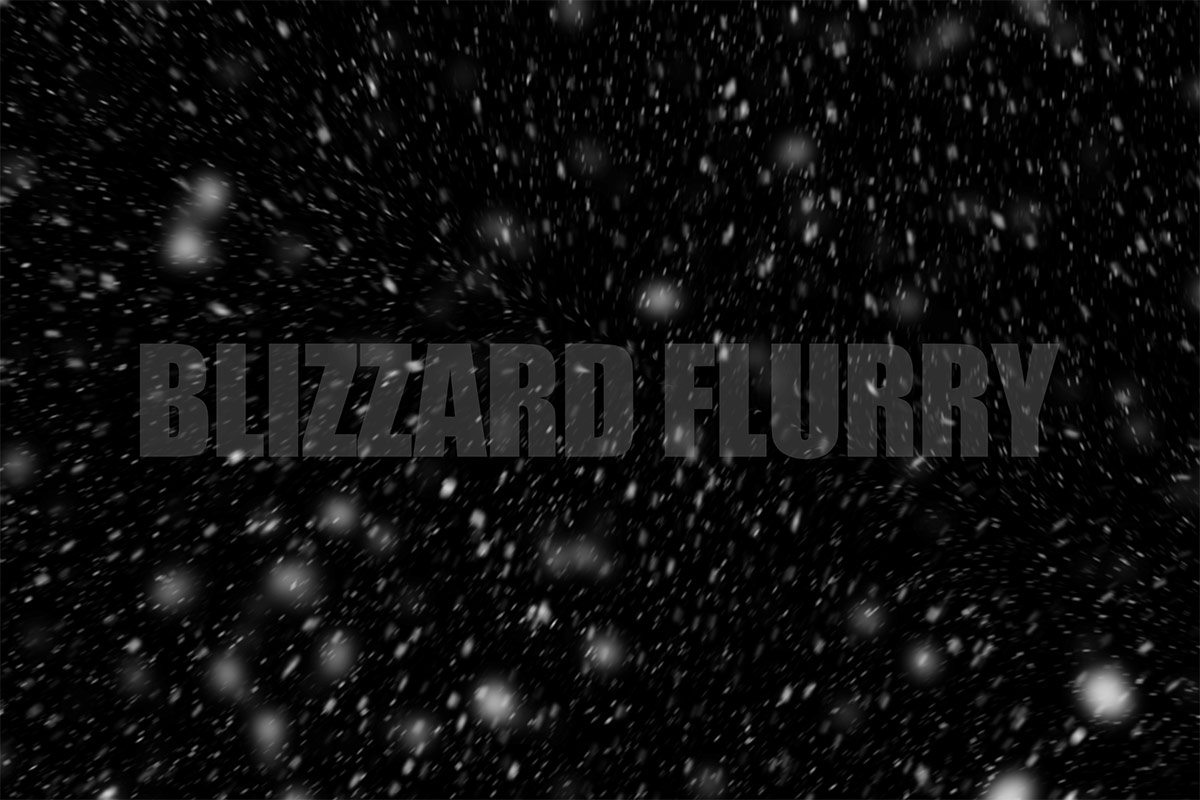
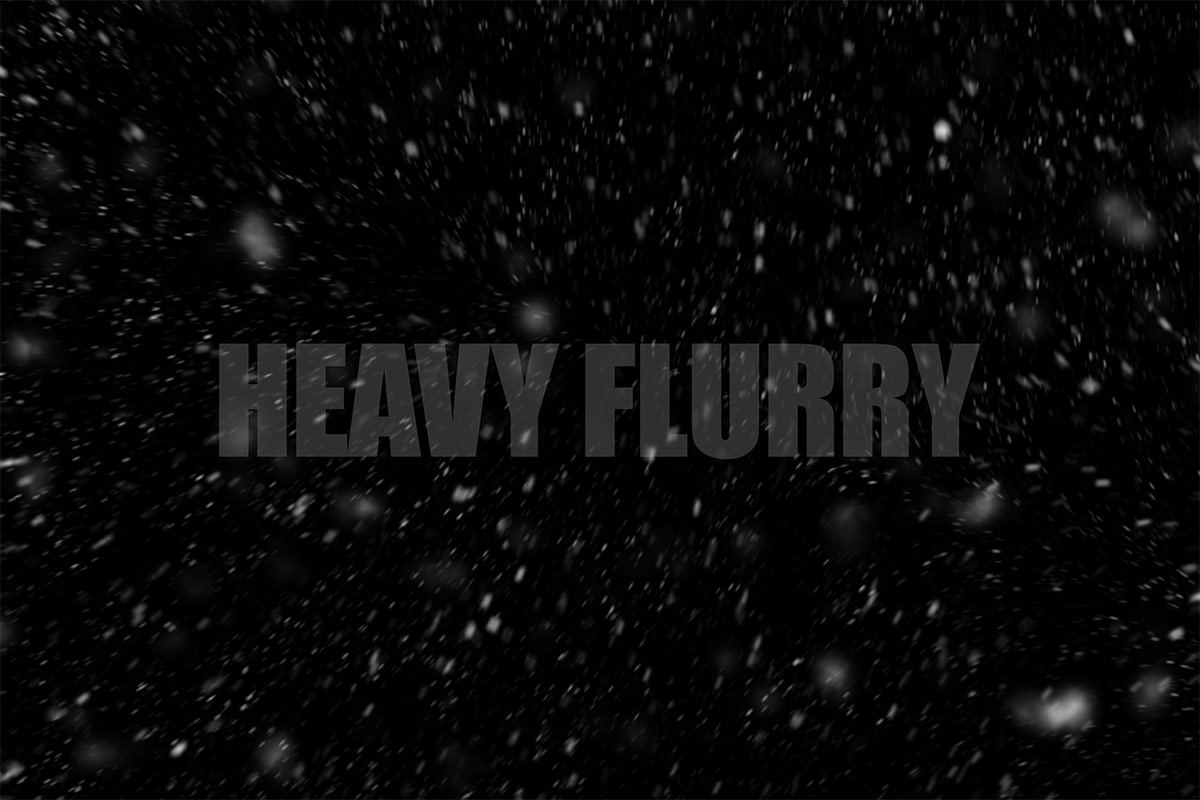
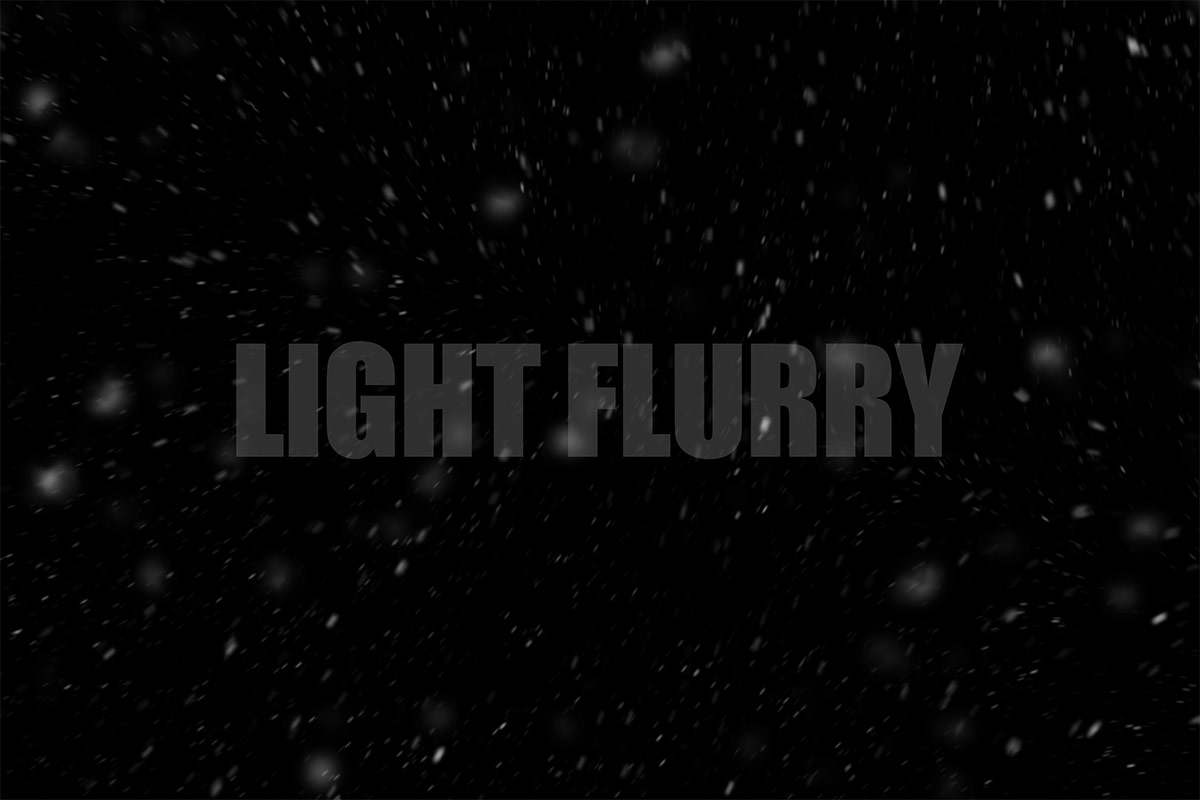
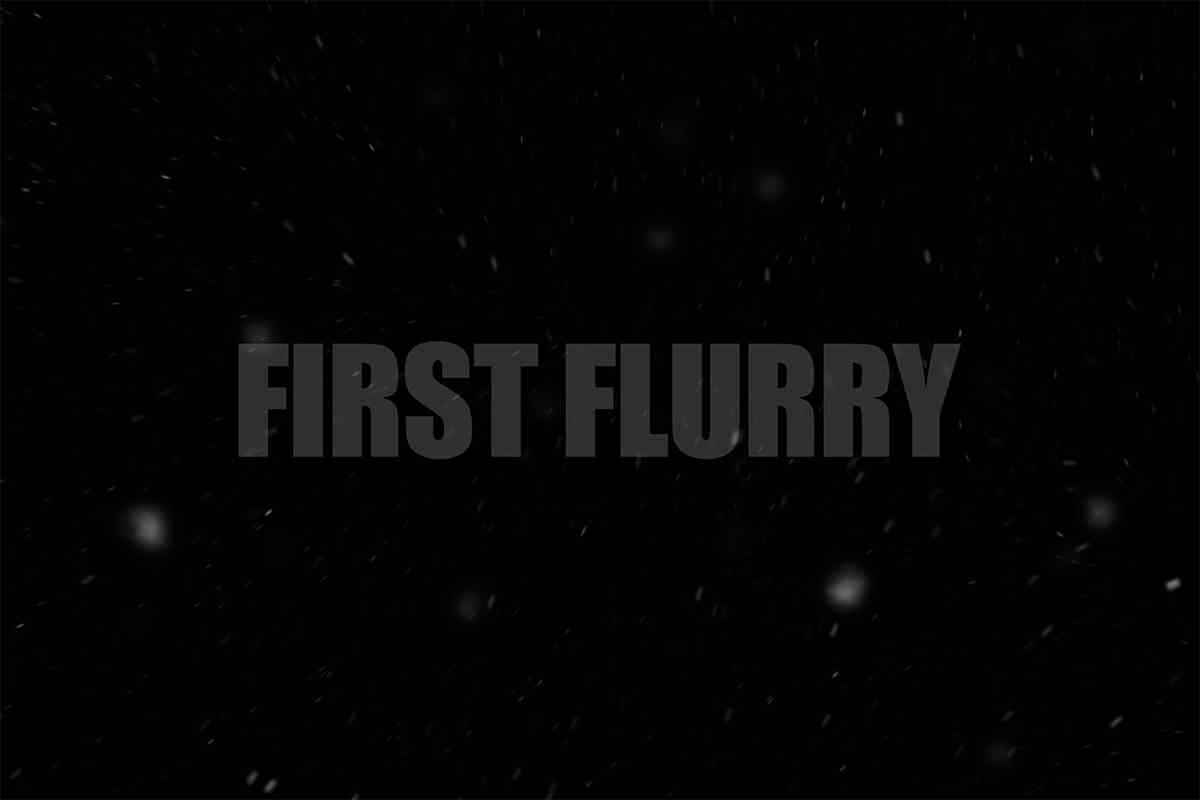
So now I’ve updated my Instant Snow V2 Photoshop action to include a little bit of movement and motion blur. Instant Snow flurry uses my tried and trusted random snow generator, so the position of the flakes will always be different and there’s a choice of four different amounts of snow to choose from.

The Photoshop action always makes a copy of your original image and leaves the snow layers intact for you to adjust, colour or copy, paste and re-size over your original image. Of course you don’t have to keep them as snow. With a little bit of re-working it could be snow, dust, embers or any particles you can imagine!

If you create a photo using the Friday Freebie then let me (and everyone else) know by leaving the link in the comments below.

Usage rules
The Photoshop Action is copyright Gavin Hoey 2021. Use is strictly limited to any personal but non-commercial purposes. 
Please share the Friday Freebie by linking back to this page. Do not redistribute the original action without my permission.

Download instructions
     1. Click on the correct download link below (no sign up is needed)
https://drive.google.com/file/d/1YFXWzmX3C-eJiNKd6hvZx9f7GnM5dtr0/view?usp=sharing

  1. Click the Download icon download_icon
  2. The download should start automatically
  3. Unzip the download and install the Photoshop Action
  4. When downloading, you may see a message saying “There was a problem with the network” Just ignore it
  5. No support is provided with the Friday Freebies. If you need help Google or YouTube the question and you’ll almost certainly find the answer
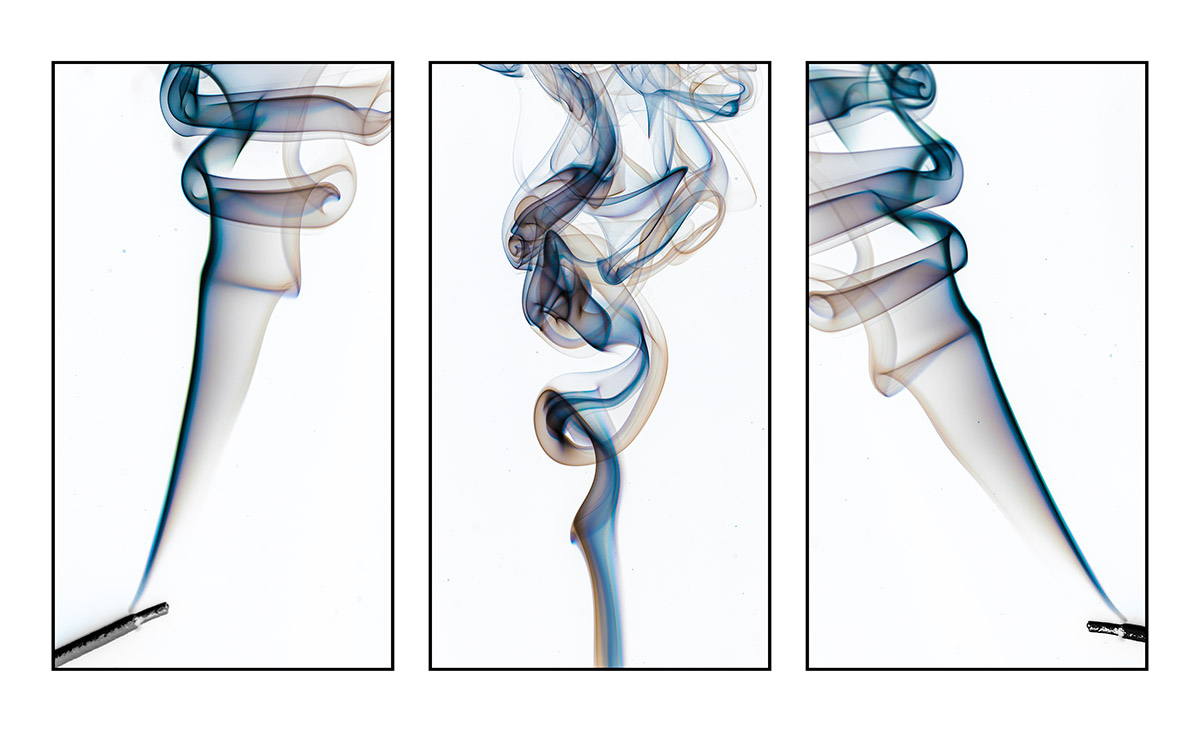
Smoke Photography (almost) LIVE!

About 10 years ago I made a video all about photographing smoke patterns. Dig around on YouTube and you’ll find it but a lot has changed in that time and I don’t just mean how grey my hair has gone.

I felt it was time to revisit photographing smoke patterns and Olympus UK were kind enough to host the live shoot on their Facebook page. If you missed it live, you can catch the whole thing here

At the end of the demo I made a triptych from three smoke images. To save time I created a Photoshop action which automated the process down to one single click.

Since the demo I’ve had many requests for the triptych action, so here it is.

To action assumes a few things. First it will make the triptych from three images that are already open in Photoshop. Next it assumes they’re the newest images you have on screen. Finally, all the images need to be exactly the same size and shape.

Usage rulesThe Photoshop Action is copyright Gavin Hoey 2020. Use is strictly limited to any personal but non-commercial purposes. 
Please share the action by linking back to this page. Do not redistribute the original action without my permission.
No technical support is provided.

Download instructions     1. Click on the correct download link below (no sign up is needed)
https://drive.google.com/file/d/11bJ2fcJsmuDYB4sKGTAv6trw1ozW0oqs

  1. Click the Download icon download_icon
  2. The download should start automatically
  3. Unzip the download and install the Photoshop Action
  4. No support is provided with the Photoshop action.
  5. If you need help Google or YouTube the question and you’ll almost certainly find the answer

Instant (Overhead) Rain Action

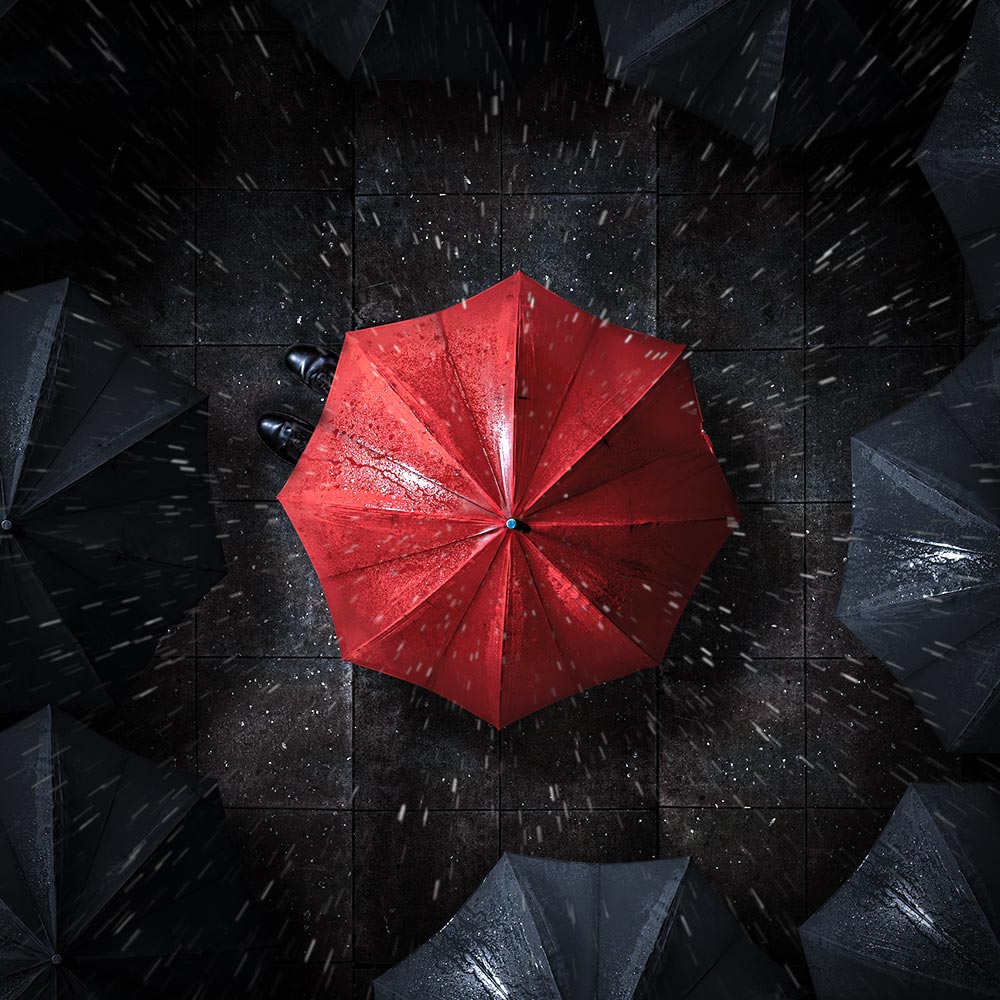
On a recent live stream I created an overhead, rainy day scene in my small home studio. If you missed it, I’ve added the video below. During the stream I added some rain using a Photoshop action and as promised, I’m sharing it here.

The action does a few things you need to be aware of. First it makes a duplicate of your image, so the original is always untouched. The effect is random, so running a few times will give different patterns of rain. I’ve also left the rain as layers, so you can fine tune as needs be and if you need a higher resolution version, you can copy, paste and re-size the rain to your original image.

If you create a photo using my Photoshop action then let me (and everyone else) know by leaving the link in the comments below.

Usage rules
The Photoshop Action is copyright Gavin Hoey 2020. Use is strictly limited to any personal but non-commercial purposes. 
Please share the action by linking back to this page. Do not redistribute the original action without my permission.
No technical support is provided.

Download instructions
     1. Click on the correct download link below (no sign up is needed)
https://drive.google.com/file/d/1wB5LoehRGOSYA1k3WF7suyNi94J3ep_e

  1. Click the Download icon download_icon
  2. The download should start automatically
  3. Unzip the download and install the Photoshop Action
  4. No support is provided with the Photoshop action.
  5. If you need help Google or YouTube the question and you’ll almost certainly find the answer
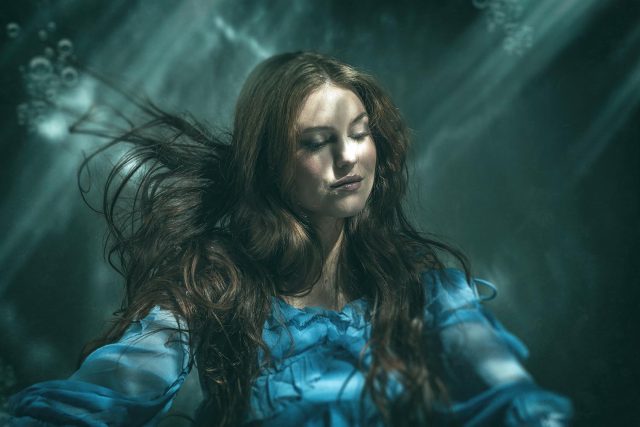
Water Reversal Backgrounds

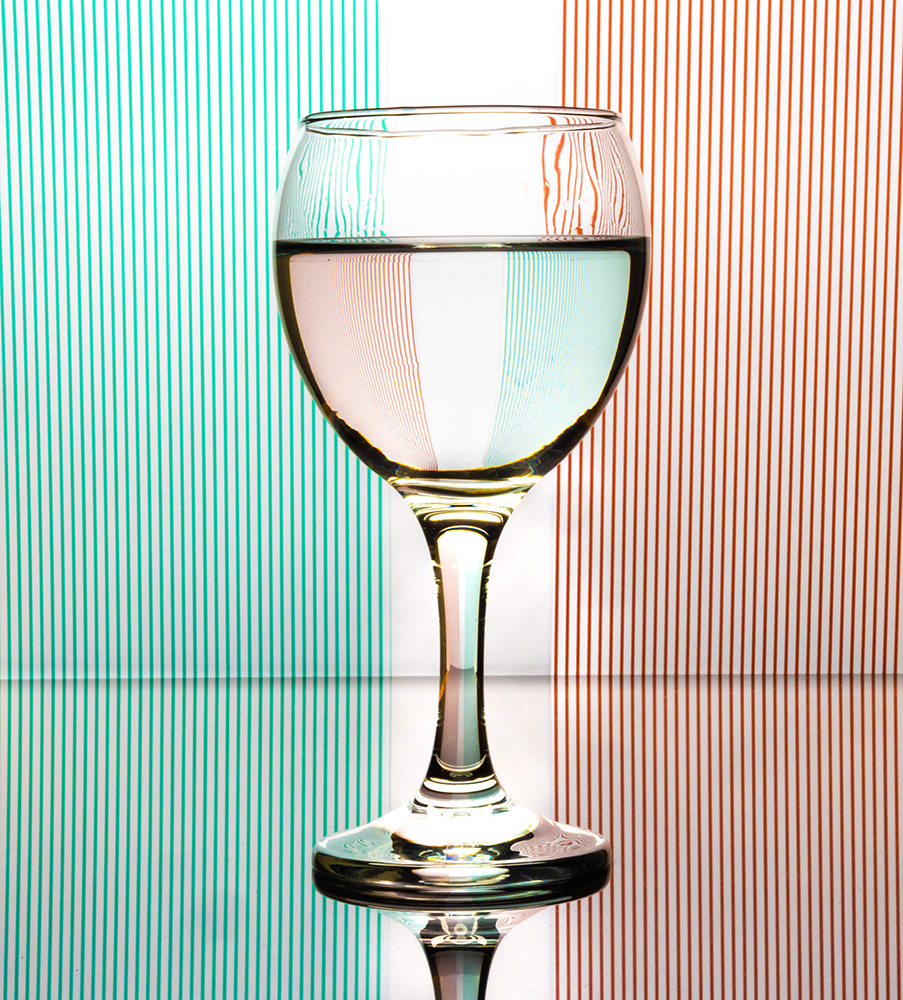
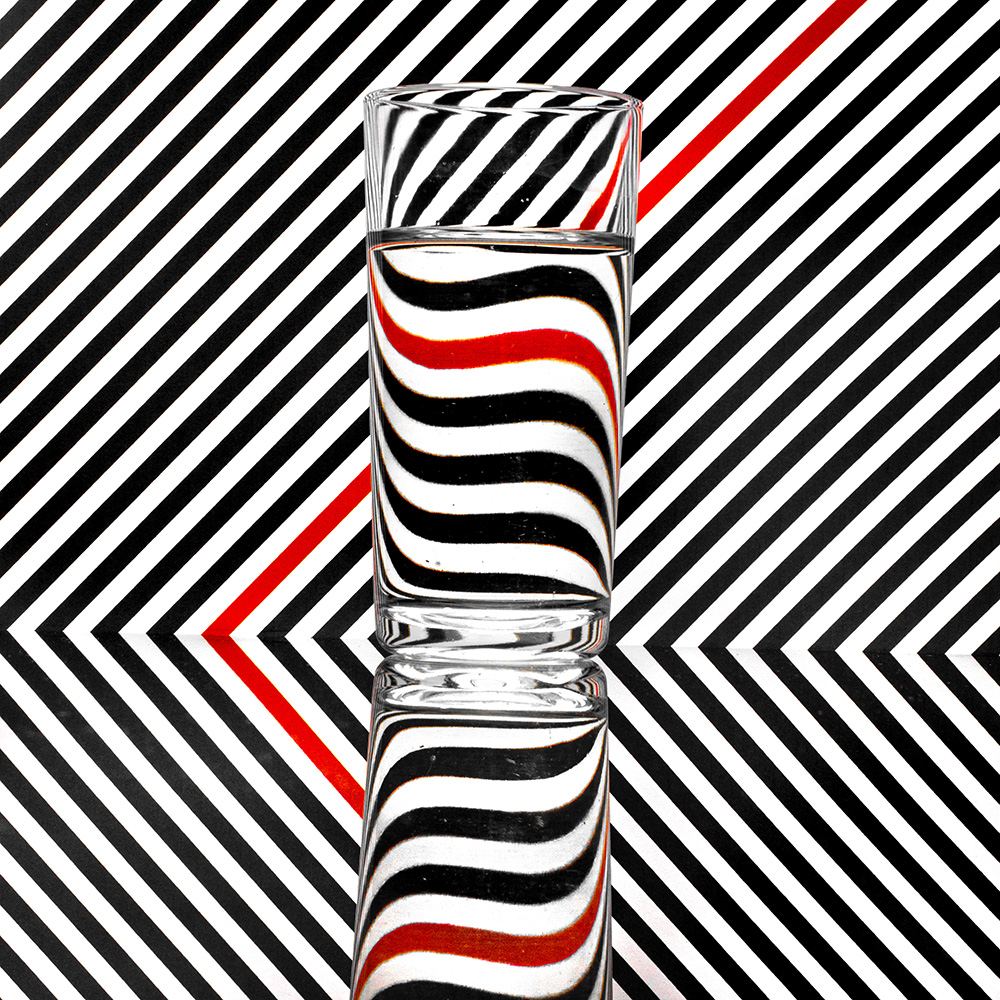
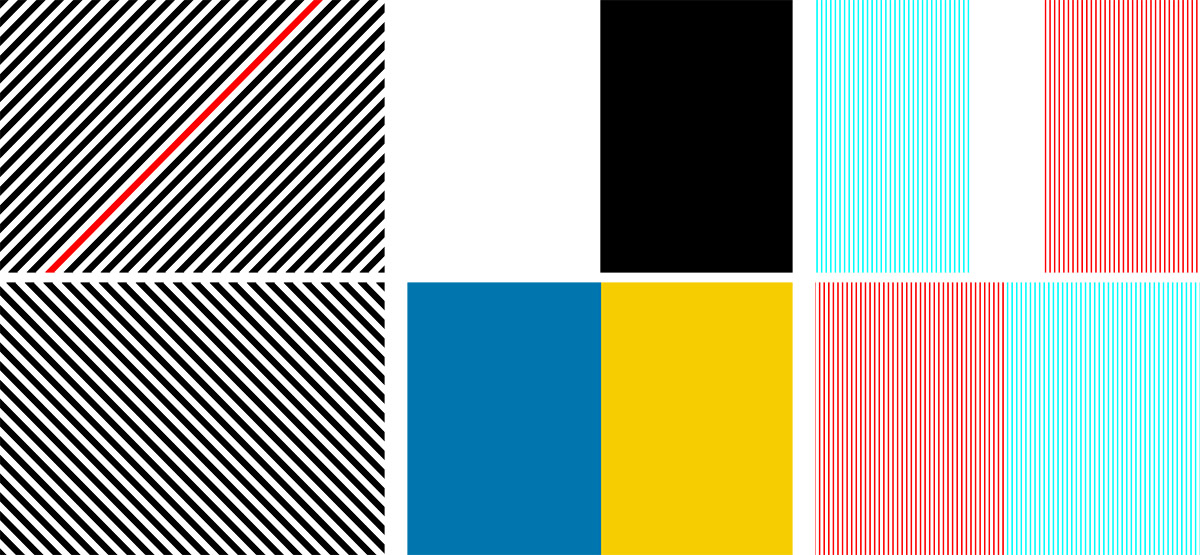
If you’re looking for a simple stay at home photo project then this is for you. All you need is a glass filled with water and one of my free backgrounds.

The water filled glass acts as a simple lens and reverses the image seen through it. The upshot of which is, if you place the glass in front of a bold but simple background it becomes something photographically fascinating.

I’ve made three types of background, two tone, diagonal stripes and fine lines. Each has two variations and all are sized at A4, ready to be printed at home.

Usage rules
The images are copyright Gavin Hoey 2020. Use is limited to any personal but non-commercial purposes. Only share by linking back to this page. Do not redistribute the original image without my permission.

Download instructions
       1. Click on the download link below
https://drive.google.com/drive/folders/1aUvI6y8m-kor4WdoEB2aOyT8Zq-6E8uj?usp=sharing

  1. Click the Download button download_icon (top right of screen)
  2. The download should start automatically
  3. No support is provided. If you need help Google or YouTube the question and you’ll almost certainly find the answer
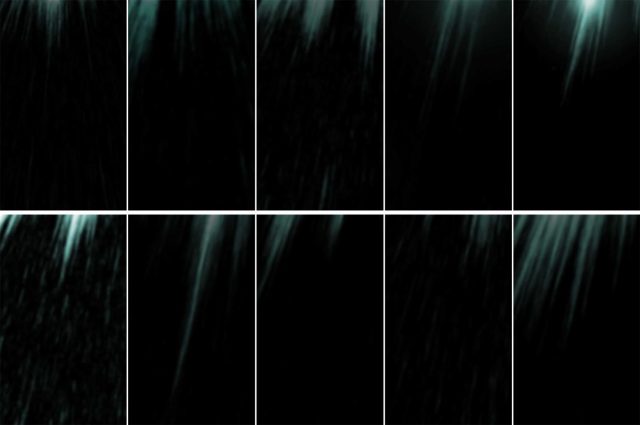
Neon Background Shapes

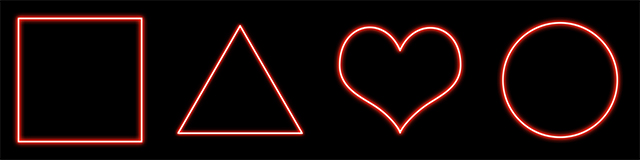
Neon backgrounds are not normally something you’d find in a studio but with a bit of planning, my free neon backgrounds and a little time in Photoshop, you can.

There are four free neon shapes in this set. I’ve made them all red but you can adjust the hue to make them any colour you like.

Usage rules
The images are copyright Gavin Hoey 2020. Use is limited to any personal but non-commercial purposes. Only share by linking back to this page. Do not redistribute the original image without my permission.

Download instructions
       1. Click on the download link below
https://drive.google.com/drive/folders/1I4zGWjBMAx2Y5i_pP9f009pp8zKDg4MF

  1. Click the Download button download_icon (top right of screen)
  2. The download should start automatically
  3. No support is provided. If you need help Google or YouTube the question and you’ll almost certainly find the answer