
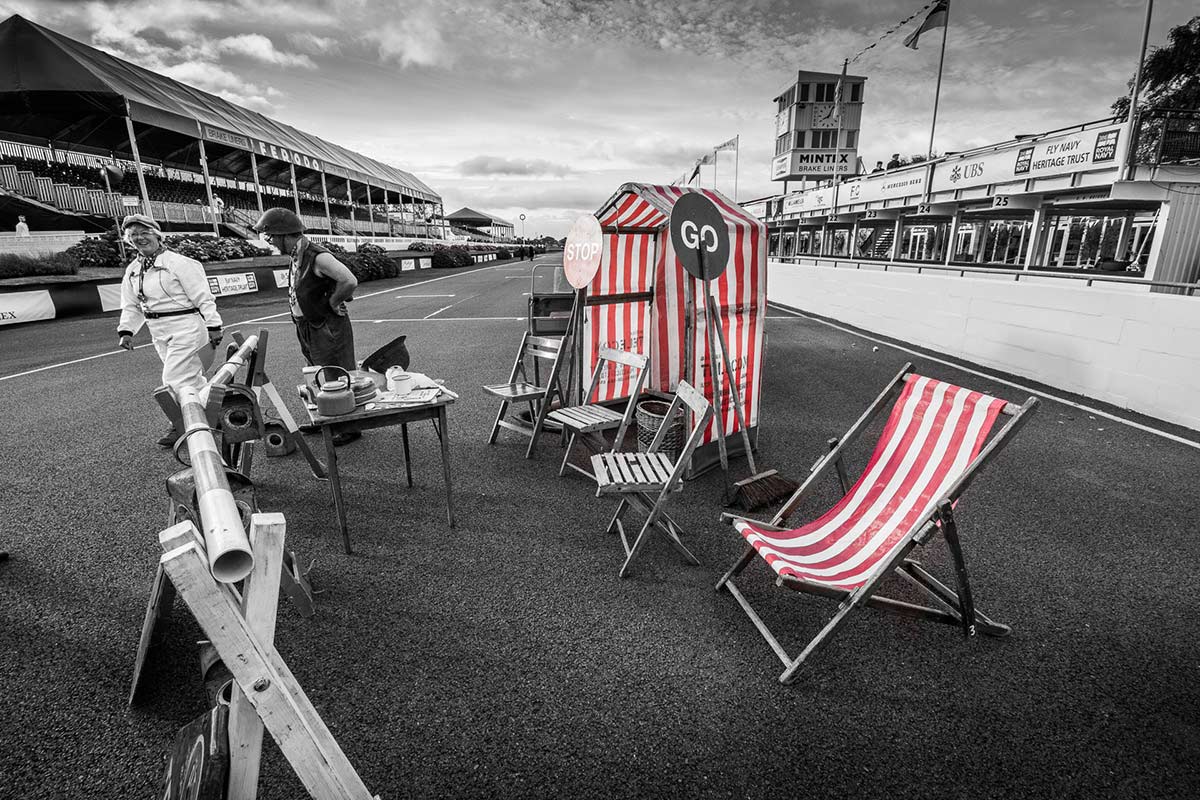
 In the third episode of Creative Lightroom, I have a very quick trick for reducing the number of colour tone ranges in your image to just one.
This is a really quick and simple technique that works with all versions of Lightroom including the latest and greatest version, Lightroom 5.
In the video I show you how to remove almost all the colour and leave just the reds in an image but you can just as easily leave blues, yellows or greens. I then go on to show you how to quickly tidy up any stray colour areas with the adjustment brush.
It’s worth mentioning that if you’re a Photoshop user rather then Lightroom user then remember EVERYTHING I show in the video is the same as Adobe Camera RAW in Photoshop CS3, CS4, Cs5, CS6 and Photoshop CC.
[youtube]http://www.youtube.com/watch?v=wr6fSZY57R0&feature=youtu.be[/youtube]
Can’t see the video? Click here: http://youtu.be/wr6fSZY57R0
Great Video Gavin, looks like the Goodwood Revival how did you get on the track?
Hi Gavin, I forgot to ask is Lightroom non-destructive to the original image?
All Lightroom edits can be undone at anytime. From memory CTRL+R is the shortcut.
Yes, according to Adobe, Lightroom is totally non-destructive to the original image. Your edits are actually stored in a database and only permanently applied when you export an image. An exported image is a copy of the original, so again, your original is never tampered with. Here’s what Adobe says, followed by a link to the page:
“All the adjustments you make in Lightroom are nondestructive. With nondestructive editing, your original file is not altered, whether it’s a camera raw file or a rendered file such as a JPEG or TIFF. Your edits are stored in Lightroom as a set of instructions that are applied to your photo in memory.”
http://help.adobe.com/en_US/lightroom/using/WS8EFDB61B-87A4-4d9e-8E93-A8DFC4334C94.html
You got to be there super early 7am we arrived. You can cross the track for the first 30 mins or so whilst this chap and his mates are doing “road works” 🙂
It did look extremely empty in the background! Hope to be going this year
A quick way would be to create a preset for each colour you want to want to leave as dominant. Remember, when saving presets to only tick the Saturation and Colour Adjustments so you are only affecting those options and not any thing else?
Although there is no short-cut as such Gavin, you can create a preset, maybe one for each colour so you can pop any colour you like.. Maybe? Nice to see you doing stuff for Lightroom 🙂
Hi Gavin.
– Awesome your dedication in your tutorials!
It’s a privilege to see your explanations and tips.
Congrats and thanks for sharing us
Hi Gavin, another really helpful tutorial. This is an effect that seems easy until you try it ! Thanks for showing how its done.
I found this my bookmark folder. So very glad. Great bit of information. Oh, by the by you spelt color wrong.