Spiral bound template

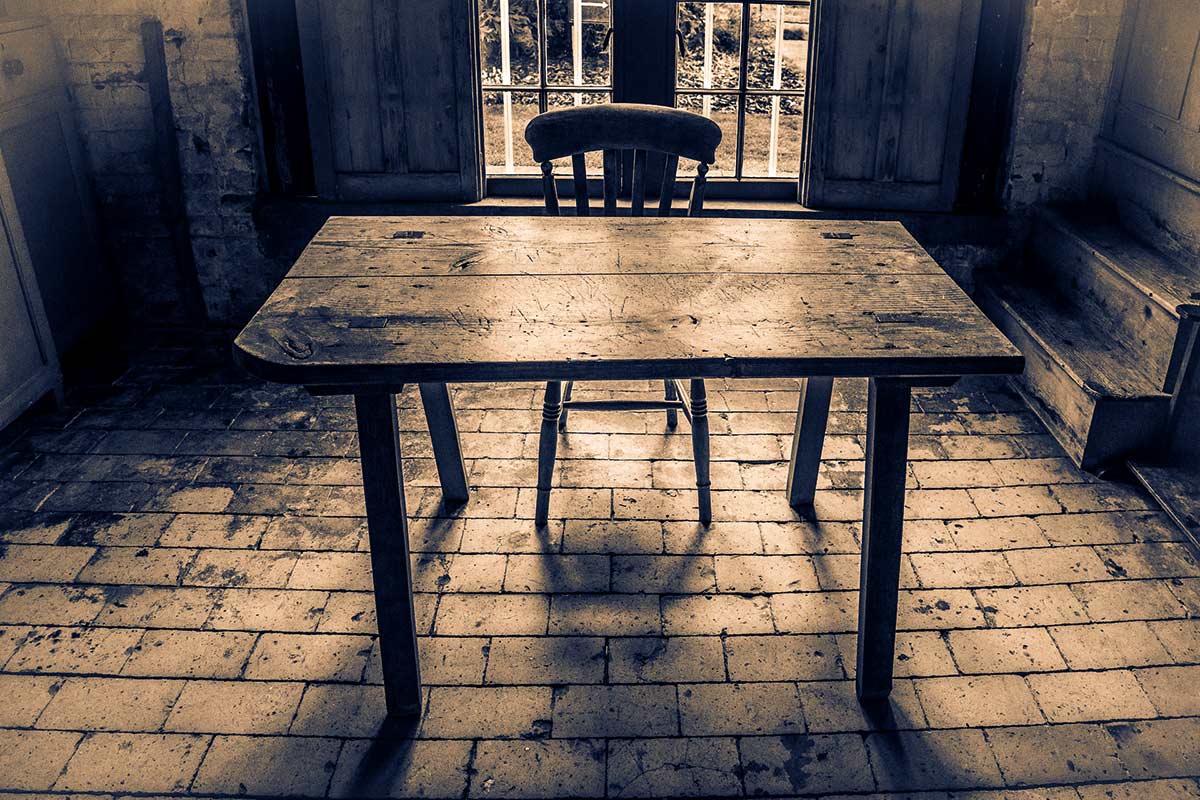
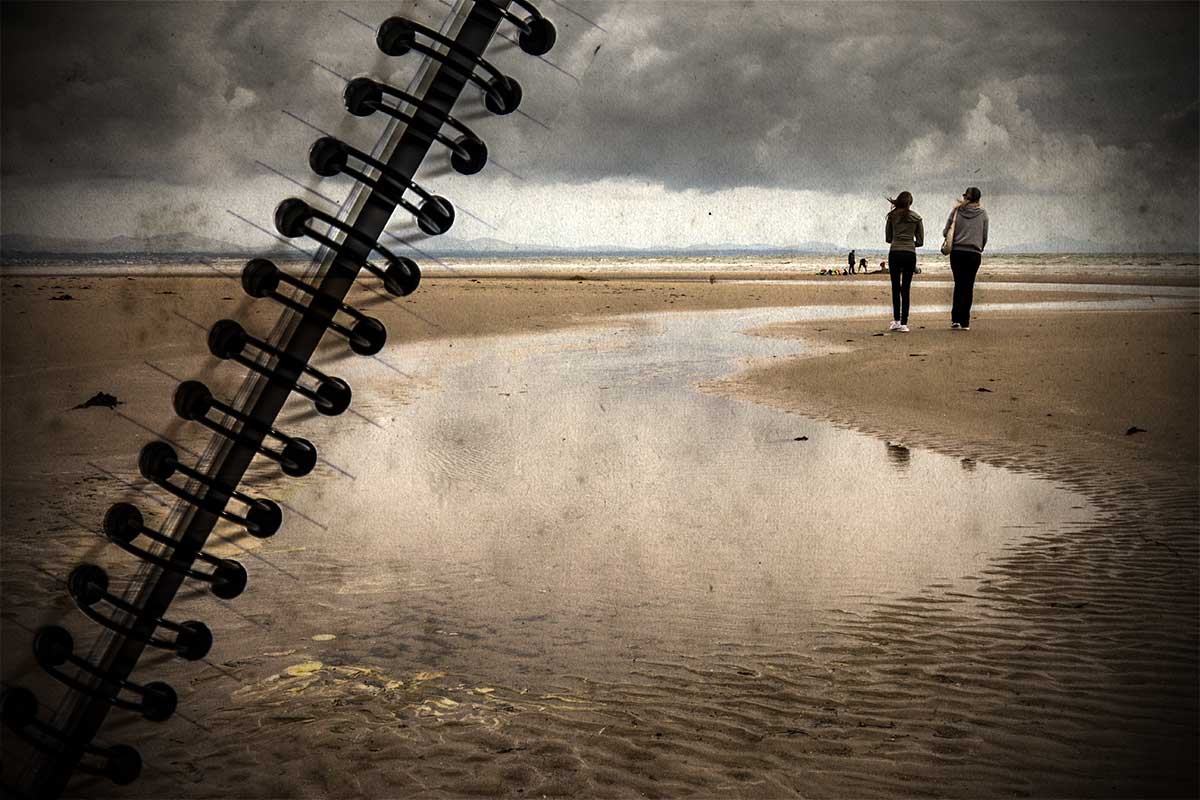
Spiral-Final-BeachWhy is it that the photos that look easy to shoot actually take the most time? This Friday freebie image is a perfect example. It looks like it should have been a quick thing to do but in reality it took the best part of half a day to shoot, and edit… You see, the things I do for you 🙂

I’m really happy with the end result, which of course makes all the effort worthwhile.

Full download instructions are below but you can also
Click Here To Download the Spiral Bound Template

Using the template is as simple as pasting your own photo over the template and changing the layer blending mode to Multiply. Other layer blending modes may well work too so it’s well worth experimenting. You can also try lowering the layer opacity for the photo layer and skipping through some blending mode, you’ll get a different set of results that way.

One thing to note. The Multiply blending mode will always makes your image darker, so I’d suggest adding a Levels adjustment layer above the photo (top of the layers stack) and tweaking the brightness accordingly, if you want to get an final image that matches the original photo.

Usage rules
The image is copyright Gavin Hoey 2013. Use is limited to any personal but non-commercial purposes. Please share the Friday Freebie by linking back to this page. Do not redistribute the original image without my permission.

Download instructions

Download instructions
Click the link https://drive.google.com/file/d/0B_Mmmm3K1utNLTNKNGhEWXhFTm8/view?usp=sharing
1. Click the Download button download_icon

2. The download should start automatically


Heavy Painted Border

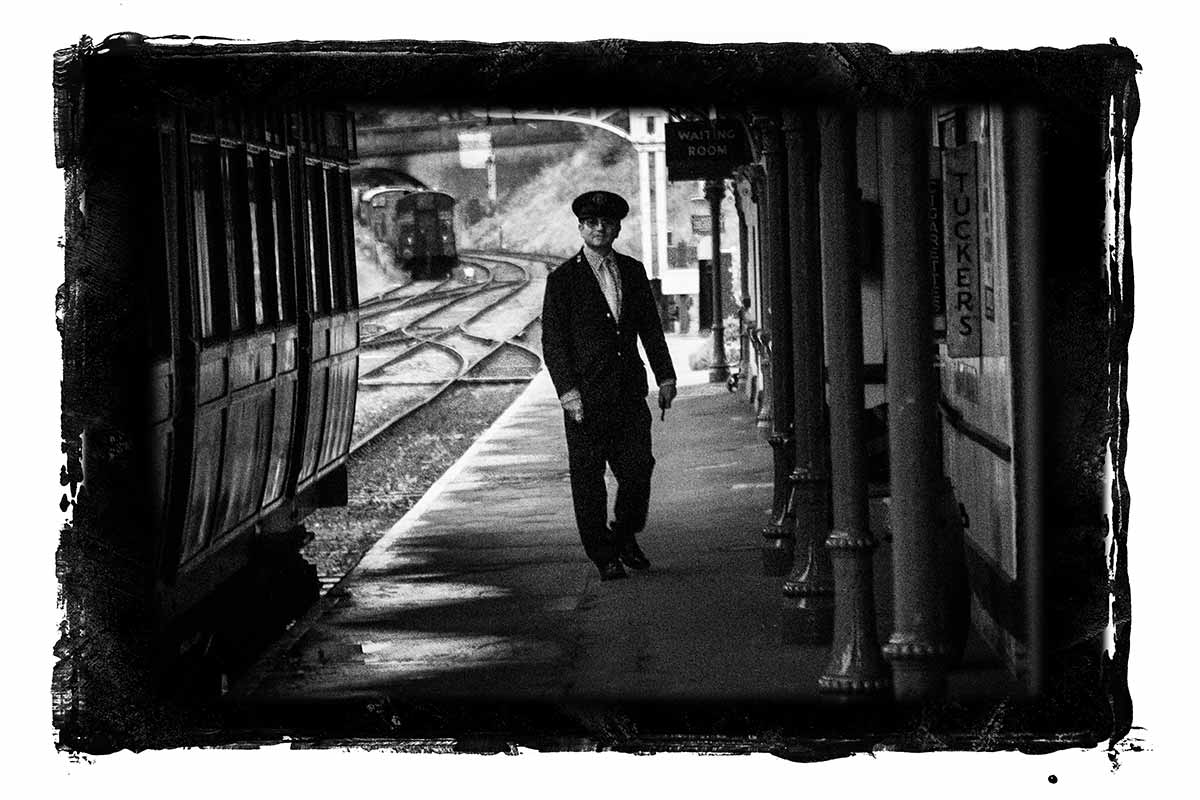
Steam-Train-Border-FFHere’s another amazing border from my recent painting session. This time I’ve gone for a border that surrounds your photo with a wide painted edge.

Full download instructions are below but you can also
Click Here To Download the Heavy Painted Border

I’ve designed this border so it can be used in two ways and it all depends on if you add your photo above or below the border.

Once you’ve downloaded it you’ll find I’ve removed the centre of the border image but left it transparent. S0 to make the image / border combo you see here all you do is drag your photo below the border layer in Photoshop. The centre area has a short fade so it blends in nicely with the photo.

The second option is to place your photo above the border layer. Doing that will give you a hard edge and you can decide how much of the border is seen.

You’ll need to resize your image or the border with Free Transform (CTRL+T). Use the corner handles to drag the image to the size you want and when done press Enter. The border will work with any photo although it’s especially good with black and white images.

If you create a photo using the Friday Freebie then let me (and everyone else) know by leaving the link in the comments below.

Usage rules
The image is copyright Gavin Hoey 2013. Use is limited to any personal but non-commercial purposes. Please share the Friday Freebie by linking back to this page. Do not redistribute the original image without my permission.

Download instructions

Click the link https://drive.google.com/file/d/0B_Mmmm3K1utNa19JQmtESDNVZjQ/view?usp=sharing
1. Click the Download button download_icon

2. The download should start automatically


White Painted Border

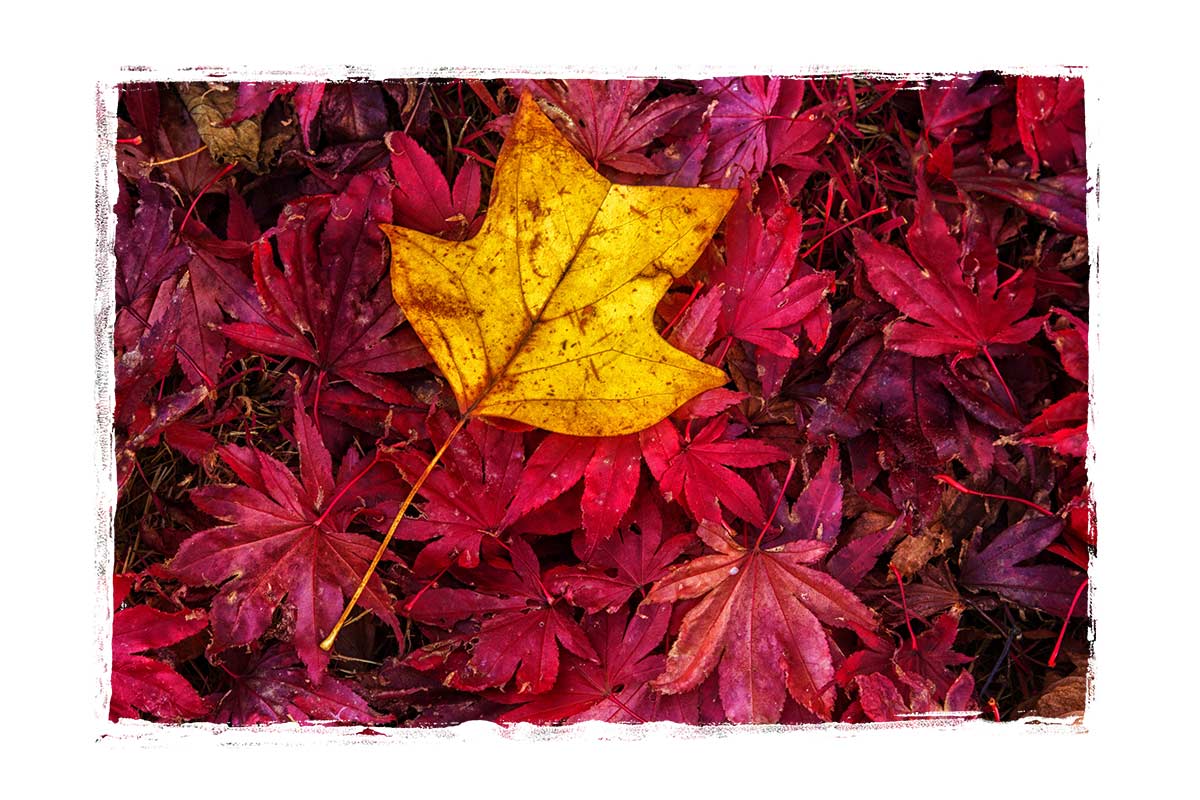
Painted-edge---finalThis was fun to make and not just because things got a bit too messy! This Friday Freebie was lovingly hand crafted from nothing but the finest kids paints, most of which seemed to end up on my desk and not the paper. There is a reason that happened and it’s not just because I’m rubbish at painting.

Over the years I’ve made many borders with paint but not always with paint brushes and this is a perfect example. To get the distressed edge effect I “painted” with the rubber edge of an old ice scraper that had been rolling around in the boot of my car for a few winters. I then photographed the edge and straightened in up in Photoshop.

Full download instructions are below but you can also
Click Here To Download the white painted border

Using the border is as simple as changing the layer blending mode to Screen. For the less advanced users that’s done like this…

Download the Friday Freebie and open it in Photoshop or Photoshop Elements, then open the photo you wish to add to the frame. Flatten any layers (Layer – Flatten Layers) and then press CTRL+A to select it all, followed by CTRL+C to copy. Jump over to the frame and press CTRL+V to paste the image on to the frame.

You’ll need to resize the image with Free Transform (CTRL+T). Use the corner handles to drag the image into the photo area and when done press Enter. Finally change the layer blending mode from Normal to Screen to blend the photo with the template.

If you create a photo using the Friday Freebie then let me (and everyone else) know by leaving the link in the comments below.

Usage rules
The image is copyright Gavin Hoey 2013. Use is limited to any personal but non-commercial purposes. Please share the Friday Freebie by linking back to this page. Do not redistribute the original image without my permission.

Download instructions
Click the link https://drive.google.com/file/d/0B_Mmmm3K1utNZnZxWnQxUGc0dHc/view?usp=sharing
1. Click the Download button download_icon

2. The download should start automatically


Faking into a sweat

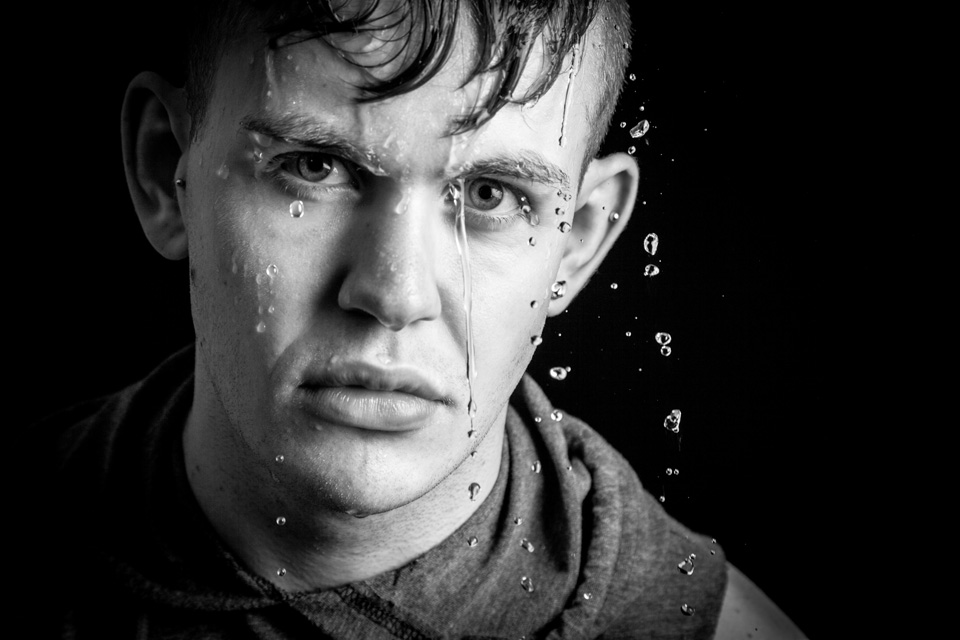
So you want your model to look they’ve done a workout but you don’t have a gym in your studio. What do you do? Well you could send them out for a run or turn the heating up to max, both would work but neither is ideal.

In this video I’ll show you how to apply fake perspiration to a models face.

Now if you’re thinking that you can just spray water in their face, you’re wrong. Water alone doesn’t give beads of sweat, for that you need something more. A little olive oil applied to the forehead, cheeks and noise will make the world of difference and very convincing perspiration. For obvious reasons, don’t put oil close to the eyes.

The video doesn’t stop there. I also have some great lighting tips and I run through the Photoshop processing too.

[youtube]https://www.youtube.com/watch?v=_lyRzp8YEUc[/youtube]

Can’t see the video? Click Here http://youtu.be/_lyRzp8YEUc

Harry-2

Eroded Edge Texture

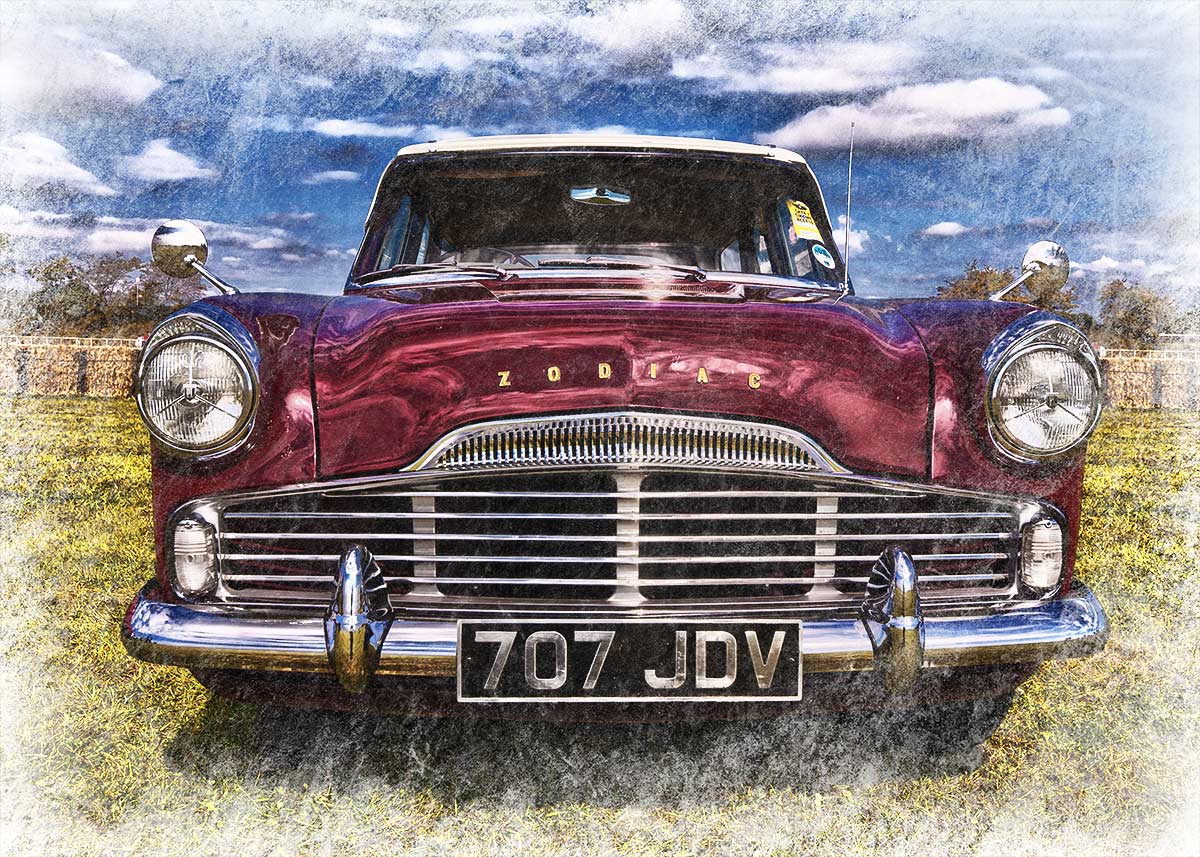
Erode-textureThis weeks Friday Freebie is an eroded texture which is simple to use and gives amazing results. It’s a black and white texture that has a dark mottled centre, fading to a lighter edge.

Full download instructions are below but you can also
Click Here To Download the Eroded Edge Texture

Unlike most textures, the eroded edge effect works best with photos that have large areas of darker tones. All you need to do is paste the texture over your photo and set the layer blending mode. There are loads of different layer blending modes to choose from and they’ll all give a different look, with this texture Screen blending mode worked well as did Overlay and Soft Light.

If you create a photo using the Friday Freebie then let me (and everyone else) know by leaving the link in the comments below.

Usage rules
The texture image is copyright Gavin Hoey 2013. Use is limited to any personal, non-commercial purposes. Please share the Friday Freebie by linking back to this page. Do not redistribute the original texture without my permission.

Download instructions
Click the link https://drive.google.com/file/d/0B_Mmmm3K1utNc2tESjJKYTNIUUk/view?usp=sharing
1. Click the Download button download_icon

2. The download should start automatically


Split Tone Mono – Creative Lightroom Episode 7

CL-final-6-SplittoneThis weeks episode of Creative Lightroom is all about going mono with a twist.

Black and white is great but sometimes you want to add a bit of general colour and toning the image. Sepia and blue tone are popular choices. Split toning takes the traditinal toning effect a step further by adding a different tones to the shadows and highlights.

In the video I show you how to use Lightroom split tone sliders to create the perfect colour balance.

This tutorial is compatible with all versions of Lightroom.

As always it’s worth mentioning that if you’re a Photoshop user rather then Lightroom user, EVERYTHING I show in the video is the same as Adobe Camera RAW in Photoshop CC, CS6, CS5, CS4  and Photoshop CS3.

[youtube]http://www.youtube.com/watch?v=8c8DUjquXPQ&feature=youtu.be[/youtube]

Can’t see the video? Click here: http://youtu.be/8c8DUjquXPQ

Rounded Corner Border – Creative Lightroom Episode 6

cl-7-FINALThis weeks episode of Creative Lightroom has a super quick but very smart looking border effect.

Rounded rectangle borders like this look amazing not only on vintage and retro photos but are just great with any photo. Back when I started taking photos as a VERY young child all the prints would have rounded corners just like this.

In the video I show you just how quick this effect can be made, plus some variations on the look. OK I say variations but in reality you can have a black or white border that’s either soft or heard edged. You can also choose the roundness of the corners too.

To create this effect you’ll need either Lightroom 5, Lightroom 4 or Lightroom 3

In the video I mention my hand painted border effect from episode 2, which you can see here www.gavtrain.com/?p=3162

As always it’s worth mentioning that if you’re a Photoshop user rather then Lightroom user, EVERYTHING I show in the video is the same as Adobe Camera RAW in Photoshop CS6 and Photoshop CC. It’s also possible to pull off the same trick with older version of Photoshop from CS4 onwards.

[youtube]https://www.youtube.com/watch?v=8F_xj4NSb7Y[/youtube]

Can’t see the video? Click here: http://youtu.be/8F_xj4NSb7Y

Two Curves Tricks – Creative Lightroom Episode 4

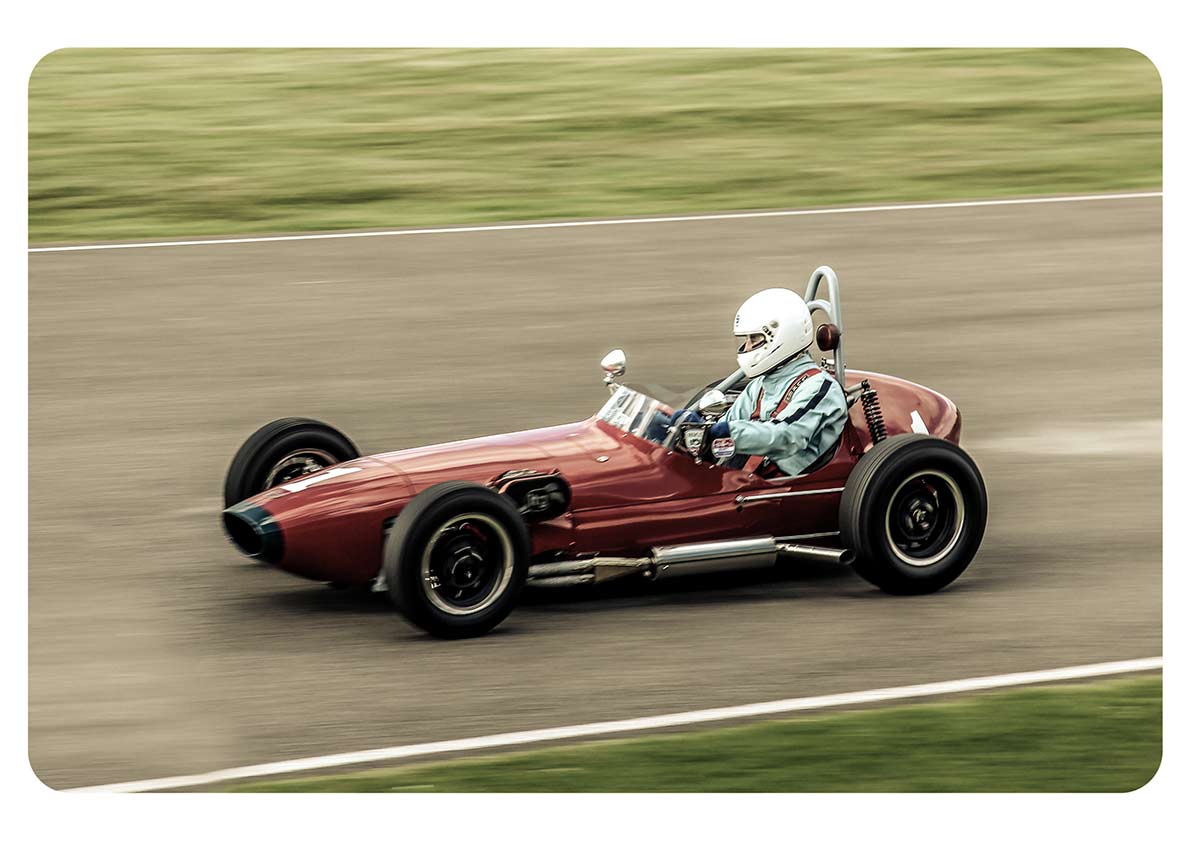
CL-final-4-1000In the fourth episode of Creative Lightroom, I have not one but two creative techniques and both of them involve using Curves.

You can still catch the first three episodes here
episode 1, Light leak effect
episode 2, Painted border
episode 3, Selective colour

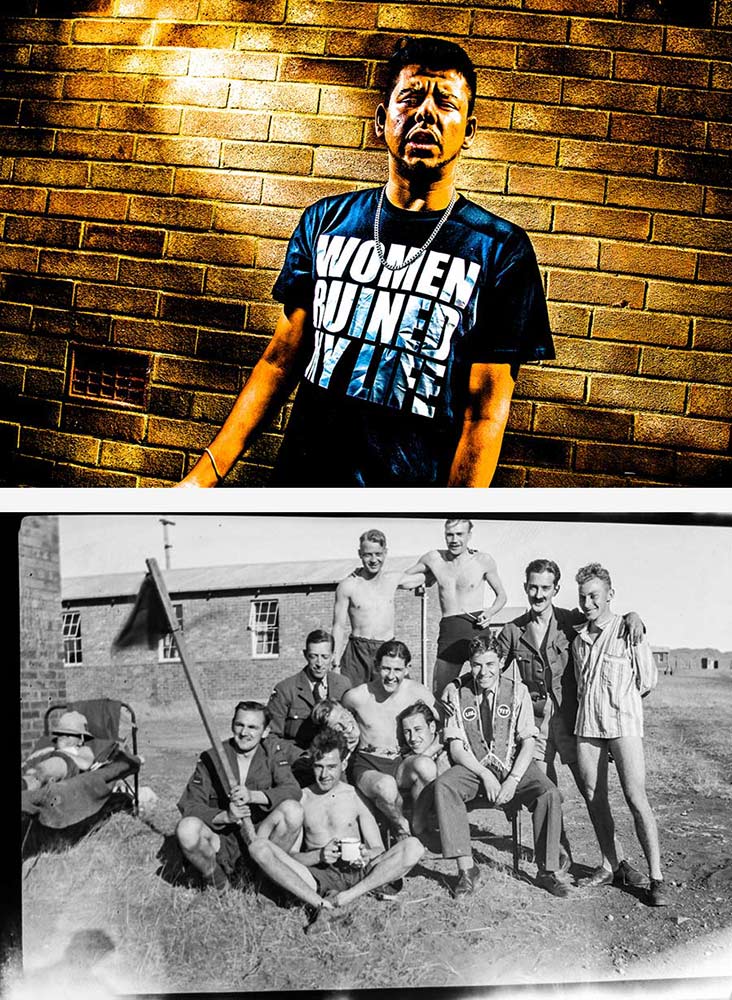
The two effects couldn’t be more different even though the same tool is used to make them. The first technique is a very gritty posterization effect which looks amazing on the right image. The second effect is perfect for anyone who scans or copies old negatives and wants to make them back into a positive.

As always it’s worth mentioning that if you’re a Photoshop user rather then Lightroom user then remember EVERYTHING I show in the video is the same as Adobe Camera RAW in Photoshop CS3, CS4, Cs5, CS6 and Photoshop CC.

[youtube]http://www.youtube.com/watch?v=IsDg8EV-Byw[/youtube]

Can’t see the video? Click here: http://youtu.be/IsDg8EV-Byw

UPDATE
Lots of you have been guessing which of the men in the old photo is my Grandad. The answer is he’s the tallest one, in the middle holding his trademark pipe. As for the question of why the guy on thr right is without trousers, I’m not 100% sure. It’s probably a combination of the heat (they were in South Africa) and being taken in 1943, there was a war on!

Bringing back Photoshop’s missing filters

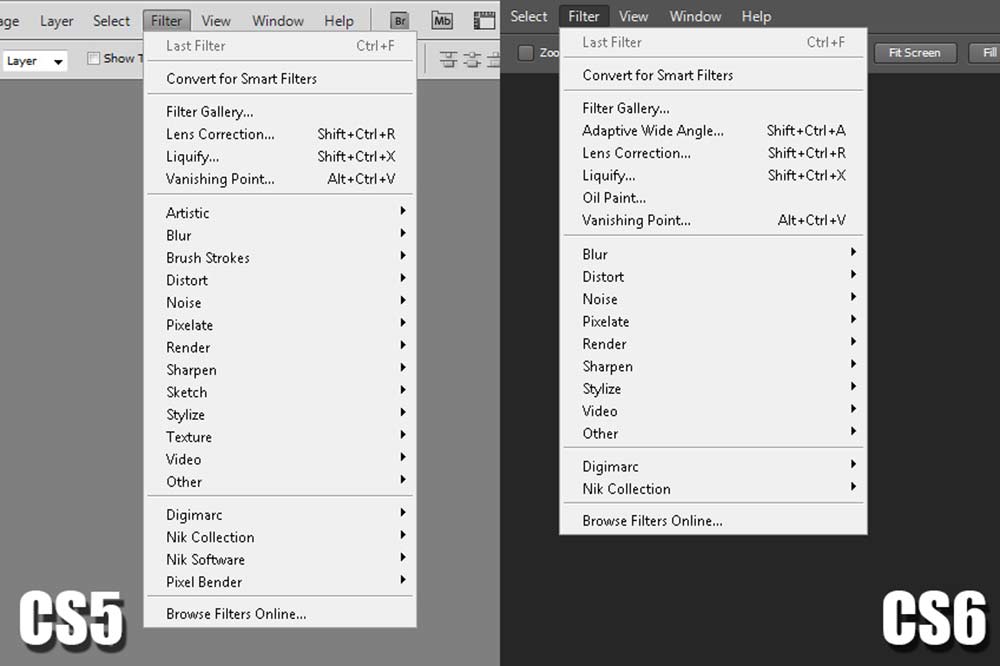
Missing-Filters-1When Adobe moved from Photoshop CS5 to Photoshop CS6 they gave the interface a long overdue facelift. The most obvious change is the new default dark interface but to make that happen the Photoshop engineers had to remake 1000’s of buttons, icons and panels from scratch.

As if that wasn’t enough Adobe decided that now was also good time to do a spot of Photoshop spring cleaning and one place where that’s most obvious is in the filter menu. In fact at first glance you might well think that half the filters have been removed.

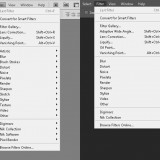
Take a quick glance down the filter list of Photoshop CS6 and Photoshop CC and you won’t find the Artistic, Brush Strokes, Sketch, Stylize or Texture filters listed. They’re still in the Filter Gallery, just not on the filer group list.

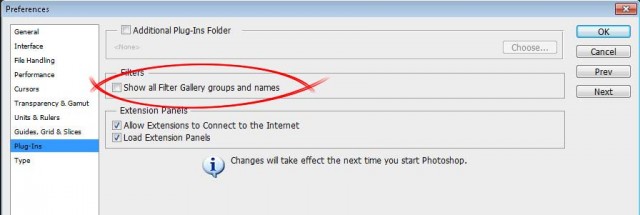
So how do you get the full list back? The answer is hidden away in the preferences.

The option to switch on the full filter list is under:
PC Users  Edit – Preferences – Plug-Ins
Mac Users  Photoshop – Preferences – Plug-Ins 

Tick the box marked Show all Filter Gallery groups and names, then restart Photoshop. Your complete list of filters will now be back.Missing-Filters-2

Light Leak Effect – Creative Lightroom Episode 1

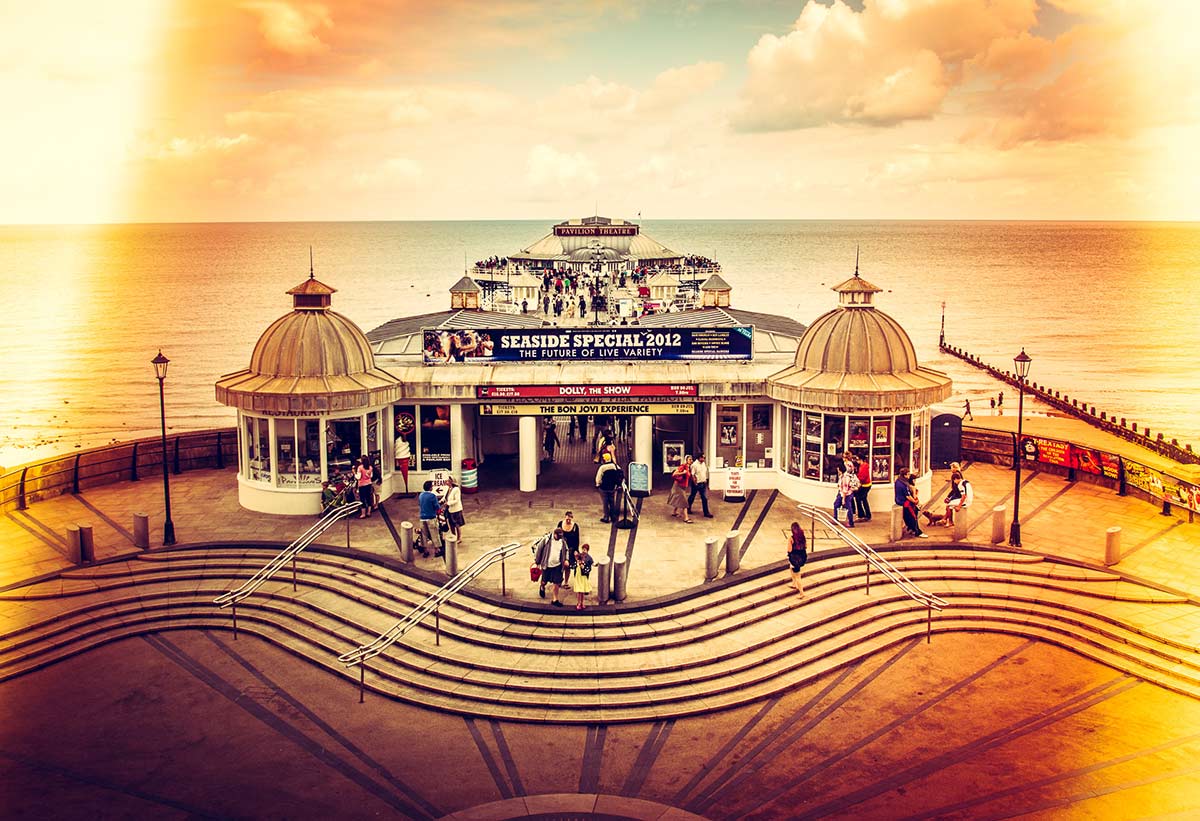
CL-final001In the first episode of Creative Lightroom, my new 10 week series, I have a great light leak technique which looks amazing on vintage and retro styled images.

Light leaks were origianlly a problem that affected film cameras and often resulted in a ruined photo. On the rare occasion a light leak would occur which actually enhanced the photo. Using Lightroom it’s very easy to choose which photos would benefit from a light leak and how big it needs to be. On the right photo light leaks will look amazing.

It’s worth mentioning that if you’re a Photoshop user rather then Lightroom user then remember EVERYTHING I show in the video is the same as Adobe Camera RAW in Photoshop CS6 and Photoshop CC.

[youtube]http://www.youtube.com/watch?v=YQzIgb9G6Bs[/youtube]