Spiral bound template

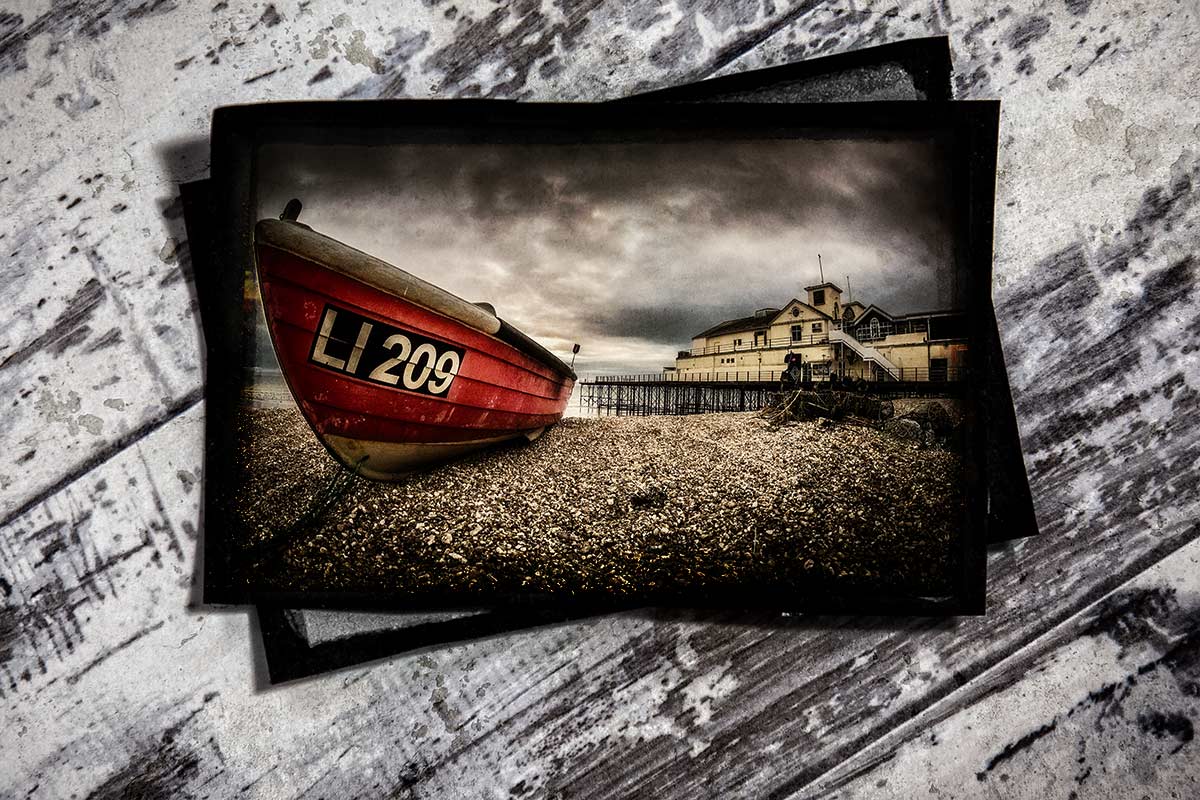
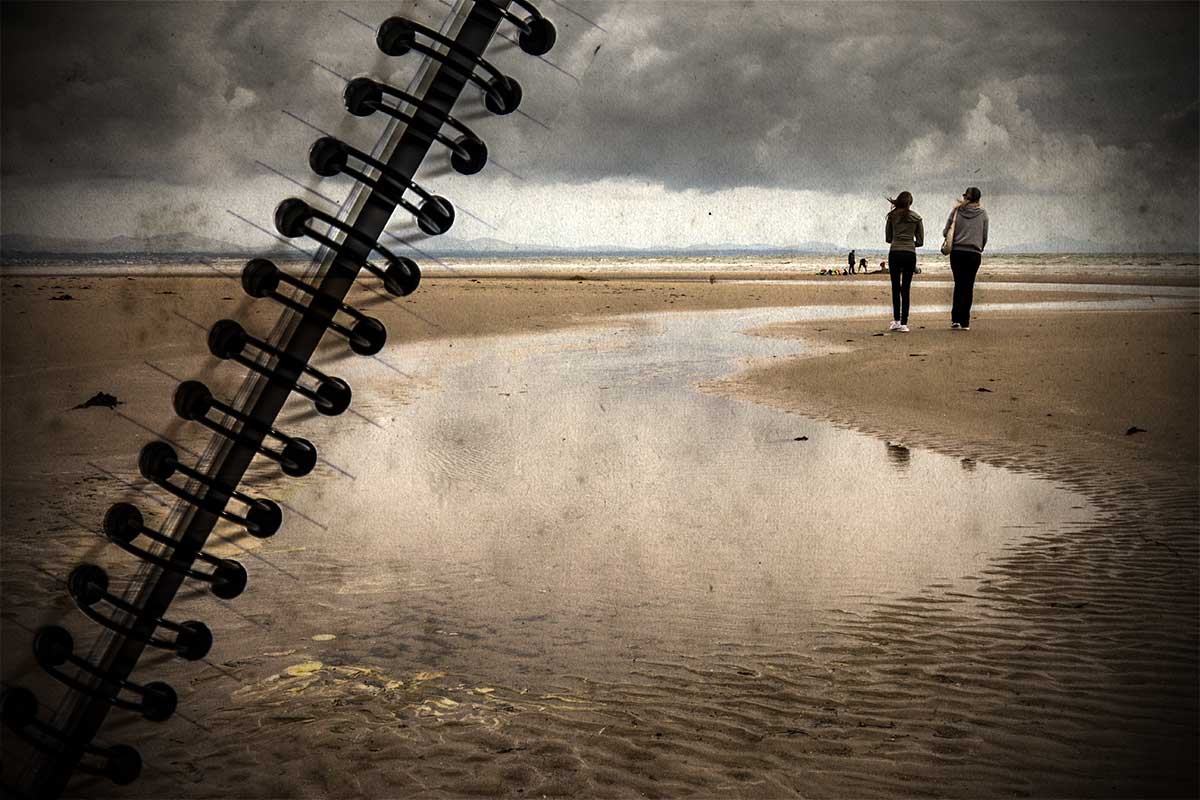
Spiral-Final-BeachWhy is it that the photos that look easy to shoot actually take the most time? This Friday freebie image is a perfect example. It looks like it should have been a quick thing to do but in reality it took the best part of half a day to shoot, and edit… You see, the things I do for you 🙂

I’m really happy with the end result, which of course makes all the effort worthwhile.

Full download instructions are below but you can also
Click Here To Download the Spiral Bound Template

Using the template is as simple as pasting your own photo over the template and changing the layer blending mode to Multiply. Other layer blending modes may well work too so it’s well worth experimenting. You can also try lowering the layer opacity for the photo layer and skipping through some blending mode, you’ll get a different set of results that way.

One thing to note. The Multiply blending mode will always makes your image darker, so I’d suggest adding a Levels adjustment layer above the photo (top of the layers stack) and tweaking the brightness accordingly, if you want to get an final image that matches the original photo.

Usage rules
The image is copyright Gavin Hoey 2013. Use is limited to any personal but non-commercial purposes. Please share the Friday Freebie by linking back to this page. Do not redistribute the original image without my permission.

Download instructions

Download instructions
Click the link https://drive.google.com/file/d/0B_Mmmm3K1utNLTNKNGhEWXhFTm8/view?usp=sharing
1. Click the Download button download_icon

2. The download should start automatically



7 Questions About Soft Light

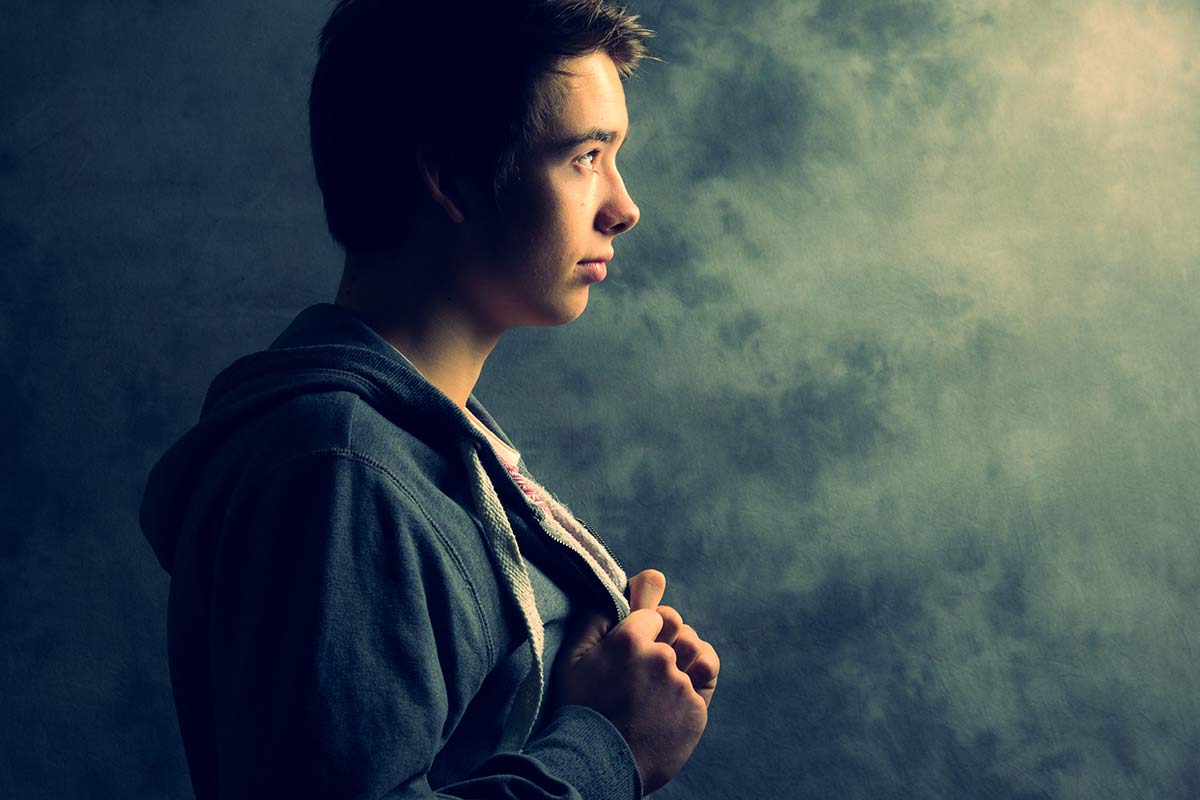
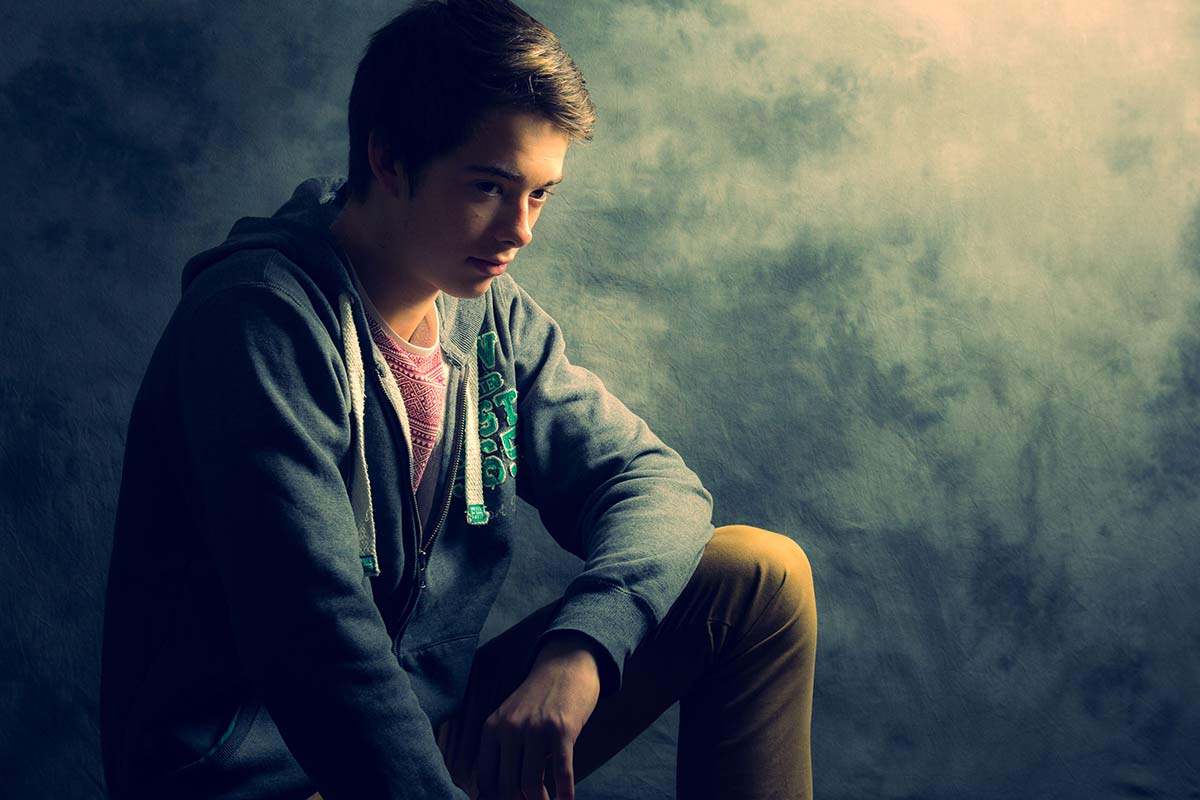
softlight-portrait-2In the studio there’s two types of light that photographers use to define their subject, hard light and soft light. Both have their place but usually in the studio I use soft light when shooting portraits. Getting the light from your studio flash or speedlite can be done in several ways. You can use one light or multiple lights, a softbox or umbrella and in this video I look at them all.

In total I cover seven questions you should know about soft light and how it’s different to hard light.

The final images you see here have had a little bit of Photoshop applied. How much Photoshop? Surprisingly little and I show you exactly how it’s done towards the end of the video too.

[youtube]http://www.youtube.com/watch?v=MfBmNfMb7WA&feature=c4-overview&list=UU8Pksdbj37CdE00kmE7Z1dw[/youtube]
Can’t see the video? Click here http://youtu.be/MfBmNfMb7WA

Gear used in the video (links to the Adorama store)
Canon EOS 60D Digital SLR Camera
Canon EF 24-105mm f/4L IS USM
Lastolite Collapsible Background (Washington/Dakota) 
Lastolite Hot Shoe Ezy-box Softbox 24×24″ 
Flashpoint Triple Shoe Mount Bracket 
Adorama 33″ Translucent Umbrella

softlight-portrait-1

Heavy Painted Border

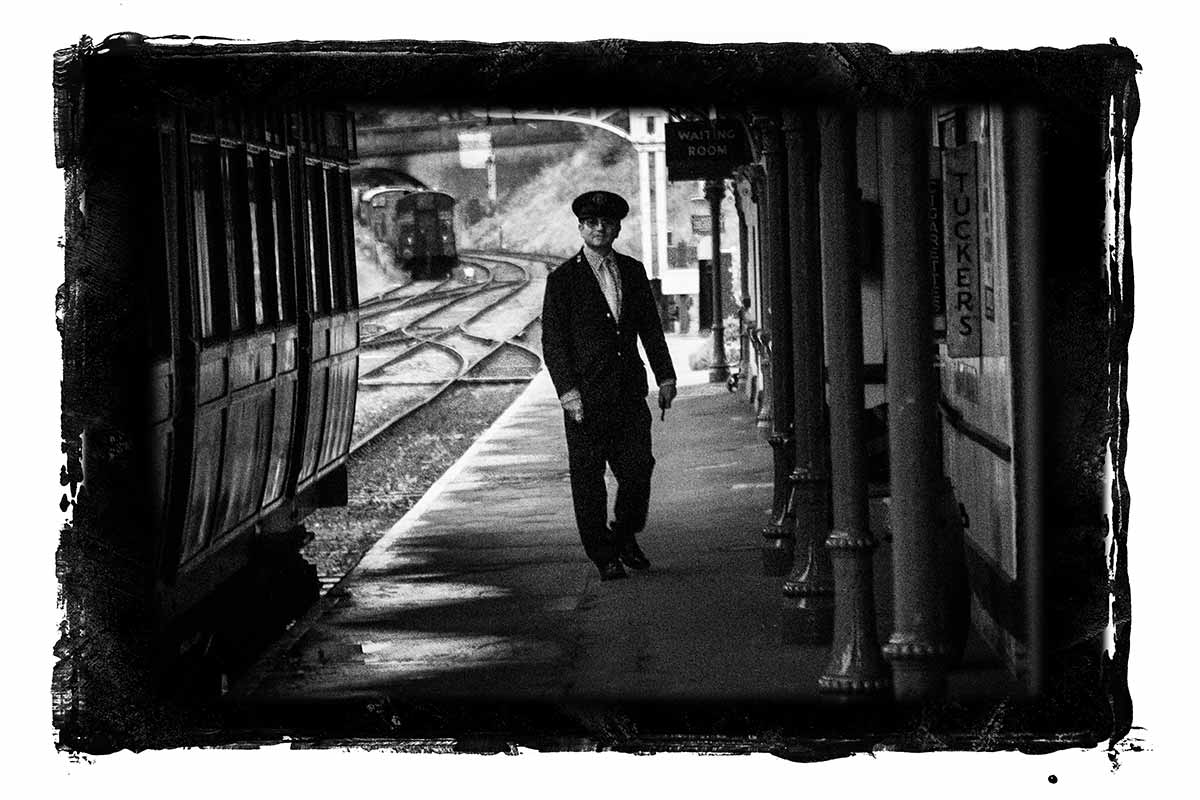
Steam-Train-Border-FFHere’s another amazing border from my recent painting session. This time I’ve gone for a border that surrounds your photo with a wide painted edge.

Full download instructions are below but you can also
Click Here To Download the Heavy Painted Border

I’ve designed this border so it can be used in two ways and it all depends on if you add your photo above or below the border.

Once you’ve downloaded it you’ll find I’ve removed the centre of the border image but left it transparent. S0 to make the image / border combo you see here all you do is drag your photo below the border layer in Photoshop. The centre area has a short fade so it blends in nicely with the photo.

The second option is to place your photo above the border layer. Doing that will give you a hard edge and you can decide how much of the border is seen.

You’ll need to resize your image or the border with Free Transform (CTRL+T). Use the corner handles to drag the image to the size you want and when done press Enter. The border will work with any photo although it’s especially good with black and white images.

If you create a photo using the Friday Freebie then let me (and everyone else) know by leaving the link in the comments below.

Usage rules
The image is copyright Gavin Hoey 2013. Use is limited to any personal but non-commercial purposes. Please share the Friday Freebie by linking back to this page. Do not redistribute the original image without my permission.

Download instructions

Click the link https://drive.google.com/file/d/0B_Mmmm3K1utNa19JQmtESDNVZjQ/view?usp=sharing
1. Click the Download button download_icon

2. The download should start automatically


Questions to Canon

canon_logoOn Sunday I mentioned on my Facebook page that I was visiting Canon this week and asked for any questions I should put to them.

There were a few questions about bagging some freebies but most of the questions raised were about future Canon cameras, lenses and features. Understandably Canon were very tight lipped about that kind of thing so I can’t tell you when the 7D2 will be announced.

However there were lots of questions Canon were happy to help with. Please note this shouldn’t be read as official Canon policy but my interpretation of our conversations.

Will Magic Lantern firmware invalidate my warranty?
Possibly yes, possibly no. Magic Lantern is 3rd party firmware for Canon cameras and adds some very useful video / photography features. I got the feeling that Magic Lantern firmware was a grey area with no official company line but there was a firm feeling of “use it at your own risk”.

The impression I got was if the firmware runs just off the Memory Card you should be OK but if the Canon firmware is replaced, modified or added to in anyway whatsoever don’t expect Canon to be willing to help if you run in to trouble. For the record I run Magic Lantern on my 60D and have no plans to stop using it anytime soon.

Can Canon fix rolling shutter issues on DLSR’s
As far as I could tell the answer is no. Rolling shutter is a phenomenon seen in videos. When the camera pans suddenly to the side, upright things will bend or go diagonal. If it’s a problem that you can’t live with then Canon’s Cinema bodies is the way to go.

Is it true that DSLRs are on their way out?
Again Canon aren’t going to tell me about their future plans but similarly they didn’t show any signs of ditching DLSR’s anytime soon.

Why don’t they incorporate a time-lapse function in their cameras.
No reason given but no comment if it will be ever added. To me it seems like an easy add to the firmware and I for one would like to see it.

Time-lapse is part of Magic Lantern firmware (see above regarding warranty issues) but bare in mind if you take 1000 images in your time-lapse that might be 1% or more of the life expectancy of the shutter. 100 timelapses and your shutters is dead… which is why I rarely do time-lapse with my DSLR.

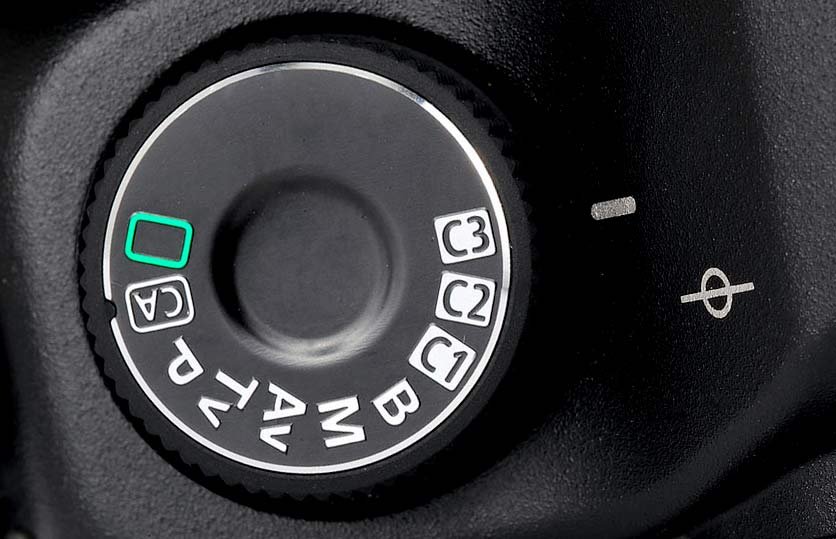
5D-Mode-DialIs there a Spot Meter button on the 5D Mark3?
There’s no single button but it’s all part of the meter mode button. If you need a fast way of switching between spot metering and standard metering then consider setting up a custom profile of the mode dial. EG set C3 as spot and C2 as standard.

3 Non-Photographic Items In My Bag

Like many photographers my camera bag is stuffed full of gear. Some things like Camera bodies and lenses are obviously essential and get used all the time, whilst other things like lens cloths and random batteries are always handy to have around.

Space in my camera bag is always at a premium and I hate carrying around things that I won’t use. None the less there are a few things I always have with me which, on the face of it, have nothing to do with cameras but have proved their worth time and again.

So here are my top three most useful non photographic things I keep in my camera bag.

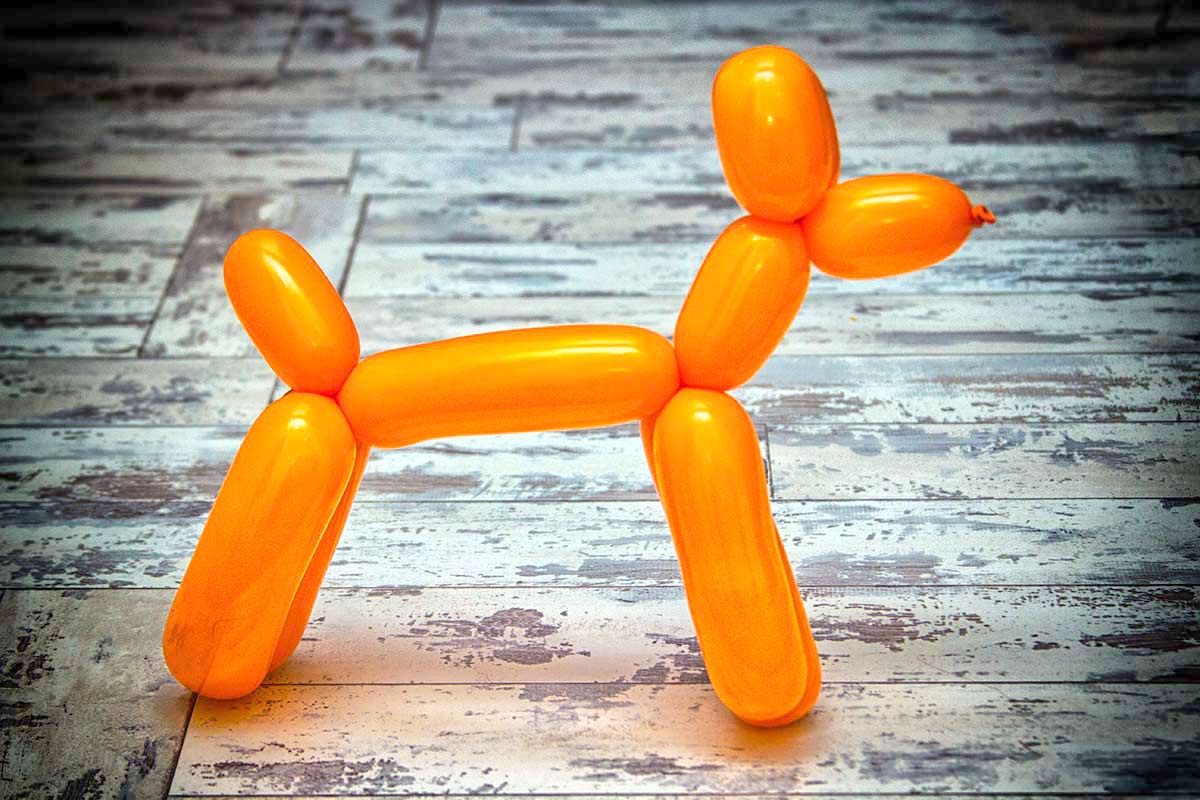
Balloon-DogNo.3 – Modelling Balloons
These first found their way into my camera bag back in the days when I was a wedding photographer. As the only professional at the wedding for the whole day, the photographer is also a bouquet fixer, guest liaison officer and occasional shoulder to cry on. The modelling balloons came in handy in my role as Photographer / children’s entertainer. If you can get the kids on your side photographing them (and the adults) becomes much easier!

So why are they still in my bag? Knot one up and you have an elastic band, adjustable strap or a quick way to mark your gear out from the crowd (hard to miss pink rubber band wrapped around your lens) Of course it’s also handy to surprise clients with kids by making an impromptu balloon animal!

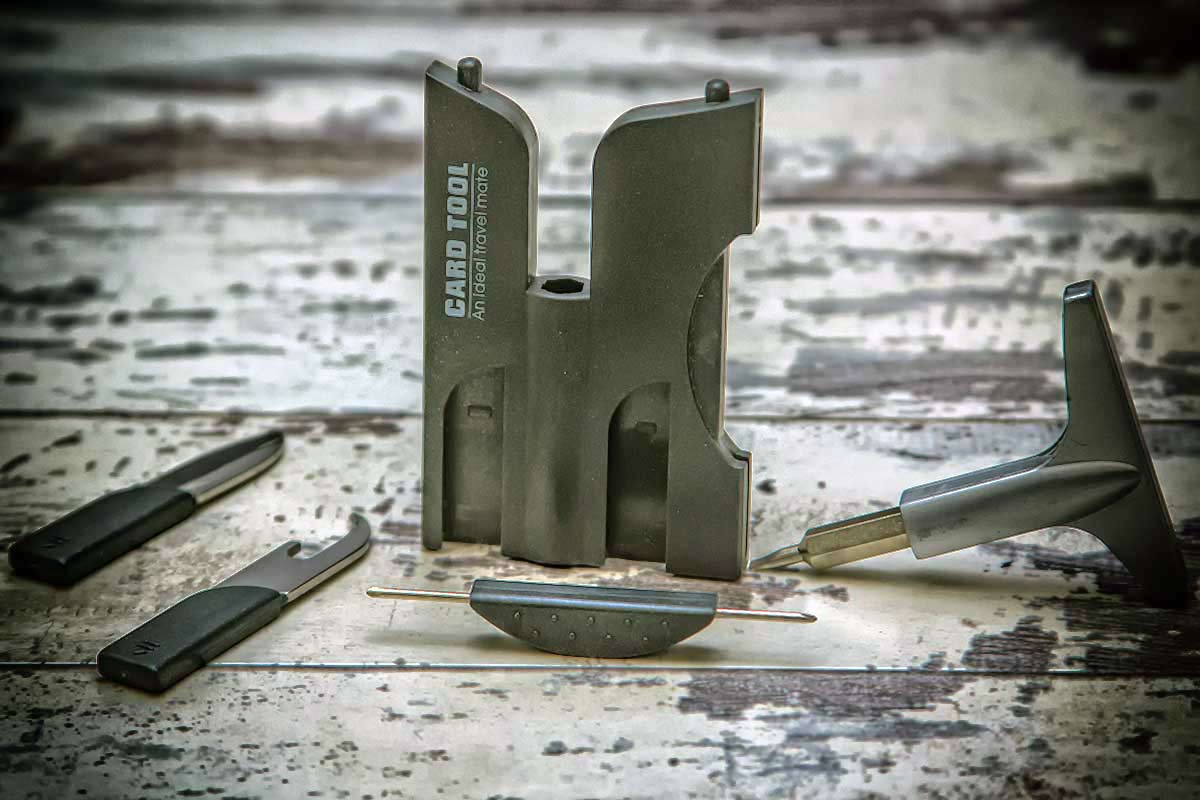
Multi-Tool-CardNo.2 – Multi-Tool card
From the traditional Swiss Army Knife to top of the range Leatherman, multi tools come in all shapes and sizes but my personal favourite is the small card type like this. It has everything I need from a small knife, handy for getting into cellophane wrappers and the all important selection of screwdrivers.

It’s probably the screwdrivers that I’ve used the most. From the tiny screws that work loose in modern electrical items right up to the full size screwdriver need for running repairs on bigger items, this tools can handle them all.

Whether it’s repairing my gear, or more often someone else’s, these things were cheap, durable and endlessly useful. They also take up next to no room in my bag.

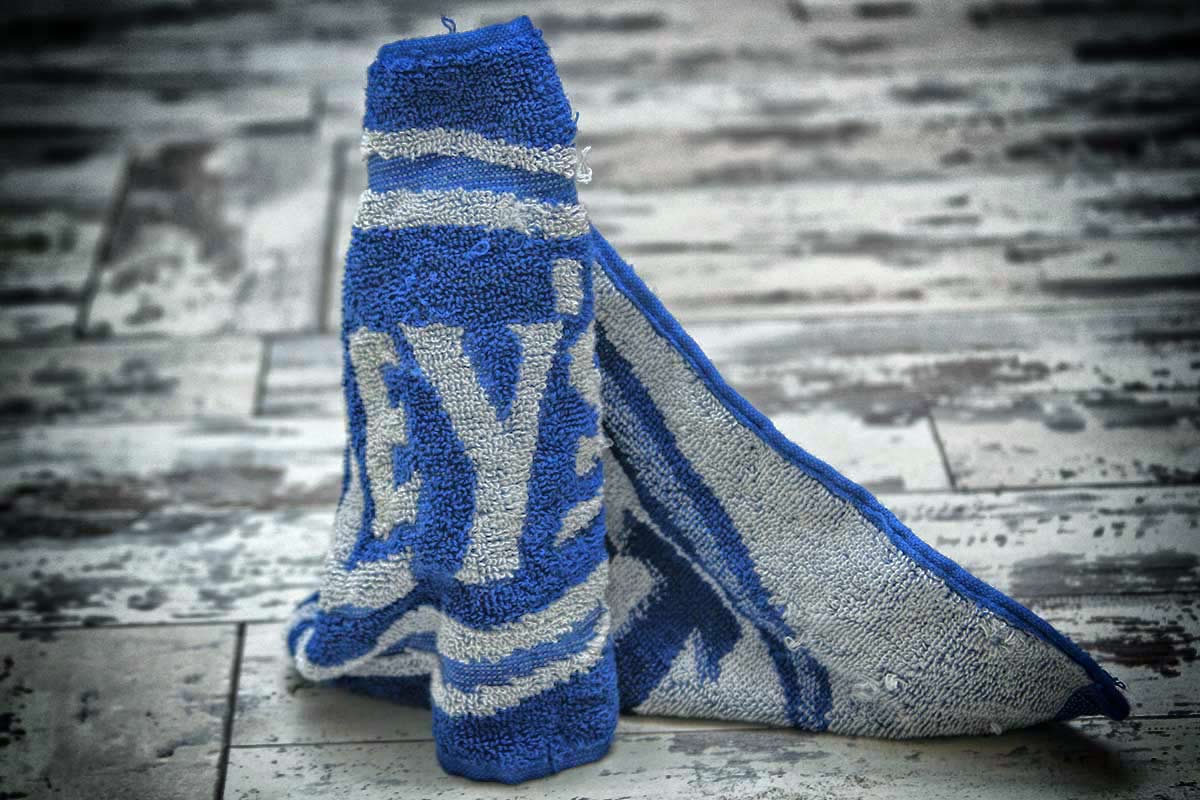
 Beer-TowelNo.1 – Beer Towel
A towel, The Hitchhiker’s Guide to the Galaxy says, is about the most massively useful thing an interstellar hitchhiker can have… It’s also top of my non photographic gear must have list. These small, rectangular towels are priceless to me.

Need to protect something in your bag? No problem, just wrap it in a beer towel. Need to wipe a bit of light rain, mud or snow off you or your gear? Reach for the beer towel. Need to kneel on the ground without getting muddy? Use the beer towel… I could go on.

You can buy a pack of 10 beer towels for about £1.50 per towel and they’ll last for years. Small, cheap and endlessly useful they are my number one must have non photographic accessory.

Do you have a non photographic accessory that lives in your camera bag (and you actually use) if so I’d love to know what it is so please leave a comment below.

White Painted Border

Painted-edge---finalThis was fun to make and not just because things got a bit too messy! This Friday Freebie was lovingly hand crafted from nothing but the finest kids paints, most of which seemed to end up on my desk and not the paper. There is a reason that happened and it’s not just because I’m rubbish at painting.

Over the years I’ve made many borders with paint but not always with paint brushes and this is a perfect example. To get the distressed edge effect I “painted” with the rubber edge of an old ice scraper that had been rolling around in the boot of my car for a few winters. I then photographed the edge and straightened in up in Photoshop.

Full download instructions are below but you can also
Click Here To Download the white painted border

Using the border is as simple as changing the layer blending mode to Screen. For the less advanced users that’s done like this…

Download the Friday Freebie and open it in Photoshop or Photoshop Elements, then open the photo you wish to add to the frame. Flatten any layers (Layer – Flatten Layers) and then press CTRL+A to select it all, followed by CTRL+C to copy. Jump over to the frame and press CTRL+V to paste the image on to the frame.

You’ll need to resize the image with Free Transform (CTRL+T). Use the corner handles to drag the image into the photo area and when done press Enter. Finally change the layer blending mode from Normal to Screen to blend the photo with the template.

If you create a photo using the Friday Freebie then let me (and everyone else) know by leaving the link in the comments below.

Usage rules
The image is copyright Gavin Hoey 2013. Use is limited to any personal but non-commercial purposes. Please share the Friday Freebie by linking back to this page. Do not redistribute the original image without my permission.

Download instructions
Click the link https://drive.google.com/file/d/0B_Mmmm3K1utNZnZxWnQxUGc0dHc/view?usp=sharing
1. Click the Download button download_icon

2. The download should start automatically


Perfect Photo Suite 8 First Look

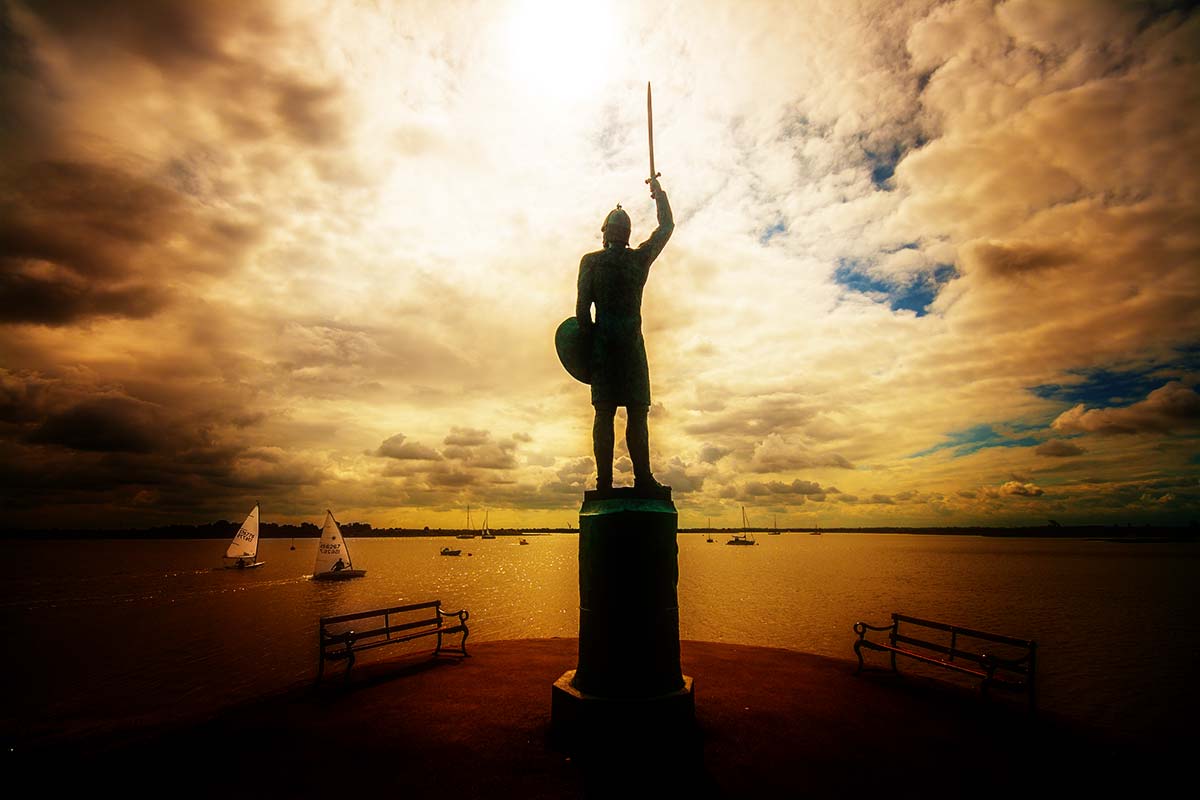
maldon-1There’s no shortage of plugins for Photoshop, Lightroom and Elements and many of them can really help get the most from your photos. For years I’ve been really happy with Nik Software and Color Efex Pro 4 has become a standard part of my workflow, I even did some webinars for them. The problem is, since Nik was sold to Google in late 2012 there’s been little news of upgrades, improvements or even minor tweeks and that’s a shame. At the moment it feels like Nik Software is just going to be left to fade away gracefully.

So I’ve been on the hunt for an alternative. Something that does the things I can’t do in Photoshop and makes it quick and easy too. Enter Perfect Photo Suite 8 from onOne software. You can download the free public beta here.

Alternatively if just want to dive in you can Pre-Order Perfect Photo Suite 8 here

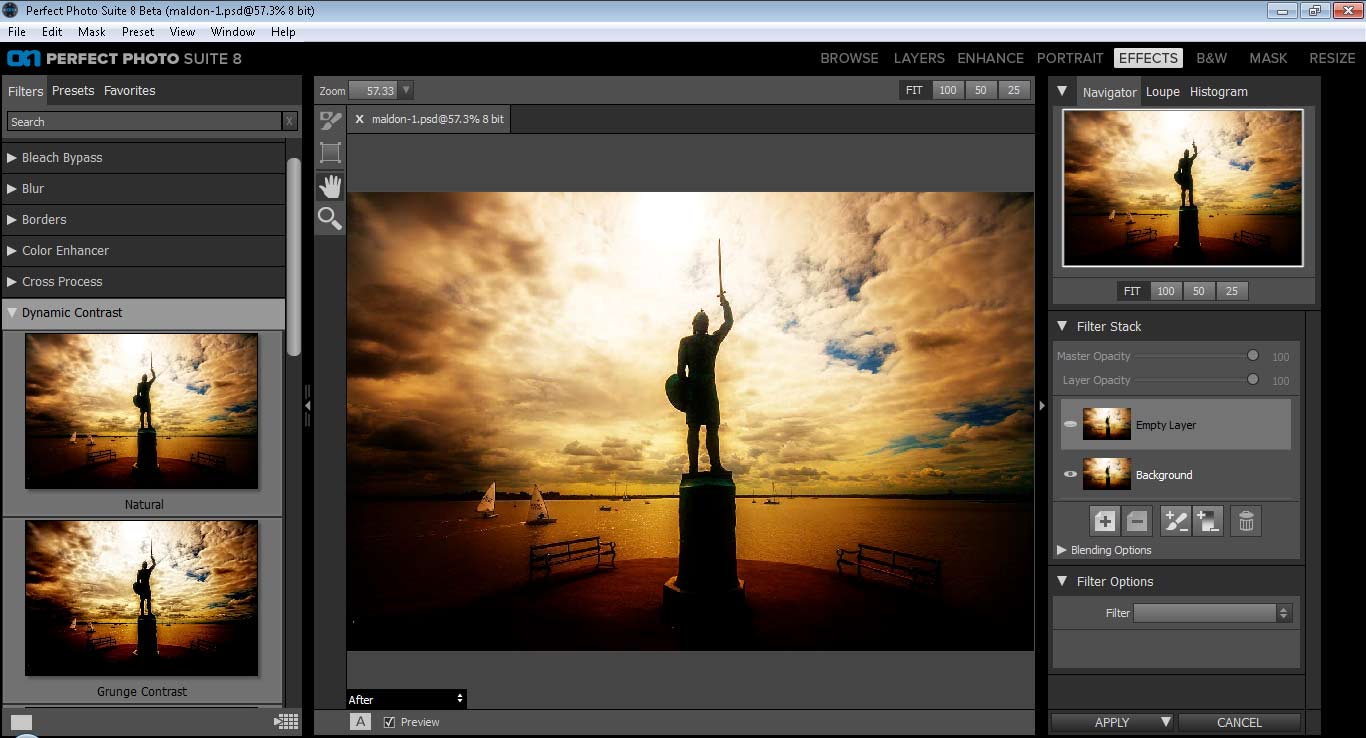
I’ve been using the public beta version of Perfect Photo Suite 8 for the past few weeks and my inital reaction has been really positive. It does the things I do with Nik such as enhance detail in a way not possible with Photoshop and it has an excellent black and white conversion section. In fact because it’s a complete suite you could use it as a standalone photo editor or do as I do and use it as an extra add on to my Photoshop work. That does mean I don’t use modules that replicate what I would do in Photoshop but the Perfect Effects and Perfect B&W are getting plenty of use.

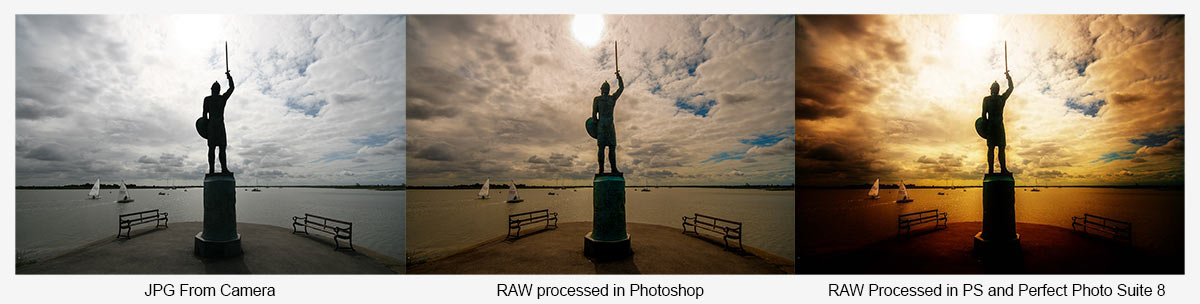
maldon-1-JPG-RAW

OnOne Software have just launched a free to try version of Perfect Photo Suite 8 Beta 2 so my advice is to download a copy and give it a spin. Do keep in mind that it is a Beta and that means they’ll be some bugs, not everything will be 100% working and the final version will be better.

I’d recommend jumping in and trying the Effects module first (File – Automate – Perfect Effects). The example above made use of the sunshine effect to add a warm glow to the image but the thing that caught my eye are the clarity style adjustments. Things Like HDR, Dark Contrasts and Dynamic Contrast are already shaping up to me some of my favourite features. There’s even an effect called Grunge… How can I resist that! All the effects come with a bunch of presets which are previewed on adjustable sized thumbnails. You can also take control with the sliders to create your own style and save it for future use.

If you do give it a go I’d be interested in hearing what you thought, especially if like me you’re a user of Nik.

PPS8-1


Retro Cross Polarisation Effect

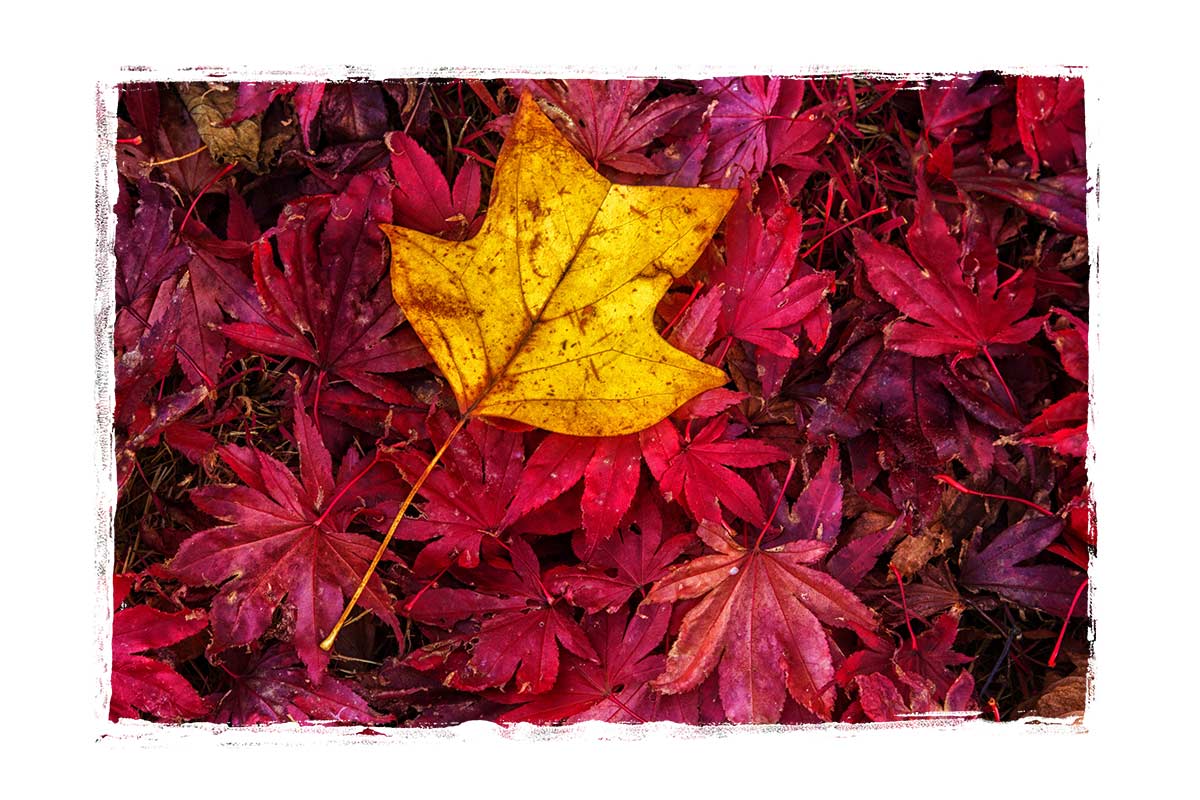
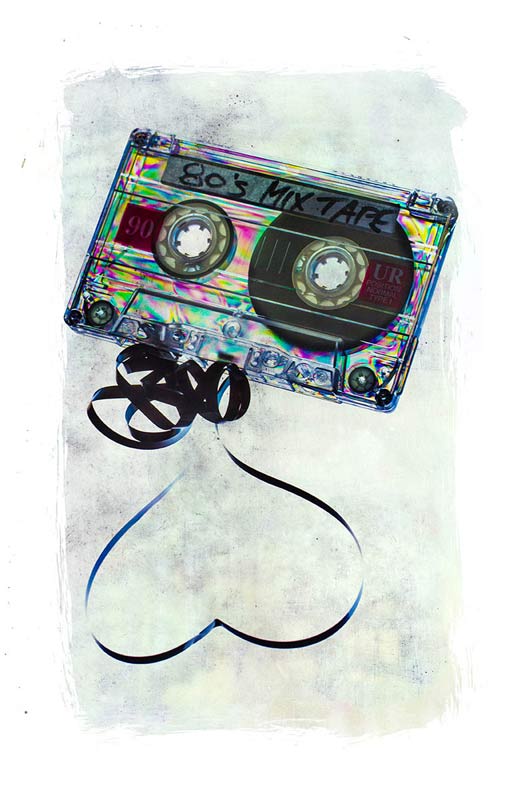
80s-Mix2Here in the UK we’re in the full grip of Autumn and all the wonderful photo opportunities that this time of year brings. Sadly the amazing colours of autumn are usually a fleeting thing with wind and rain making the chances of capturing them even more challenging.

So here’s a brilliant idea that you can do any time of year and whatever the weather.

The techique makes use of cross polarisation. It’s one of the very first tricks I learnt way back in the mid 80’s when I first became serious about photography. All you need is an LCD screen as your light source, something made of clear plastic and a polarising filter for your camera. I’d also recommend a tripod to minimise camera shake or high ISO noise.

To finish off I added a texture and as I mention in the video I’m sharing it. To download it just follow this link http://adobe.ly/1ac4x7M click the Actions button and choose to download the JPG image.

[youtube]http://www.youtube.com/watch?v=AG3F4gG3tuw&feature=c4-overview&list=UU8Pksdbj37CdE00kmE7Z1dw[/youtube]

Distressed Wood Frame

Distressed-Wood-Template-EGThis week’s Friday Freebie is a frame template that has a slightly dark, moody feel. The background is a sample of flooring bought from a DIY store. It has a wonderfully distressed and weathered look to it, making it the perfect compliment to everything from coastal scenes to urban decay. Once photographed and edited in RAW, I gave the final image a light texture effect using OnOne’s Perfect Photo Suite 8 beta, perfect for adding a touch of grunge!

Full download instructions are below but you can also
Click Here To Download the distressed wood frame

To use the Friday freebie download it and open it in Photoshop or Photoshop Elements, then open the photo you wish to add to the frame. Flatten any layers (Layer – Flatten Layers) and then press CTRL+A to select it all, followed by CTRL+C to copy. Jump over to the frame and press CTRL+V to paste the image on to the frame.

You’ll need to resize the image with Free Transform (CTRL+T). Use the corner handles to drag the image into the photo area and when done press Enter. Finally change the layer blending mode from Normal to Hard Light to blend the photo with the template.

If you create a photo using the Friday Freebie then let me (and everyone else) know by leaving the link in the comments below.

Usage rules
The image is copyright Gavin Hoey 2013. Use is limited to any personal, non-commercial purposes. Please share the Friday Freebie by linking back to this page. Do not redistribute the original image without my permission.

Download instructions
Click the link https://drive.google.com/file/d/0B_Mmmm3K1utNSnFEM1UwRjkxa3M/view?usp=sharing
1. Click the Download button download_icon

2. The download should start automatically


Who’s stealing your photos?

Image-TheftWarning! This blog post might cause annoyance and paranoia… but don’t let that stop you reading it!

Thanks to the internet, image theft is on the rise and the harsh reality is there’s not much us photographers can do to stop it.

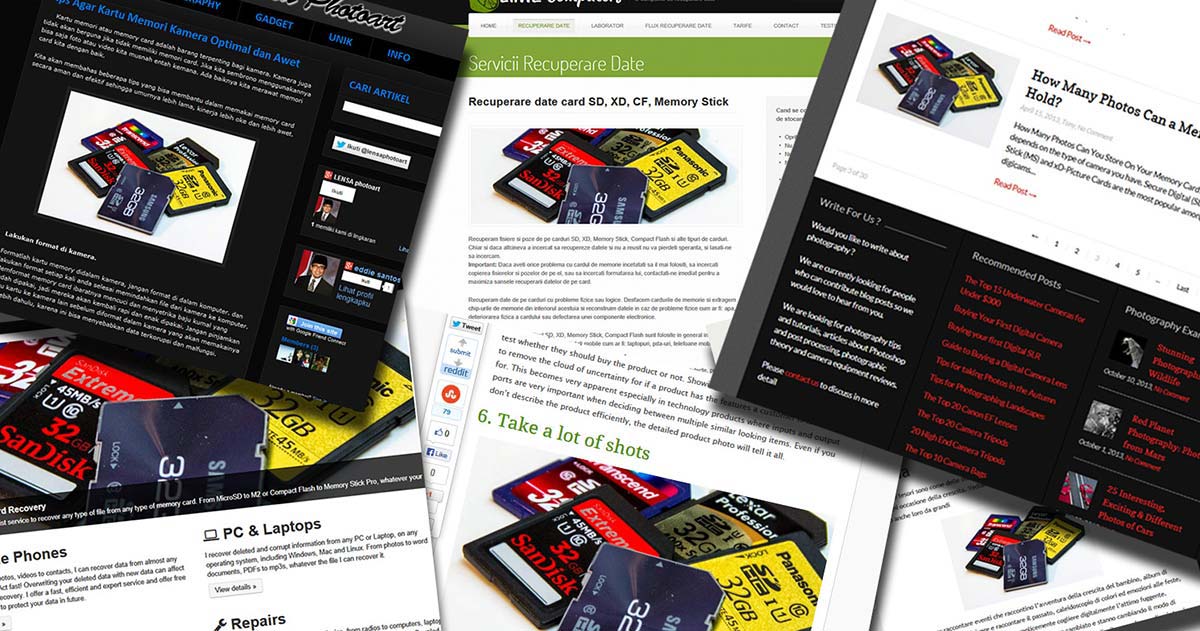
Don’t think for a second that it will only be your best work that’s at risk. Take a look at how many times my snap shot of a pile of memory cards has been used by others (all without my permission). It’s hardly a photo I’m ever going to print out but it’s probably my most stolen!

It’s not just photographers. In the past week I know of someone who found one of her photos published in a magazine without her knowledge. To be fair to the magazine, they were sent it by a reader who claimed it was there’s. Neither the owner of the photo nor the magazine is connected to photography.

Minimise the risk
Short of not uploading anything to the internet, what can you do to stop image theft?

Well, first off you could stop worrying about it. Everyday Facebook users add 300 million photos, so the chances of anyone stealing yours are mathematically very small. You might want to add a watermark to your images or add copyright metadata. Yes they can be easily removed but they can also act as a deterrent to the casual image thief.

There’s also the option for making you photos available with a Creative Commons licence allowing your images to be used in certain ways and not in others.

Image-Theft-2Finding your Images
So who’s using your images without permission? Well probably no one but there are ways to check with the help of a couple of websites. Here are two I’d recommend.

Google Reverse Image Search is like a backwards version of Google’s usual image search. Instead of find images that match words it finds images that match images and then tells you where they are. It’s quick, free and very accurate.

To find it go to Google’s Image search, click the camera icon and paste a link to an image you want to match. Alternatively you can upload a sample image.

The results are displayed just like any other Google search.

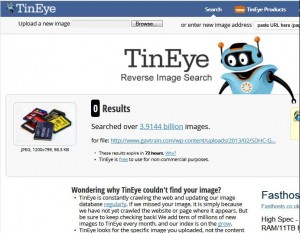
Image-Theft-3TinEye has been around longer then Google but doesn’t have the reach of Google’s reverse image search. Just like Google you can search using an image that’s already online or upload your own.

One nice feature is the option to look at a whole webpage for images and you can choose which of those you want to search for.

TinEye doesn’t have the reach of Google but don’t rule it out. Sometimes if finds results Google misses.

What to do next
Hopefully the only pages using your photos are yours or pages you work with. However if you do find your images in use elsewhere there are a number of things you can do. Some of them involve legal action, not something I do lightly and beyond the scope of this post. However if the transgressor isn’t worth the time and stress legal recourse may require and all you want is the image taken down or credit given, then a polite but firm email often works wonders.