Painted Border – Creative Lightroom Episode 2

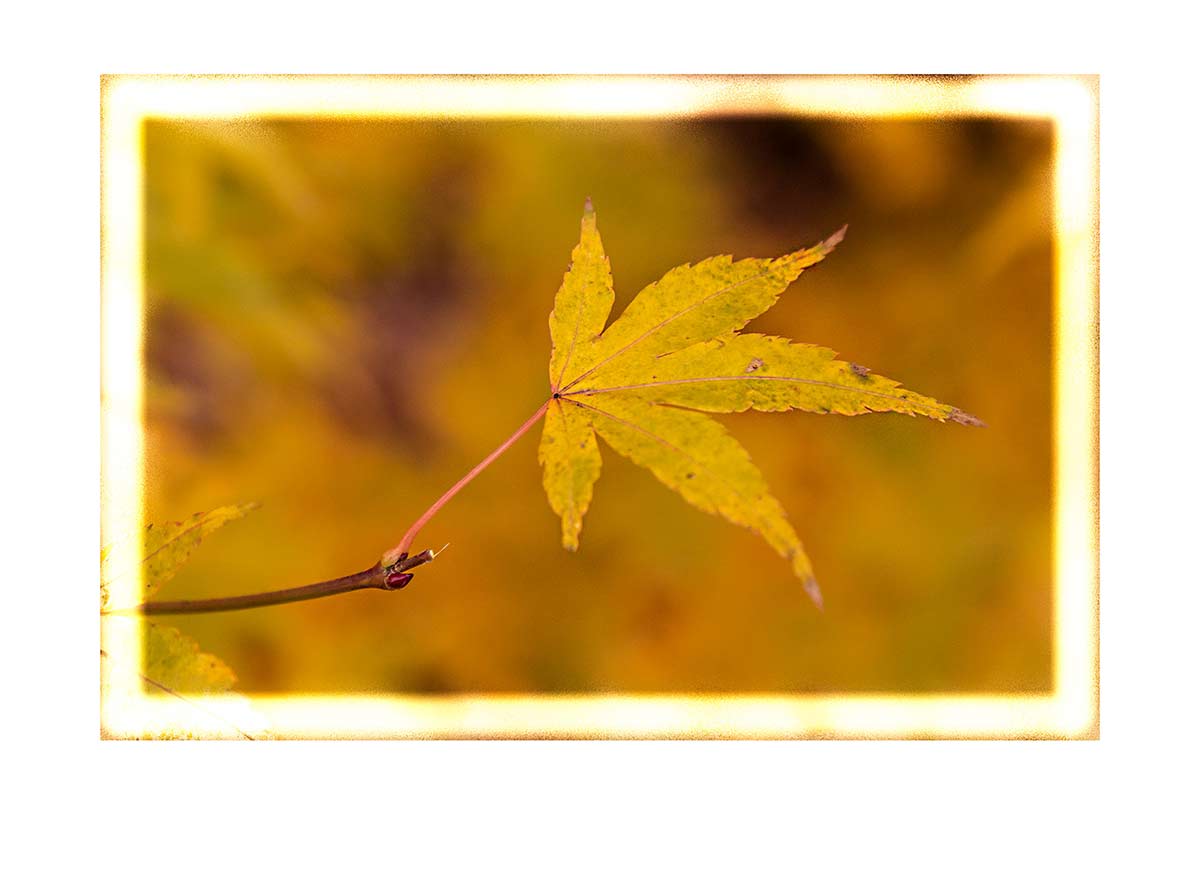
2-Painted-BorderIn the second episode of Creative Lightroom, I have a great border technique which looks amazing especially on pictures with smooth tones at the edges. That means it’s perfect on pictures with blue skies or defocused backgrounds… just like this one.

This is a really quick and simple technique that works with all versions of Lightroom including the latest and greatest version, Lightroom 5.

At the end of the video where I show a quick way to increse the white space around the outside in the Print module but watch carefully, blink and you’ll miss it.

It’s worth mentioning that if you’re a Photoshop user rather then Lightroom user then remember EVERYTHING I show in the video is the same as Adobe Camera RAW in Photoshop CS4, Cs5, CS6 and Photoshop CC.

[youtube]http://www.youtube.com/watch?v=CcfYL-sUDFI[/youtube]

Can’t see the video? Click here: http://www.youtube.com/watch?v=CcfYL-sUDFI
Instant Extra Confetti

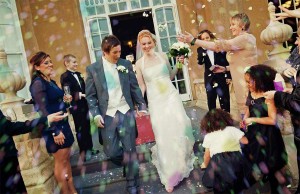
Instant-ConfettiThis weeks Friday Freebie is perfect for wedding photographers who are looking to enhance thier conffeti photos with a burst of extra confetti.

You can download the action here: Instant Confetti

The confetti shot at a wedding is a one off event, get it right and it can be a fanstatic photo but the combination of over eager wedding guests and restrictions on confetti throwing some venues impose can make it a challenging photo too.

The action makes three layers of coloured confetti with just one click. You can then dive in to the layers and change the colour saturation, the size of the confetti and erase any stay flakes that are in the wrong place for your photo.

The action will work with Photoshop CC, CS6, CS4, CS4, CS3.

If you create a great photo with my action then feel free to link to it by leaving a comment below.

Usage rules
The action is copyright Gavin Hoey 2013. Use is limited to any personal, non-commercial purposes. Please share the Friday Freebie by linking back to this page. Do not redistribute the original action without my permission.

Download instructions
The direct link to download the actions is https://www.gavtrain.com/free/instant-confetti-gavtrain.zip

No support is provided with the Friday Freebies. If you need help Google or YouTube the question and you’ll almost certainly find the answer 🙂

Light Leak Effect – Creative Lightroom Episode 1

CL-final001In the first episode of Creative Lightroom, my new 10 week series, I have a great light leak technique which looks amazing on vintage and retro styled images.

Light leaks were origianlly a problem that affected film cameras and often resulted in a ruined photo. On the rare occasion a light leak would occur which actually enhanced the photo. Using Lightroom it’s very easy to choose which photos would benefit from a light leak and how big it needs to be. On the right photo light leaks will look amazing.

It’s worth mentioning that if you’re a Photoshop user rather then Lightroom user then remember EVERYTHING I show in the video is the same as Adobe Camera RAW in Photoshop CS6 and Photoshop CC.

[youtube]http://www.youtube.com/watch?v=YQzIgb9G6Bs[/youtube]

Creative Lightroom… Coming Soon!

Creative-Lightroom-logoOver the past 12 months I’ve been keeping very busy making video tutorials for a range of companies. You’ve proably seen me in front of the camera as a presenter on Adorama TV but I’m also often found behind the camera recording and producing video tutorials for other companies unrelated to photography.
With everything that’s going on I’ve been neglecting my own YouTube channel a bit too much, but not for much longer.

Today I’m excited to announce that on Monday 15th July I’m launching a new series of video tutorials on my YouTube channel. Every Monday for the next 10 weeks I’ll be adding a new episode of Creative Lightroom to my YouTube channel and also posting them here on my blog.

So what can you expect from Creative Lightroom? Well the clue is in the name, every episode will focus on the creative aspects of Lightroom rather then looking at the basics or how I edit individual photos. It’s what I love doing and I hope you enjoy it too.

The sneak peek video below should give a great idea of what’s coming up.

[youtube]http://youtu.be/WRVn6C-sfWc[/youtube]

Coastal 15 minute photo challenge

I know there are a lot of photographers out there who enjoy my 15 minute photo challenge videos, including me. Although I don’t get the chance to make as many as I once did they’re certainly not consigned to the history book… far from it.

If you’re new to my blog then you may be wondering what a fifteen minute photo challenge is. Basically its my way of sharpening my camera skills and training my photographers eye but limiting myself to a fixed amount of shooting time. Not only that but I’m also restricting the geographic area in which I can look for photos which can be a blessing and a curse. The end result is often unpredictable and always challenging, it often takes me out of my comfort zone which is always a good thing to do every once in a while.

Keep scrolling down to see a few of the final photos.

[youtube]http://www.youtube.com/watch?v=gFU4SSEjYVs[/youtube]
Can’t see the video? Click Here http://www.youtube.com/watch?v=gFU4SSEjYVs

Saltdean-1

Saltdean-2

Saltdean-3

Equipment used in the video:

Adobe Photoshop CC
http://www.adorama.com/ABPSCS6W.html?KBID=67338

Canon 60D
http://www.adorama.com/ICA60D.html?KBID=67338

Sigma 10mm-20mm
http://www.adorama.com/SG1020EOS.html?KBID=67338

Sigma 10mm-20mm
http://www.adorama.com/BRRS7.html?KBID=67338

Vanguard ABEO Plus 283CT Tripod
http://www.adorama.com/VGABEO283CT.html?KBID=67338

Vanguard GH-200 head
http://www.adorama.com/VGGH200.html?KBID=67338


Vintage Texture

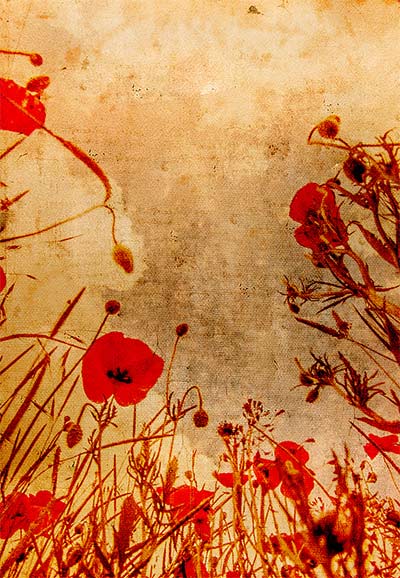
FF-vintagesThis weeks Friday Freebie is a vintage texture which is simple to use and gives amazing results. It’s a warm tone texture that combines patchy tones, a light weave texture and a hint of writing.

Full download instructions are below but you can also
Click Here To Download the vintage texture

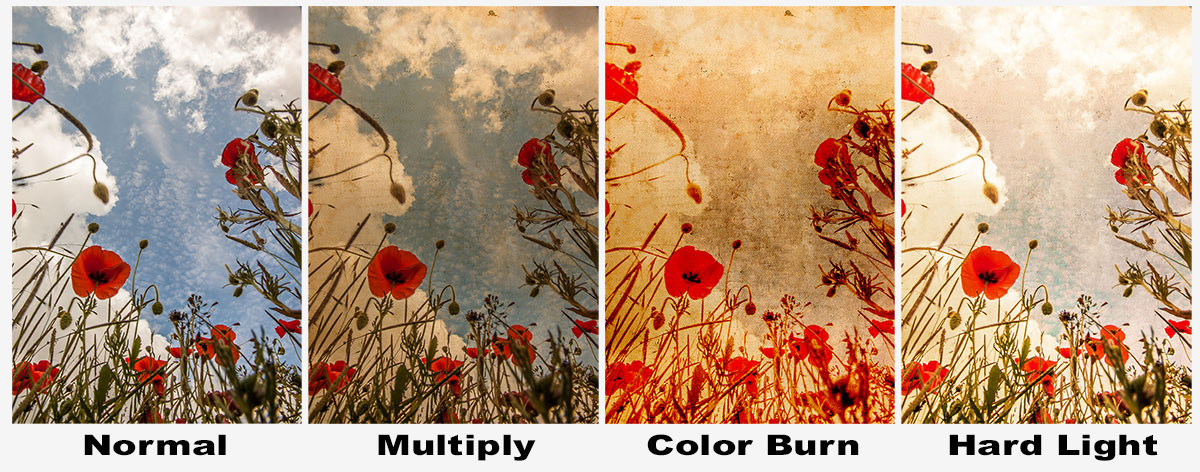
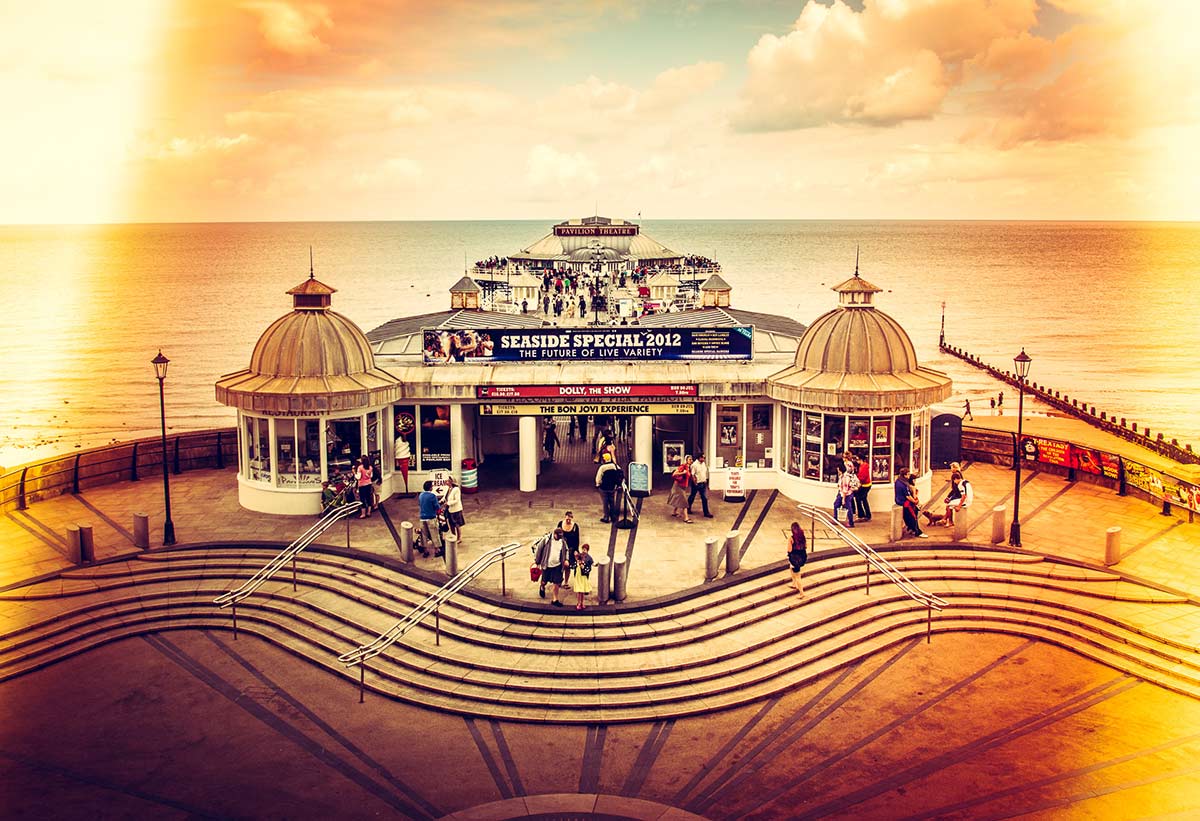
As with all textures it works best with photos that have large areas of bright tones such as this one which has loads of bright sky. All you need to do is paste your photo above the texture and set the blending mode. There are loads of different layer blending modes and they’ll all give a different look, some you’ll like and others less so but experimentation is the key to success.

Jump down to the end of this post to see three different looks for the same image.

If you create a photo using the Friday Freebie then let me (and everyone else) know by leaving the link in the comments below.

Usage rules
The image is copyright Gavin Hoey 2013. Use is limited to any personal, non-commercial purposes. Please share the Friday Freebie by linking back to this page. Do not redistribute the original image without my permission.

Download instructions
Click the link https://drive.google.com/file/d/0B_Mmmm3K1utNRHZqZzdYMmFrODg/view?usp=sharing

1. Click the Download button download_icon

2. The download should start automatically


FF-vintage-modes


Planning for Black & White

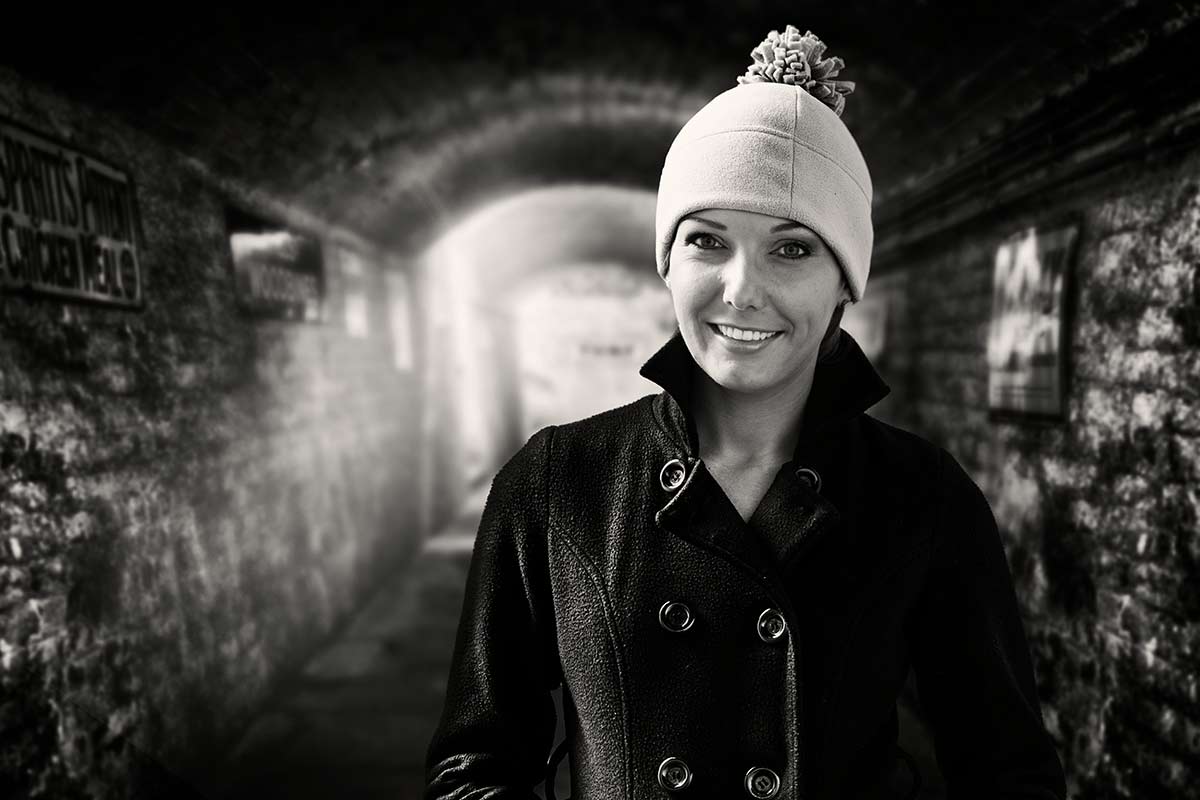
Adorama-MonoWay back  when I started learning photography the only real option for serious photographers was to make black and white prints and we were darn good at it too. Skip forward 25 years and now everyone takes colour photos but thanks to post processing everyone can also make black and white images too.

There’s an art to making top quality colour photos but making quality mono photos is an extra challenge. One of the reasons many photographers find shooting for black and white a challenge is because we don’t see the world monchrome, we see colour. However there a few tips you can apply at both the camera and Photoshop stages which will quickly step your black and white photography up a gear.

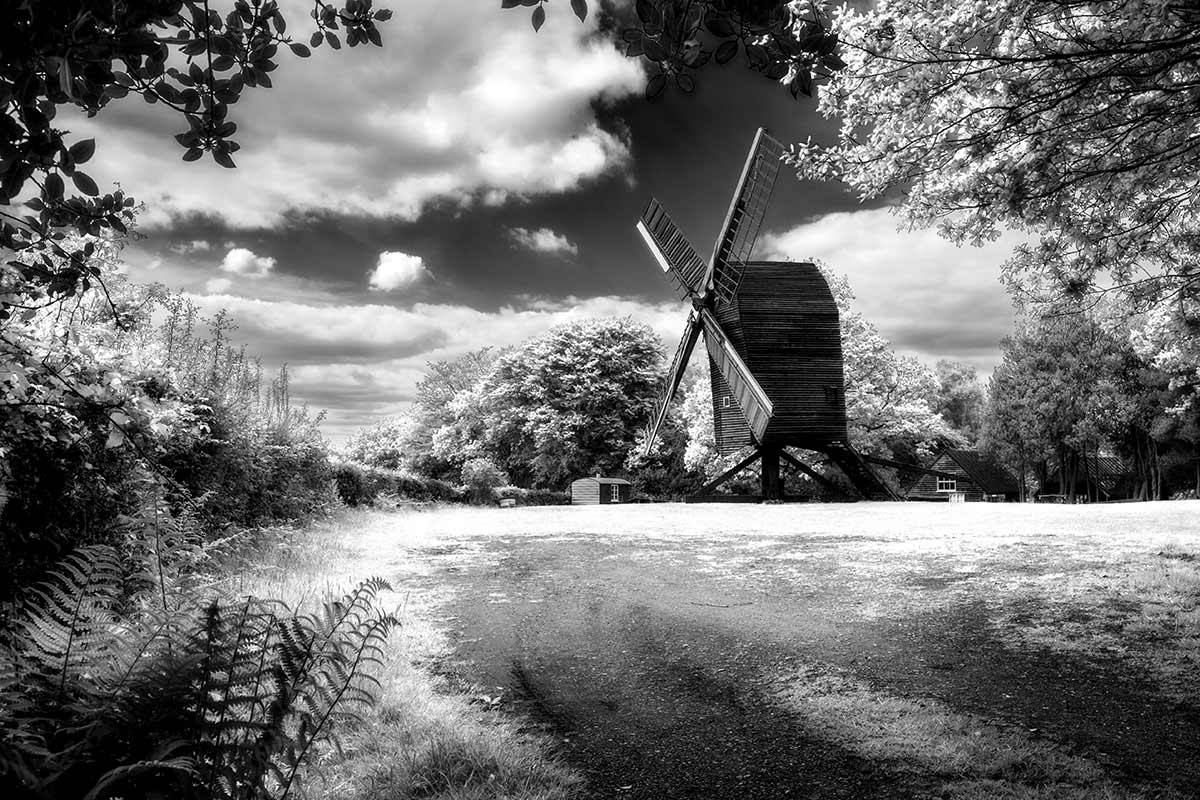
In this video for Adorama TV I visit Nutley Windmill on the Ashdown Forest with the plan of shooting for black and white. Then it’s into Photoshop to make the magic happen.

[youtube]http://www.youtube.com/watch?v=GZhk-S9Y-vs[/youtube]

Equipment used in the video:

Adobe Photoshop CS6
http://www.adorama.com/ABPSCS6W.html?KBID=67338

Canon 5D Mark II
http://www.adorama.com/ICA5DM2.html?KBID=67338

Canon 24-105L f/4 IS
http://www.adorama.com/CA24105AFU.html?KBID=67338

Vanguard ABEO Plus 283CT Tripod
http://www.adorama.com/VGABEO283CT.html?KBID=67338

Vanguard GH-200 head
http://www.adorama.com/VGGH200.html?KBID=67338


Instant Triptych Action

Basic - Landscape

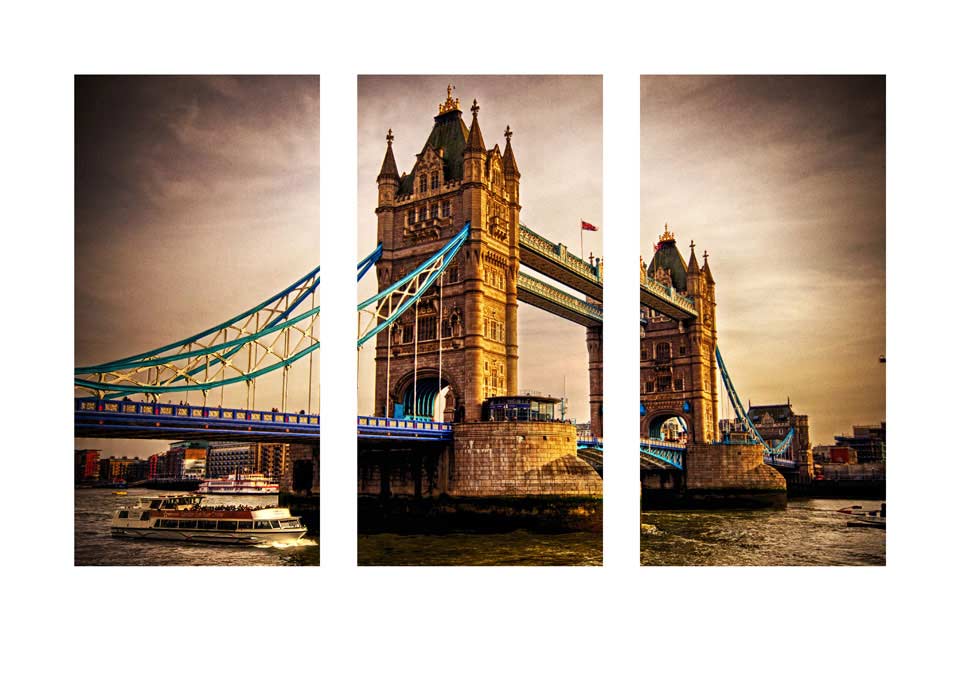
This weeks Friday Freebie is a Triptych Photoshop action.  If you’re new to the art of the triptych, it’s simply three images in one picture and this action will make one with a single click.

You can download the action here: Triptych Sample

The action I’m sharing today takes an open photo in Photoshop and makes the basic triptych effect.

The action will split your photo into three panels and add a wide border. You’ll need a landscape format (wide) image to get the best from the action. I’ve left all three panels as layers at the end of the action, which means you’re free to alter, adjust and tweak the effect to your hearts content.

The action will work with Photoshop CC, CS6, CS4, CS4, CS3 but sadly not with Elements.

If you create a great photo with my action then feel free to link to it by leaving a comment below.

Usage rules
The action is copyright Gavin Hoey 2013. Use is limited to any personal, non-commercial purposes. Please share the Friday Freebie by linking back to this page. Do not redistribute the original action without my permission.

Download instructions
The direct link to download the actions is www.gavtrain.com/free/triptych-sample-gavtrain.zip

No support is provided with the Friday Freebies. If you need help Google or YouTube the question and you’ll almost certainly find the answer 🙂

Bonus composite videos

Mark+Gav-2Last week I uploaded the two part video with Mark Wallace and myself. If you missed it the click here to go back and see both videos.

Mark was kind enough to share all the photos he shot with me and it seemed like a terrible waste not make use of at lease one more. So in the video below I’ll show you how I created this photo composite. Going mono was all part of the plan and makes compositing two images together a whole lot easier as you no longer have the issue of matching colours to get in the way.
[youtube]http://youtu.be/vbFlTkkOglU[/youtube]
Can’t see the video? Click here http://youtu.be/vbFlTkkOglU

In this video I do a deep dive tutorial on how to use Photoshop to composite the original photos. I start with how to use Adobe Camera RAW to create an HDR background and then add some light rays with my recent Friday Freebie Light Ray Brushes.
[youtube]http://youtu.be/szQ0kj1xuZc[/youtube]
Can’t see the video? Click here http://youtu.be/szQ0kj1xuZc

Watercolour PSD template

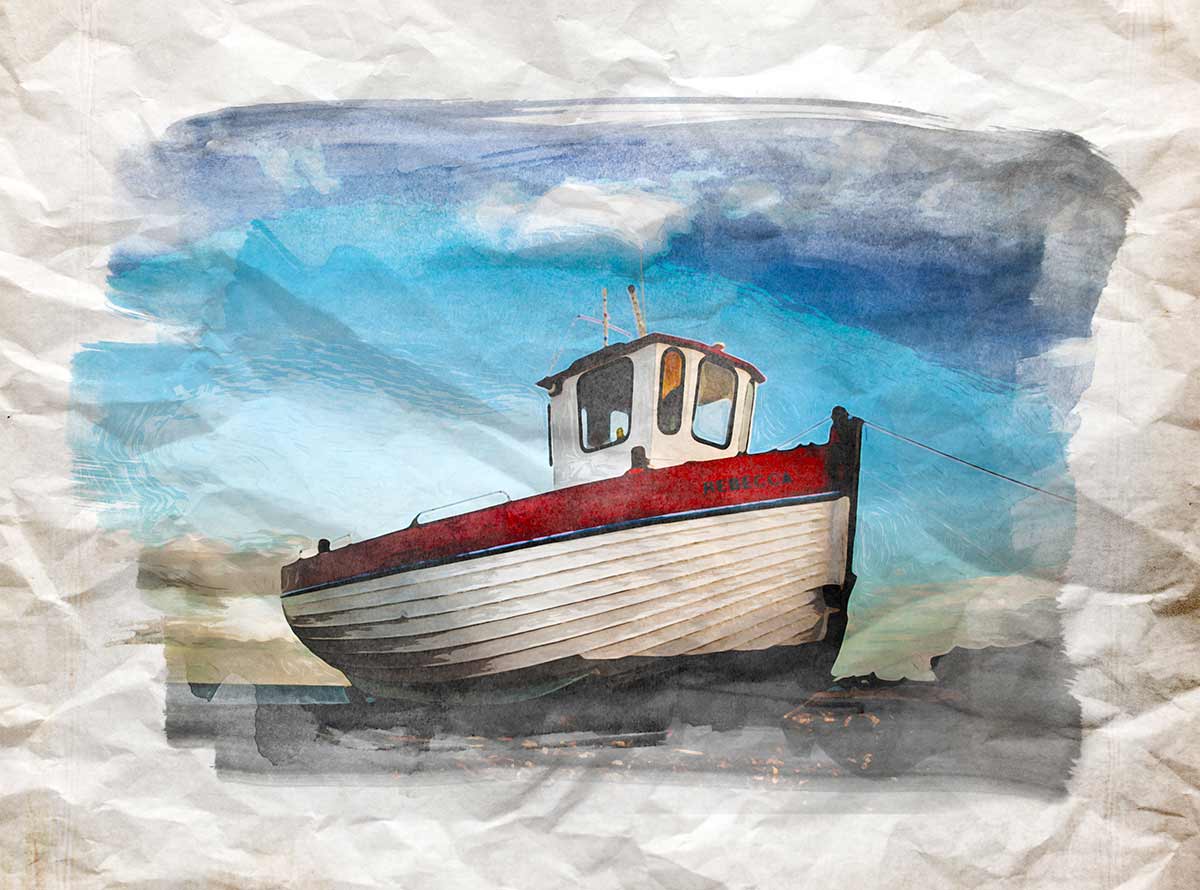
Watercolour-Friday-FreebieThis weeks Friday Freebie is a spin off from an article I wrote for Digital Photo Magazine a while back in which I created a bunch of images which, when combined together, create a great watercolour effect. Well I’ve made things easy by creating one of my templates in PSD format and sharing it with everyone for free.

Full download instructions are below but you can also
Click Here To Watercolour PSD template

If you’re wondering what a Photoshop PSD template is, then the answer is simple. It’s a Photoshop file with all the layers intact allowing you to tweak the end result as you see fit. There’s even a layer called “Your photo here” which is where your photo needs to be added.

With several layers and lots of fine textured detail, this weeks Friday Freebie PSD template comes in at around 81mb. If you’re not on a fast internet connection if might take a few minutes to download.

As always, if you create a photo using the Friday Freebie then let me (and everyone else) know by leaving the link in the comments below.

Usage rules
The template is copyright Gavin Hoey 2013. Use is limited to any personal, non-commercial purposes. Please share the Friday Freebie by linking back to this page. Do not redistribute the original image/template without my permission.

Download instructions
Click the link https://drive.google.com/file/d/0B_Mmmm3K1utNMnJoVEtKeUxMVDA/view?usp=sharing

1. Click the Download button download_icon

2. The download should start automatically

3. Save the template to your hard drive

4. Open in Photoshop or Photoshop Elements

5. Paste your photo BELOW the “Your Photo Here” layer

6. Hide or delete the the “Your Photo Here” layer

7. Use Free Transform (CTRL+T) to adjust the size of your photo

8. Adjust the Levels (CTRL+L)of the “paint” layer to change the look.