Colourful Background Projection Image

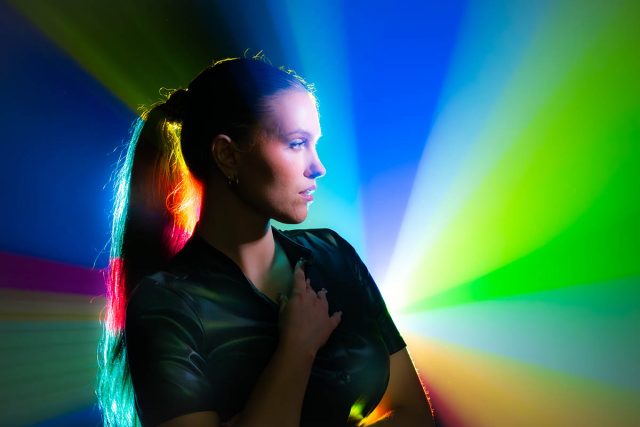
Back projecting an image through smoke is a classic technique that looks amazing with the right image.

So here’s one to start your collection off. It’s colourful and it’s hi-res which makes it zoomable. You’ll need a data projector to make the image above and lots and lots of haze!

Download instructions
       1. Click on the download link below
https://drive.google.com/file/d/142uTIw1ObSo60wcPVunSdrSfDLc50_jc

  1. Click the Download button download_icon (top right of the screen)
  2. The download should start automatically
  3. Download the image
  4. No support is provided. If you need help Google or YouTube the question and you’ll almost certainly find the answer


Instant Light Rays – Photoshop Action

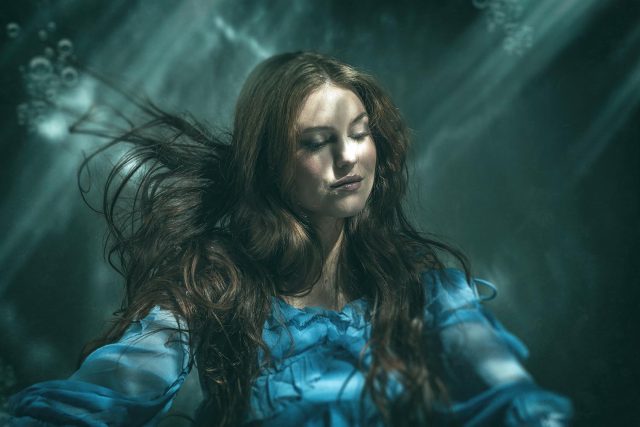
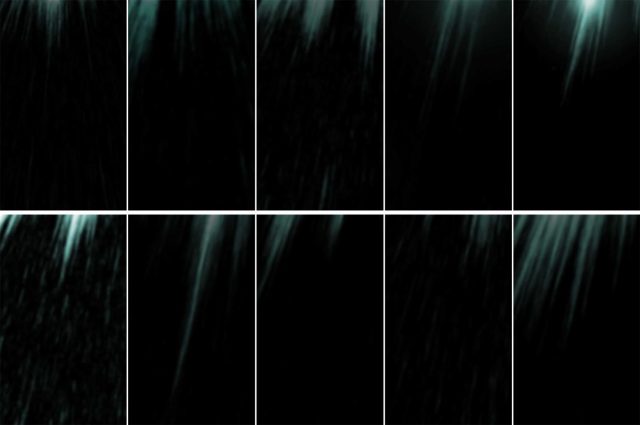
If you need a selection of rays of light for next Photoshop project and you need them in just one click, then this set of 10 Photoshop actions is for you… and yes, they’re 100% free!

The action does a few things you need to be aware of. First, your original image is always untouched. The action creates a duplicate of your image and flattens any layers on the new (duplicate) image before creating the light rays. Your original image is ALWAYS untouched!

Need more rays? Run the action again. The rays can be altered in position, size, opacity and colour

Download instructions
       1. Click on the download link below
https://drive.google.com/file/d/199eklVMe6OZVo4IzATrzkG0Hm_g5-yIo

  1. Click the Download button download_icon (top right of the screen)
  2. The download should start automatically
  3. Unzip the download and install the Photoshop Action
  4. No support is provided. If you need help Google or YouTube the question and you’ll almost certainly find the answer

Instant Cinder Photoshop Action

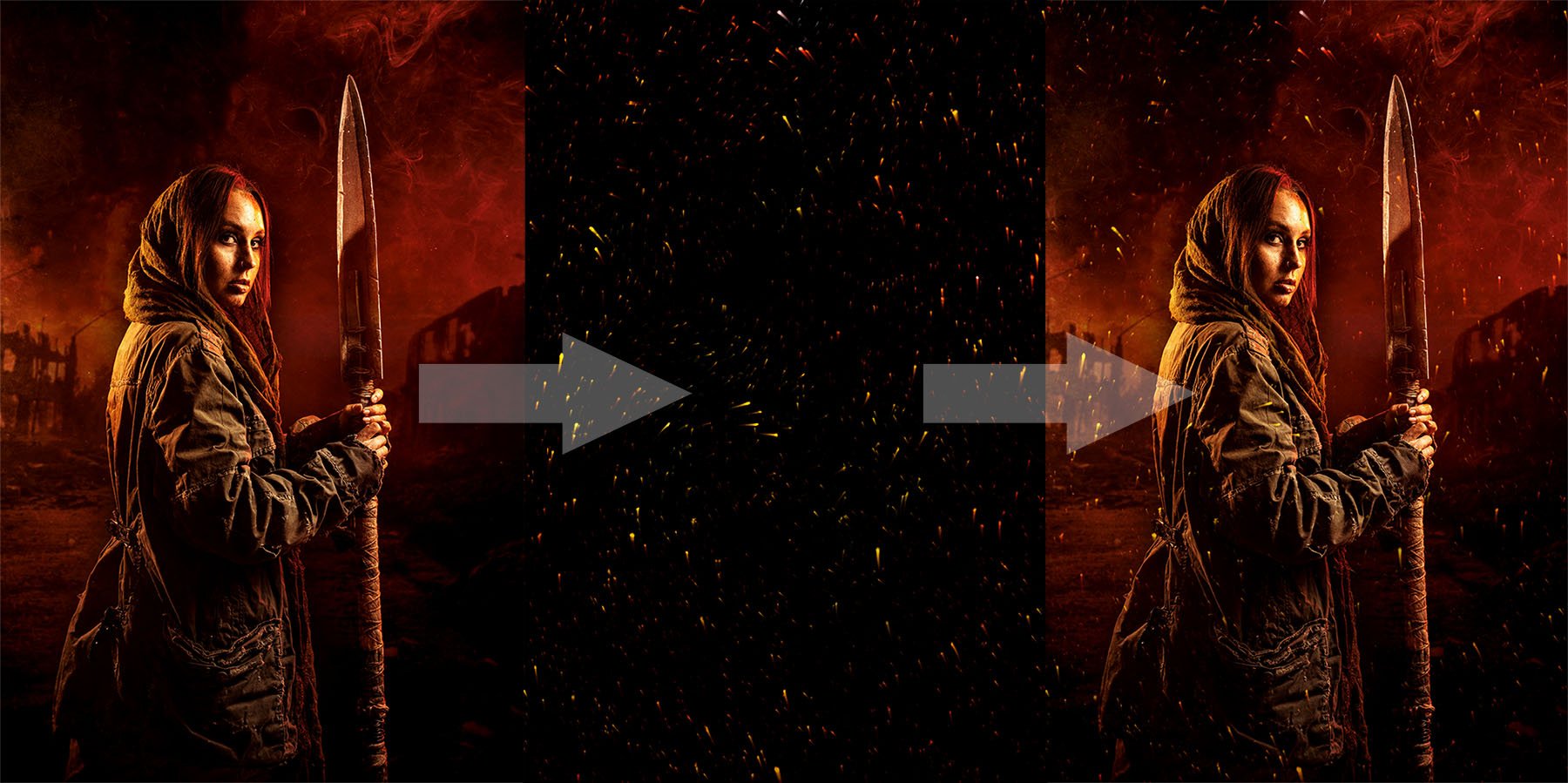
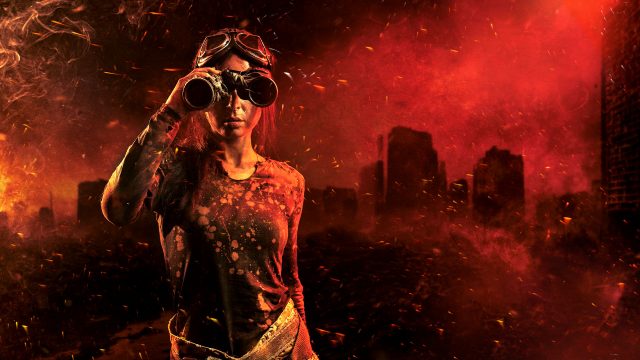
Hot embers floating through the air look beautiful and when you get the chance you should grab a photo. But if you want the look of hot embers without the need to rummage through you old photos, my Instant Cinder Fluffy action  (which I created for an Adorama TV Halloween themed video) does a great job. 

Instant-Cinders-Example

Image 1 of 1

The action does a few things you need to be aware of. First, your original image is always untouched. The effect is random, so running it a few times will give different patterns of embers. You’ll need to copy, paste and re-size the embers to fit your original image. Set the layer blending mode to “Screen” and adjust the layer opacity to taste.

Download instructions
       1. Click on the download link below
https://drive.google.com/file/d/1YX4F-4k8bT4nVEoifLbUG6HqUSt3Z2jZ

  1. Click the Download button download_icon (top right of the screen)
  2. The download should start automatically
  3. Unzip the download and install the Photoshop Action
  4. No support is provided. If you need help Google or YouTube the question and you’ll almost certainly find the answer

Frosty Frames

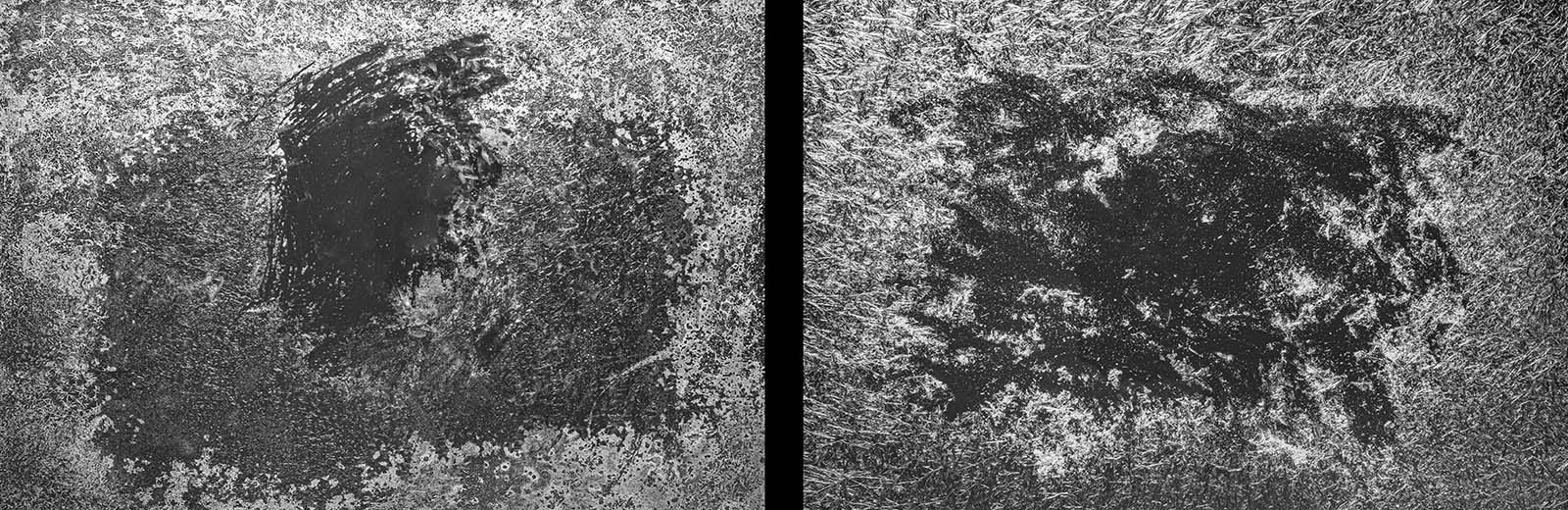
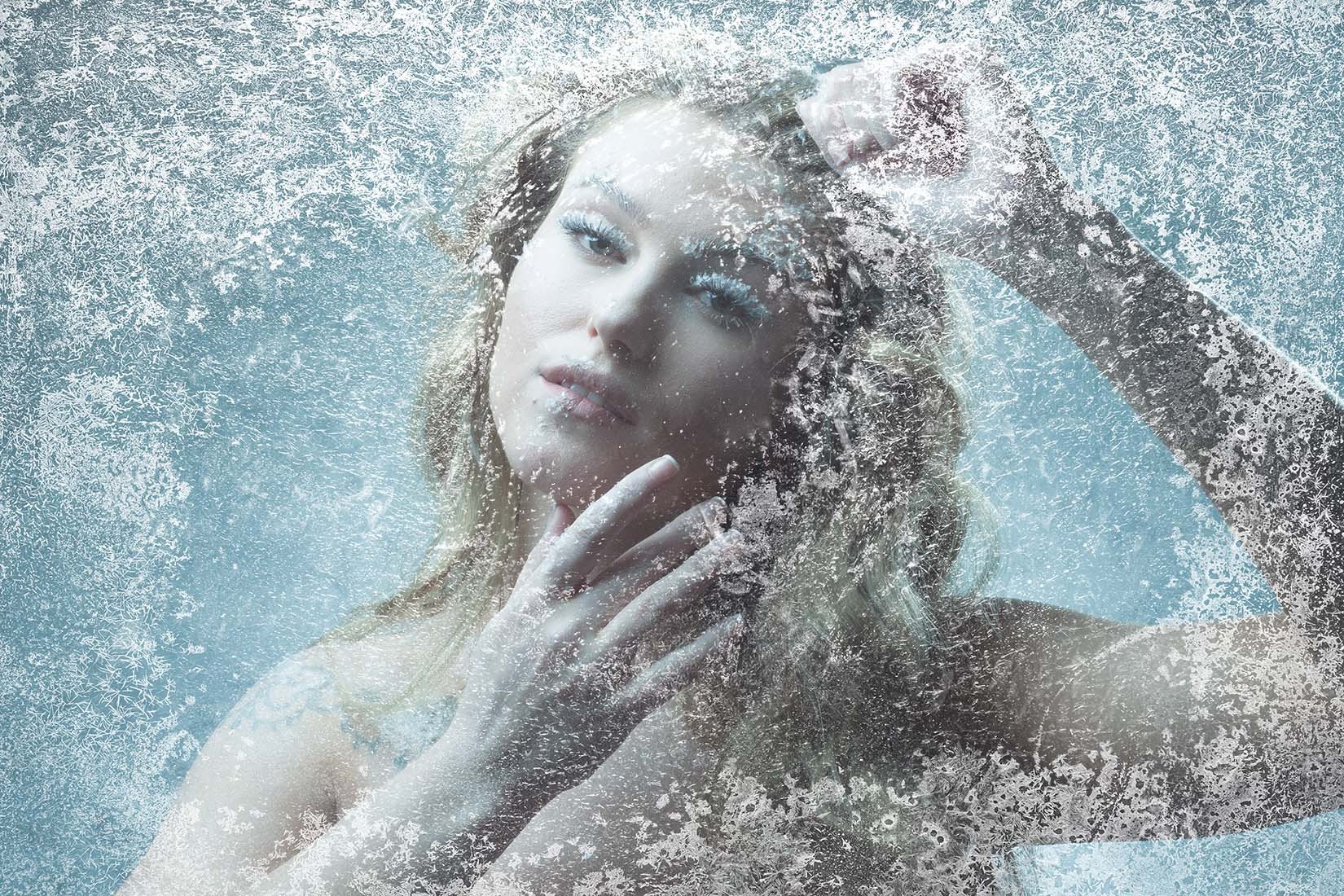
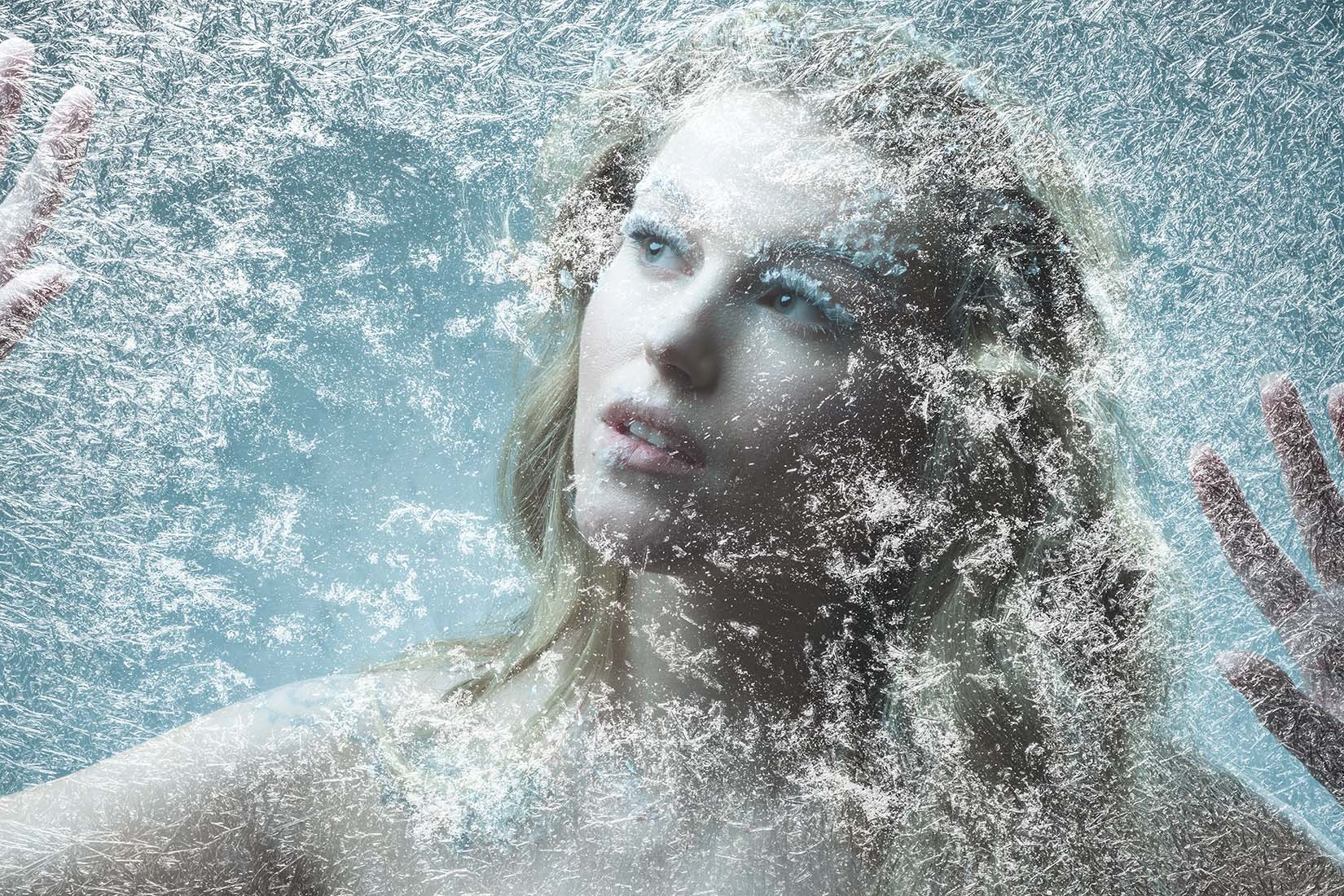
It takes a brave photographer to ask someone to model for them on a cold and frosty day. Luckily I have a solution that’s a lot warmer! For this Friday Freebie I’m giving away two hi-res images of frosty frames which I created for an Adorama TV video.

To use them in Photoshop simply copy and paste them onto your image. Use Edit – Transform – Free Transform to resize and rotate as needed and then change the Layer Blending Mode from Normal to Screen.

Download instructions
       1. Click on the download link below
https://drive.google.com/drive/folders/1_1ZwEvFMmWpc7ZY3voSEaqXHfrlKwEbS?usp=sharing

  1. Click the Download button download_icon (top left on thumbnail)
  2. The download should start automatically
  3. No support is provided. If you need help Google or YouTube the question and you’ll almost certainly find the answer

Textured Backgrounds For Flower Portraits

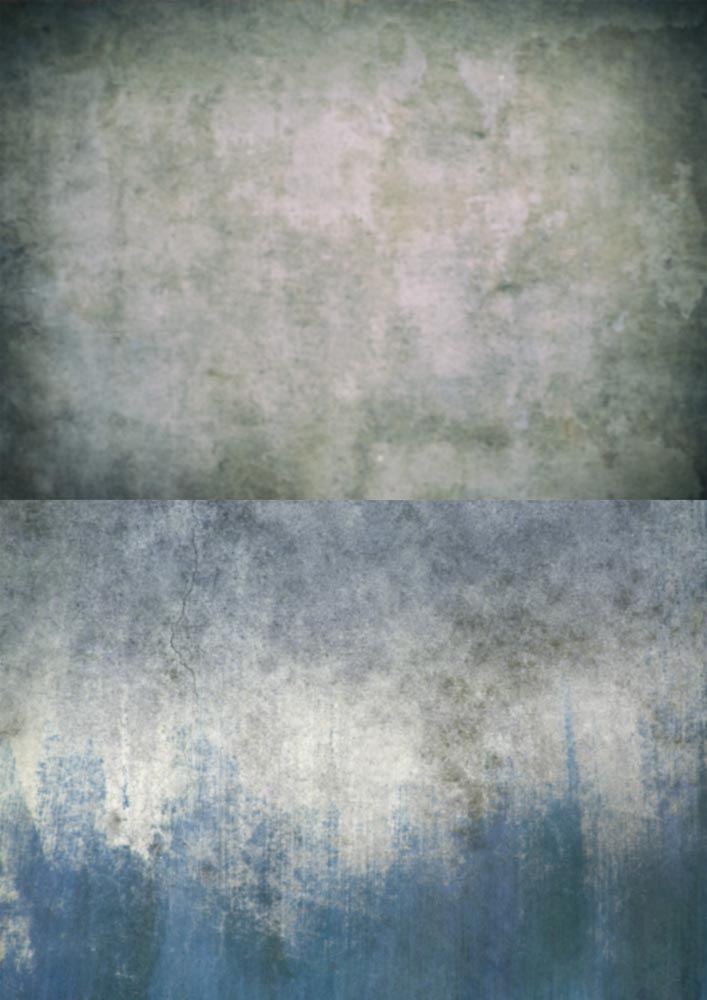
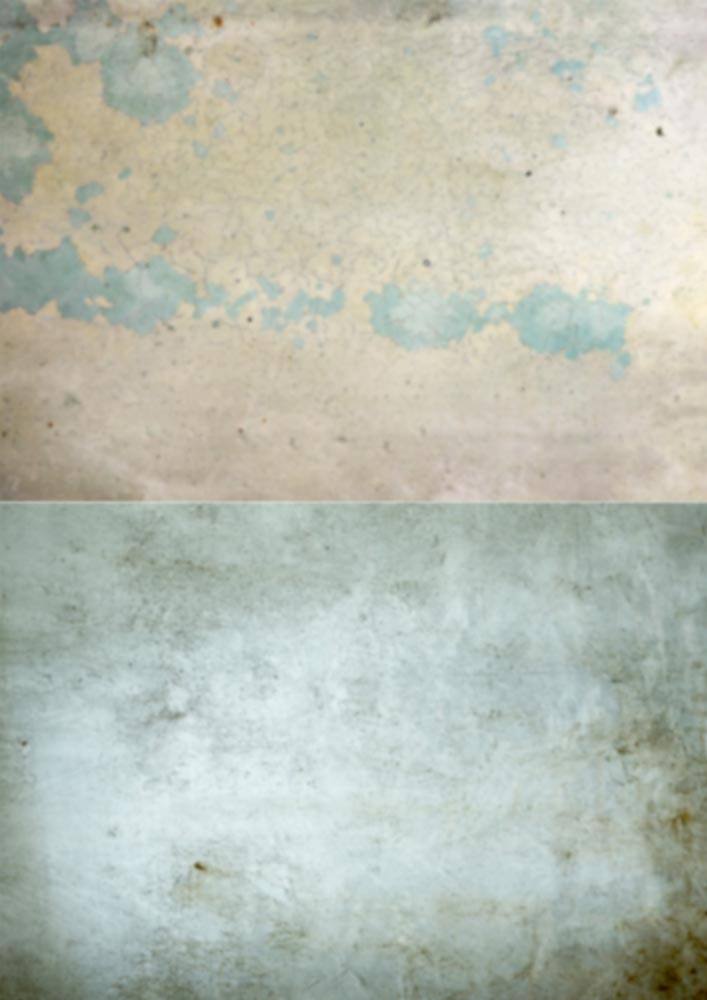
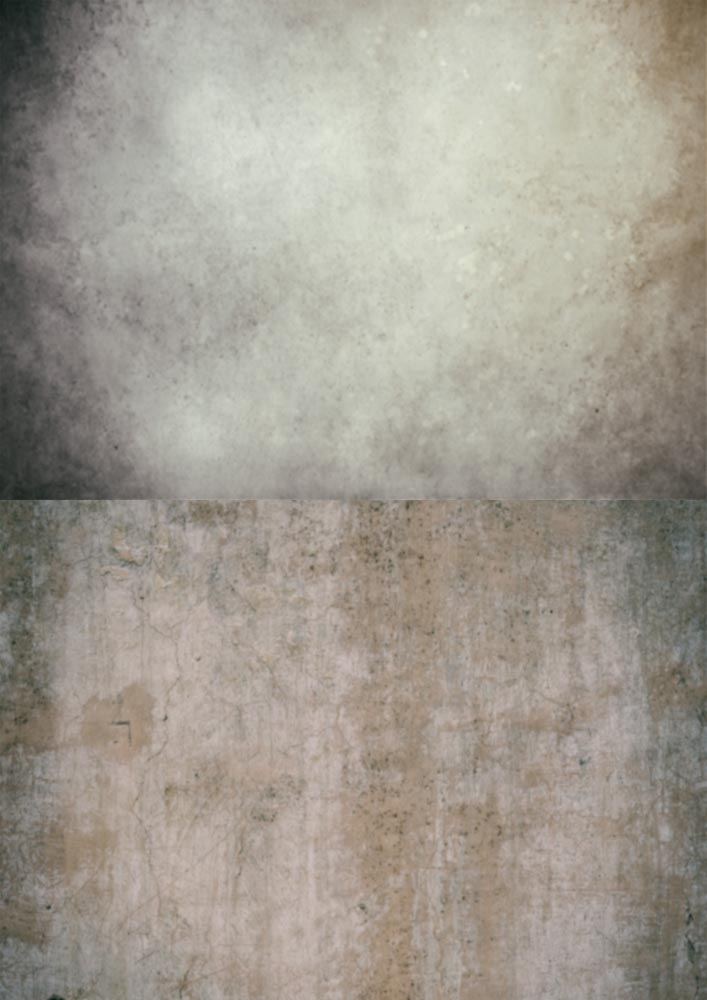
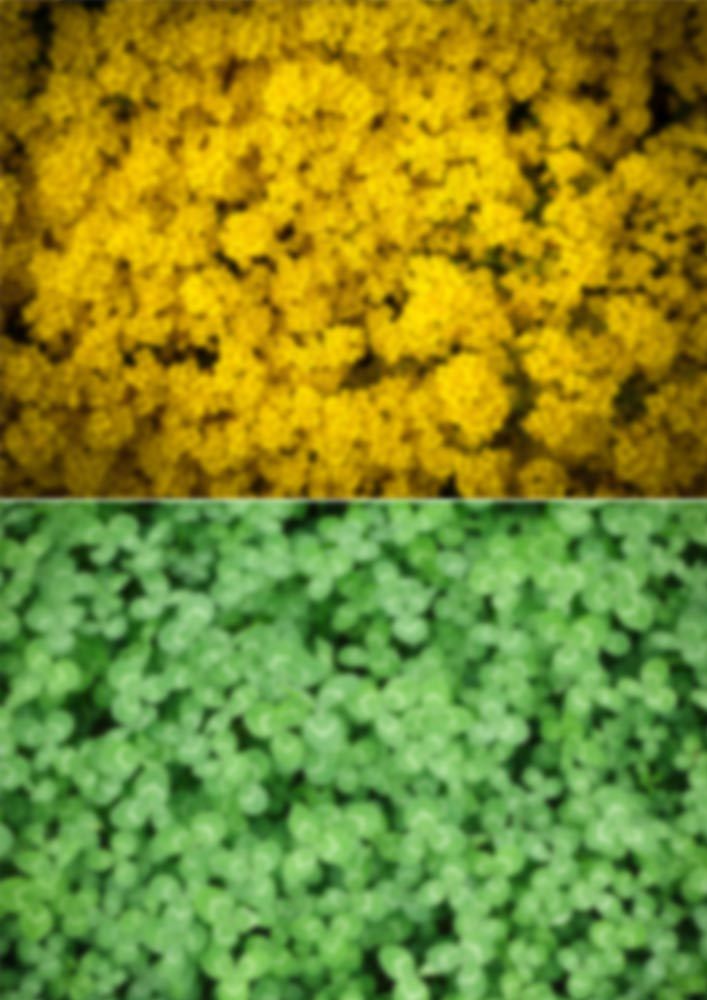
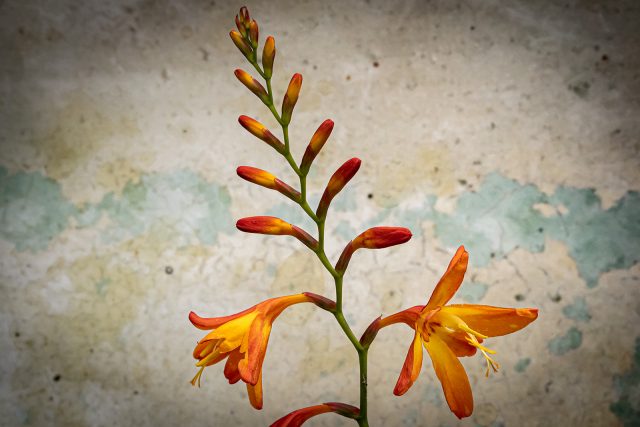
Backgrounds can make or break any photo. But if flowers and plants are your subject matter you’re somewhat stuck with the background that you find. That’s where these textures and patterns come in.

They’re pre-blurred for an instant depth of field effect. Simply print them out (they’re already sized for A4) on matte photo paper and pop one in behind your flower for an instant new background. I’ve sized these from small, single blooms, so that’s two backgrounds per A4 sheet, but you can crop and upscale as needed.

Download instructions
       1. Click on the download link below
https://drive.google.com/drive/folders/1_1ZwEvFMmWpc7ZY3voSEaqXHfrlKwEbS?usp=sharing

  1. Click the Download button download_icon (top right of screen)
  2. The download should start automatically
  3. No support is provided. If you need help Google or YouTube the question and you’ll almost certainly find the answer

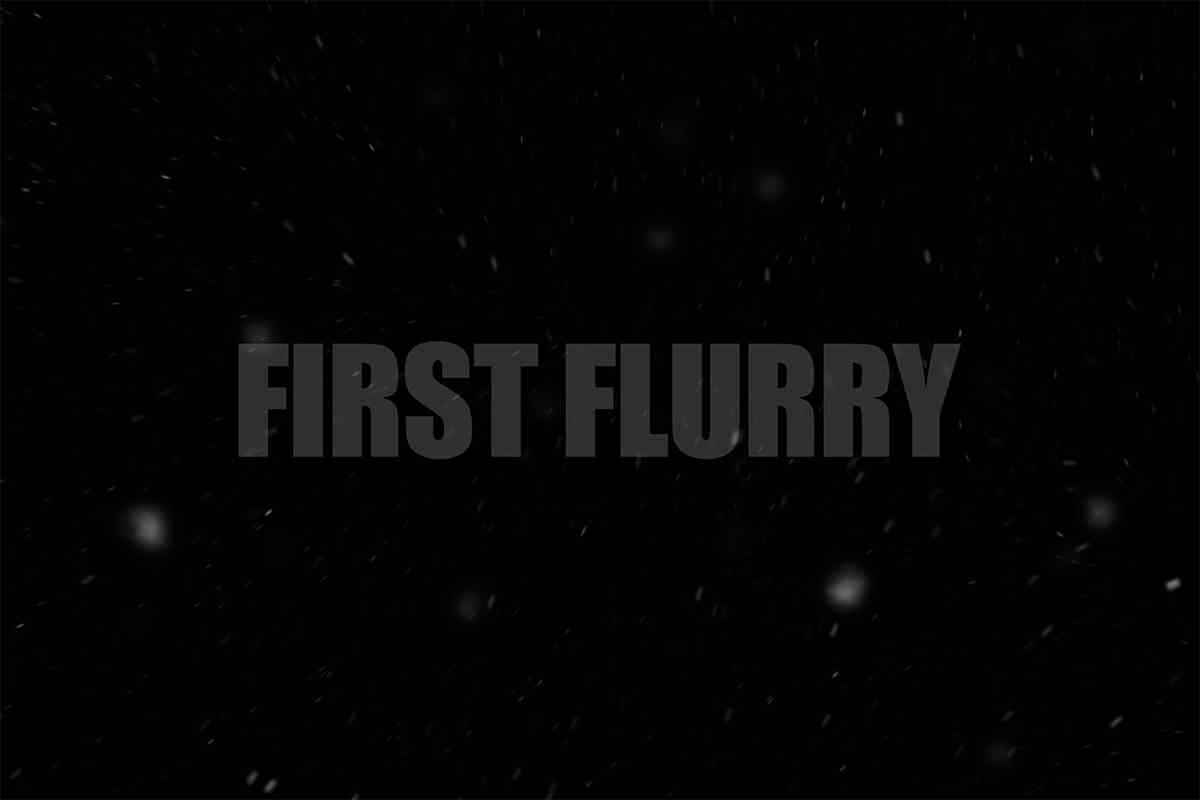
Instant Snow Flurry – Photoshop Action

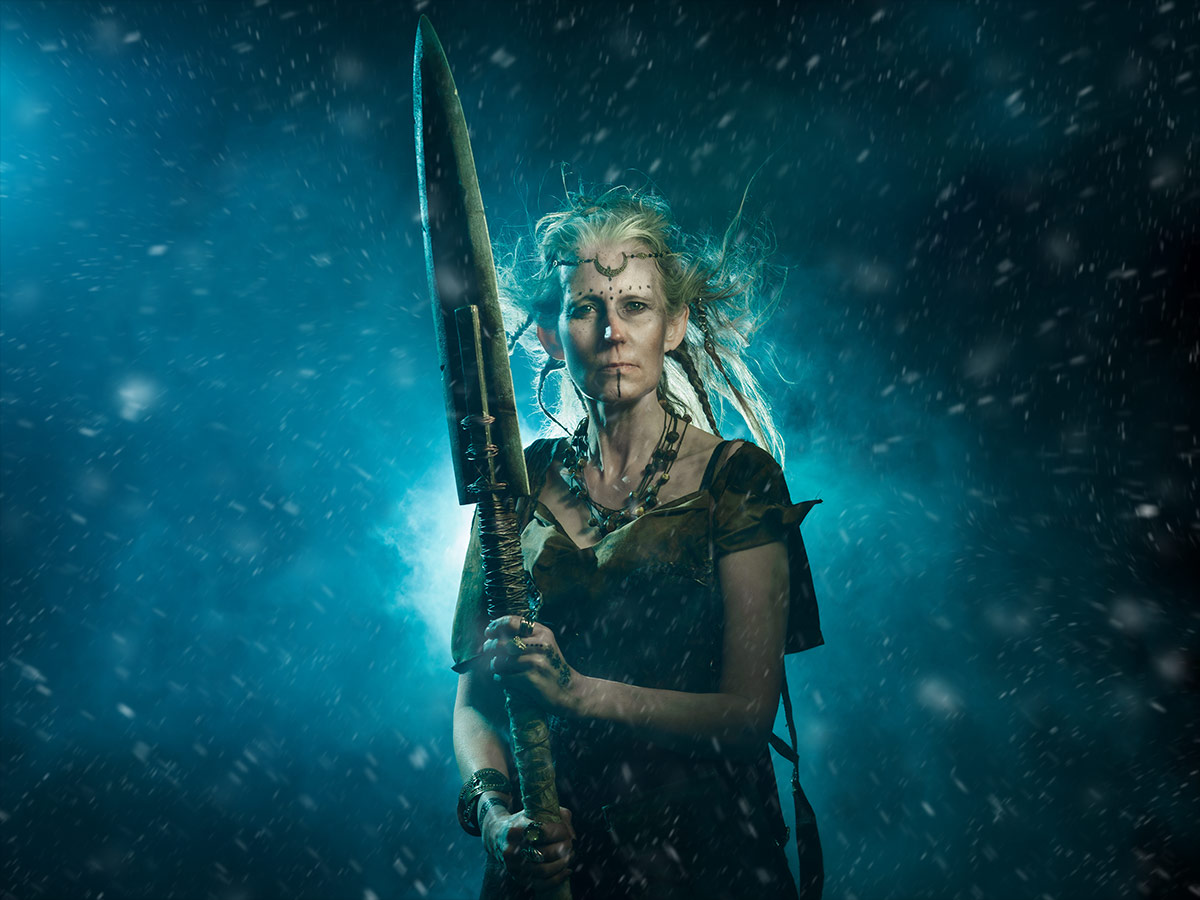
Over the years I’ve made several free instant snow Photoshop actions and they’re still some off the most popular downloads on the site. But they all had one thing in common… they were very static!

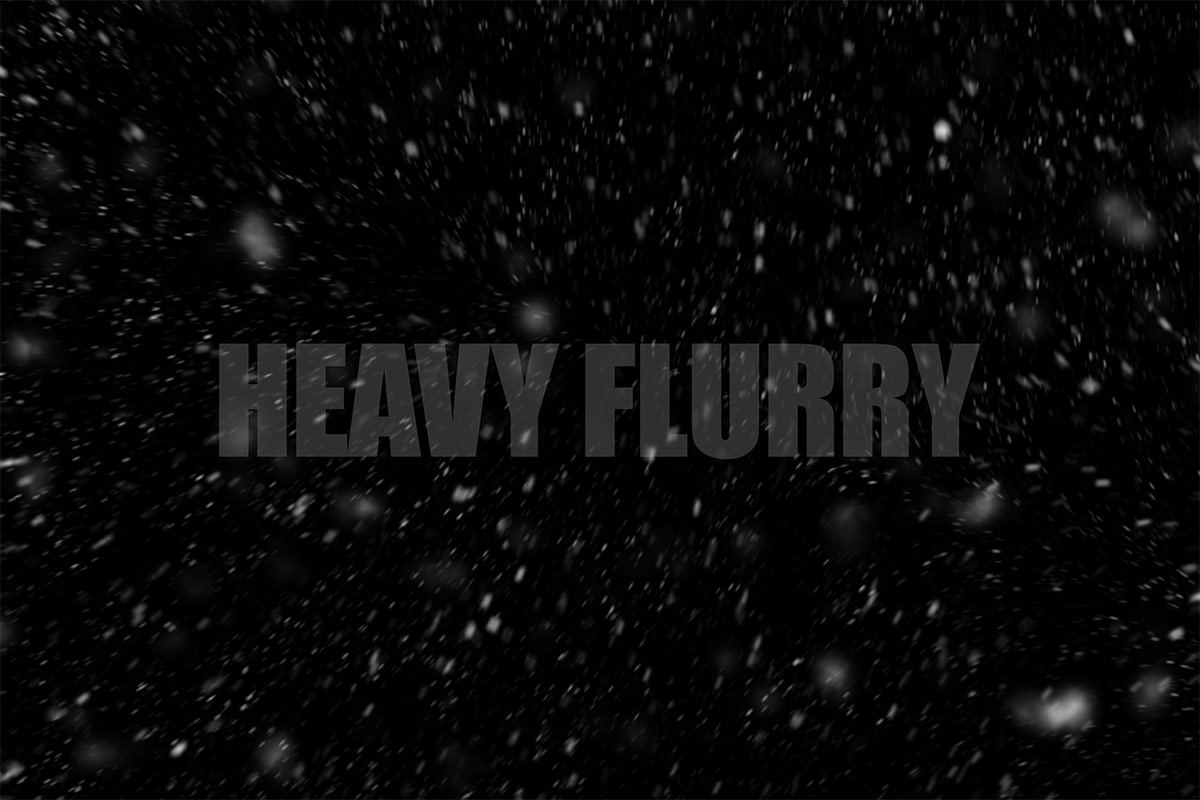
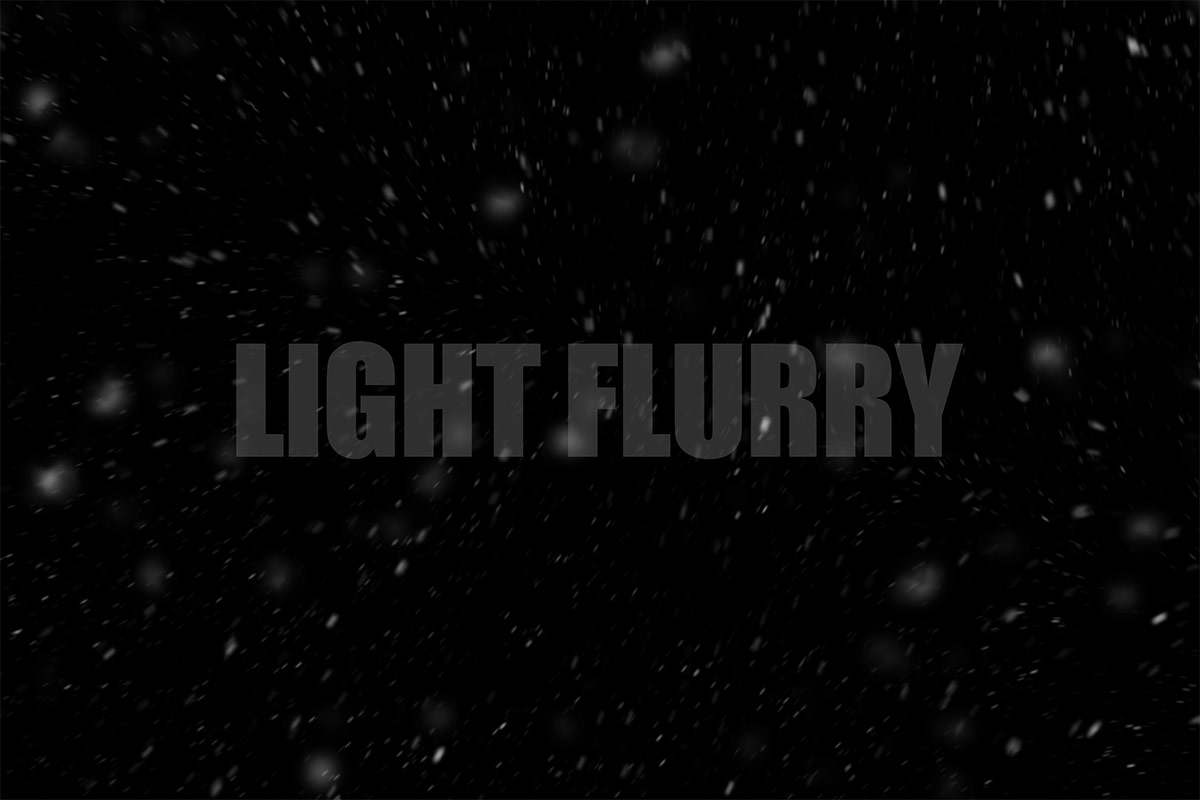
So now I’ve updated my Instant Snow V2 Photoshop action to include a little bit of movement and motion blur. Instant Snow flurry uses my tried and trusted random snow generator, so the position of the flakes will always be different and there’s a choice of four different amounts of snow to choose from.

The Photoshop action always makes a copy of your original image and leaves the snow layers intact for you to adjust, colour or copy, paste and re-size over your original image. Of course you don’t have to keep them as snow. With a little bit of re-working it could be snow, dust, embers or any particles you can imagine!

If you create a photo using the Friday Freebie then let me (and everyone else) know by leaving the link in the comments below.

Usage rules
The Photoshop Action is copyright Gavin Hoey 2021. Use is strictly limited to any personal but non-commercial purposes. 
Please share the Friday Freebie by linking back to this page. Do not redistribute the original action without my permission.

Download instructions
     1. Click on the correct download link below (no sign up is needed)
https://drive.google.com/file/d/1YFXWzmX3C-eJiNKd6hvZx9f7GnM5dtr0/view?usp=sharing

  1. Click the Download icon download_icon
  2. The download should start automatically
  3. Unzip the download and install the Photoshop Action
  4. When downloading, you may see a message saying “There was a problem with the network” Just ignore it
  5. No support is provided with the Friday Freebies. If you need help Google or YouTube the question and you’ll almost certainly find the answer
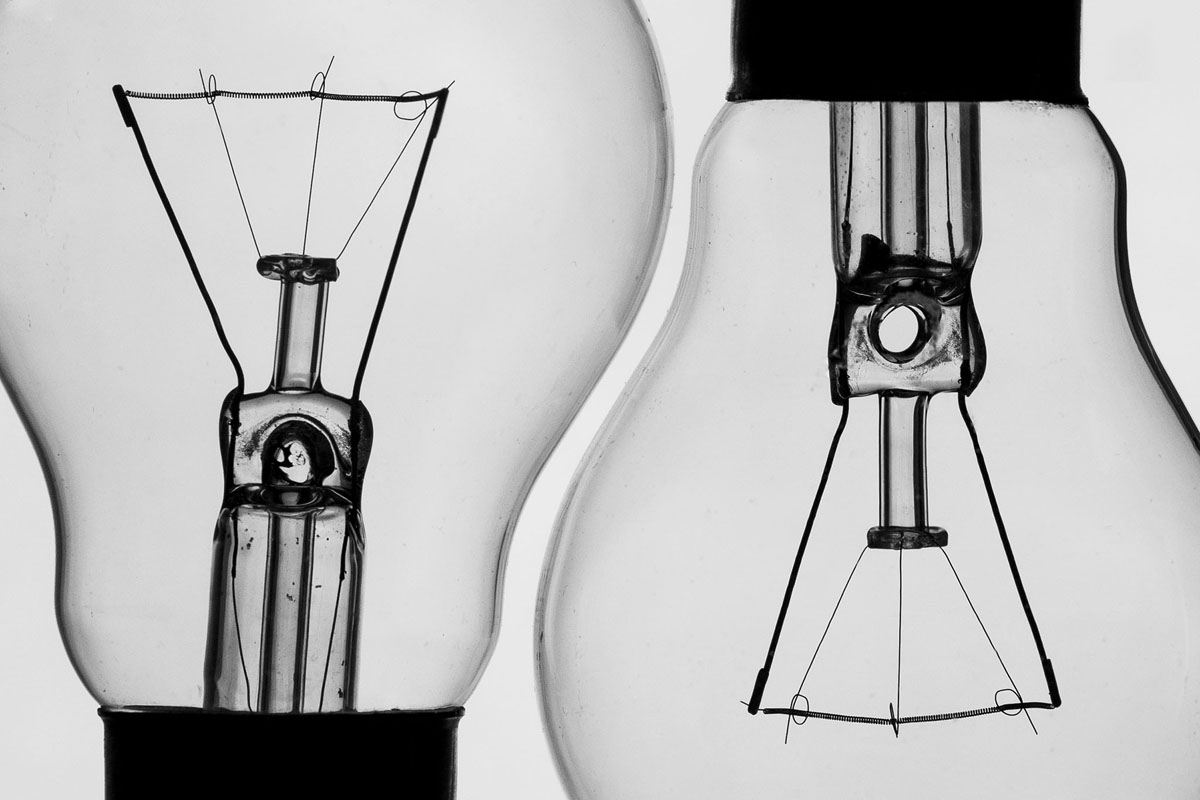
Creative Glassware | Live Highlights

When it comes to tricky objects to photograph, glass is one of the most challenging. From black backgrounds and reflections to white backgrounds and wine bottles, glass objects make a great stay at home photo project and with a little help you’ll soon master the technique.

This session was streamed live on the Olympus UK Facebook page. The edited highlights are below or you can catch the full session here View the full Facebook Live Session https://fb.watch/1WlI5x-tYU

Gear used in this video
Interfit Badger Beam https://amzn.to/35YqgUV
Spiffy Gear KYU-6 RGB https://amzn.to/35TB9XS
PIXAPRO 100x150cm 5in1 Reflector https://amzn.to/3nMA8qB
Olympus E-M1 Markiii https://amzn.to/3nNPWtf
Olympus 40 – 150mm https://amzn.to/3fpafKC
Olympus 12 – 40mm https://amzn.to/3flVzM8

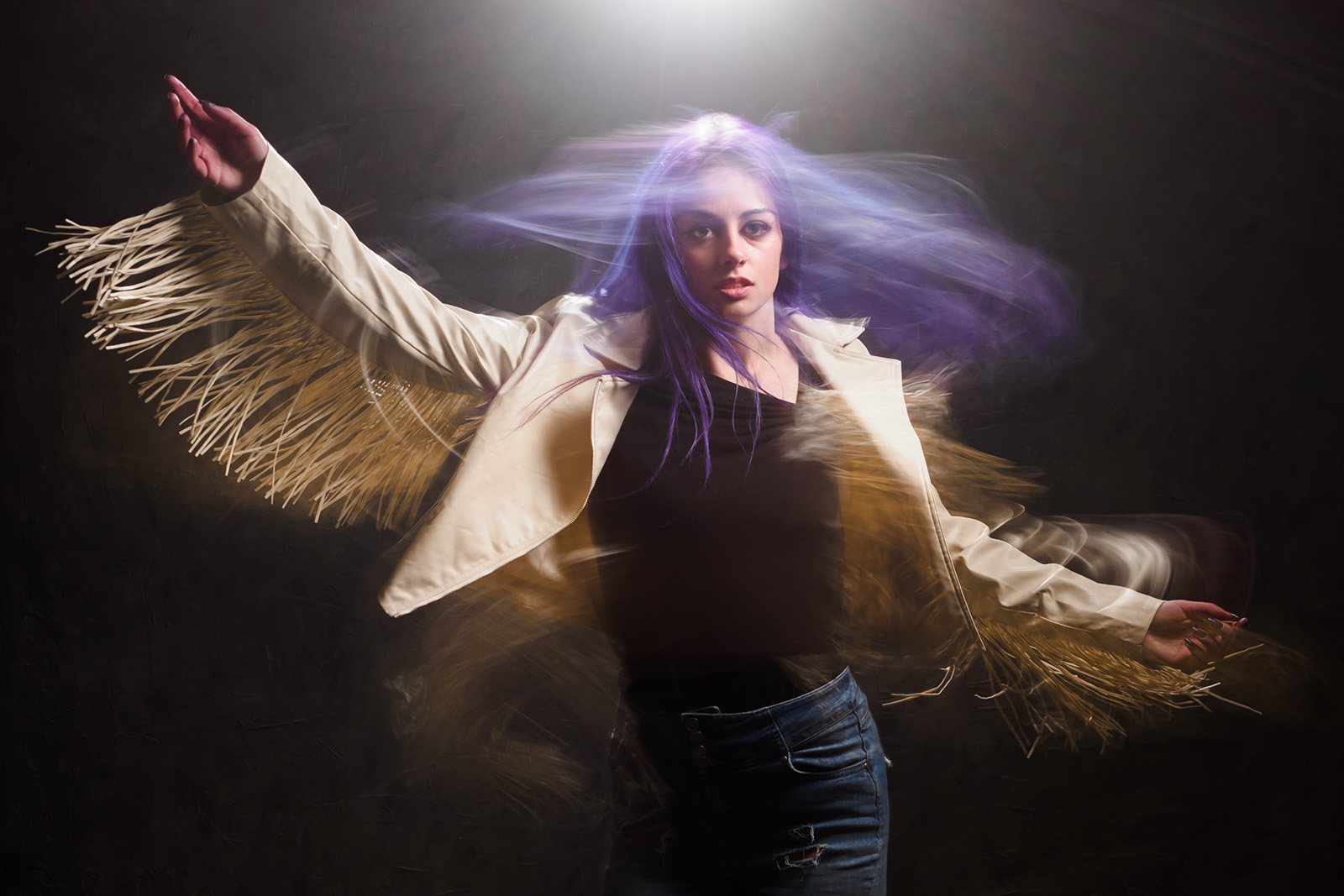
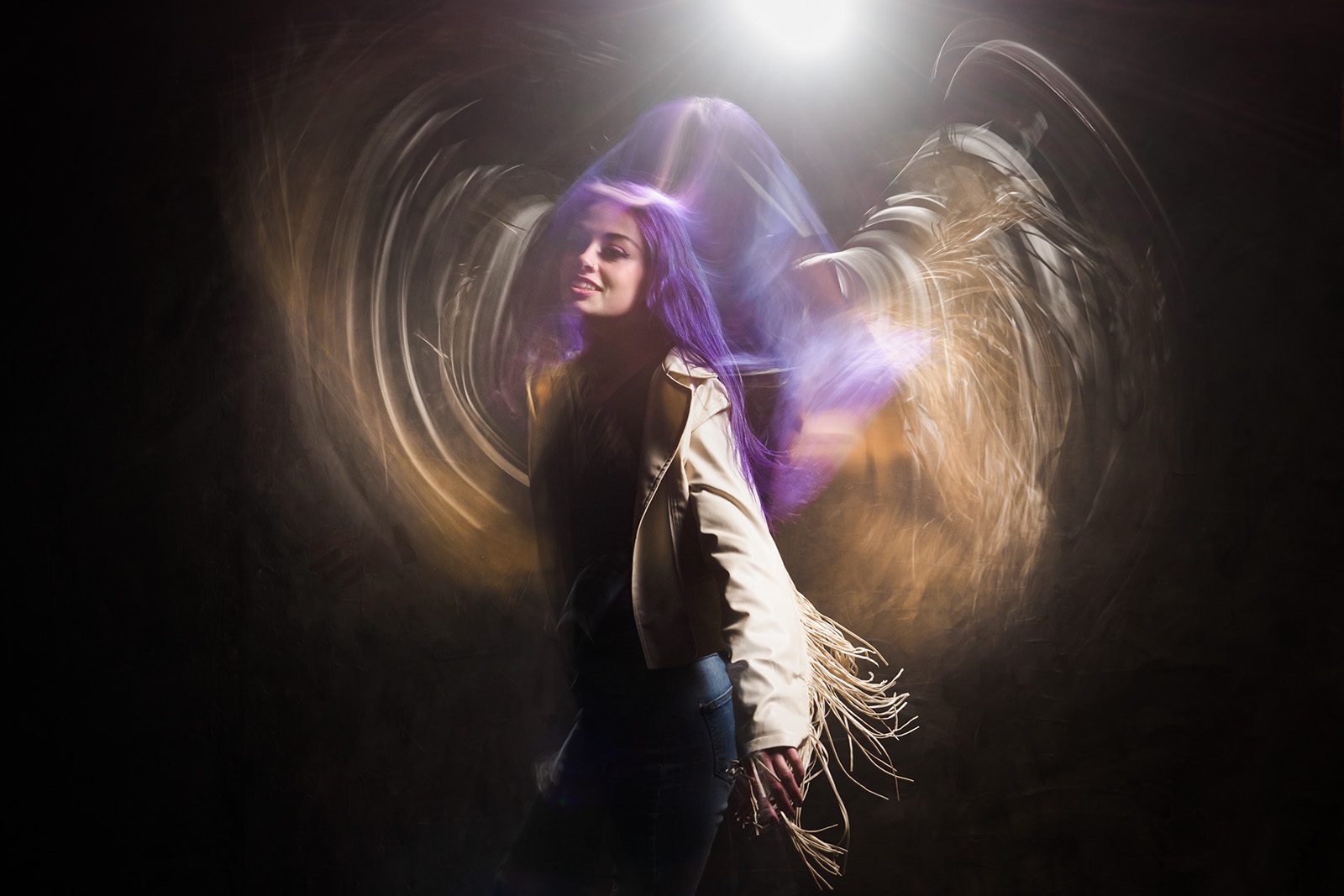
Freezing and Blurring Movement with Flash

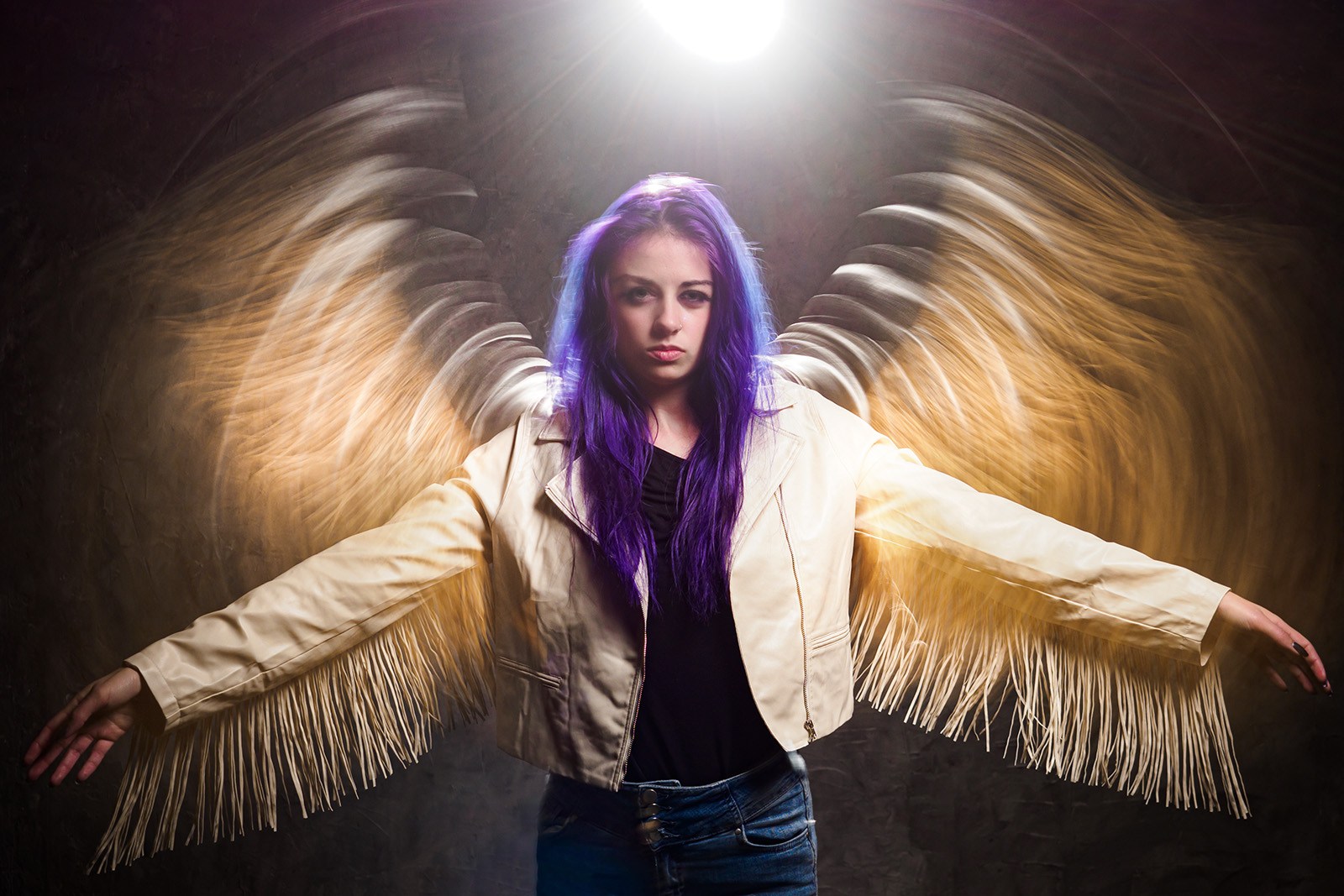
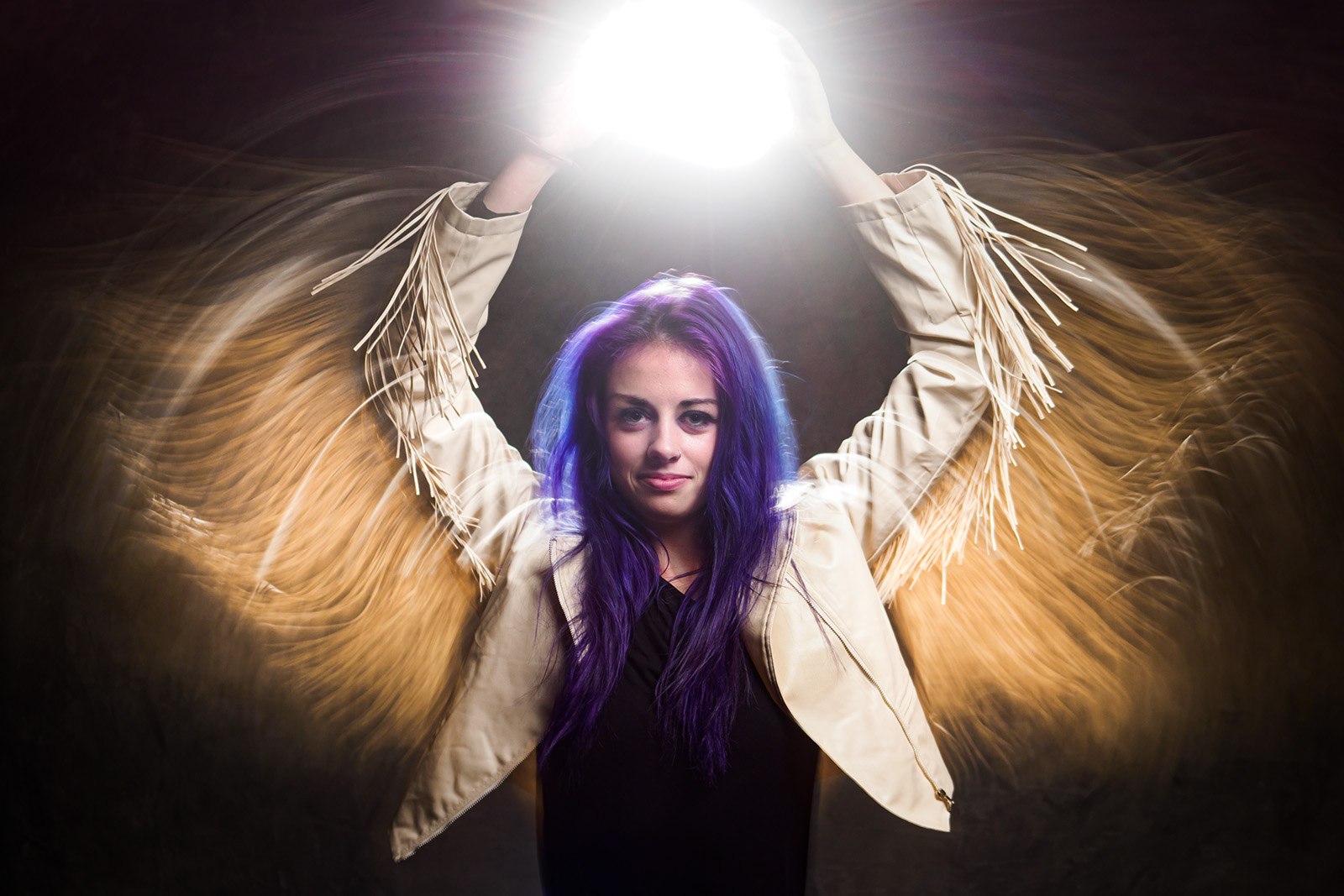
Capturing the sense of motion can be done by freeze the action to cature a unique moment in time, or you could let the movement blur to give the sense of time passing. But why choose one or the other when you can have both in one shot.

In this video I’ll cover everything you need from using a long exposure with ambient light, mixing in flash, and finally the advantage of rear or 2nd curtain sync flash. Even with the limited space of my small home studio, you’ll be surprised at just what’s possible when you mix flash, LED lights, and motion together.

Gear used in this video
Godox 300 Pro https://amzn.to/2Mf1Vmg
Godox Transmitter https://amzn.to/3o5SOl6
C-Stand and Boom Arm https://amzn.to/3iFUCjt
Olympus E-M1 Mark iii https://amzn.to/3iAdIaE
Olympus 12-40mm f/2.8 Pro https://amzn.to/393NVVf

Model: Jessica Maria https://www.instagram.com/jessicamariamodel

Smoke Photography (almost) LIVE!

About 10 years ago I made a video all about photographing smoke patterns. Dig around on YouTube and you’ll find it but a lot has changed in that time and I don’t just mean how grey my hair has gone.

I felt it was time to revisit photographing smoke patterns and Olympus UK were kind enough to host the live shoot on their Facebook page. If you missed it live, you can catch the whole thing here

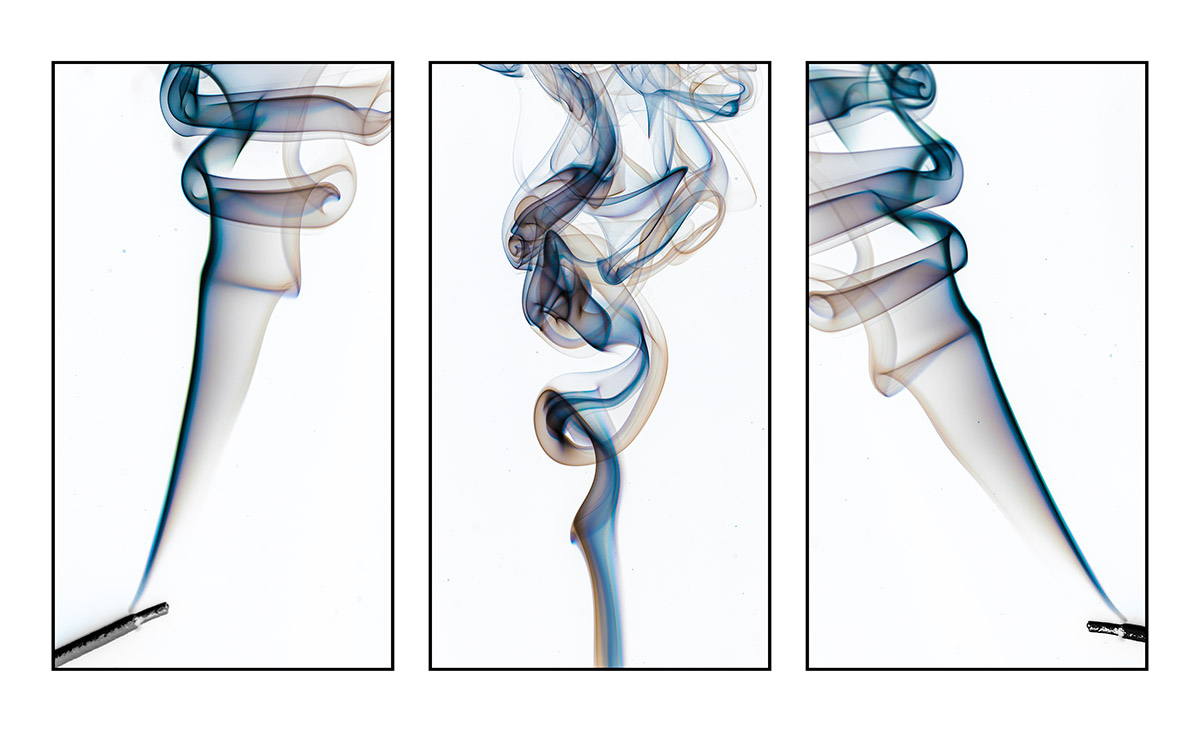
At the end of the demo I made a triptych from three smoke images. To save time I created a Photoshop action which automated the process down to one single click.

Since the demo I’ve had many requests for the triptych action, so here it is.

To action assumes a few things. First it will make the triptych from three images that are already open in Photoshop. Next it assumes they’re the newest images you have on screen. Finally, all the images need to be exactly the same size and shape.

Usage rulesThe Photoshop Action is copyright Gavin Hoey 2020. Use is strictly limited to any personal but non-commercial purposes. 
Please share the action by linking back to this page. Do not redistribute the original action without my permission.
No technical support is provided.

Download instructions     1. Click on the correct download link below (no sign up is needed)
https://drive.google.com/file/d/11bJ2fcJsmuDYB4sKGTAv6trw1ozW0oqs

  1. Click the Download icon download_icon
  2. The download should start automatically
  3. Unzip the download and install the Photoshop Action
  4. No support is provided with the Photoshop action.
  5. If you need help Google or YouTube the question and you’ll almost certainly find the answer

Instant (Overhead) Rain Action

On a recent live stream I created an overhead, rainy day scene in my small home studio. If you missed it, I’ve added the video below. During the stream I added some rain using a Photoshop action and as promised, I’m sharing it here.

The action does a few things you need to be aware of. First it makes a duplicate of your image, so the original is always untouched. The effect is random, so running a few times will give different patterns of rain. I’ve also left the rain as layers, so you can fine tune as needs be and if you need a higher resolution version, you can copy, paste and re-size the rain to your original image.

If you create a photo using my Photoshop action then let me (and everyone else) know by leaving the link in the comments below.

Usage rules
The Photoshop Action is copyright Gavin Hoey 2020. Use is strictly limited to any personal but non-commercial purposes. 
Please share the action by linking back to this page. Do not redistribute the original action without my permission.
No technical support is provided.

Download instructions
     1. Click on the correct download link below (no sign up is needed)
https://drive.google.com/file/d/1wB5LoehRGOSYA1k3WF7suyNi94J3ep_e

  1. Click the Download icon download_icon
  2. The download should start automatically
  3. Unzip the download and install the Photoshop Action
  4. No support is provided with the Photoshop action.
  5. If you need help Google or YouTube the question and you’ll almost certainly find the answer