Free Webinar This Thursday

If you’re around this Thursday 16th October 2014 at 7pm UK time, then I’d love it if you could join me for a one off exclusive webinar in association with Adobe UK.

The webinar is free but places are limited. All you need to do is register with this link:
https://ccppuk1.creativecloud.adobeevents.com

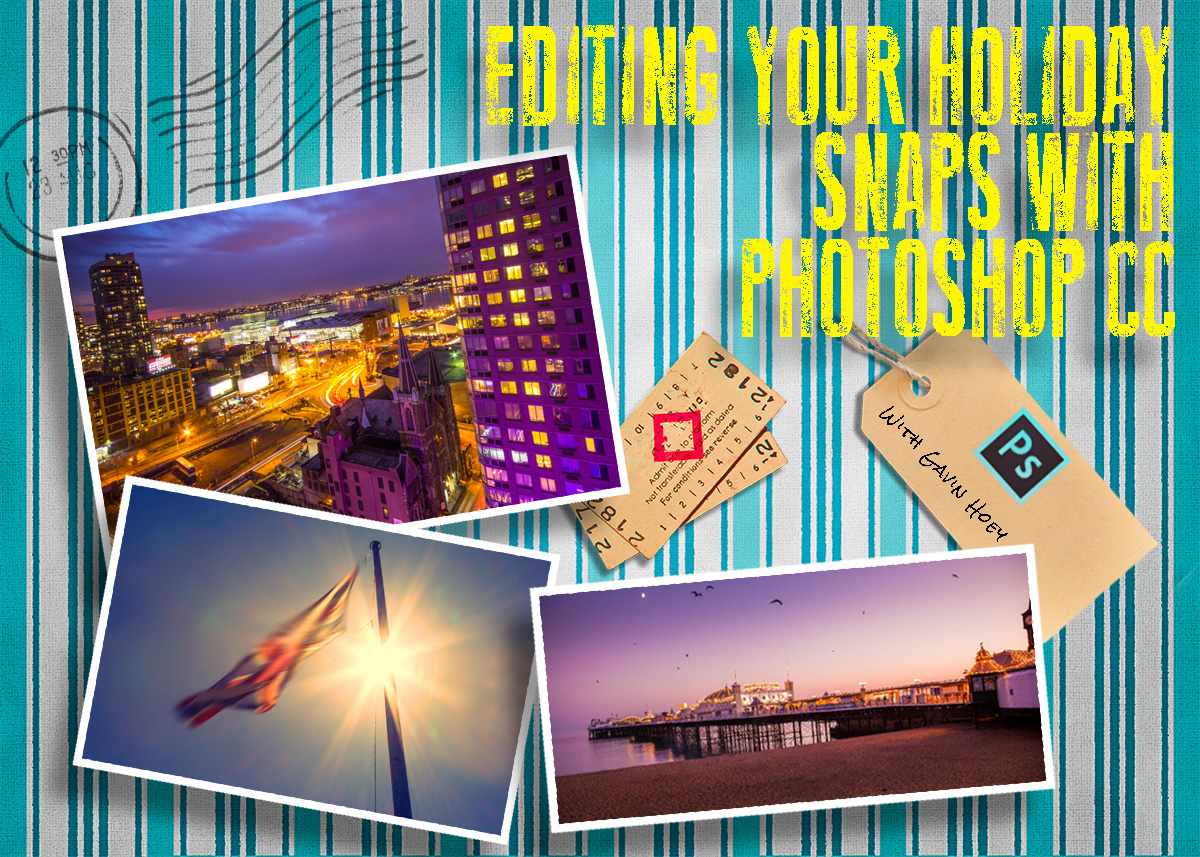
The title of my talk is “Editing your holiday snaps with Photoshop CC” and the title says it all. I’ll be going through some of the photos I’ve taken during 2014 and editing them in Photoshop CC. Along the way I’ll be passing on some tips and tricks as well as showing off a few of Photoshop’s smart new features.

I hope to see you there.

Adobe-Postcard-template

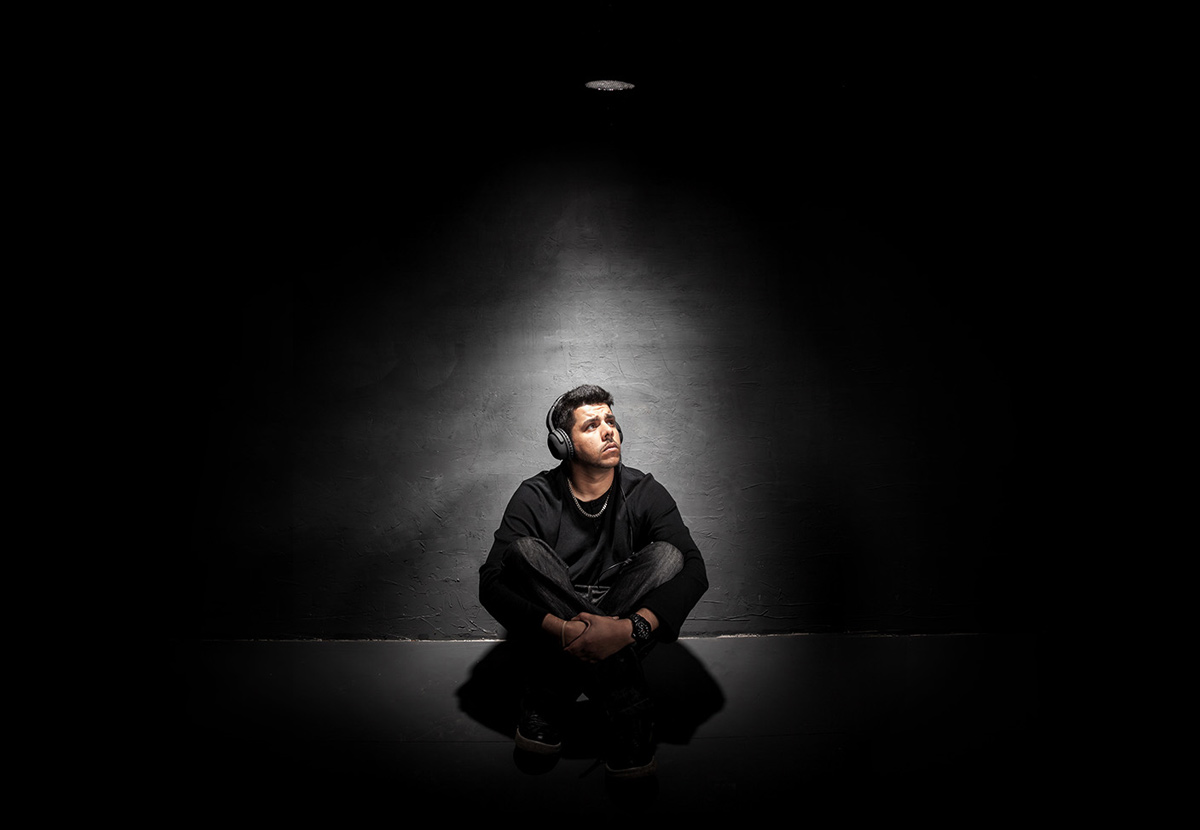
Drama With Grids – Home Studio Essentials – PT 6

For almost all of my studio works, soft light is what I want but every now and then it’s great to break that mold and do something with a bit more edge with grids or snoots. Fortunately my Adorama Streaklights have  purpose designed tools to do the job.

In the studio grids are an essential tool, they help me light small areas with maximum precision and control. Usually I use grids in combination with a softbox as the key light but occasionally I’ll just use the grids for some dramatic effects.

[youtube]https://www.youtube.com/watch?v=K-C9xgTCLfM&list=PL821B7D720DEA39FA[/youtube]

One of the downsides of a small studio is just how easy it is to accidentally bounce light off a wall or ceiling, ruining the effect you hope to achieve. With their tighter beam of light, grids and snoots might just be the answer you’re looking for if you want to get moody lighting in your small home studio space. HSE-EP6-Final
Gear used in this video (Links back to Adorama)
Flashpoint StreakLight 360 Ws Flash (Includes flash and battery)
Flashpoint Streaklight 180 WS Streaklight
Grid/Gel Set
Streaklight Beauty Dish/Grid Set
Canon 5D Mark 2 
Canon 24-105L 

Using two lights – Home Studio Essentials – Part 5

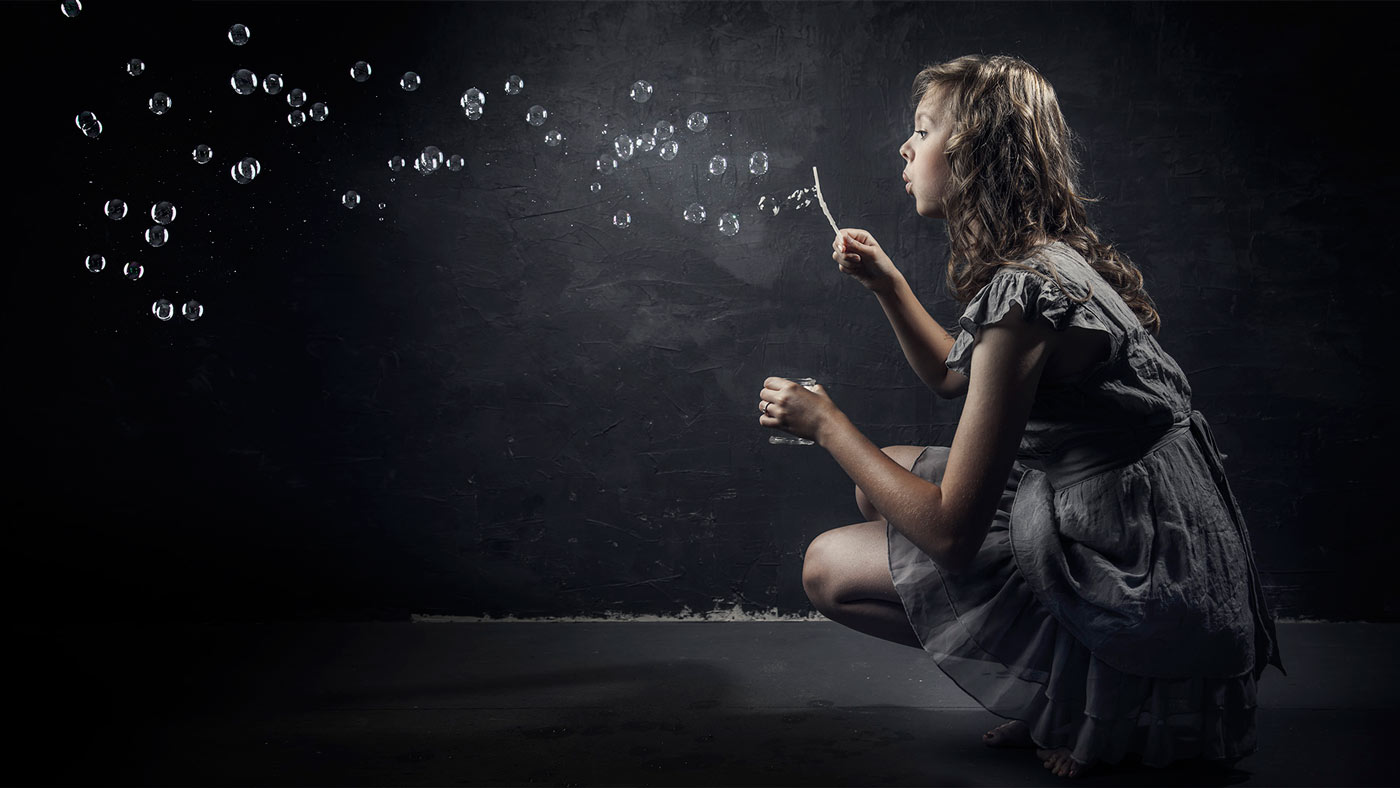
There are many ways you can use a single flash to take great portraits but sooner or later the limitations of a single flash will be reached. Adding a second flash can be a great way to open up new and creative photo opportunities.

In this video I fire up a second light to act as a hair light and separate the model from a dark background. Then in the final shoot I add a few bubbles to create something a bit special.

[youtube]https://www.youtube.com/watch?v=FcQg0cBncHs&list=UU8Pksdbj37CdE00kmE7Z1dw[/youtube]

More lights means more complexity but my advice is to treat each light separately and meter accordingly. Turning them both on and trying to balance them at the same time sounds easier but trust me it’s not!

Bubbles-Studio

Gear used in this video (Links back to Adorama)

Flashpoint StreakLight 360 Ws Creative Collection (Includes flash, battery, trigger, boom etc)

Flashpoint Streaklight 180 WS

Westcott Apollo Orb Softbox

Canon 5D Mark 2 

Canon 24-105L 

Painted Corner Brushes – Friday Freebie

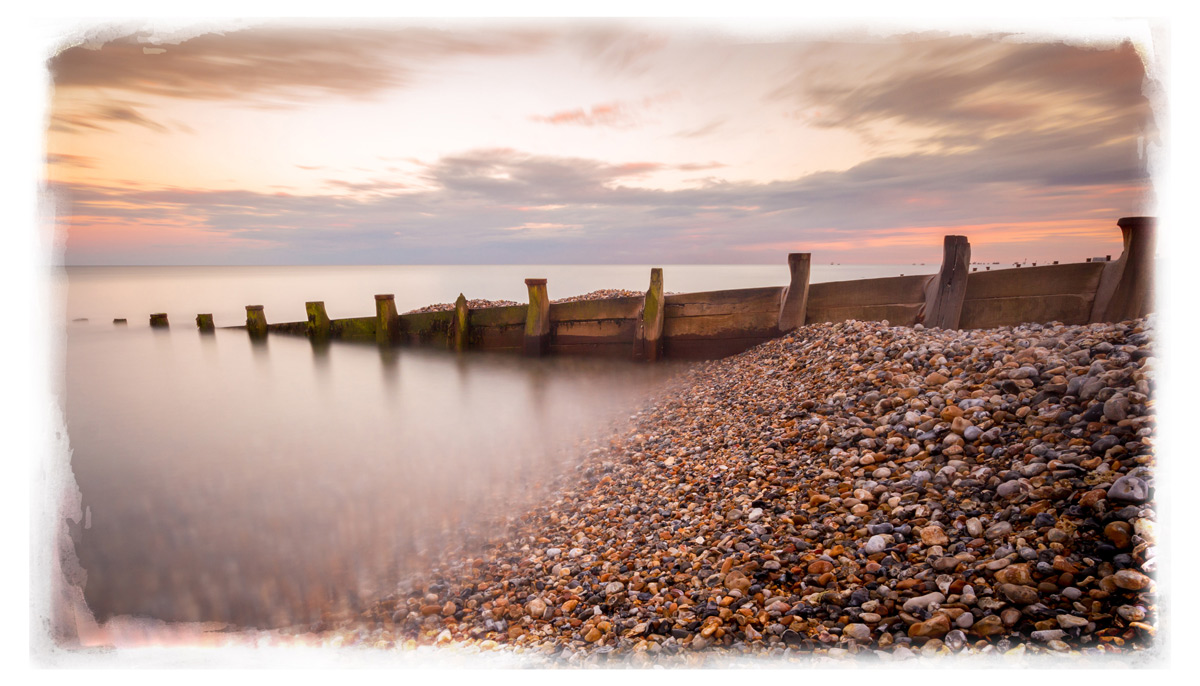
Here’s a painted border effect with a neat twist. First up these are paint brushes rather then a template and that means you can change the colour, opacity and use them with the Brush or Eraser tools. There’s four brushes in this set so you get one for each corners or mix and match to vary the effect.

You can download the brushes here: Painted Corners – GAVTRAIN

Painted-CornersThe brushes will work with all versions of Photoshop and Photoshop Elements however users of Photoshop CS6, CC and beyond will have the advantage of being able to increase the brush size to a maximum of 5000 pixels and getting bigger borders.

I’ve made a short video as a guide to installing the brushes and a few tips on how to use them. I hope it helps.

[youtube]https://www.youtube.com/watch?v=dkr4rmZef9E&feature=youtu.be[/youtube]

Usage rules
The brush set is copyright Gavin Hoey 2014. Use is limited to any personal, non-commercial purposes. Please share the Friday Freebie by linking back to this page. Do not redistribute the original action without my permission.

Download instructions
The direct link to download the actions is https://www.gavtrain.com/wp-content/uploads/2014/08/Painted-Corners-GAVTRAIN.zip

You must UNZIP the action before installing it in Photoshop / PS Elements

No support is provided with the Friday Freebies. If you need help Google or YouTube the question and you’ll almost certainly find the answer 🙂

Creased and Folded Action – Friday Freebie

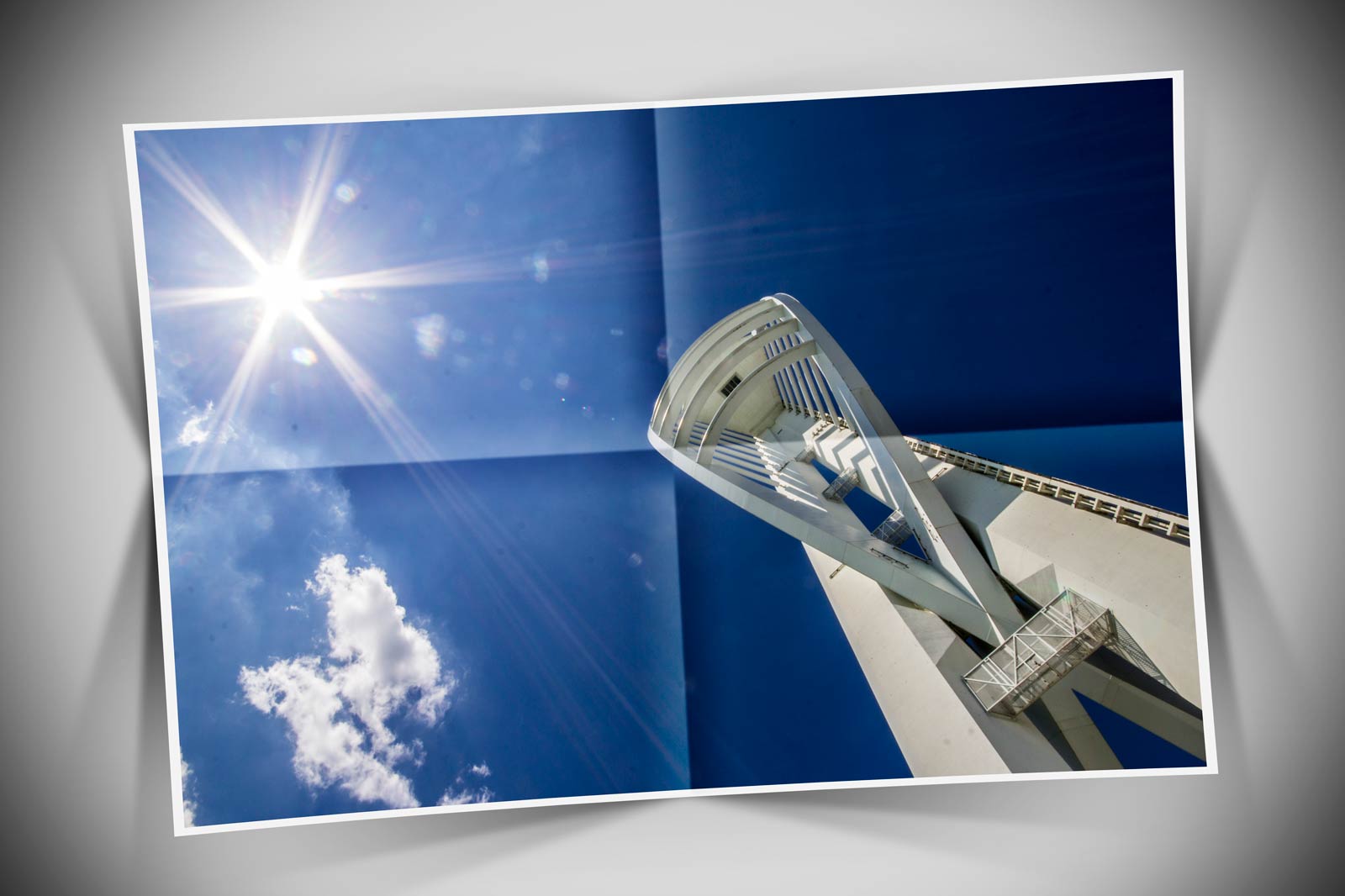
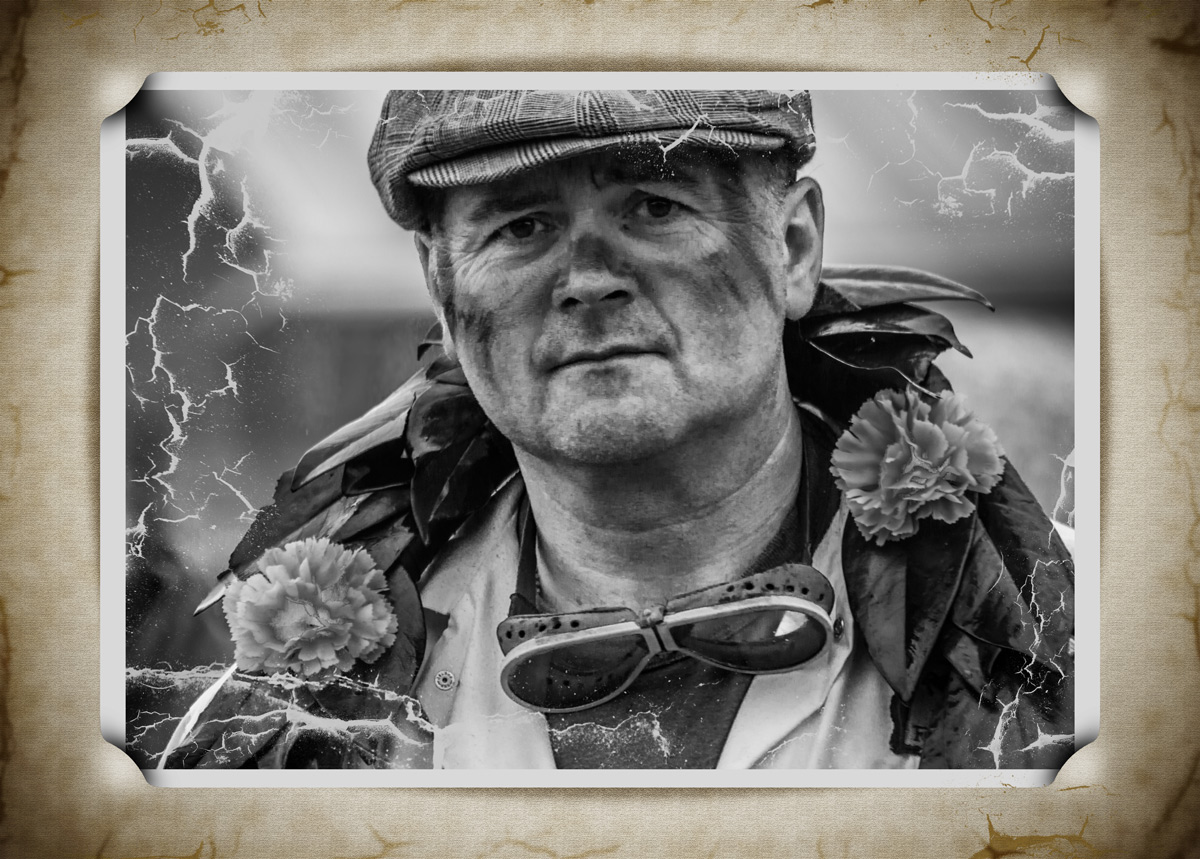
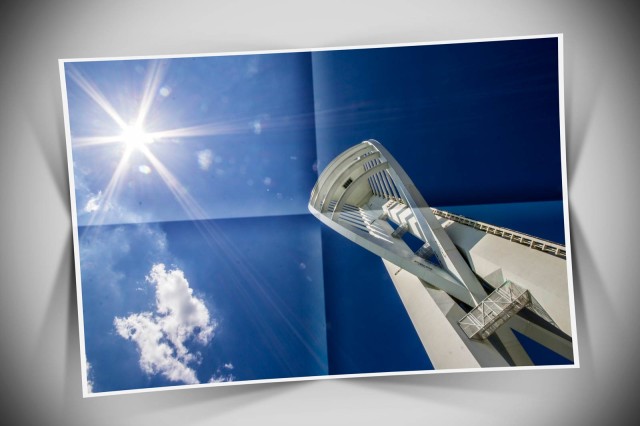
In the real world folding a photo isn’t a smart move unless it’s heading for the bin. However in the mad cap world of Photoshop you can virtually fold a photo any time you like.

With this Friday Freebie Photoshop action folding and creasing a photo is a simple one click affair. Not only that but you’ll also get a border and some fancy shadow effects to enhance the 3D feel. The action is one of the longer ones I’ve made for a Friday Freebie and may take a minute or two to run but the wait and the effort to make it is worthwhile.

You can download the action here: Creased and folded
Folded-Corner-action

To use the action, start with the photo you wish to use already open in Photoshop and then play the action. The first thing it does is make a copy of your photo so the original will be untouched and safe. There’s a lot of things for Photoshop to do with this action so it may take a minute or two to run through. DO NOT switch to another image whilst running the action.

There are no options or controls for this action but at the end you will be left with several layers, so if you need to make any adjustments to the final effect you can.

As with most actions, the size of your image will effect the final effect. Smaller images with less the 2000 pixels on the longest edge are best avoided. Personally I’d also steer clear of portrait format images, this action works best with wide but not too wide shots.

The action will work with Photoshop CC, CS6, CS4, CS4, CS3 and should work with Photoshop Elements 11 and beyond too.

Usage rules
The action is copyright Gavin Hoey 2014. Use is limited to any personal, non-commercial purposes. Please share the Friday Freebie by linking back to this page. Do not redistribute the original action without my permission.

Download instructions
The direct link to download the actions is https://www.gavtrain.com/wp-content/uploads/2014/08/Creased-and-folded.zip

You must UNZIP the action before installing it in Photoshop / PS Elements

No support is provided with the Friday Freebies. If you need help Google or YouTube the question and you’ll almost certainly find the answer 🙂
5 in 1 Reflector – Home Studio Essentials – Episode 4

HSE-EP4-FinalThere’s 1000’s of photographic gadgets, gizmos and accessories that you can spend your hard earned money on and whilst many are utterly useless, there are a few that are indispensable. Towards the top of my list of “must have” accessories is the 5 in 1 reflector.

A five in one reflector is so called because it has five surfaces. There’s the white and silver surfaces for bouncing light, a gold side for adding adding warm light (and usually best avoided), a black surface to block light and a translucent surface to diffuse light. Best of all it’s one of the least expensive bits of kit you can buy.

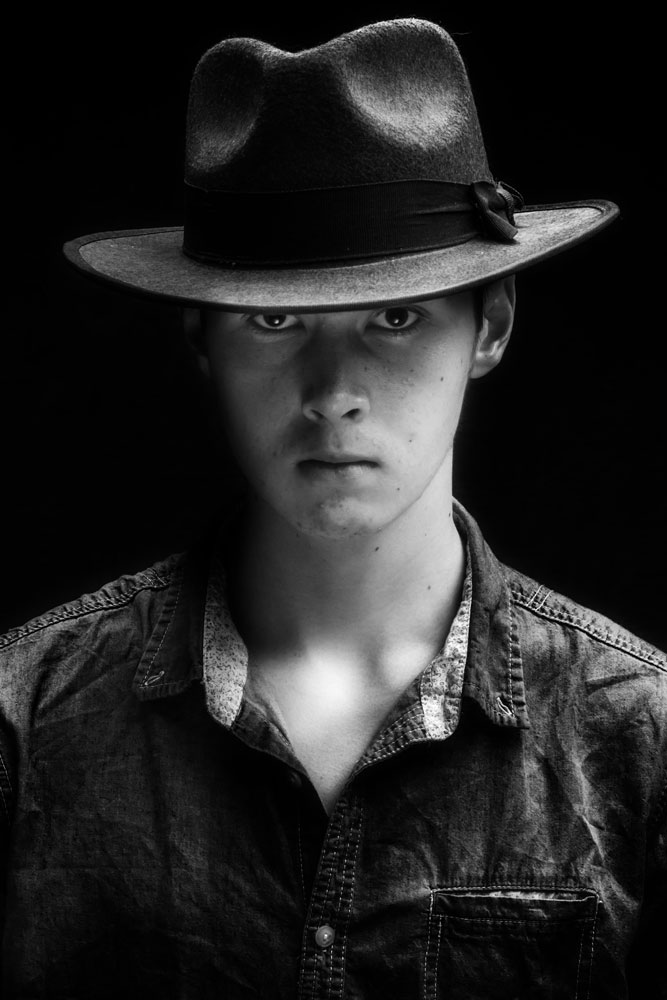
In this video I use the silver surface to bounce light and fill in troublesome shadows. In this case the shadows are caused by a wide brimmed hat. One way would be to add a second light but if that’s not available a reflector can fill in very nicely… and yes, that pun was intended!

[youtube]https://www.youtube.com/watch?v=TYQh9MNC3Is&list=PL821B7D720DEA39FA[/youtube]

Gear used in this video (Links back to Adorama)

Flashpoint StreakLight 360 Ws Creative Collection (Includes flash, battery, trigger, boom etc)

Westcott Apollo Orb Softbox

Westcott Basics 5 in 1 reflector

Canon 5D Mark 2 

Canon 24-105L 

If like me you like to keep a visual record of you’re lighting set ups then this image should come in very handy.

Reflector-Lighting-Diagram

Cracked Photoshop Brushes

Cracked and pealing paint always draw me in as a photographer so here’s a great Friday freebie which combines a selection of my peeling paint photo and turns them into cracked Photoshop brushes. These brushes are full resolution and can be used to paint, erase or mask to create all sorts of effects.

Full download instructions are below or Click Here to DOWNLOAD THE CRACKED BRUSH SET

Cracked-Brushes-Final
If you like your graphic design then those photo real cracked paint brushes will have plenty of uses and Photographers will find them handy to. For example the photo above was given an aged and distressed look by applying the brushes on a layer set to Overlay blending mode. The cut corner border is a previous Friday Freebie Photoshop action which has also been aged with the cracked brushes and Lighten layer blending mode.

Cracked-Brushes-Sample

These Brushes will work in any version of Photoshop and they’re fully compatible with Photoshop Elements too!

As always, if you create a photo using the Friday Freebie then let me (and everyone else) know by leaving the link in the comments below.

Usage rules
The brushes are copyright Gavin Hoey 2014. Use is limited to any personal but non-commercial purposes. Please share the Friday Freebie by linking back to this page. Do not redistribute the original image without my permission.

Download instructions
1. Click the link https://www.gavtrain.com/wp-content/uploads/2014/08/Cracked-Brushes.zip to download

2. Save the brushes to your desktop

3. Unzip the file

4. Open in Photoshop or Photoshop Elements

5. Install the brushes (This link will help if you don’t know how)

6. Enjoy!

No support is provided with the Friday Freebies. If you need help Google or YouTube the question and you’ll almost certainly find the answer :-)

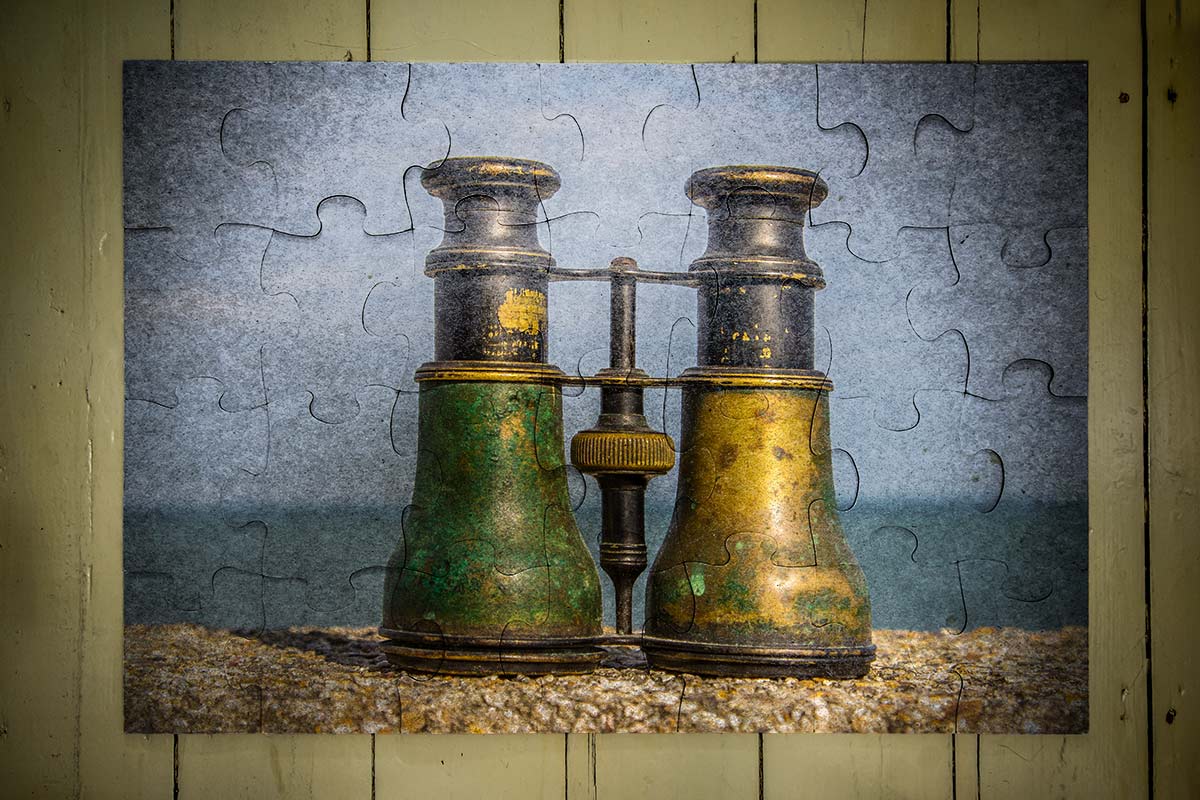
Jigsaw Puzzle – Friday Freebie

Going through some old toys the other day I found this giant kids jigsaw puzzle and instantly thought “Friday Freebie”. It’s officially a 28 piece Spot the Dog jigsaw but you can thank my daughter for putting it together upside down, which is trickier to do then you might think.

Full download instructions are below but you can also Click Here To Download Jigsaw Puzzle

JIGSAW-FF-GAVTRAIN-FEATURED
This puzzle effect works best when blended with photos that have plenty of light colours, so that’ll be skies or in this case a light coloured wall. In the photo above I used the Overlay blending mode but you can get great results with many others too. Just try them all and see what works.

After resizing (CTRL+T) your photo to fit as best you can, I’d suggest making a quick and rough rectangular selection of the puzzle and masking or erasing and excess photo away.

As always, if you create a photo using the Friday Freebie then let me (and everyone else) know by leaving the link in the comments below.

Usage rules
The image is copyright Gavin Hoey 2014. Use is limited to any personal but non-commercial purposes. Please share the Friday Freebie by linking back to this page. Do not redistribute the original image without my permission.

Download instructions
Click the link https://www.dropbox.com/s/4rlc9tm6v738n74/JIGSAW-FF-GAVTRAIN.zip to take you to the Dropbox download page (no sign up is needed)

1. Click the Download button

2. Save the template to your hard drive

3. Unzip the file

4. Open in Photoshop or Photoshop Elements

5. Paste on to your photo

6. Resize (CTRL+T) and change the Layer Blending mode as needed.

No support is provided with the Friday Freebies. If you need help Google or YouTube the question and you’ll almost certainly find the answer :-)

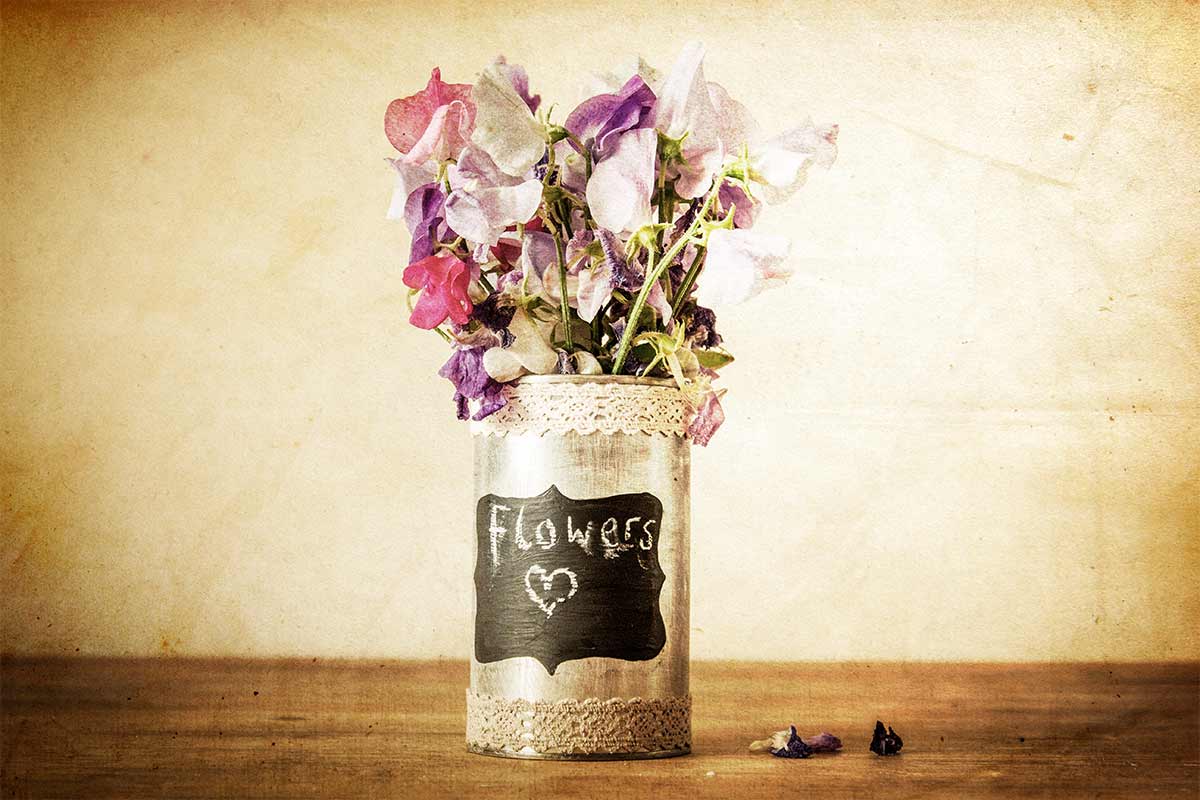
Paper Texture – Friday Freebie

We have a small collection of old books in our house which is slowly growing. Each one has aged differently and most have some wonderful textures hidden inside, which means I’m never short of photo inspiration. This weeks Friday freebie is a combination of two pages which gives a brilliant vintage feel when added to a photo.

Full download instructions are below but you can also Click Here To Download the Paper Texture

FF-Book-Texture-Overlay
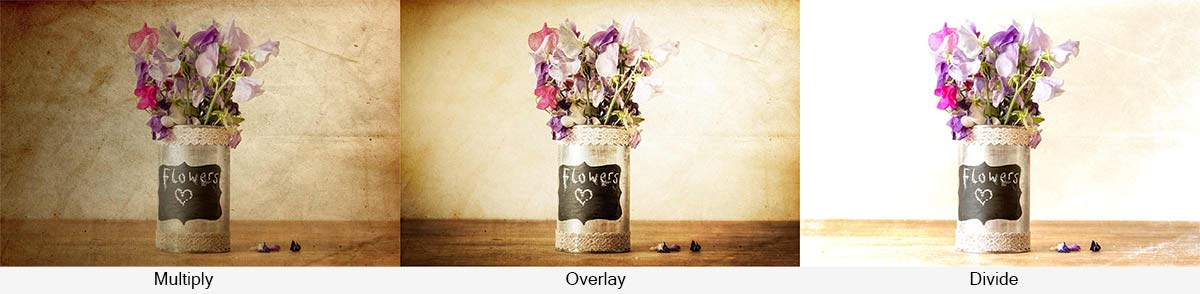
This texture works best when blended with photos that have plenty of light colours, so that’ll be skies or in this case a light coloured wall. In the photo above I used the Overlay blending mode but you can get great results with multiply and even Divide mode too. Just try them all and see what works.

FF-Book-Texture-Samples

As always, if you create a photo using the Friday Freebie then let me (and everyone else) know by leaving the link in the comments below.

Usage rules
The image is copyright Gavin Hoey 2014. Use is limited to any personal but non-commercial purposes. Please share the Friday Freebie by linking back to this page. Do not redistribute the original image without my permission.

Download instructions
Click the link https://www.dropbox.com/s/9vozzrhjv99xuzo/FF-Book-Texture.zip to take you to the Dropbox download page (no sign up is needed)

1. Click the Download button

2. Save the template to your hard drive

3. Unzip the file

4. Open in Photoshop or Photoshop Elements

5. Paste on to your photo

6. Resize (CTRL+T) and change the Layer Blending mode as needed.

No support is provided with the Friday Freebies. If you need help Google or YouTube the question and you’ll almost certainly find the answer :-)

The Softbox – Home Studio Essentials – Episode 3

There’s a reason why the softbox is my “go to” light modifier in my small home studio and it’s all to do with one of the biggest challenges photographers face when shooting in small spaces. With lots of wall close to the light source small studios can become one big reflector with light bouncing all over the place. Whilst that can be great for evenly lit shots it’s a disaster if you want moody lighting or even just basic control of the light direction. Softboxes like the Westcott Apollo Orb I’m using for this shoot, focus the light forward and cut out light spilling behind and to the sides. The upshot is beautiful soft light that has direction even in a small studio.

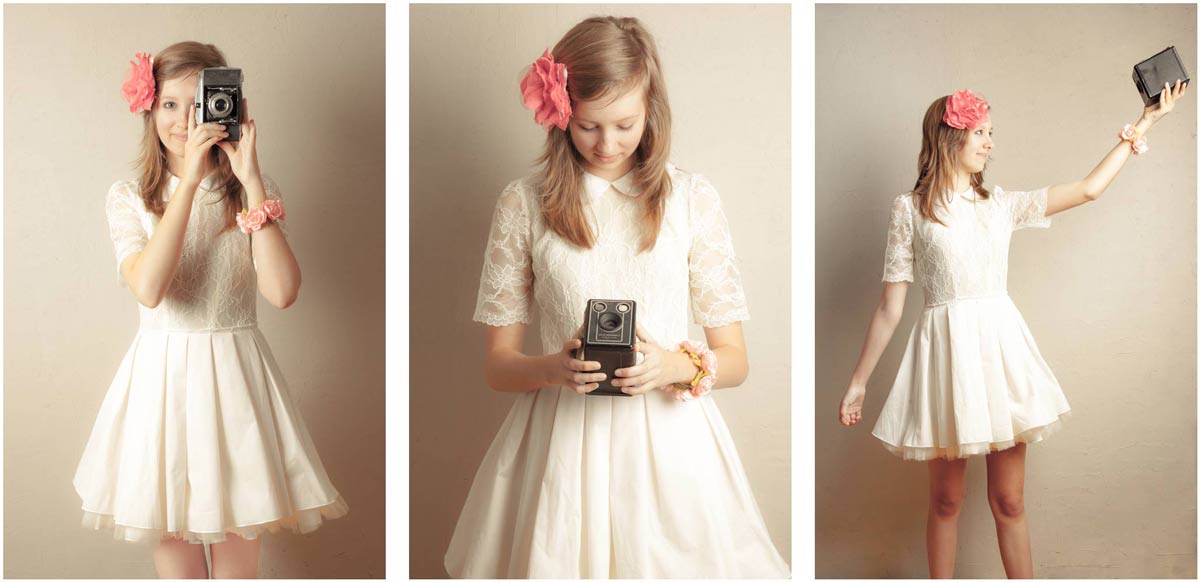
In this video I use 1 meter wide round softbox to give just the right amount of light on the model to achieve the effect I want. Of course in the real world of studio portraits getting the light right never happens first time so run through a couple of different light positions to see what works as well as cover the Photoshop processing to enhance the vintage feel.

[youtube]http://www.youtube.com/watch?v=z0MTQFYnvQA&list=UU8Pksdbj37CdE00kmE7Z1dw[/youtube]

For this series of videos I want you to do more then just watch it, I’m hoping you’ll get your camera and take a photo based on the ideas you see in the video. That might be the lighting set up, the models pose or the Photoshop post processing. If you do (and you’re on Facebook) then please add them to Adorama’s Facebook page. I’ll be checking it regularly and giving constructive feedback on as many as possible

Softbox-demo-retro

Gear used in this video (Links back to Adorama)

Flashpoint StreakLight 360 Ws Creative Collection (Includes flash, battery, trigger, boom etc)

Westcott Apollo Orb Softbox

Canon 5D Mark 2 

Canon 24-105L 

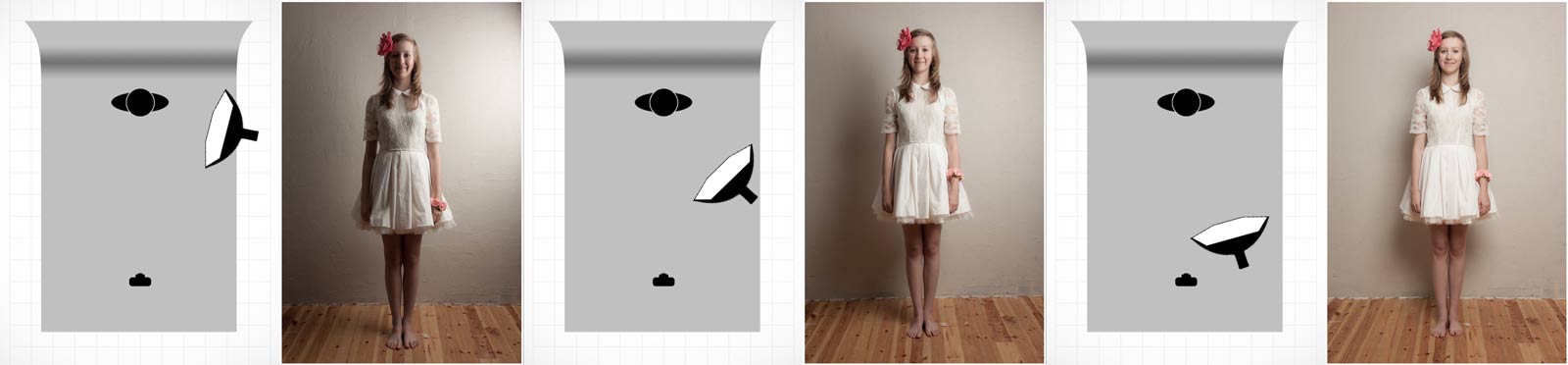
If like me you like to keep a visual record of you’re lighting set ups then this image should come in very handy.

Softbox-lighting-diagram-onelight