Instant Photo Collage Action – Friday Freebie

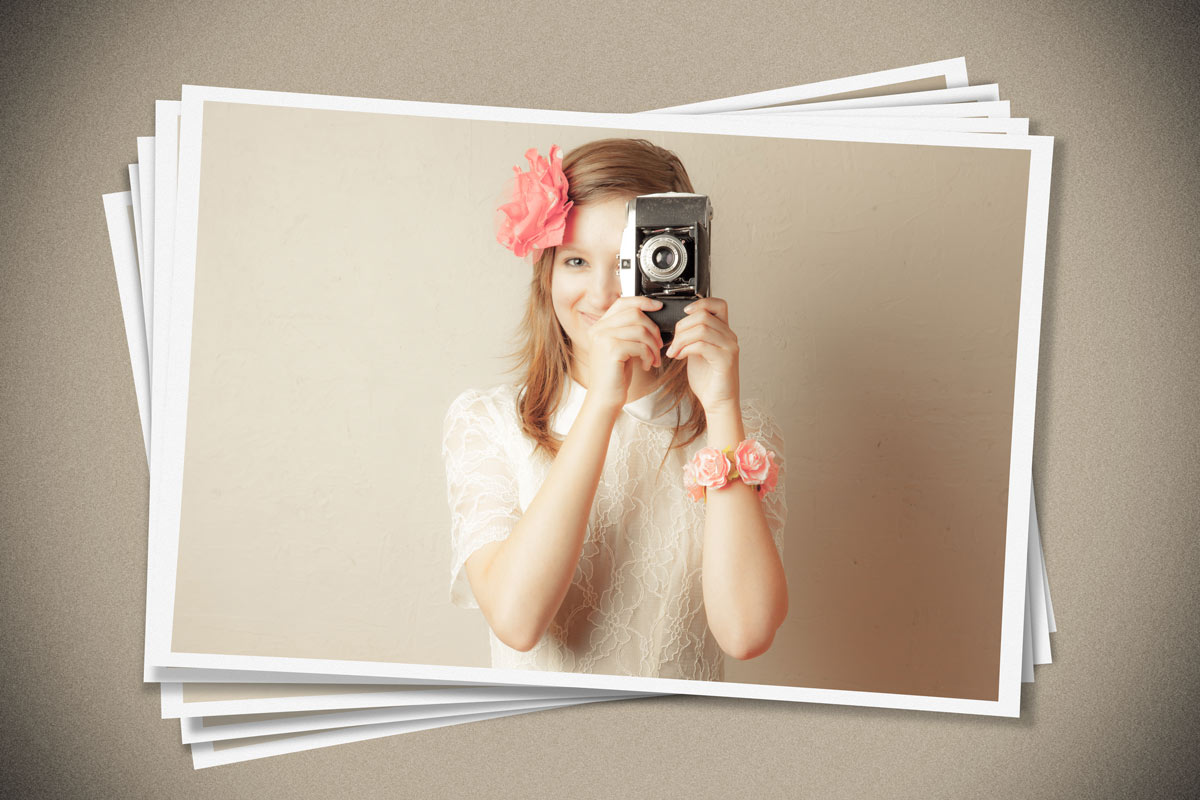
It’s a case of two for the price of one with this Friday freebie Photoshop action as I’ve recorded a version for portrait (upright) and landscape (wide) format images. This action is an extension of the four part split action I made a few weeks back and generates a collage of small scattered prints from one single photo. There’s also the option at slightly alter the exposure of each print which really adds to the effect.

You can download the action here: photo-collage-gavtrain
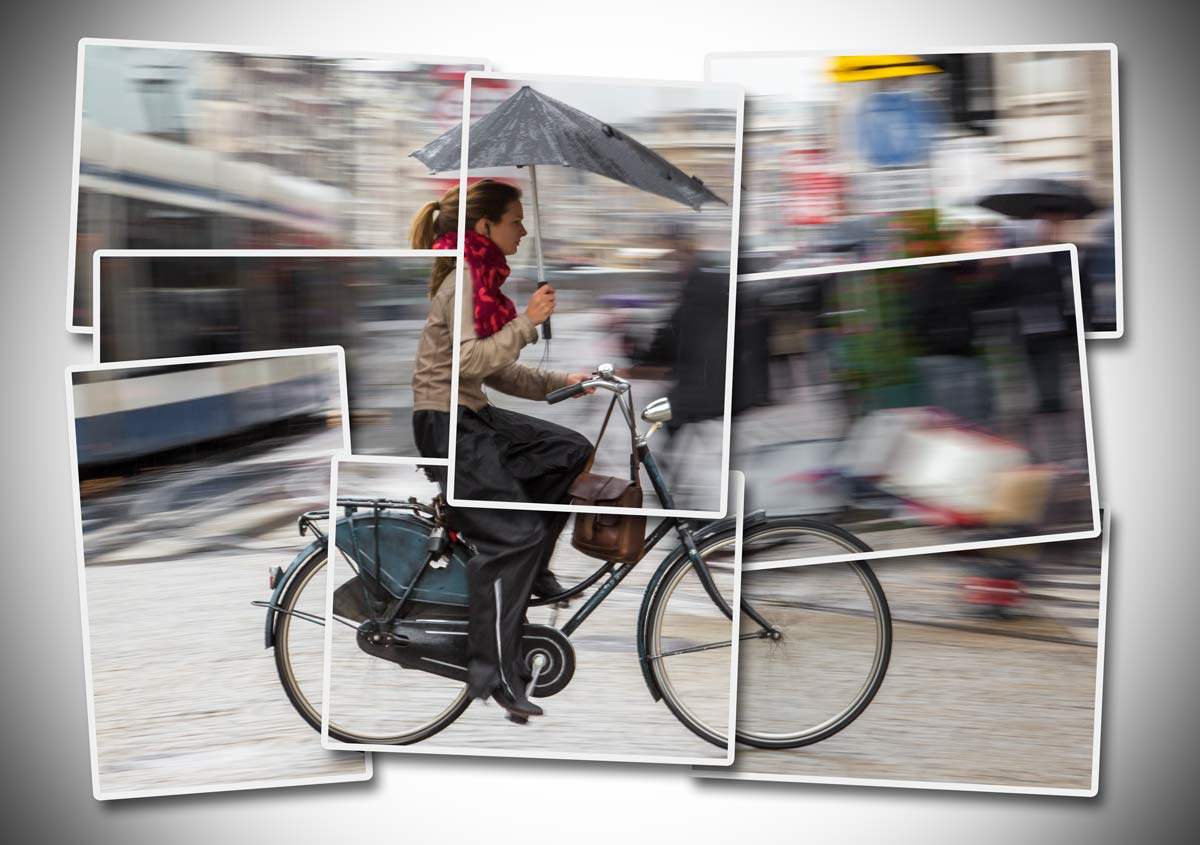
FF-Photo-Collage-Final

To use the action, start with the photo you wish to use already open in Photoshop and then play the landscape or portrait version of the action as appropriate. The first thing it does is make a copy of your photo so the original will be untouched and safe. There’s a lot of things for Photoshop to do with this action so it may take a minute or two to run through. DO NOT switch to another image whilst running the action.

Towards the end of the action you’ll be given the option to automatically adjust the exposure of each print, it’s a subtle effect but well worth doing. After the action is run you’ll notice plenty of layers which I’ve left so you can move, alter and tweak to vary the effect to your taste.

As with most actions, the size of your image will effect the final effect small images (less pixels) will get a bigger border and wider shadow although these settings can always be adjusted after the action has completed.

The action will work with Photoshop CC, CS6, CS4, CS4, CS3 and should work with Photoshop Elements 11 and beyond too.

Usage rules
The action is copyright Gavin Hoey 2014. Use is limited to any personal, non-commercial purposes. Please share the Friday Freebie by linking back to this page. Do not redistribute the original action without my permission.

Download instructions
The direct link to download the actions is https://www.gavtrain.com/wp-content/uploads/2014/06/photo-collage-gavtrain.zip

You must UNZIP the action before installing it in Photoshop / PS Elements

No support is provided with the Friday Freebies. If you need help Google or YouTube the question and you’ll almost certainly find the answer 🙂
Home Studio Essentials – Episode 2

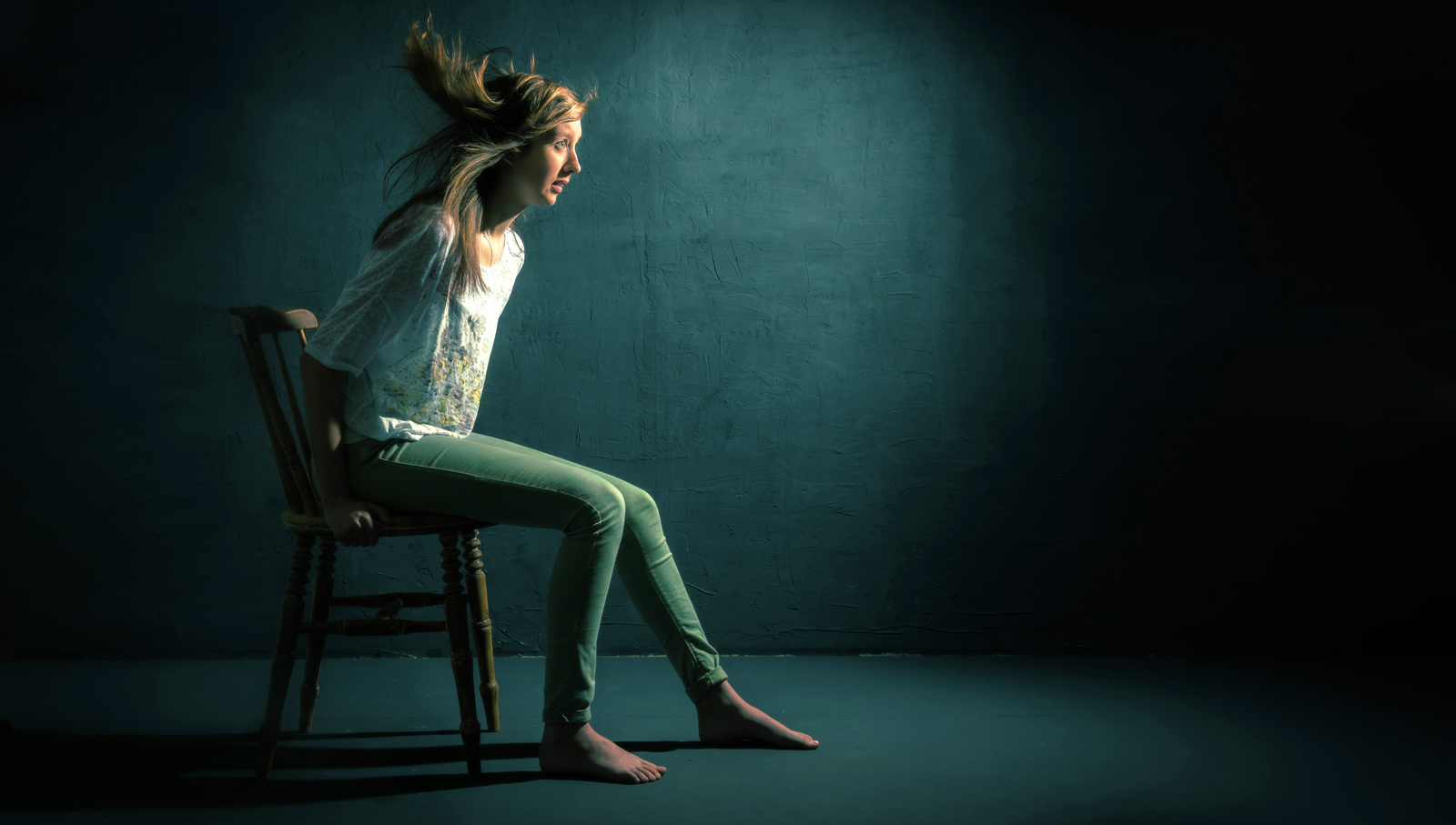
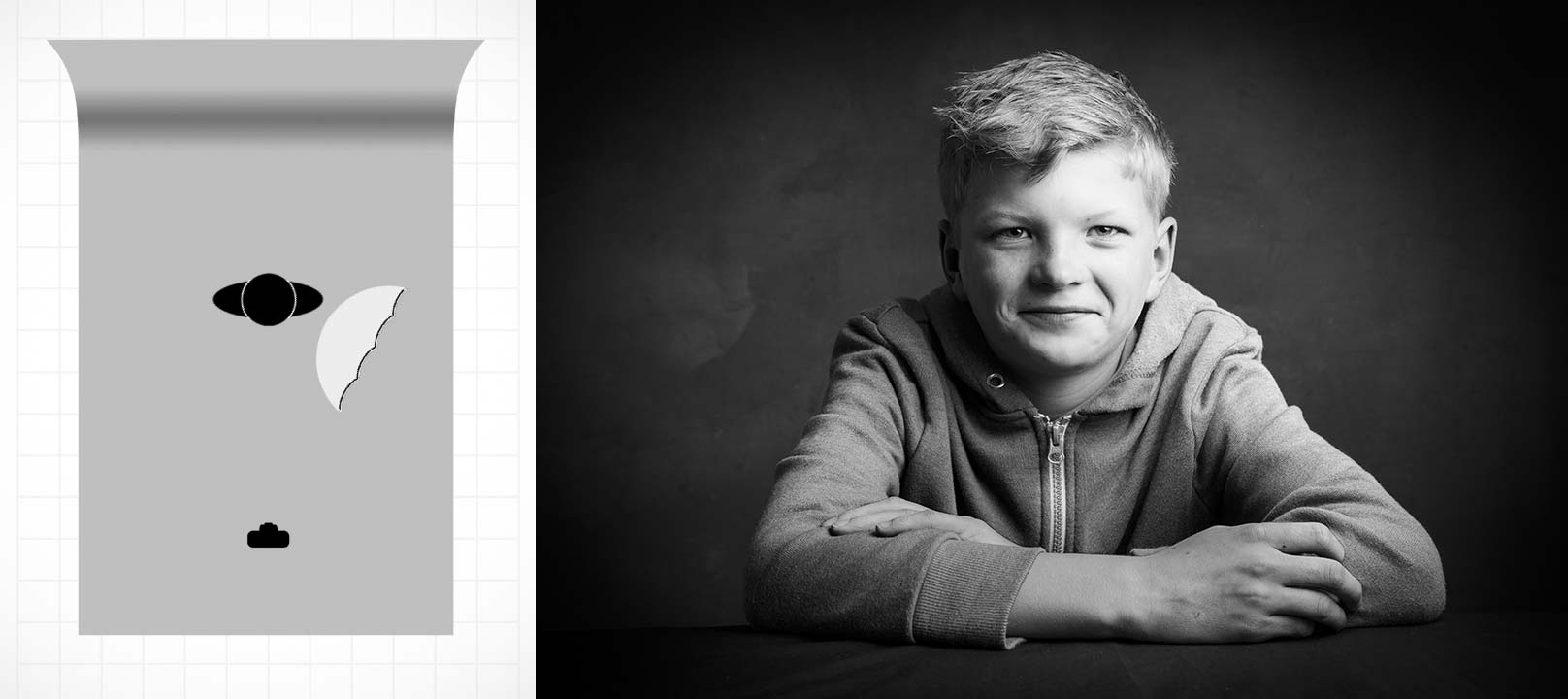
Speedlites and flash units are great but after a while the hard light they produce can become a bit limiting. In part 1 of my home studio essential skills I used a bare flash but now it’s time to add an umbrella. It’s almost certainly the first light modifier you’ll buy and for good reason.  They’re very versatile, quick to set up and fold down nice and small which makes them perfect for mobile and small home studio set ups.

Umbrellas come in two basic types, ones you bounce light into (reflective) and translucent umbrellas that you shoot light through. Whichever you use they soften the light by increasing the size of the light relative to the size of the subject. In other words, the bigger the umbrella the softer the light and the closer you get it to your subject the softer the light.

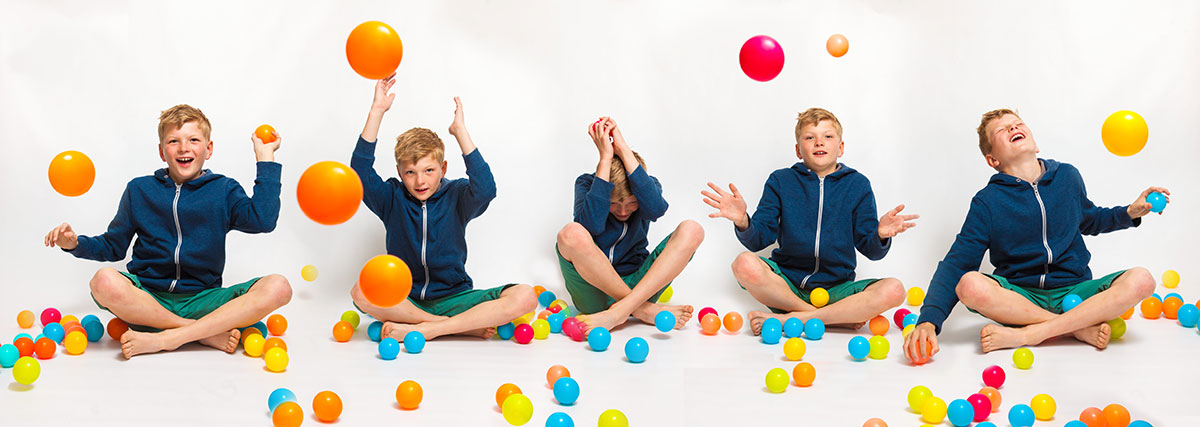
In this video I use a shoot through umbrella to create two very different looks. The first is a moody low key shot but it’s the second, more evenly lit shot that I love and it took lots of balls to make… about 50 colourful plastic balls to be precise!

[youtube]https://www.youtube.com/watch?v=ur58XNQwMXA&list=UU8Pksdbj37CdE00kmE7Z1dw[/youtube]

For this series of videos I want you to do more then just watch it, I’m hoping you’ll get your camera and take a photo based on the ideas you see in the video. That might be the lighting set up, the models pose or the Photoshop post processing. If you do (and you’re on Facebook) then please add them to Adorama’s Facebook page. I’ll be checking it regularly and giving constructive feedback on as many as possible

Joel-Joel-Joel-Joel-Joel

Gear used in this video (Links back to Adorama)

Flashpoint StreakLight 360 Ws Creative Collection (Includes flash, battery, trigger, boom etc)

Canon 5D Mark 2 

Canon 24-105L 

If like me you like to keep a visual record of you’re lighting set ups then this image should come in very handy.

Joel-Lighting-Diagram

The Focal Length vs Shutter Speed Rule

During a recent webinar I briefly touched on a rule of thumb that I’ve used for years. It connects the focal length of a lens and the shutter speed of the camera with the sharpness of a photo. It generated a few questions so let’s get some answers.

Camera shake vs motion blur
Camera shake is where the camera moves, motion blur is were the subject moves and they’re two very different things. In this post I’m focusing just on camera shake, in other words where you photograph a static subject such as a landscape or seated portrait with a handheld camera. Getting sharp shots of speeding cars is another skill all together.

The rule of thumb
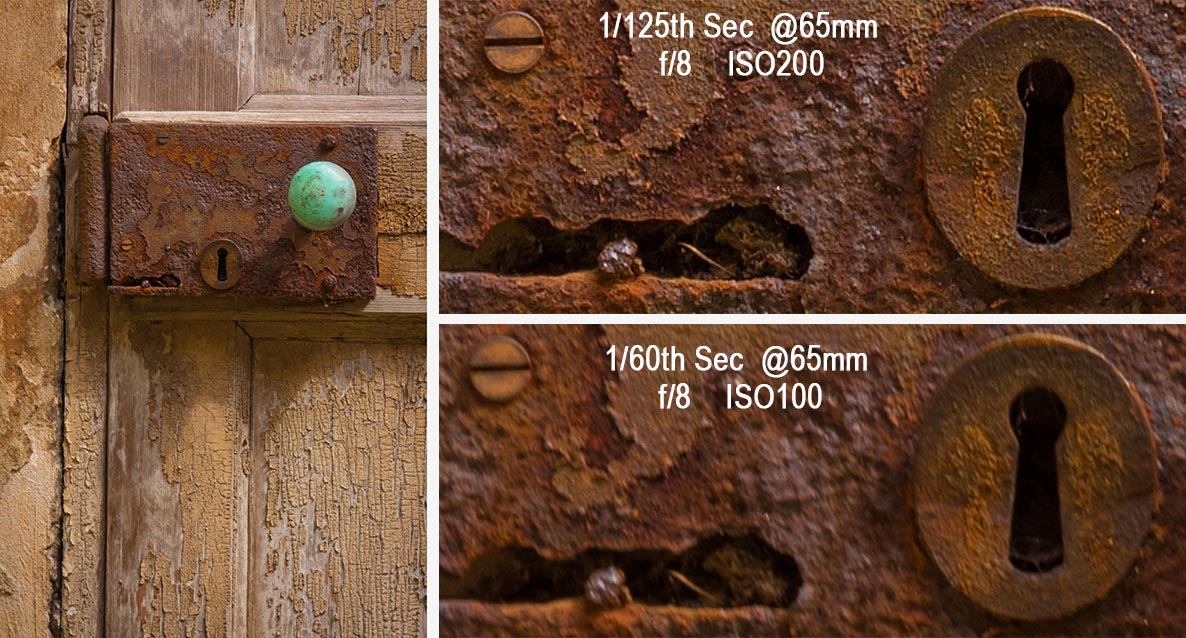
When I started in photography the rule of thumb was really simple. When hand holding your camera the shutter speed should match or exceed the lens focal length. In other words if you wanted a sharp, shake free shot with a 50mm lens your shutter speed would be 1/50th sec or faster.

Whilst that was fine in its day the world has moved on and so has my rule. Modern lenses and cameras are capable of recording very fine detail and as we all love to zoom in close we view our images with a more critical eye. Add to the mix all the different sensor sizes that will alter the effective zoom of the lens and you’ll understand why the old rule needs updating.
focal-length-vs-shutter-speed-1

The new rule of thumb
Today I use the rule of thumb that the shutter speed should be double (or more) then the lens focal length. In other words if you were using a 50mm lens your shutter speed would be 1/100th sec or faster.

To put that into the language of real world photography, if I’m using my 10mm fisheye I’m happy to shoot all the way down at at 1/20th second shutter speed but if I was shooting with a 400mm lens I’d want a whopping 1/800th second shutter speed. Which might be tricky and brings me onto my final point.

Bend the rule
Some rules are set in stone but others can be bent or broken, my rule of thumb is the later.

Does your lens have an image stabiliser (shake reduction) system, are you really good at holding your camera and is your camera a full frame sensor or bigger? If so then you can bend this rule a little, to a lot. If you use a tripod then you can totally break this rule as long as nothing is moving in your scene of course.

Pile of Prints Action – Friday Freebie

Here’s a lovely little Photoshop action which produces a very pleasing effect, all with one click of the mouse. Back in the day I recall the joy and frustration of getting a pile of prints back from the developers and sorting them into a pile of keepers and a big pile of photos fit only for the bin.

You can download the action here: Pile of prints – gavtrain
Pile-Of-Prints-EXAMPLE

To use the action, start with the photo you wish to use already open in Photoshop and then play the action. The first thing it does is make a copy of your photo so the original will be untouched and safe. There’s a lot of things for Photoshop to do with this action so it may take a minute or two to run through. DO NOT switch to another image whilst running the action.

This action works best on landscape format images but will work on upright format photos too. As with most actions, the size of your image will effect the final effect and I’d suggest starting with a photo 3000 pixels (longest edge) or bigger.

The action will work with Photoshop CC, CS6, CS4, CS4, CS3 and should work with Photoshop Elements but I have yet to test that.

Usage rules
The action is copyright Gavin Hoey 2014. Use is limited to any personal, non-commercial purposes. Please share the Friday Freebie by linking back to this page. Do not redistribute the original action without my permission.

Download instructions
The direct link to download the actions is https://www.gavtrain.com/wp-content/uploads/2014/05/Pile-of-prints-gavtrain.zip

No support is provided with the Friday Freebies. If you need help Google or YouTube the question and you’ll almost certainly find the answer 🙂
Home Studio Essentials – Episode 1

Very few photographers have access to a professional studio but lots of us enjoy shooting portraits and so all over the world spare bedrooms, garages and front rooms are regularly converted from their intended use into makeshift small studios.

These small spaces can produce stunning photos but they come with their own unique set of problems and challenges. More often then not the home studio photographer may also feel restricted by owning a small range of lighting gear and using friends or family as models but truth be told that’s not the handicap it might at first appear.

[youtube]https://www.youtube.com/watch?v=hR4DW7dXOsk&list=UU8Pksdbj37CdE00kmE7Z1dw[/youtube]

This is the first of a mini series of videos I’ve made for Adorama TV in which I work within the limitations of a small home studio. Over the coming weeks I’ll be dealing with the challenge of controlling light in a small space, working with amateur models and in this video, shooting without light modifiers.

For this series of videos I want you to do more then just watch it, I’m hoping you’ll get your camera and take a photo based on the ideas you see in the video. That might be the lighting set up, the models pose or the Photoshop post processing. If you do (and you’re on Facebook) then please add them to Adorama’s Facebook page. I’ll be checking it regularly and giving constructive feedback on as many as possible

Adorama-HSE-1

Gear used in this video (Links back to Adorama)

Flashpoint StreakLight 360 Ws Creative Collection (Includes flash, battery, trigger, boom etc)

Canon 5D Mark 2 

Canon 24-105L 

Frio Cold Shoe  

Black rapid RS-7 Strap 

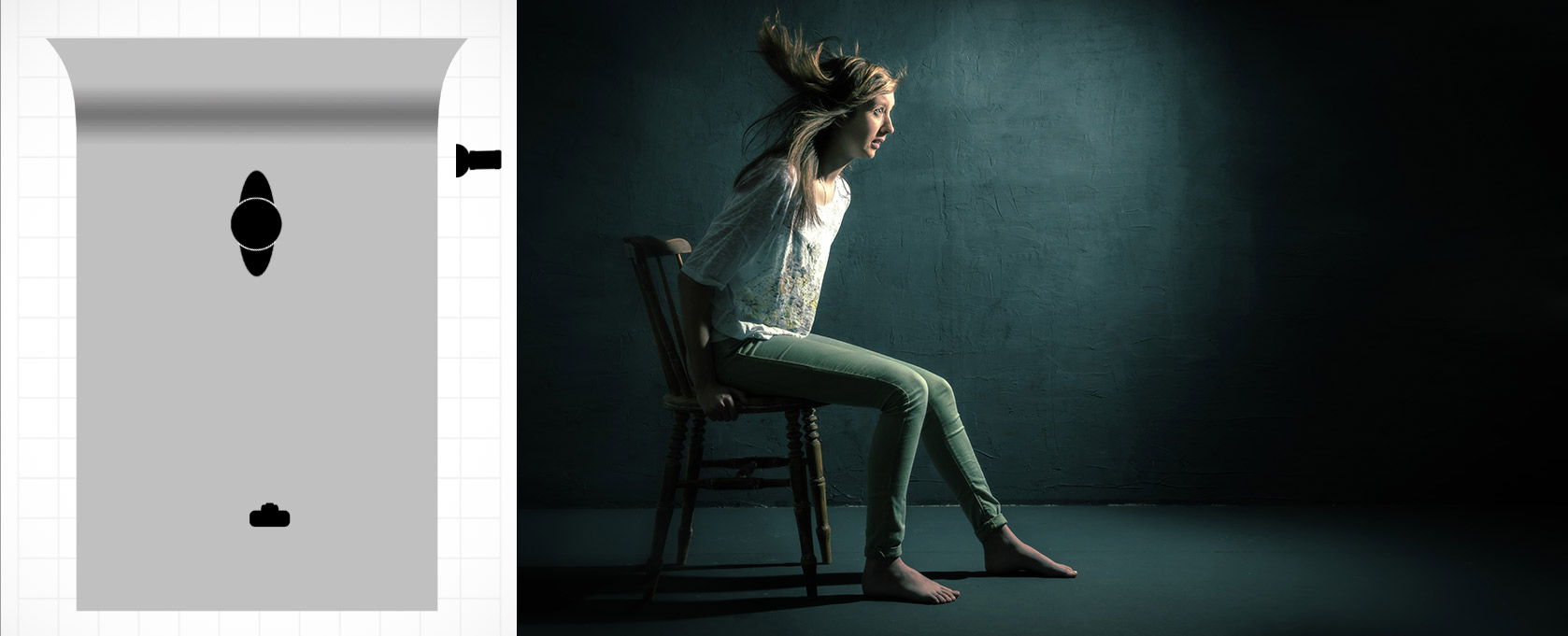
If like me you like to keep a visual record of you’re lighting set ups then this image should come in very handy.

Lighting-Diagram---Bare-Flash

Summer Workshops

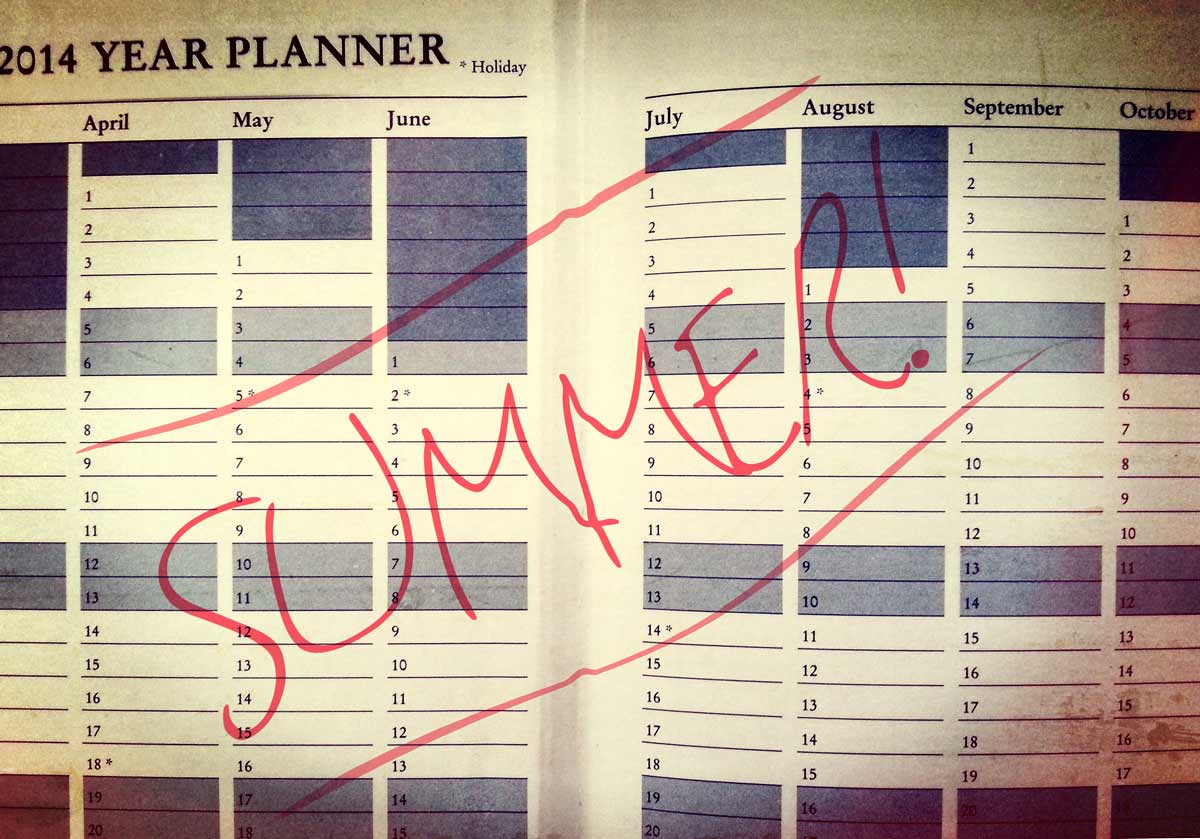
Summer-2014With summer just a round the corner I’m really looking forward to getting out and shooting some photos but I’m also excited about teaching photography and meeting photographers at some of the workshops I have around the UK. These all day events are on top of my usual evening camera club talks and are either practical workshops or all day demos, either way if you’re coming along do bring a camera, a note book and a willingness to get involved!

DATRPS-LOGOE: 15th June 2014
LOCATION: Foxton, Nr. Cambridge
DESCRIPTION: A day photography and Photoshop tips, techniques and demonstrations.
ORGANISED BY: The Royal Photographic Society
WEBSITE: http://www.rps.org/events/2014/june/15/taking-and-making-creative-photographs


WELSHOT-LOGODATE: 28th June 2014
LOCATION: Chester
DESCRIPTION: Create amazing photos by pouring, splashing and adding things to water
ORGANISED BY: Welshot Imaging
WEBSITE: http://www.welshotimaging.co.uk/event/make-create-water-workshop-gavin-hoey


WELSHOT-LOGODATE: 29th June 2014
LOCATION: Chester
DESCRIPTION: A day of photo challenges, fun and learning around the city of Chester.
ORGANISED BY: Welshot Imaging
WEBSITE: http://www.welshotimaging.co.uk/event/gavin-hoey-chester-challenge-photography-post-processing-day


Gavtrain-Logo-160x160DATE:
 20th July 2014
LOCATION: Gatwick
DESCRIPTION: Get up close and inside some classic aircraft at the Gatwick Aviation Museum,
ORGANISED BY: Gavtrain
WEBSITE: https://www.gavtrain.com


Manhattan 15 Minute Photo Challenge

So here it is, the last video from a my short visit to New York. Actually this was the first video I made whilst out there but for reasons that are a bit of a mystery to me, this has only just been uploaded to Adorama TV.

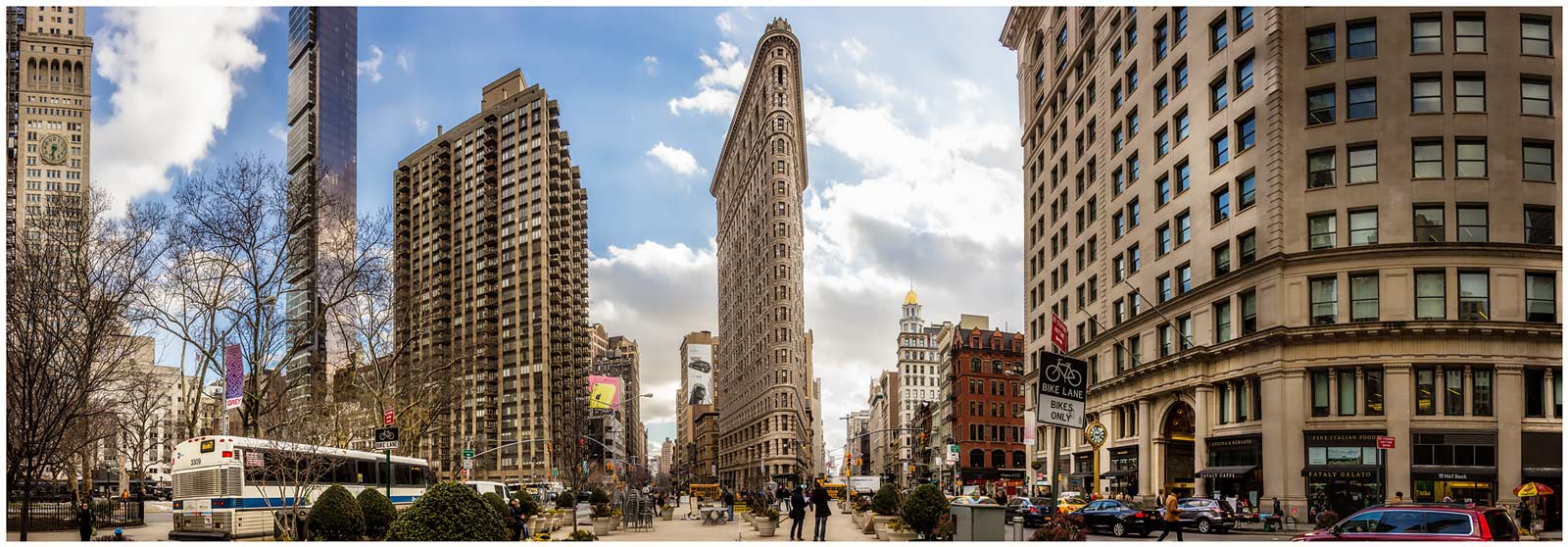
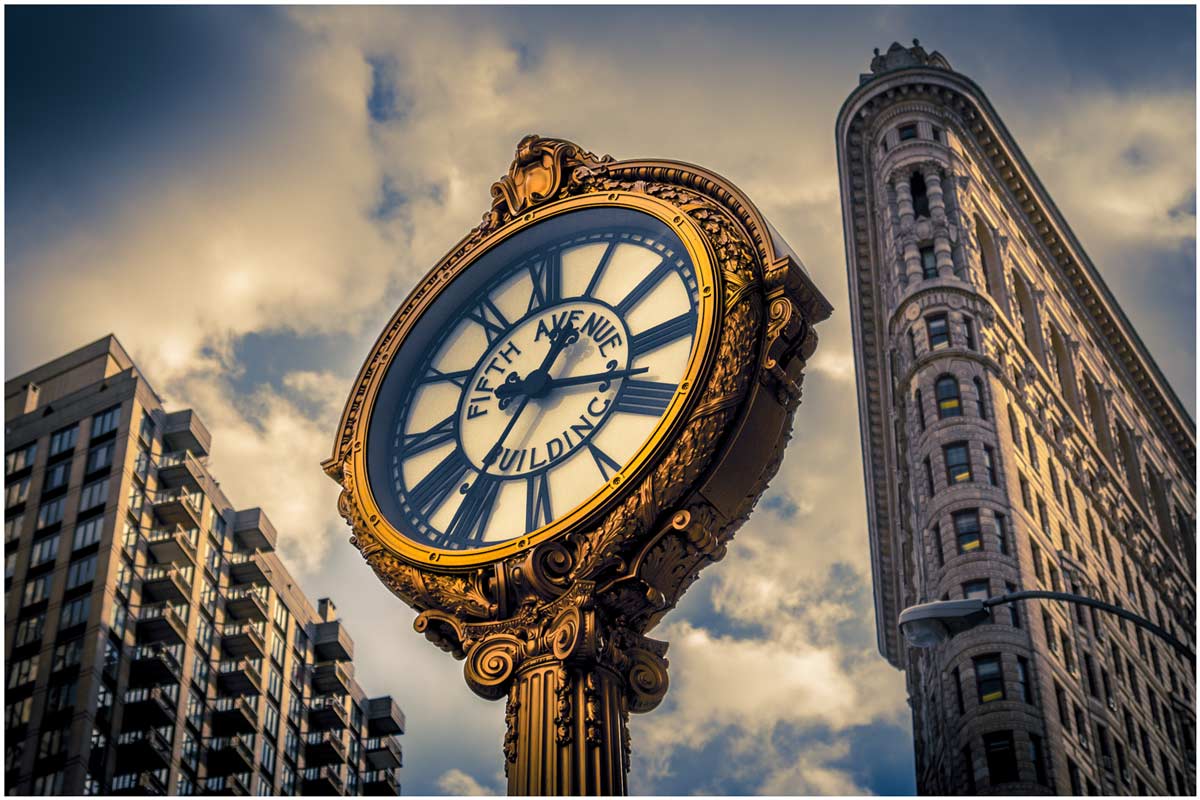
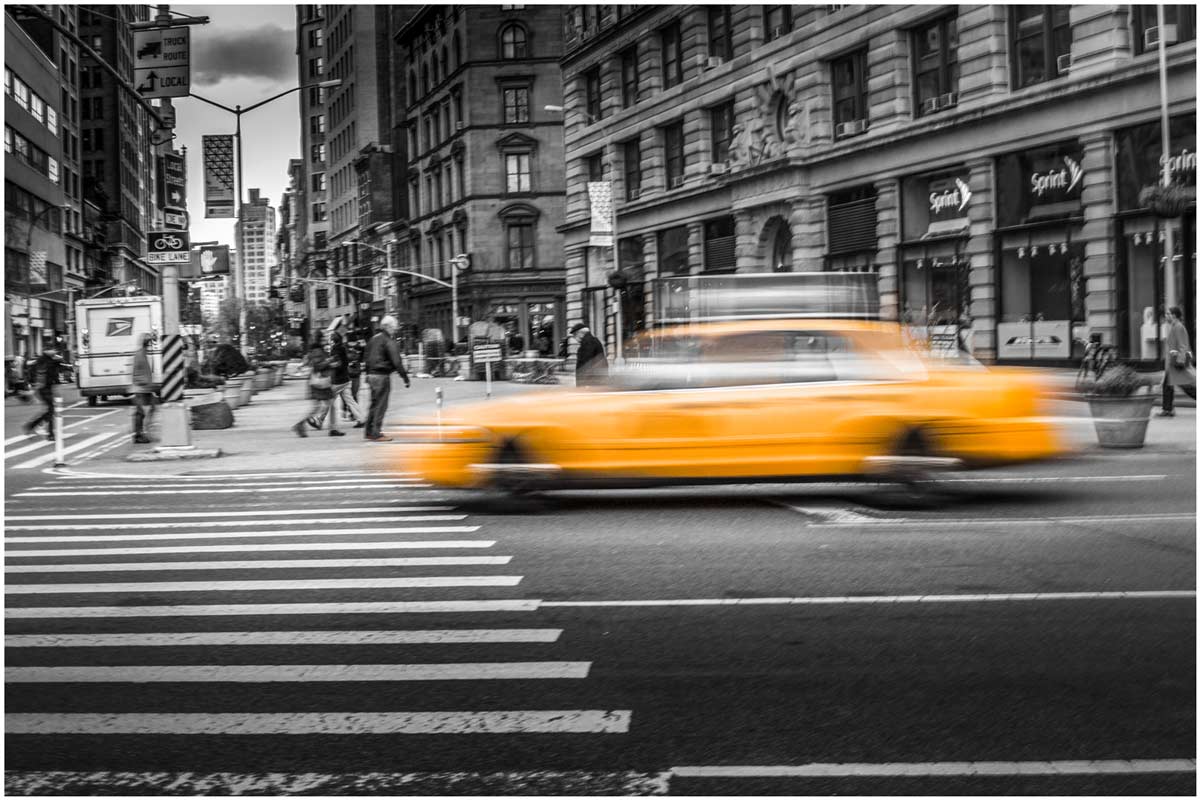
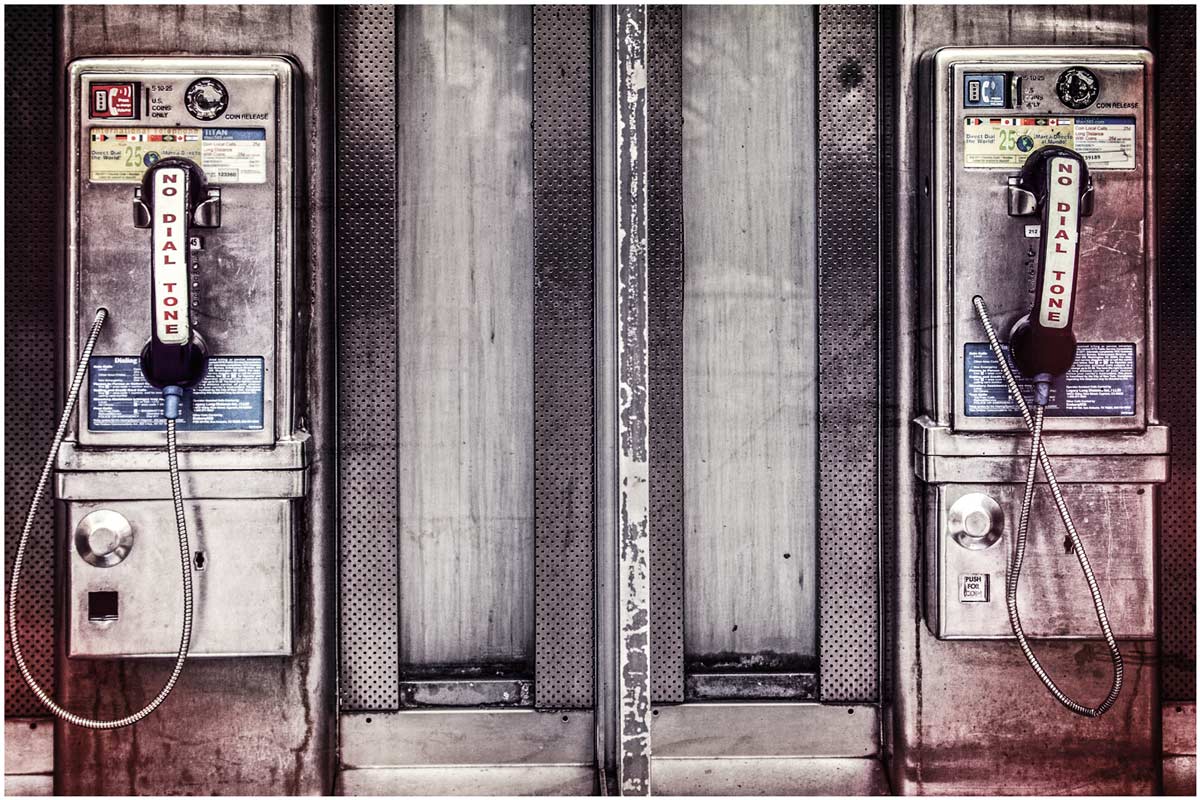
NYC-4The location for this 15 minute photo challenge was Madison Square Park (23rd and 5th) which has the iconic Flatiron building at one end. It’s just a few blocks away from the Adorama store, so when myself and Claude (Adorama’s brilliant video guy) found ourselves surplus to requirements during the set up for my Adorama TV Live workshop, we took the opportunity to shoot a 15 minute challenge video.

[youtube]http://www.youtube.com/watch?v=xEuDnBH7jQI&list=UU8Pksdbj37CdE00kmE7Z1dw[/youtube]
Can’t see the video? Click here http://youtu.be/xEuDnBH7jQI

Equipment used in this video (Links to Adorama)

Canon 60D 

Canon 24-105L

Black Rapid Curve (RS-7) Strap

NYC-3NYC-2NYC-1

Cut Corners Action

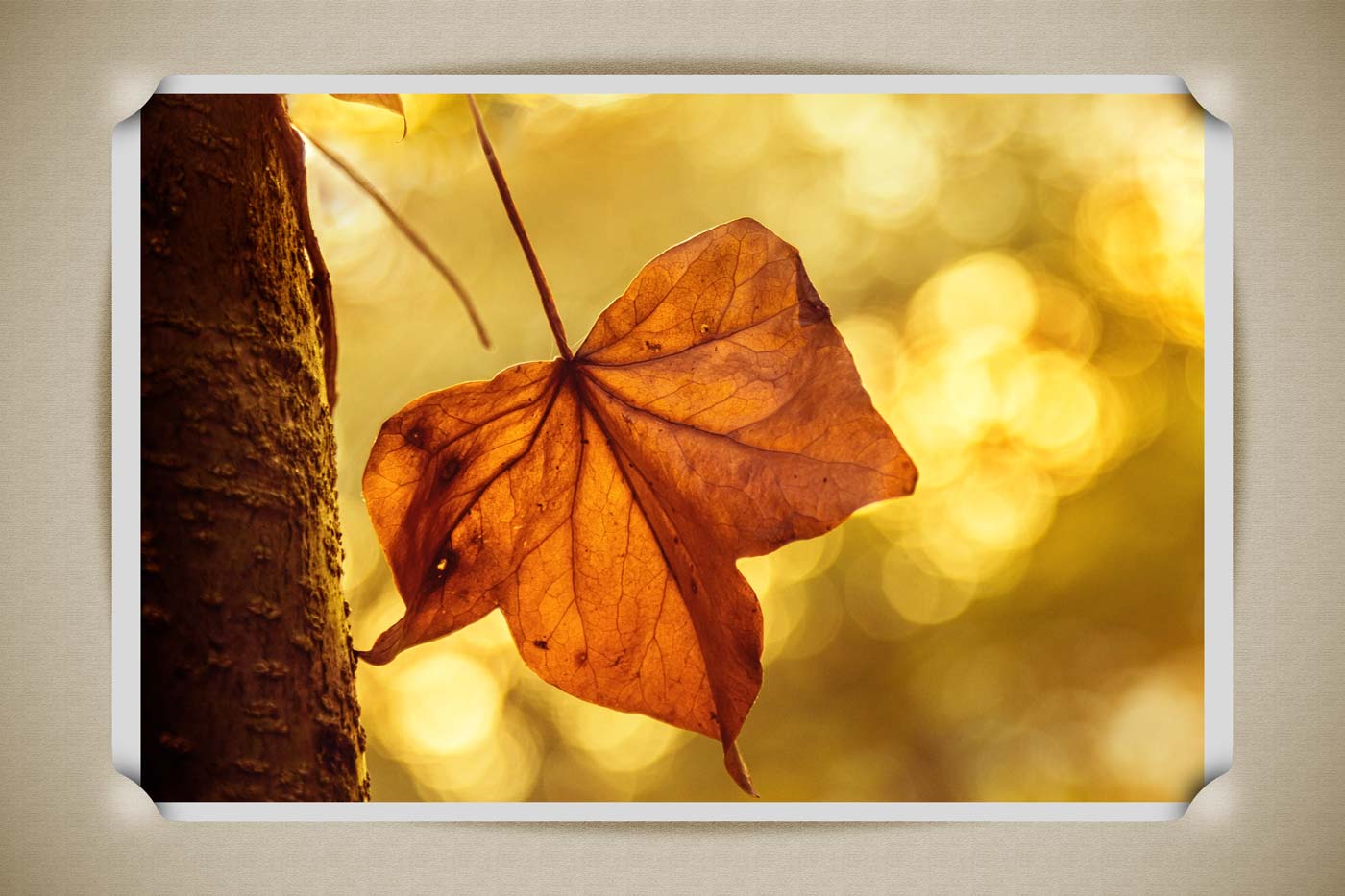
You know how some ideas sound easy until you try and make them happen, well this Friday Freebie Photoshop action really ticks that box. All I wanted to do was make a photo look like it was slotted into the corners of a vintage photo album page. My first test worked really well but recreating a similar result within the confines of a Photoshop action took a lot of working out and many, many hours of trial and error (mostly error). However I think you’ll agree that the end result was worth the effort!

You can download the action here: Cut Corners – Gavtrain
Cut-Corner-Border

To use the action, start with the photo you wish to use already open in Photoshop and then play the action. The first thing it does is make a copy of your photo so the original will be untouched and safe. There’s a lot of things for Photoshop to do with this action so it may take a minute or two to run through. As with most actions, the size of your image will effect the final effect and I’d suggest starting with a photo 3000 pixels (longest edge) or bigger.

The action will work with Photoshop CC, CS6, CS4, CS4 and CS3 but because it uses “Warp Transform” it WILL NOT work  with any version of Elements, sorry.

Usage rules
The action is copyright Gavin Hoey 2014. Use is limited to any personal, non-commercial purposes. Please share the Friday Freebie by linking back to this page. Do not redistribute the original action without my permission.

Download instructions
The direct link to download the actions is https://www.gavtrain.com/wp-content/uploads/2014/05/Cut-Corners-Gavtrain.zip

No support is provided with the Friday Freebies. If you need help Google or YouTube the question and you’ll almost certainly find the answer 🙂
How to make a DSLR time-laspe

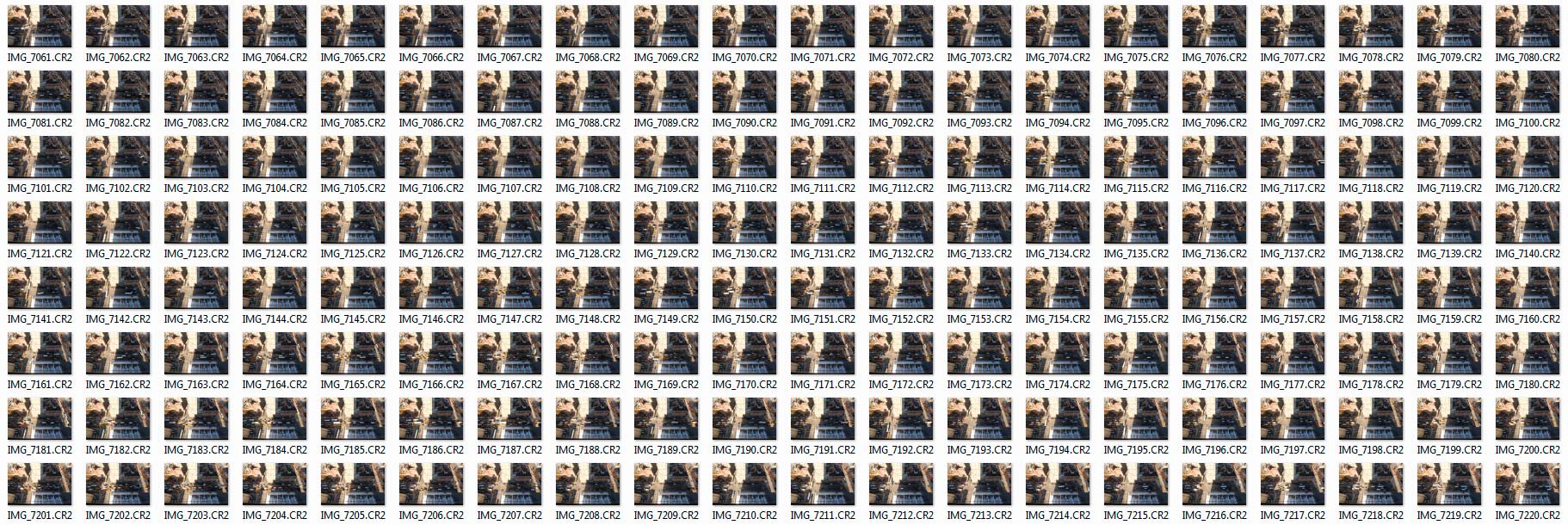
A few years ago I made a video about shooting a time-lapse sequence with a DSLR and then making a video from the images. Most of the information is still as valid today as it was in 2011 but it’s amazing haw fast technology changes the way we shoot and edit. Back then very few cameras had a built in intervalometer and you needed a custom made slideshow preset for Lightroom if you wanted to create the time-lapse video in your photo editing software.

Timelapse-NYC-THUMBS

Skip forward 3 years and although my Canon DSLR’s still don’t have timelaspse out of the box I can use my smart phone to control my camera and take the photos. Plus Photoshop CS6 and CC can both create video from stills in just a few clicks of the mouse.

[youtube]https://www.youtube.com/watch?v=J5Bwpm8_5XM[/youtube]
Can’t see the video? Click here http://youtu.be/J5Bwpm8_5XM

Equipment used in this video (Links to Adorama)

Canon 60D 

Sigma 10mm-20mm

ioShutter release cable 

Vanguard 284 CB100 Tripod  

My Studio Texture

If you caught my post yesterday then you’ll know that I recently built a textured background in my studio. Well it seems there are quite a few people out there that would love to do the same but don’t have the space, time or need for a similar permanent structure. So for today’s Friday freebie I’m giving away my studio background… OK so I’m not giving away the real thing but I am sharing a photo of it

Full download instructions are below but you can also
Click Here To download my studio background.
FF-Studio-BG1
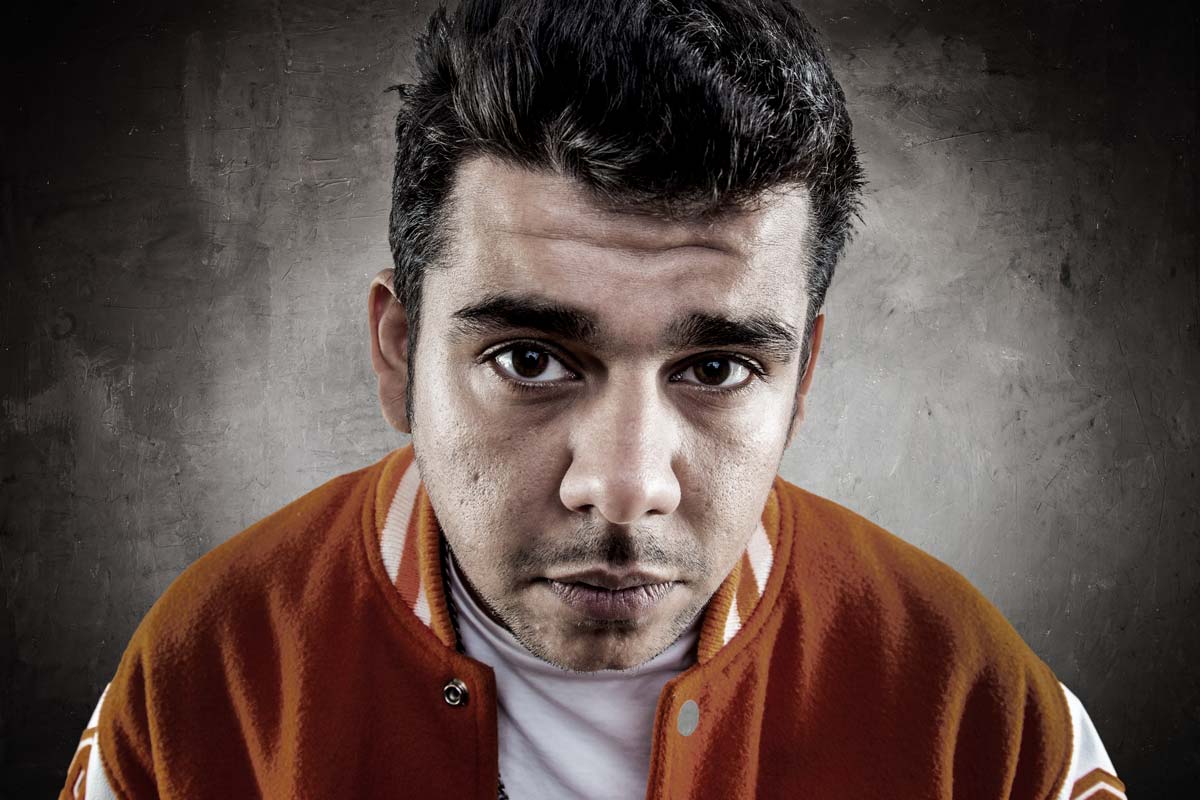
There are a couple of ways you could use it. You could do exactly what it’s designed for and use it as a background for your studio shots. All you’d need to do is shoot on a clean background (light grey works best) and then simply extract the model and paste them in. I made an in depth video tutorial with Mark Wallace on how that’s done last year. If you missed it take a look here.

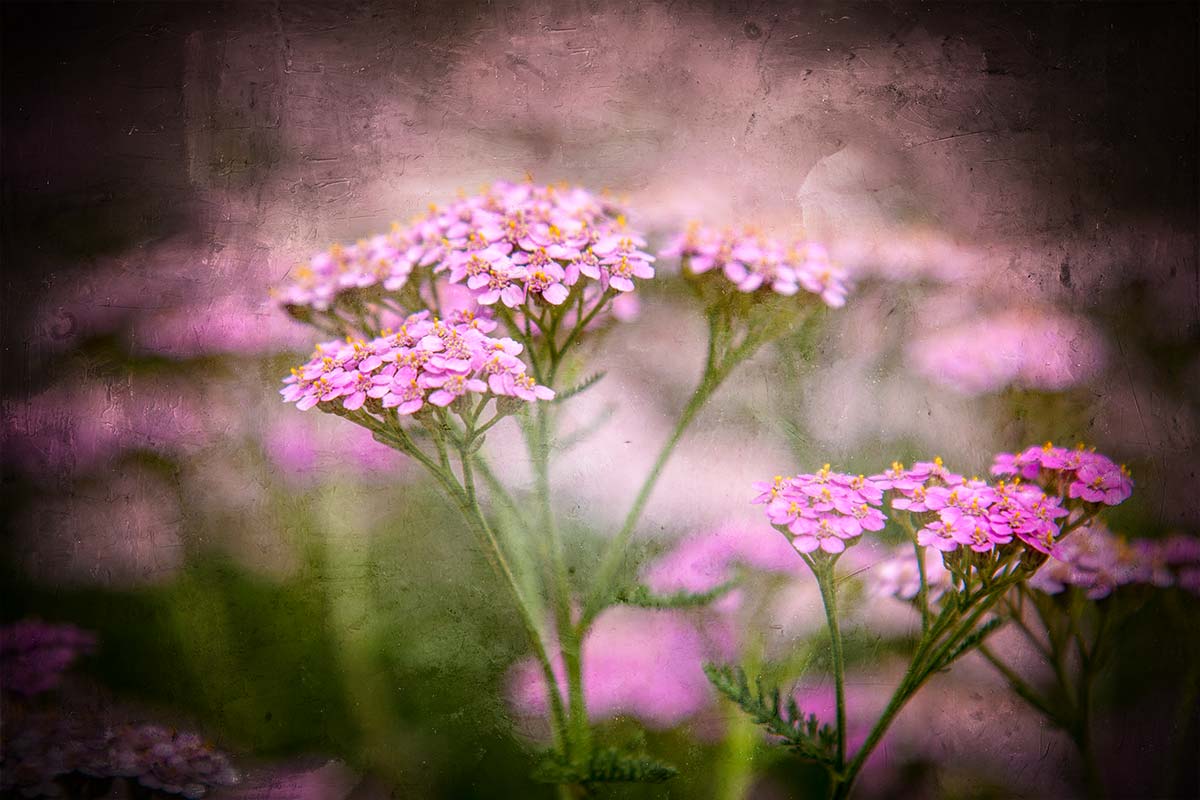
FF-Studio-BG2-Hard-LightOf course you can also use the texture as… well, a texture! Simply paste it over your photo, use a spot of Free Transofrm to make it fit and change the layer blending mode. Multiply, Overlay and Hard Light (as used here) are three to try but don’t stop there.

As always, if you create a photo using the Friday Freebie then let me (and everyone else) know by leaving the link in the comments below.

Usage rules
The image is copyright Gavin Hoey 2014. Use is limited to any personal but non-commercial purposes. Please share the Friday Freebie by linking back to this page. Do not redistribute the original image without my permission.

Download instructions
Click the link https://drive.google.com/file/d/0B_Mmmm3K1utNYW53T3RUbDk0LVE/view?usp=sharing
1. Click the Download button download_icon

2. The download should start automatically