Building a DIY studio background

For a long time I’ve fancied the idea of adding a grungy textured background to my studio but due to the limited space available I’ve stuck to using a white vinyl and black fabric backdrops. Now these have worked really well for me over the years but there comes a time when you want to break free and recently I got a great excuse to do just that.

I’m currently in the middle of filming a mini-series of videos for Adorama TV all about shooting portraits in a small studio, something I know a lot about. You’ve probably seen my log cabin studio in various videos before so in order for this series to look and feel different I bit the bullet and built my dream textured backgroundKings-of-Sussex-5
The Plan
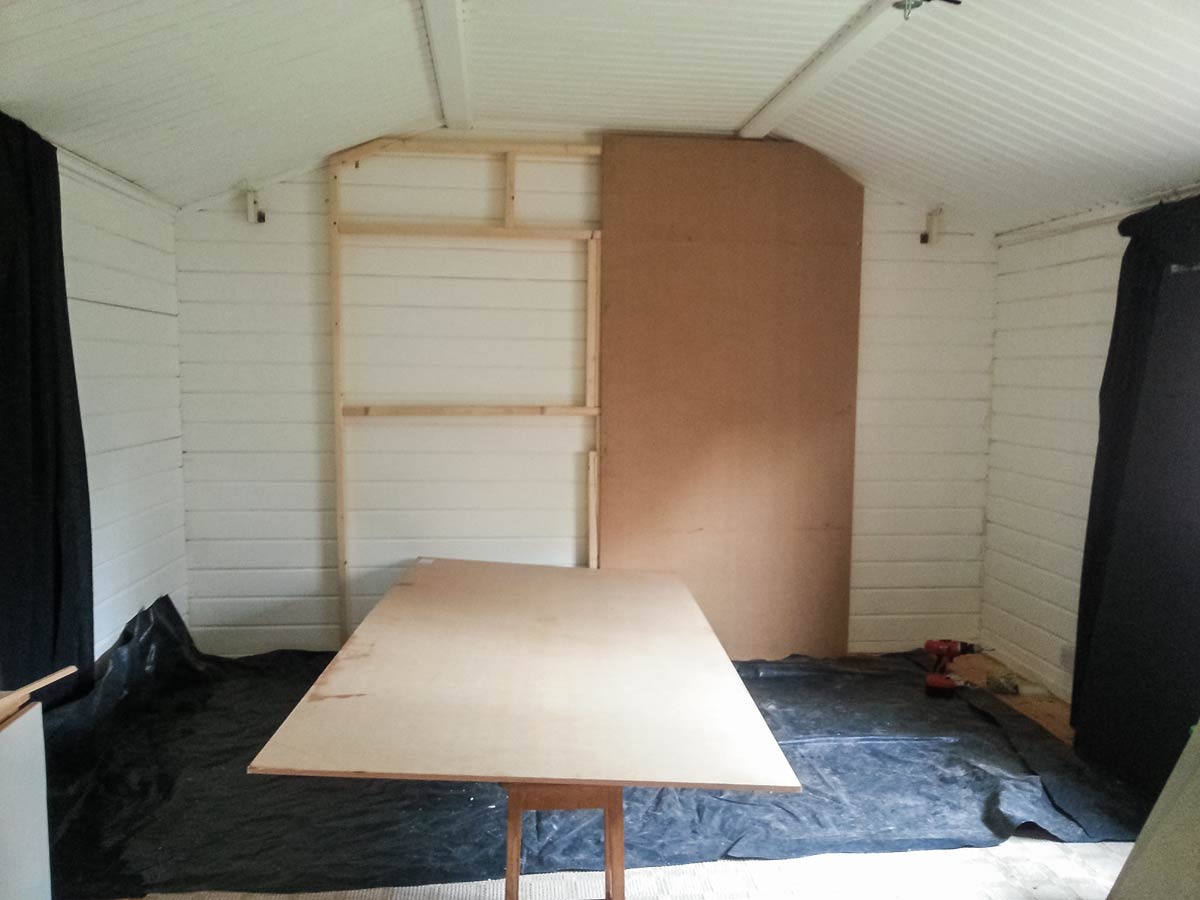
I’m a reluctant DIY guy, so if you’re looking for plans, specifications and a fool proof guide to building a background this ISN’T it. After clearing out my old background and removing anything breakable from the area I went online and ordered a bunch of stud work timber, two 2400mmx1200mmx12mm sheets of MDF and three 2400mmx800mmx18mm T&G chipboard sheets for the floor. I ordered them from a well known DIY store chain, paid a whopping £25 for next day delivery and got them four days later… but that’s another story.
DIY-Background-2

The Build
The idea was to make the background 8 feet (2.4 meters) square but my studio roof height made that impossible, so the frame work “evolved” to fit my needs. One thing I know all too well is log cabins move, even heavy duty ones like mine. So my background is almost free floating rather than permanently attached to the wall.

The MDF panels needed the corners cut too (wearing a mask to avoid inhaling the dust) and screwed to the frame.  I then primed the MDF with a coat of PVA glue and water mixed together and left it to dry overnight.

The Texture
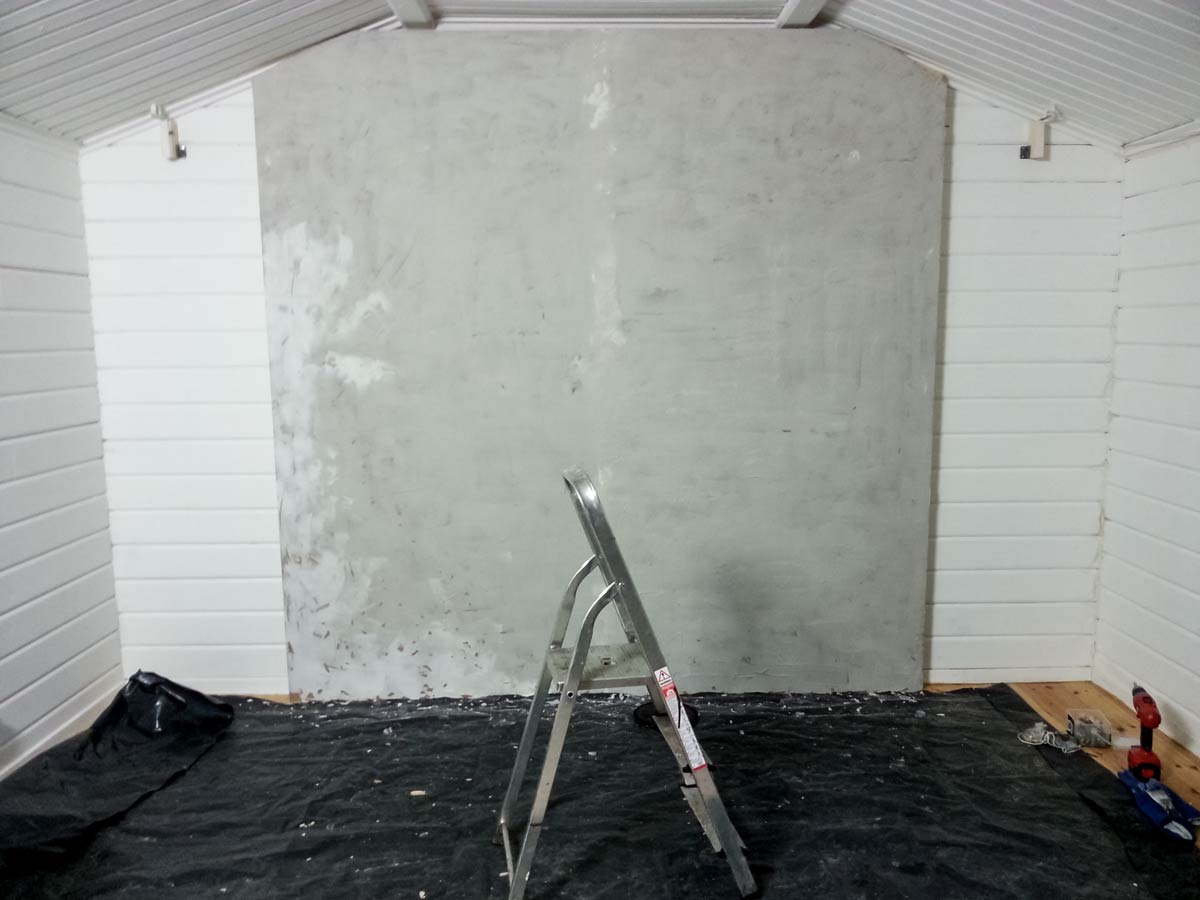
The texture I was going for was a grainy concrete feel. Choosing what material to use was tough. I had no idea of what might work best but I knew it would need to stick to vertical surfaces and be flexible enough to withstand a few knocks without cracking too much or bits falling off.

I settled on a flexible tile adhesive from Dunlop. It did everything I needed and best of all it was pretty cheap.  All I had to do was slap it on the MDF and try not to get it too smooth or too rough, not as easy as you might think. Too smooth and the effect would be lost, too rough and it could do some damage to a model or their clothes.
DIY-Background-3

Finishing Touches
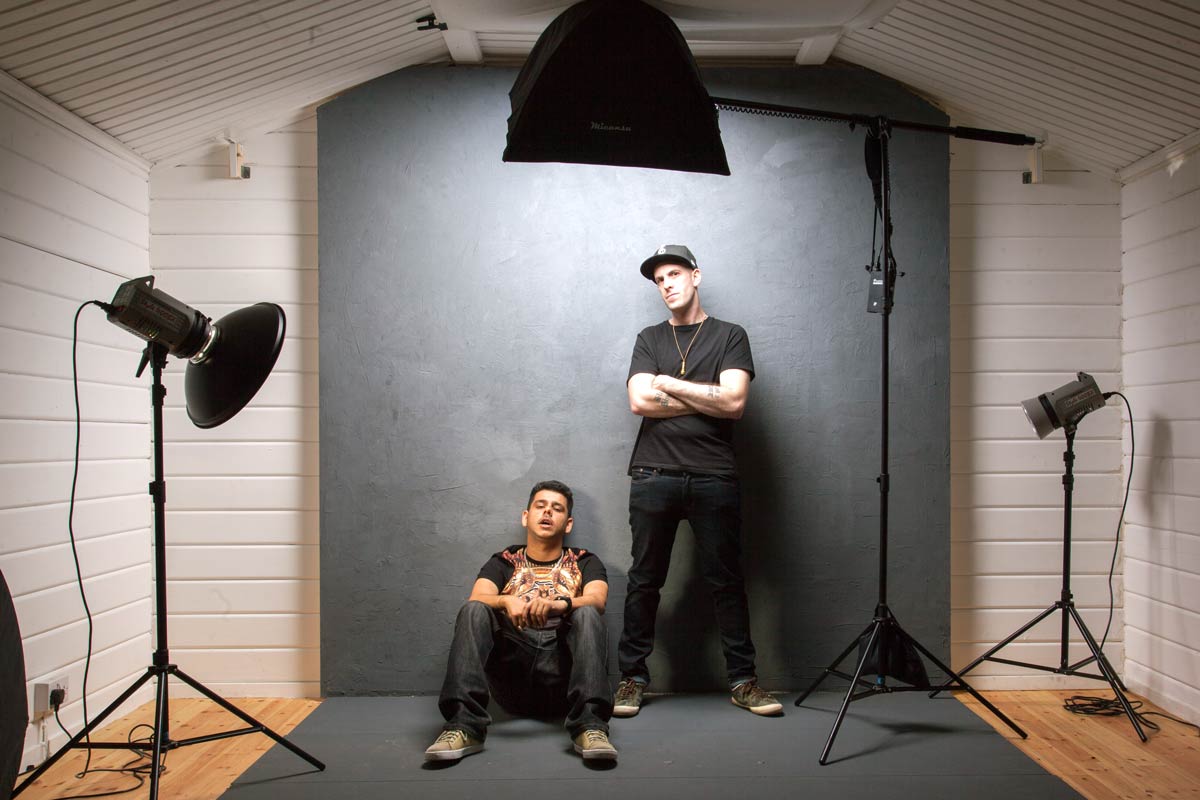
Once dry the last job was to give it a coat or two of Matt Grey paint which was randomly added to with a lighter colour for a mottled effect. The mid grey colour is perfect in a small studio as I can add or restrict light to make it appear black or white. I can even add gels to my lights for a splash of funky colour if required.

All in the cost was around £100 for materials and about three days’ work.

In Use
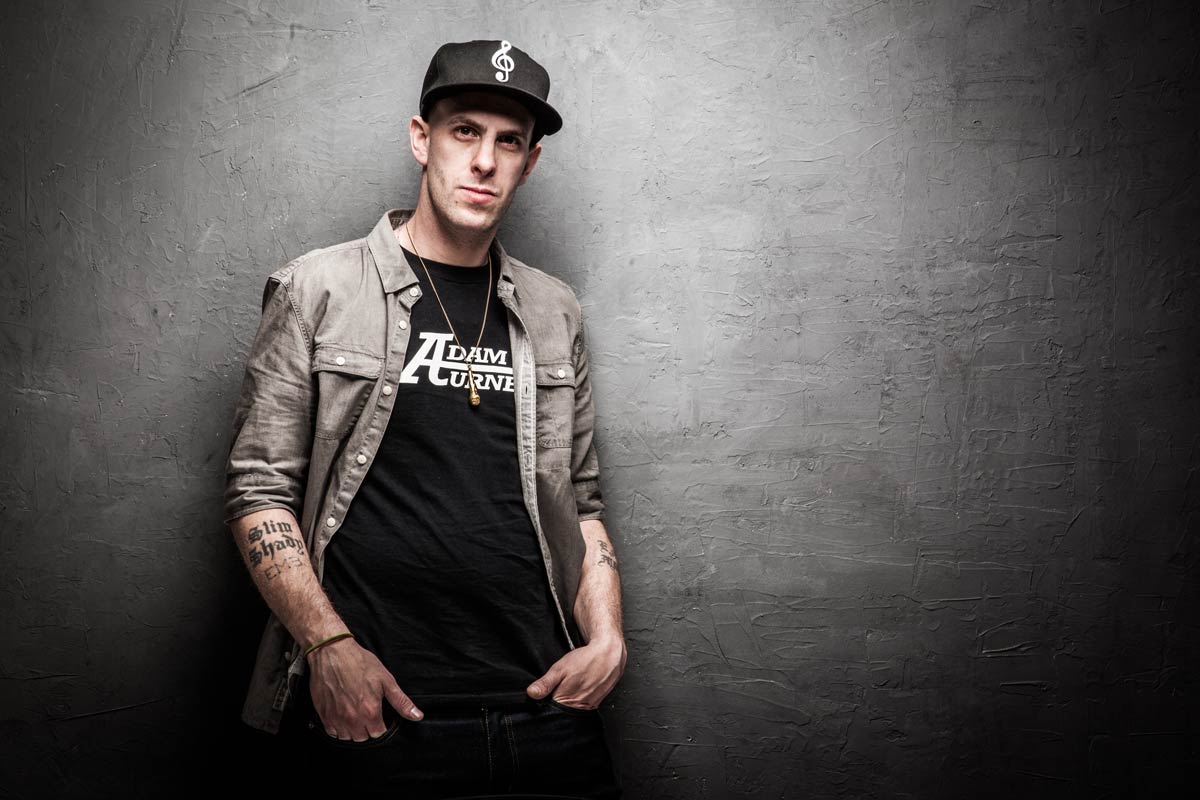
The end results is perfect for my needs. With hindsight I’m not sure MDF was a great choice of wood but it’s working for me.

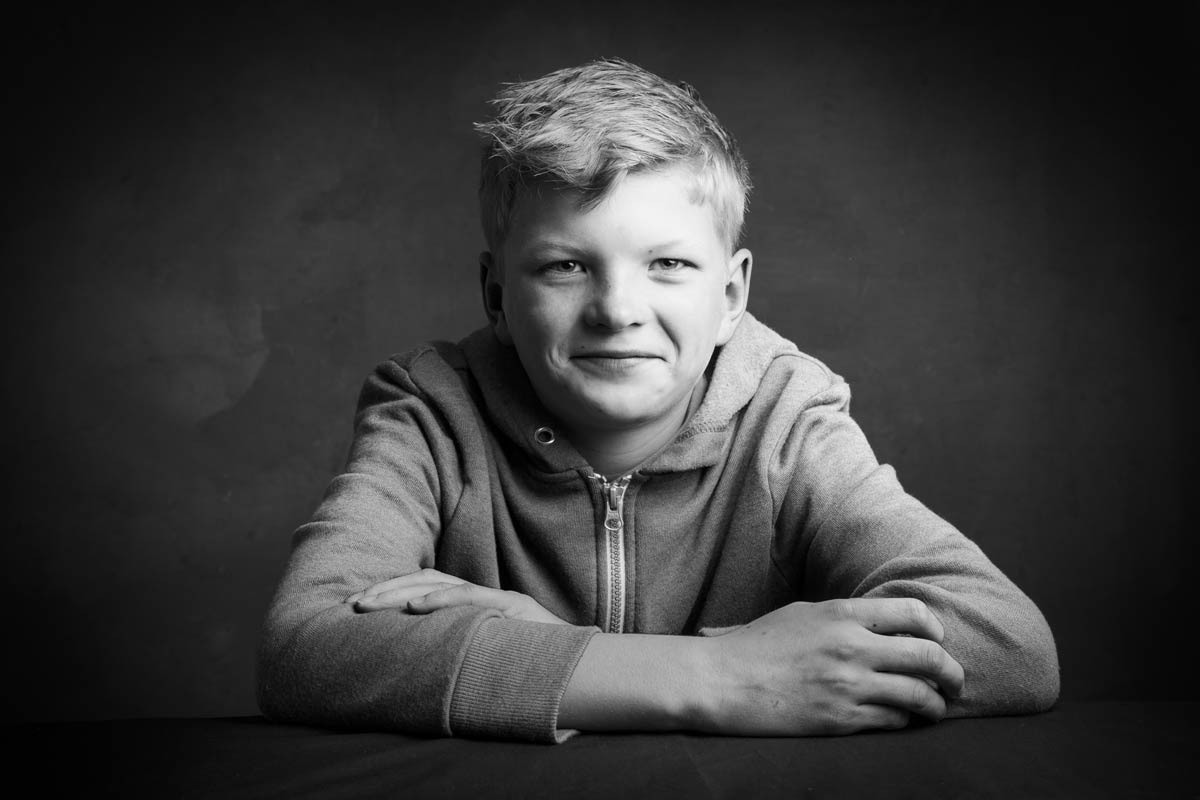
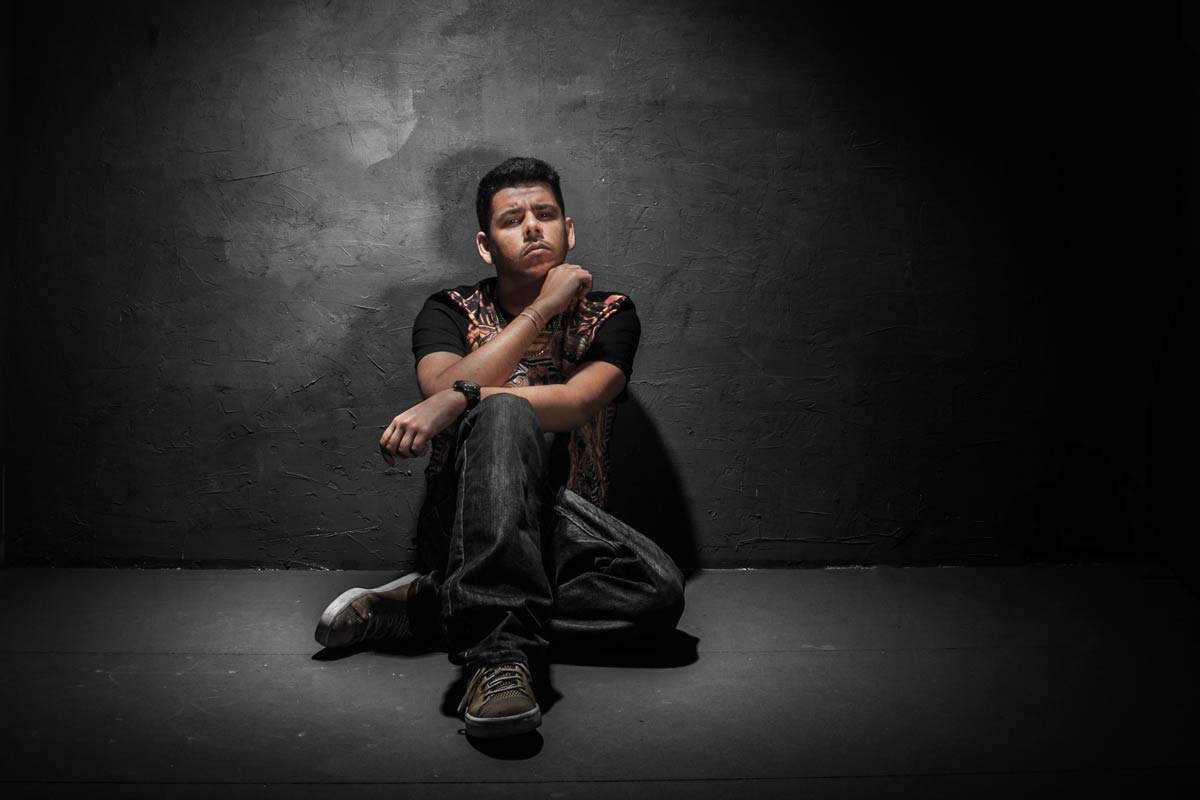
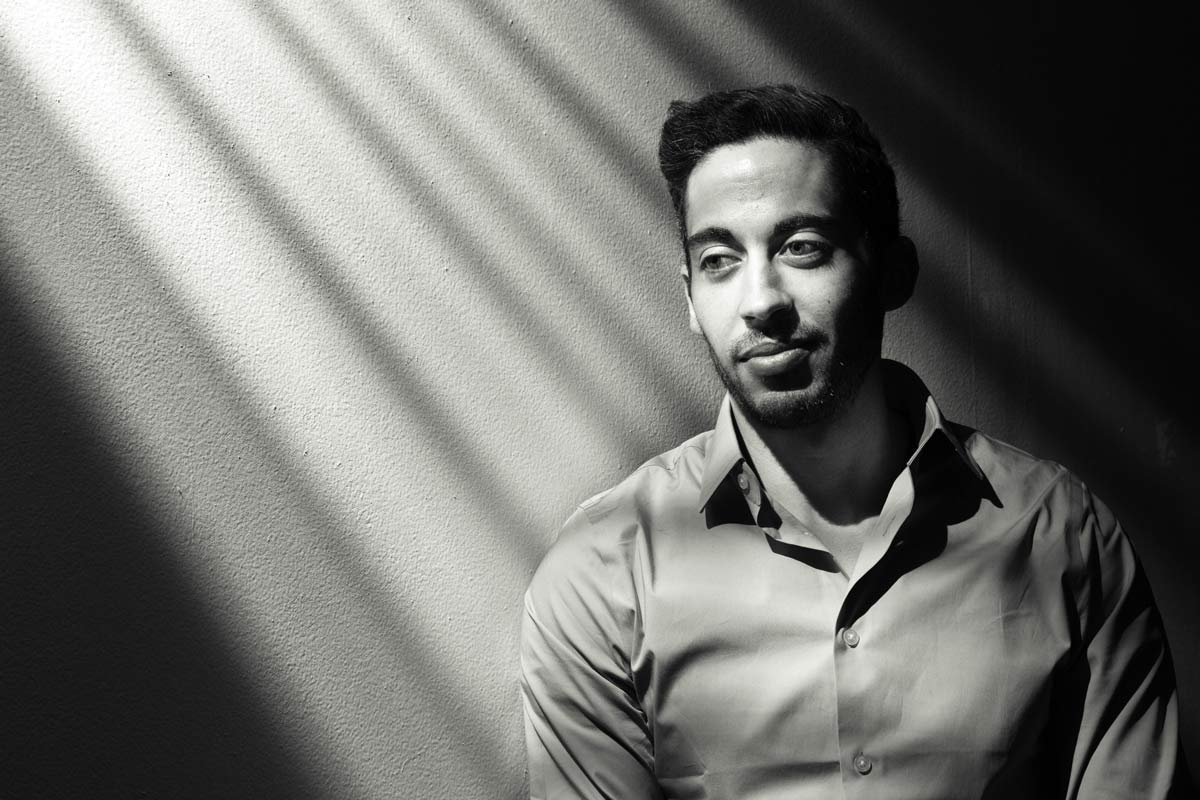
Here’s a few photos of the background in use!
Kings-of-Sussex-3
Joel-1


IF-E-1

Walking Brooklyn Bridge

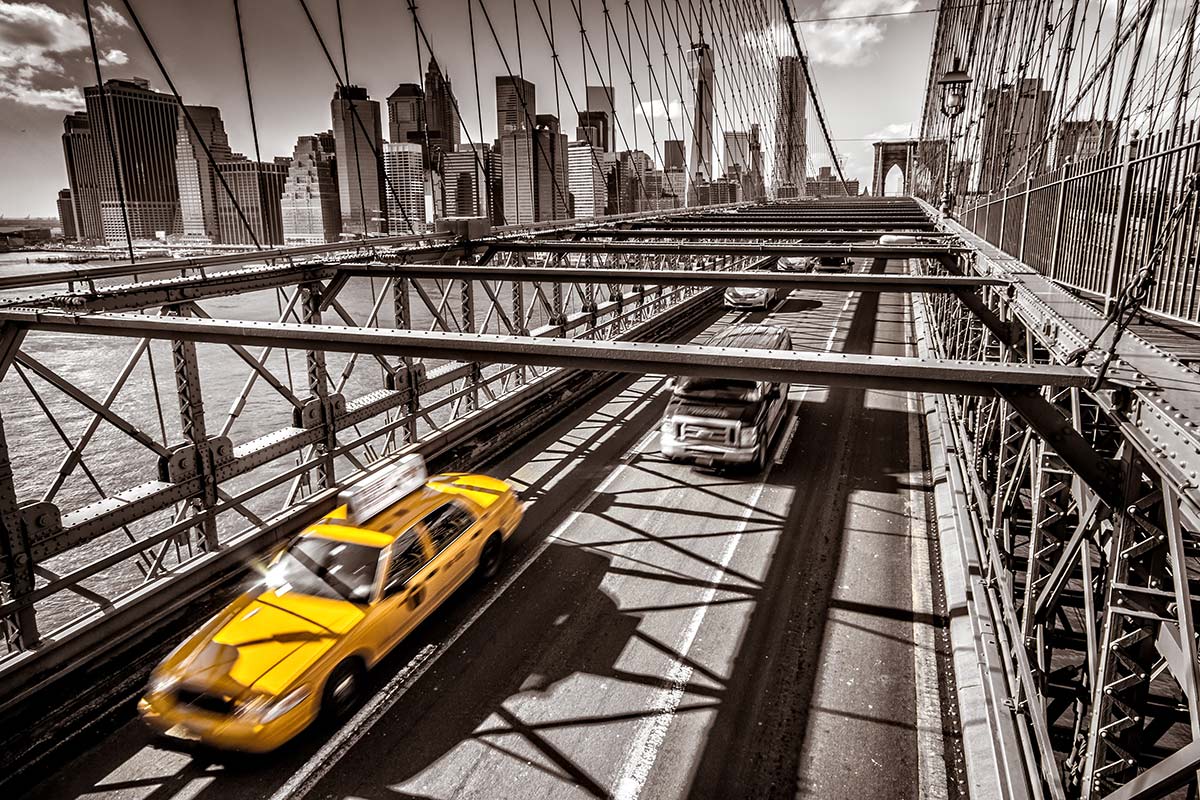
It’s been just over two months since I made a flying visit to New York and the third of my four videos from the visit has recently been released by Adorama. This time I take a walk around and part way across the iconic Brooklyn Bridge to see what photographs I can find.

Brooklyn-Bridge

To say the weather was cold is an understatement, in fact just a few hours earlier it had been snowing. Fortunately the weather cleared, the sun came out and the opportunity to visit the bridge was one I couldn’t resist.

[youtube]https://www.youtube.com/watch?v=PLsKdJIsHT8&list=UU8Pksdbj37CdE00kmE7Z1dw[/youtube]
Can’t see the video? Click here http://youtu.be/PLsKdJIsHT8

I have to say a huge thank you to Claude, Adorama’s video guy. It was thanks to his local knowledge and ability to work in sub zero temperatures that made this video possible.

Equipment used in this video (Links to Adorama)

Canon 60D http://www.adorama.com/ICA60D.html?KBID=67338

Sigma 10mm-20mm http://www.adorama.com/SG1020EOS.html?KBID=67338

Four Parts Action

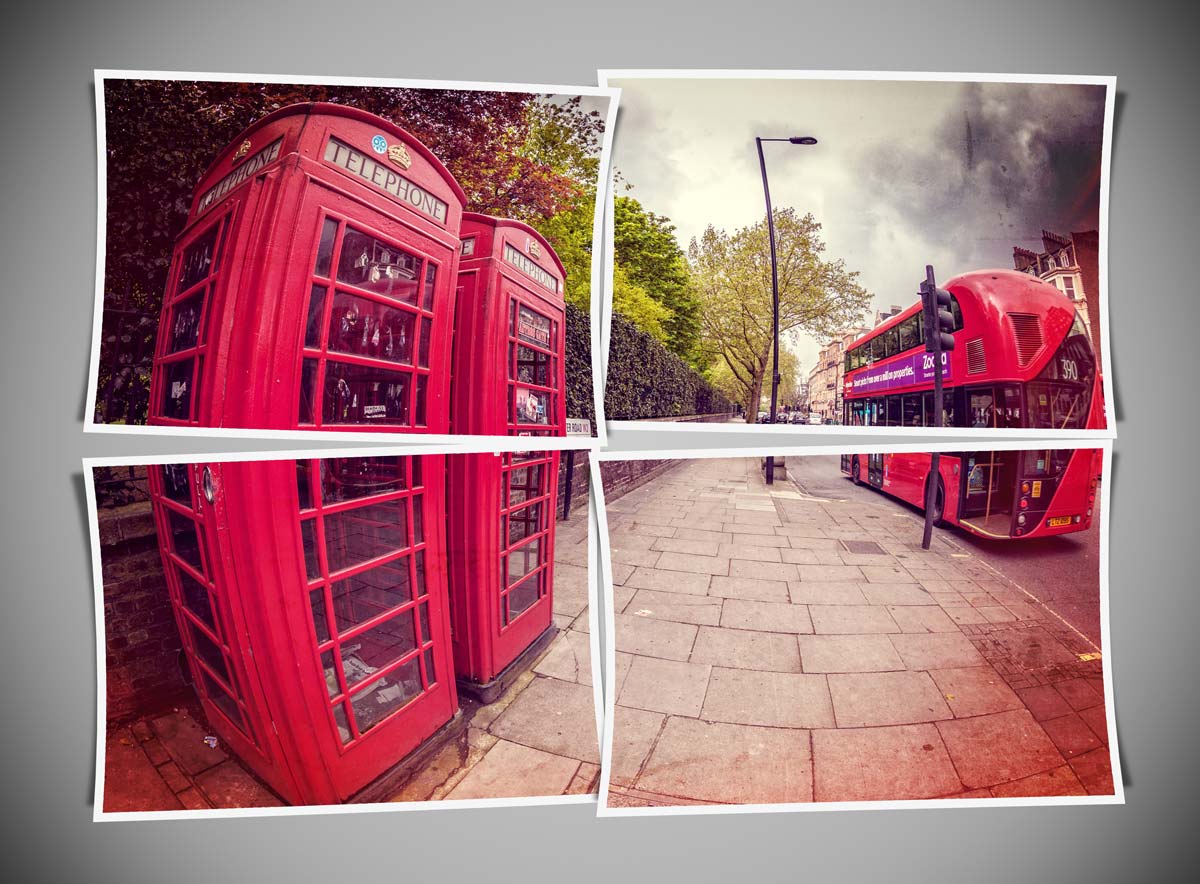
The idea with this Friday Freebie is really simple, take one photo, cut it into four equal parts and give each bit a twist or two. Well that was my plan when I started making this action but I just had to go one step further. So not only do the four parts get a twist but I also added a slight bow and simple shadow to create a feeling of depth. The best part is, all this happens with just one click of the mouse.

You can download the action here: four-parts-gavtrain.zip
Four-Parts---Gavtrain

To use the action, start with the photo you wish to chop up already open in Photoshop and then play the action. The first thing it does is make a copy of your photo so the original will be untouched and safe. There’s a lot of things for Photoshop to do with this action so it may take a minute or two to run through. As with most actions, the size of your image will effect the final effect. The photo above was 3000 pixels on the long edge but you can go bigger or smaller if you wish. The main difference will be the border size, so I’ve left the layer styles open and you can alter the border (Stroke) thickness at the end if you wish.

The action will work with Photoshop CC, CS6, CS4, CS4 and CS3 but WILL NOT work  with any version of Elements, sorry.

Usage rules
The action is copyright Gavin Hoey 2014. Use is limited to any personal, non-commercial purposes. Please share the Friday Freebie by linking back to this page. Do not redistribute the original action without my permission.

Download instructions
The direct link to download the actions is https://www.gavtrain.com/wp-content/uploads/2014/04/four-parts-gavtrain.zip

No support is provided with the Friday Freebies. If you need help Google or YouTube the question and you’ll almost certainly find the answer 🙂

Speedlights, brollies and zooming flashes

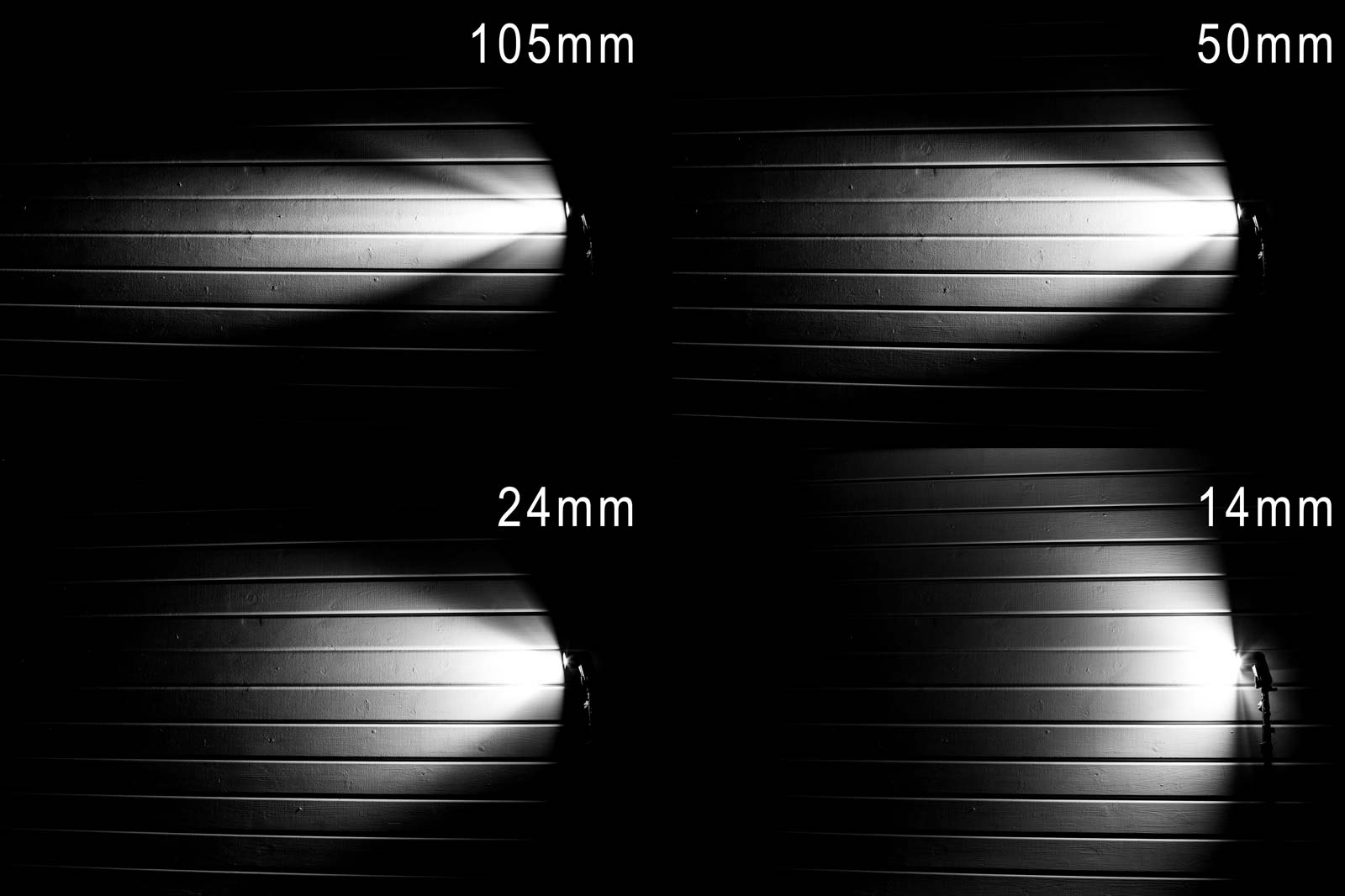
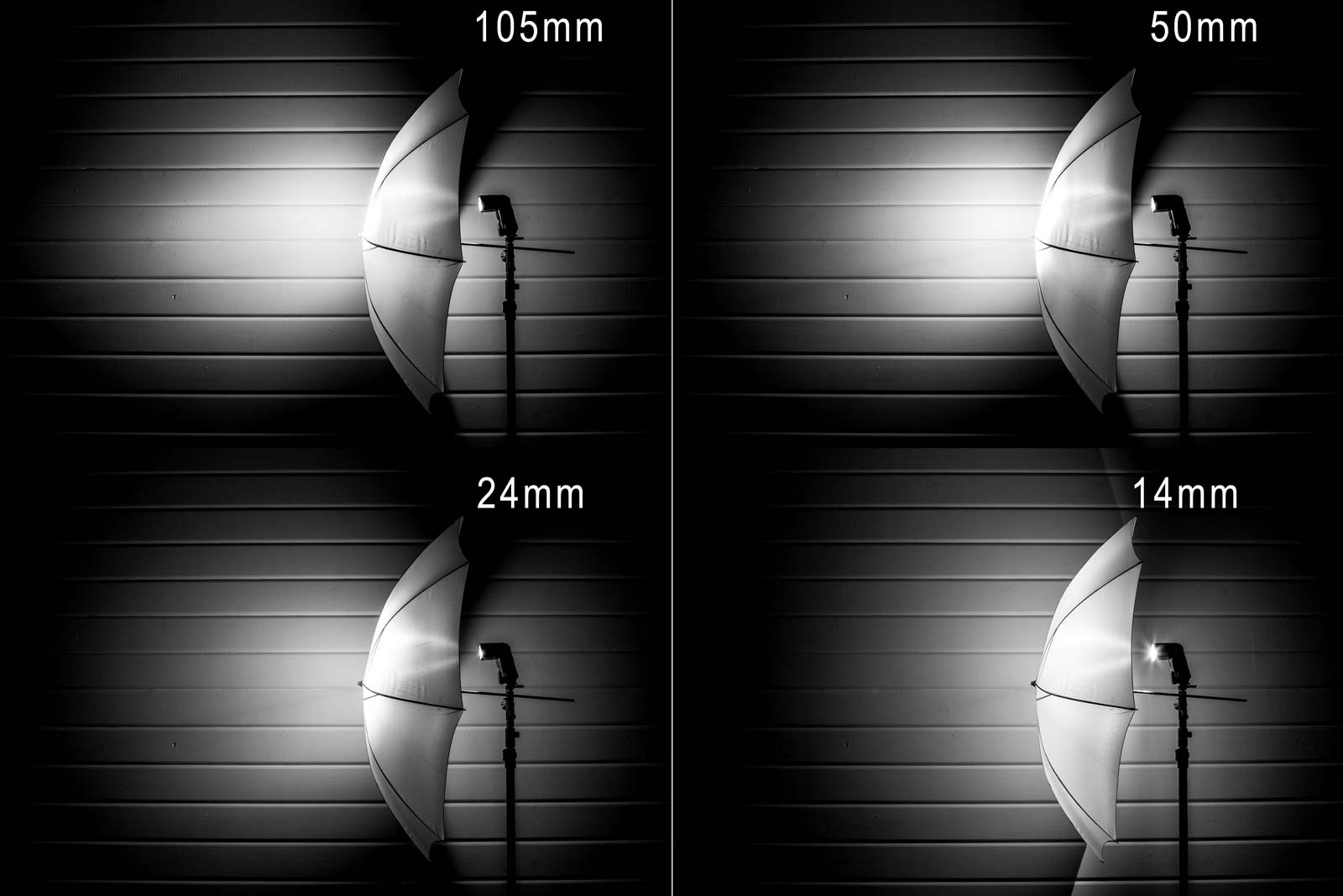
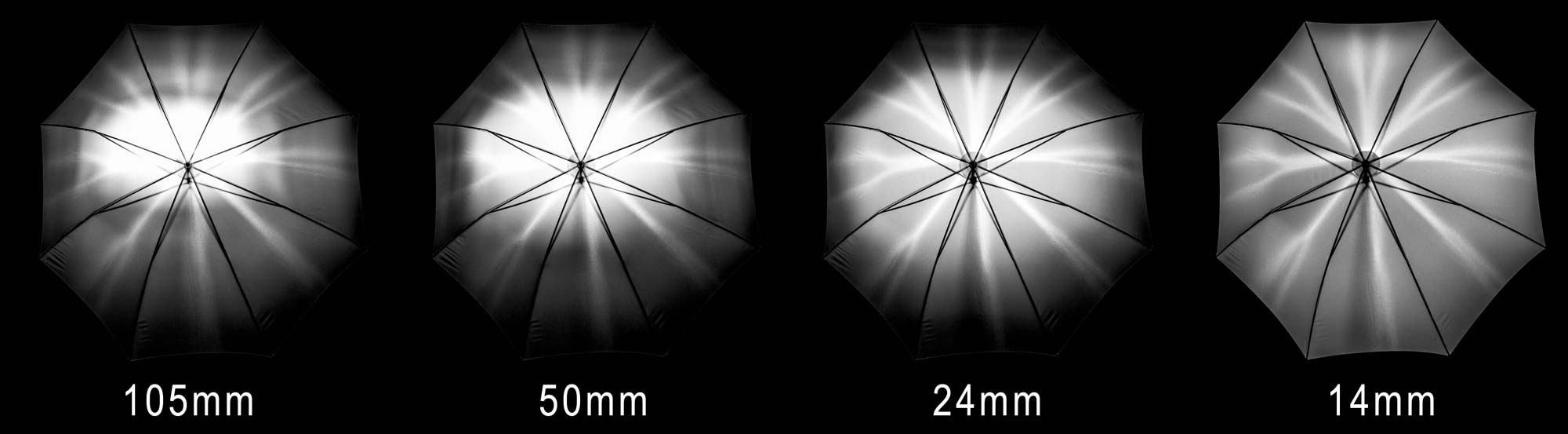
If you’ve used a Speedlight then you’ll have spotted the zoom setting which can be used to make the spread of light from the flash match the angle of view from your lens. When it comes to on camera flash that’s great news as it helps to maximise tFlash-Bare-1he efficiency of the flash but go off camera and it’s something that can easily get over looked. Setting the zoom for off camera speedlite work is one of the handy tools in a photographer’s bag of tricks. It can be used to shape the light into a tight rectangle or spread it wider and rounder. Most speedlight’s even have a pull out diffuser for a crazy wide spread of light. So what should you do with the zoom setting when you’re shooting your flash into an umbrella or softbox? In a nutshell I tend to zoom out to the wider end of the flashes zoom range but I wanted to see how things changed at different zoom settings so I did a little experiment. Flash-Brolly-1 Let’s start with the side view. At my Canon 580EXII’s maximum zoom of 105mm the flash is diffused fairly well but it’s noticeably bright in the centre with a lot of fall off at the edges. Things don’t change much even at 50mm zoom but by 24mm zoom the light spread from the umbrella is a lot more even. Flip out the wide angle diffuser and zoom reads 14mm, now that’s wide! The resulting light is amazingly soft and diffused but it’s so wide it actually passes the edges of the umbrella completely! Flash-Softbox-1 It’s the front view which probably make things clearest. The hot spot at 105mm to 50mm is clear to see. At 24mm the flash coverage is better but at 14mm it’s very VERY even. So what conclusions can I draw from this? Well the obvious one is don’t zoom the flash when using an umbrella or softbox. 14mm looks very tempting but one thing to note is the flash power was roughly a stop less than at 24mm. So I’ll be sticking to 24mm for my brollies but I might consider going for 14mm in softboxes when I can accept shallower depth of fields or higher ISO in my photo.

How to shoot through windows without reflections

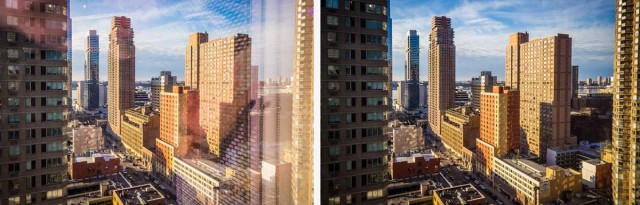
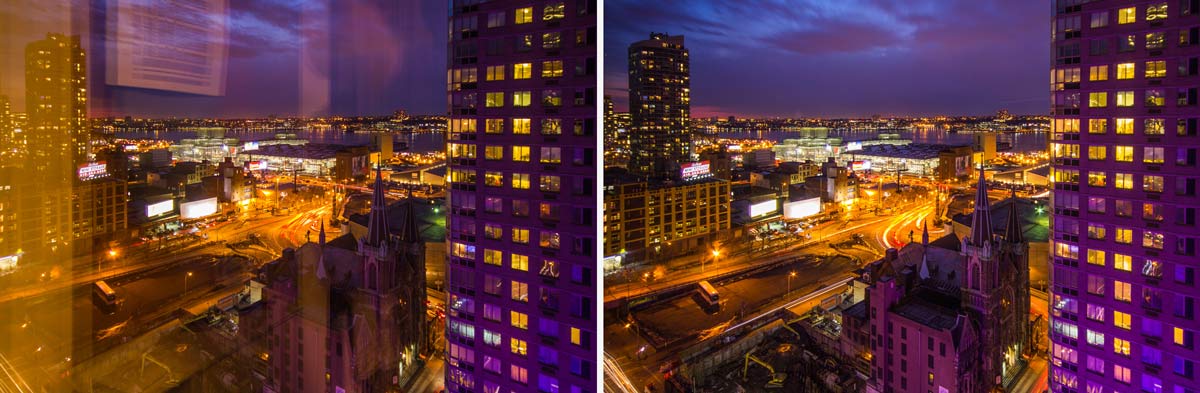
Earlier this year I made my first ever visit to New York and one of the things I put on my “to do” list was capture some great shots of the New York skyline. Wih that in mind I spent a long time researching hotels that had great views. Now there’s no shortage of hotels in New York and some of them have unbelievable views which come at a sky high price but eventually I settled on the Yotel Times Square. I paid a few dollars extra for a room towards the top of the hotel and sure enough the view from the 22nd floor was stunning.

Reflection-daylight

Like all modern hotels the Yotel came with lovely big windows which gave a great view but horrible reflections. Fortunately reducing the reflections and even getting rid of them completely isn’t too difficult, especially if you follow my simple steps in the video below.
[youtube]https://www.youtube.com/watch?v=b3q6aIBc_cc&list=PLwm6LvGc5xq3_BqxMpqpGyxYdJJMQE1mM[/youtube]
Can’t see the video? Click here http://youtu.be/b3q6aIBc_cc

The daytime view was always beautiful but just after the sunset it became amazing, especially with the huge purple neon “Yotel” sign which reflected off the surrounding buildings. The only regret I have is that the view from the rooms on the other side of the Yotel were potentially even better… and that sounds like a good reason to return to me.

Reflection-Night

Equipment used in this video (Links to Adorama)

Canon 60D http://www.adorama.com/ICA60D.html?KBID=67338

Sigma 10mm-20mm http://www.adorama.com/SG1020EOS.html?KBID=67338

Vanguard 284CB100 Tripod http://www.adorama.com/VGALTA284CB.html?KBID=67338

Three Light Leaks

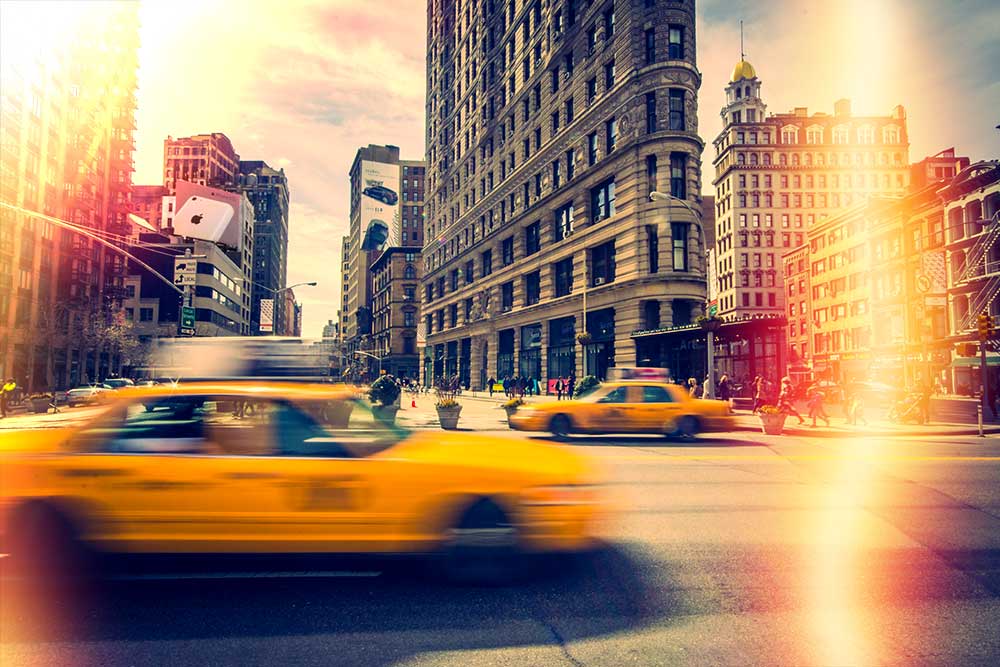
Light-Leak-Samples-NYCHere’s a Friday Freebie for those that love the vintage style photos. Light leaks were always a potential hazard for me back in the days of film photography, especially with my very first Praktica camera. Fortunately it rarely happened but now it’s very in.

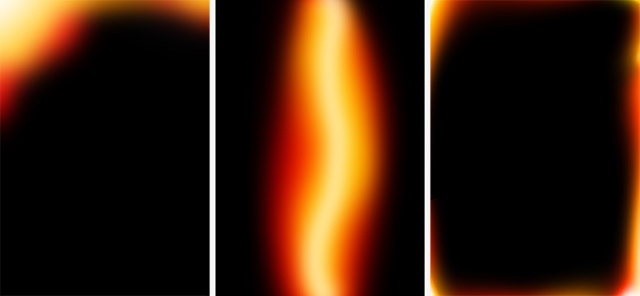
Click Here To Download three light leaks

This Friday Freebie is not one, not two but three light leak images that are all ready to be pasted to your images. They’ll work with pretty much any photo but they really look good on vintage style images with a retro or timeless feel. In this case it’s a photo I snapped on a recent trip to New York

To use the light leaks first download them and unzip the file. Open the light leaks into Photoshop or Photoshop Elements and simply copy and paste them on to your image. Use Free Transform to rotate and resize them as much as you need. To blend them in simply change the Layer Blending Mode from Normal to Screen. If you want more light leaks, just paste them in!

Light-Leak-Samples

If you create a photo using the Friday Freebie then let me (and everyone else) know by leaving the link in the comments below.

Usage rules
The template is copyright Gavin Hoey 2014. Use is limited to any personal, non-commercial purposes. Please share the Friday Freebie by linking back to this page. Do not redistribute the original image without my permission

Adorama TV LIVE!

It’s been a busy few weeks for me with trade shows and travel filling my diary. Top of the list was a flying visit to the Adorama store in New York, a city like no other!

I’ve never been to New York before but of course I’ve seen it many times before. I’ve seen it in Hollywood movies, I’ve seen it in music videos and I’ve seen photos taken by other photographers but nothing compares to actually being there… I absolutely loved it!

The main reason for the visit was both to meet the amazing people who work at Adorama and to talk to the brave group of photographers who endured the freezing New York weather to spend a few hours with me. If you were there I’d like to thank you for making me feel so welcome.

The Adorama team wanted to share the event with those that couldn’t attend in person and so they organised a live stream.

[youtube]http://www.youtube.com/watch?v=0HVBEk2fI5E&feature=share&t=7m11s[/youtube]
The video above is about 90 minutes long and is a recording of my lighting demo on how to get the best from just one light. You can skip the first 7 minutes as they are blank!

Not having done live streaming before there were a few technical glitches, particularly with the audio but that aside the video contains 90 minutes of amazing tips.

Adorama-TV-LIVE-1

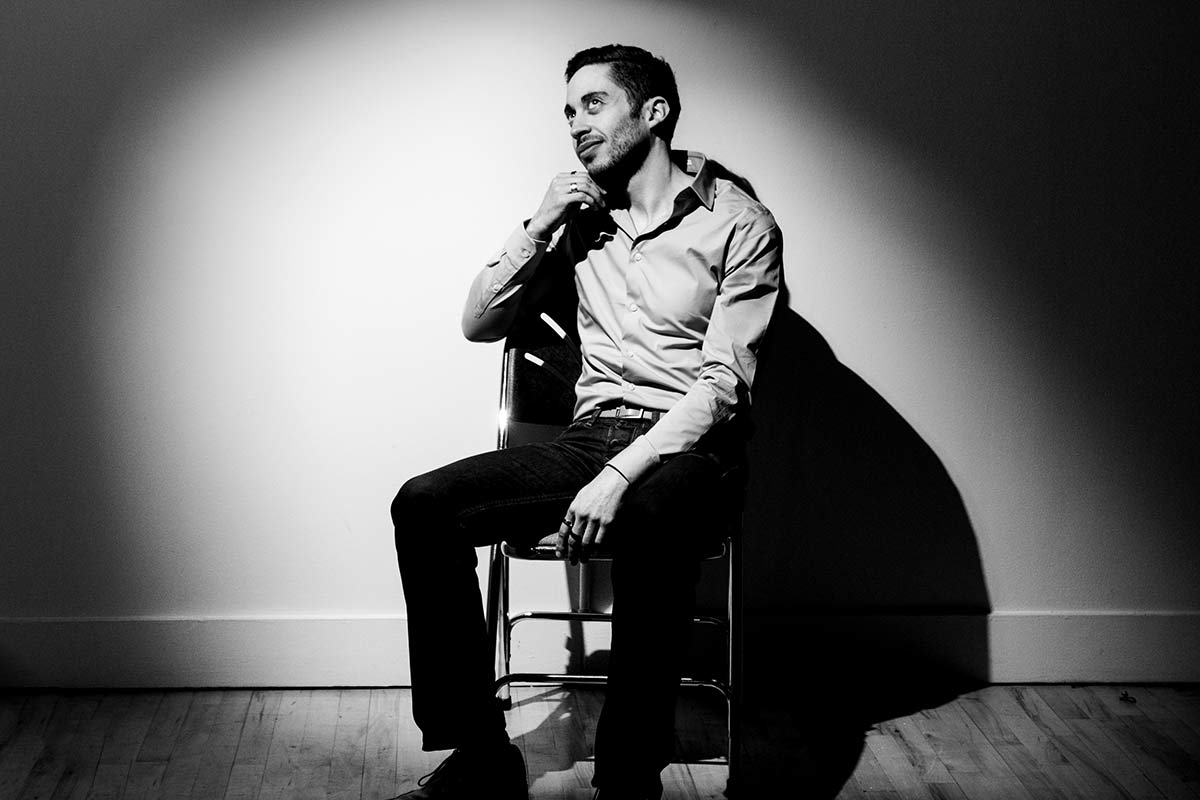
My model is an Adorama employee called Damian who excelled himself by being amazingly patient and a total pleasure to work with. All the photos you can see in the post are the actual shots taken during the Live Stream.

Adorama-TV-LIVE-2

I’d like to say a huge thank you to Adorama for making the event happen, particularly to the team who worked tirelessly before, during and after the live event. I won’t embarrass them by naming them directly but they know who they are and I’m hugely grateful for all that they did.

Adorama-TV-LIVE-3

Wet Paint Border

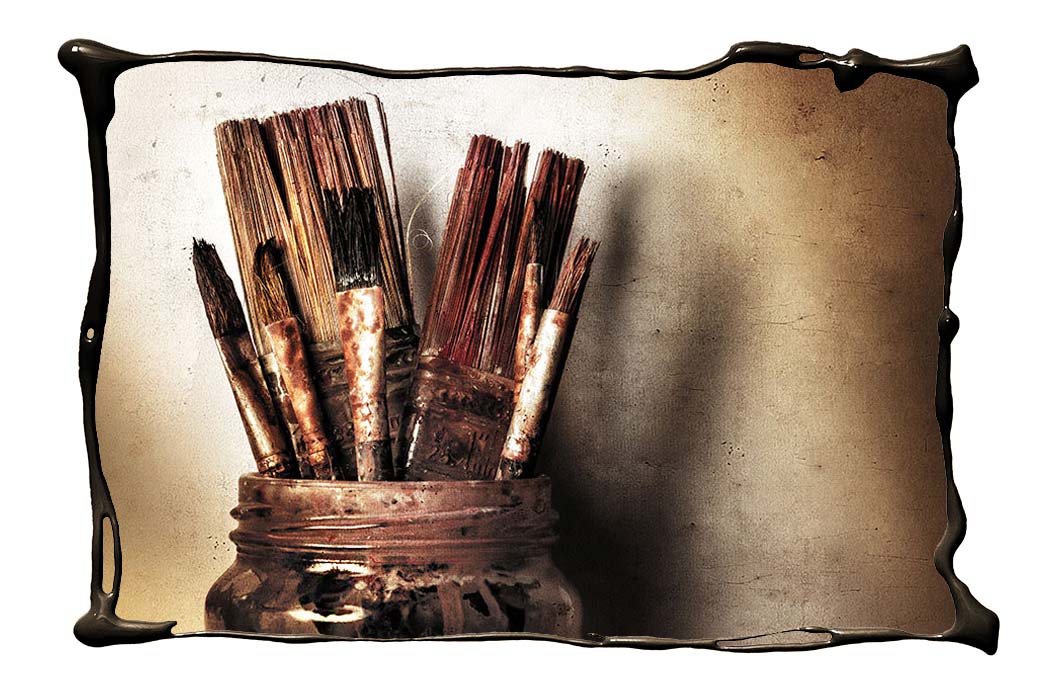
Wet-Paint-Border-finalThe Friday Freebies have had a bit of a break but by popular request, they’re back! So to kick things off here’s a free border that I made by pouring paint to form a photo frame.

Full download instructions are below but you can also
Click Here To Wet Paint Border

I do like getting in a mess with my creations but this one was particularly bad. I created it by dribbling paint from a pot onto white paper in a rough rectangular shape.

To make life for you a little easier I’ve already made the cut out hole, so all you need to do is drop your photo on a layer below the border and resize it to fit.

Wet-Paint-Border-examples

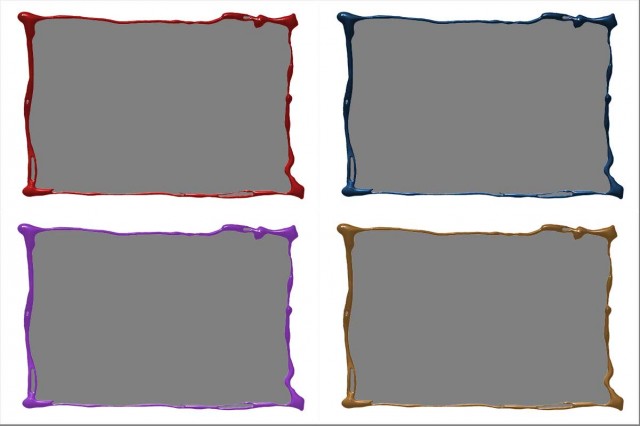
Don’t like the colour of the border? No problem. I’ve added a Hue/Saturation adjustment layer that only effects the border. Double click it and alter the Hue and Saturation values to create all these and  lots more too. You can also adjust the Lightness value but it will have to be in the plus range only.

As always, if you create a photo using the Friday Freebie then let me (and everyone else) know by leaving the link in the comments below.

Usage rules
The image is copyright Gavin Hoey 2014. Use is limited to any personal but non-commercial purposes. Please share the Friday Freebie by linking back to this page. Do not redistribute the original image without my permission.

Download instructions

Click the link https://drive.google.com/file/d/0B_Mmmm3K1utNdjB1YjRidjZocE0/view?usp=sharing
1. Click the Download button download_icon

2. The download should start automatically

A Splash of Lemon

Winter round these parts usually means short days, long nights and inclement weather which makes for a tough time for us photographers. So here’s a photo project that you can take at any time and whatever the weather.

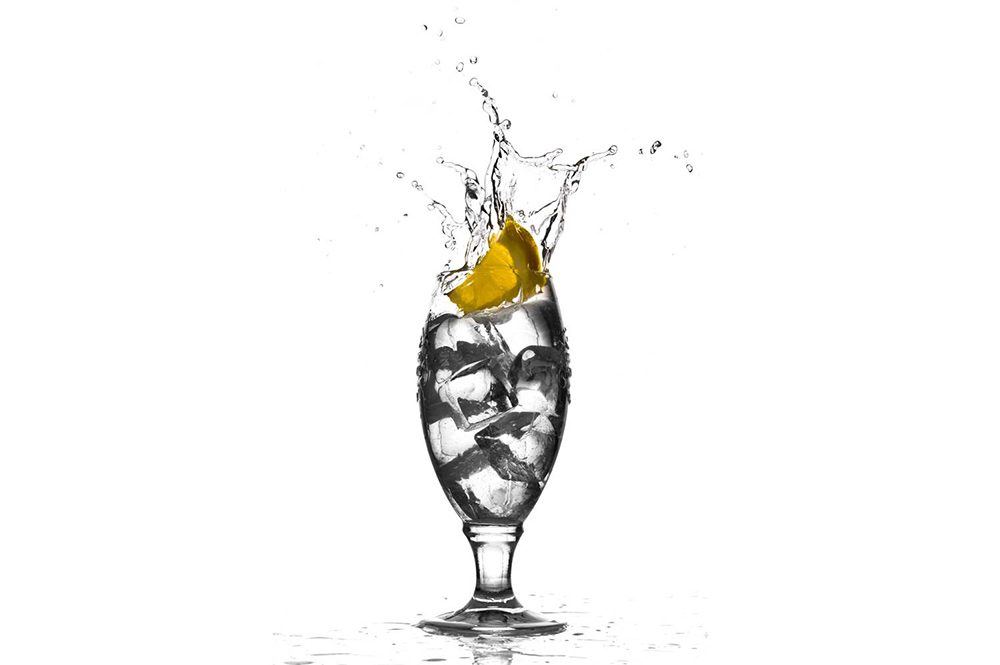
Lemon-Splash

The technique makes use of a single flash to freeze the moment a slice of lemon splashes into a glass of water. No flash? Well you might be able to do this with a super bright light but to hit the really fast shutter speeds needed to freeze the action you’ll need to bump up your ISO and open up the aperture. Flash really is the way to go as you’ll get sharper shots with a bigger depth of field and be able to use a nice low ISO.

I’m using glass “ice cubes” real ones are fine but they will float. So either pack them in tight or use a bigger, heavier piece of lemon (other fruit slices can be used too). Alternatively lose the ice and use fizzy water, the idea is simply to put some texture in the glass and how you do that is up to you.
[youtube]http://youtu.be/9GxRwBxc8-8[/youtube]

Equipment used in this video (Links to Adorama)

Adobe Photoshop Lightroom V5 Software, Windows and Mac OS

Canon EOS 60D Digital SLR Camera

Canon EF 24-105mm f/4L IS USM AutoFocus Wide Angle Telephoto Zoom Lens

Enlight photo Frio Universal Locking Cold Shoe V2

Canon RS-60 E3 Remote Switch (2′) for Canon Sub-Mini (E3)

Flashpoint Universal Swivel Holder -Umbrella holder

Vanguard Alta Pro 284 Carbon Tripod with SBH-100 Ball Head

Flashpoint 6.5′ Black Lightstand, 5/8″ Top Stud

Flashpoint 40×60″ Collapsible Disc Background

Reigate Fort 15 Minute Photo Challenge

Reigate-1It’s time for another 15 minute photo challenge and this time I visit a fort in Surrey. Unfortunately for me this particular fort is mostly buried below ground and isn’t accessible to casual visitors such as myself.

But I wasn’t going to let a little thing like that stop me taking photos, nor did the particularly poor weather slow me down.

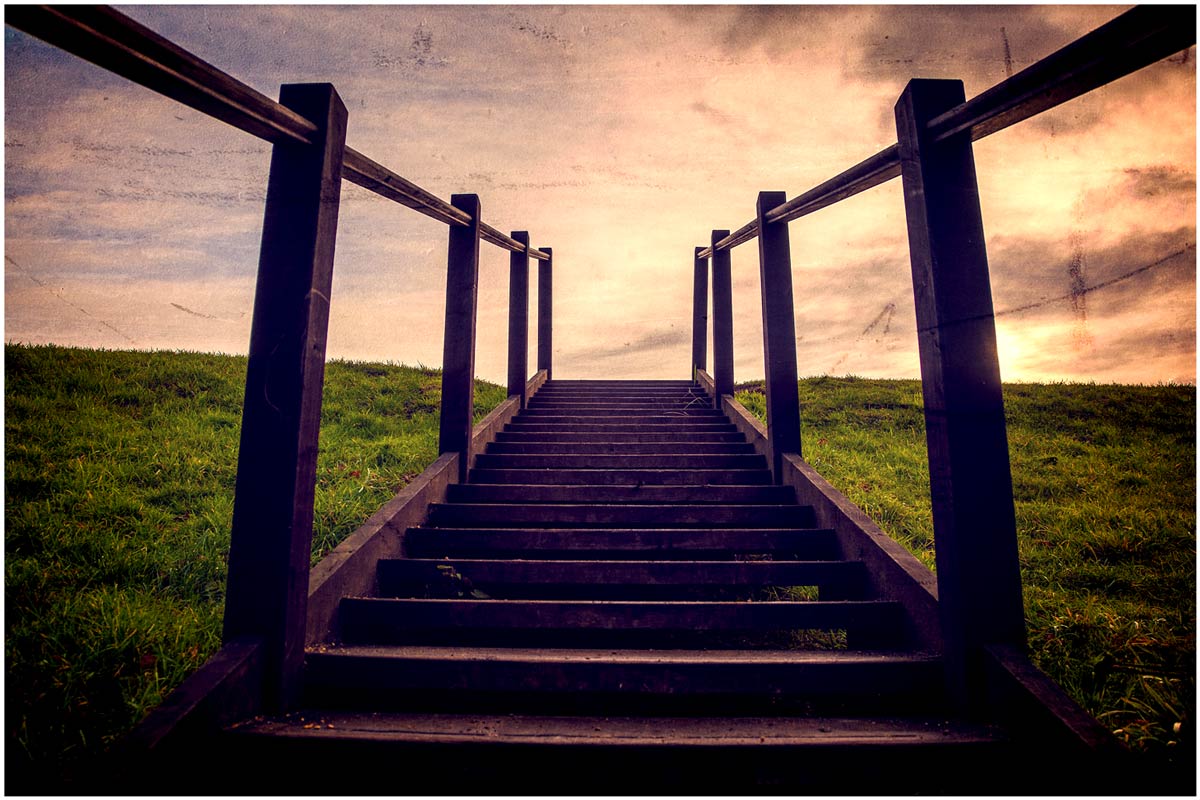
As always at the end of the challenge I’ll take you through the Photoshop edit of one photo. You can see the end result here. Keep scrolling down to see a few more final photos in higher resoloution

So let the 15 Minute Photo Challenge begin!
[youtube]http://youtu.be/niciZgOWBfA[/youtube]

If you enjoy the 15 minute photo challenge and you’re coming to my FREE New York workshop day then you’ll get to see an exclusive 15 minute challenge that’s never been seen online before!

Reigate-3

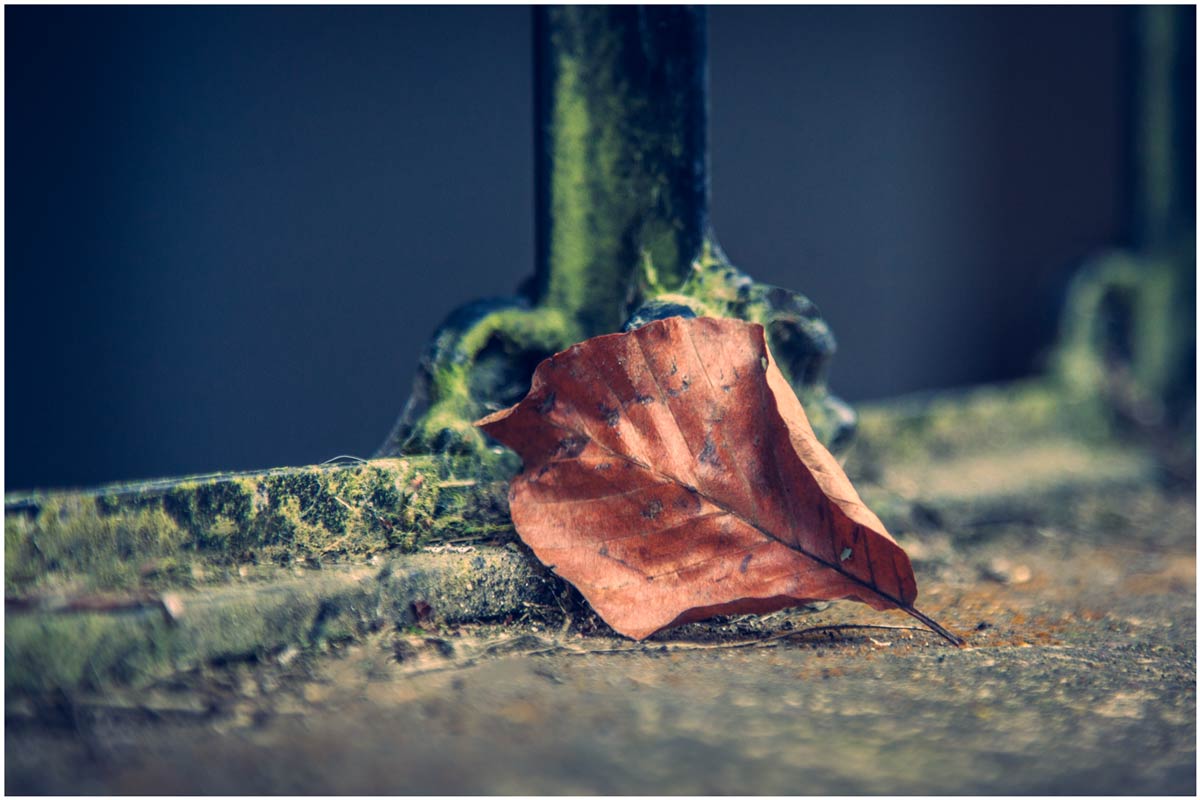
Reigate-2
Reigate-Pano