15 Minute Photo Challenge ~ Gatwick Revisited

It’s the return of the 15 minute photo challenge. One camera, one location, and only 15 minutes to find great photos!

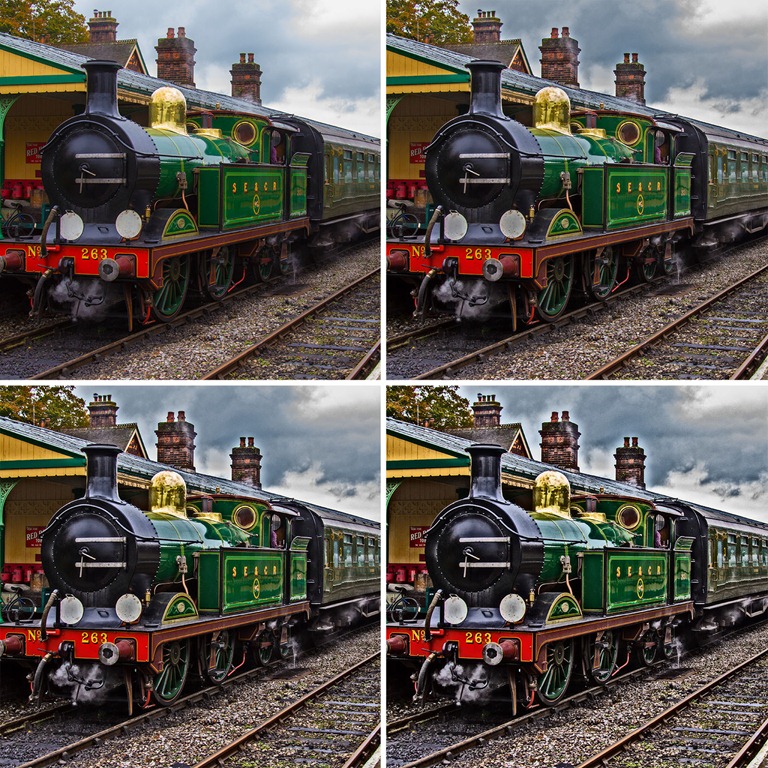
15-min-Gatwick-FinalThis time I get to return to one of my favourite photo locations as I try out Canon’s all new EOS M camera and then follow me into Photoshop CS6 where I’ll show you a quick technique for making stunning black and white images.

For this challenge I borrowed the mirrorless Canon EOS-M. A more in depth review is coming soon but for now I can tell you I won’t be ditching my usual DSLR gear any time soon. Having said that it was great fun to shoot a familiar location with a new camera and sticking to the 18-55mm kit lens made me look much harder to find the photos.

Visit the Gatwick Aviation Museum http://www.gatwick-aviation-museum.co.uk

Equipment used in this video (with links to Adorama for more info)
Canon EOS-M with 18-55mm lens http://www.adorama.com/ICAMK2.html
Photoshop CS6 PC and Mac versions

Choosing an SD card for video

As a stills photographer I’m used to grabbing the nearest memory card, popping it in the camera and shooting photos. As long as there’s enough space on the card I’m good to go. But when it comes to capturing video with your DSLR, life’s not that simple.

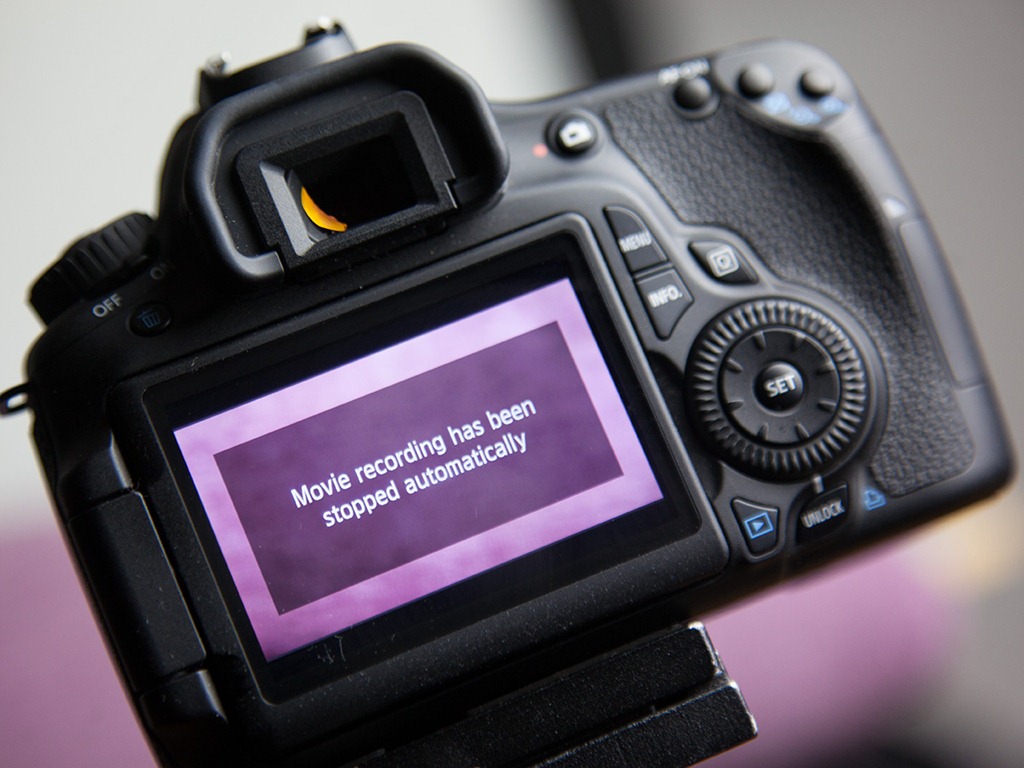
Video-StoppedI learnt the hard way that not all memory cards are the same and even the ones that claim to be suitable for HD video can let you down. Grab the wrong card and you’ll be greeted with a message like this. “Movie recording has been stopped automatically”and basically when you see this it’s game over. So here’s some tips for choosing the right memory card for video.

Compact Flash or SDHC?
If I have the choice then I’d use compact flash cards every time. Generally speaking compact flash cards are faster, which is always good for video and from my personal experience I can testify to their durability too. Having said that, SD cards are now the norm for new cameras and there’s no going back. So it makes sense to invest in decent SD cards if you’re likely to be upgrading your camera body in the future.

The Class 10 rule
When it comes to choosing an SD card for video there’s one golden rule… It absolutely must be rated as a class 10 card. DSLR’s churn out video at an incredible rate and all that data has to be written to the card, a class 10 card can do that at least 10 megabytes per second.

Faster then fast
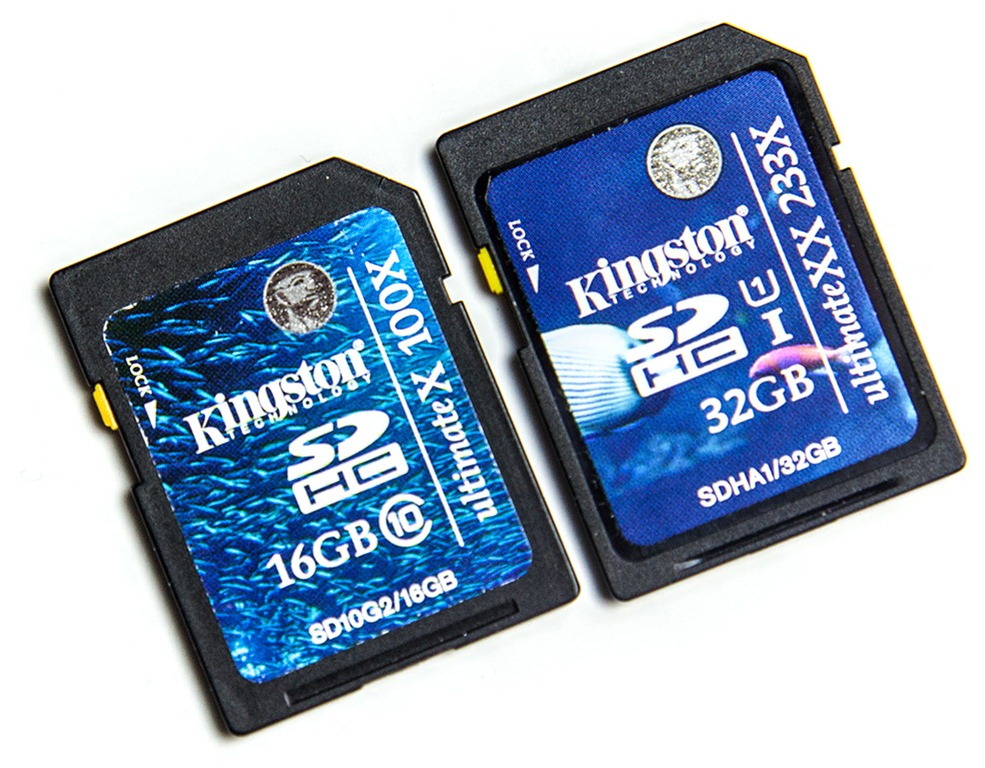
Class-10-2Good as the class 10 rule is, it doesn’t always work. Take a close look at these two cards from Kingston. They’re both rated as class 10 but one is faster then the other. The card on the left is capable of shifting 15mb of data per second where as the card on the right shifts a whopping 35mb of data per second.

From my experience both cards will work just fine at recording DSLR video but when you combine the faster card with a USB 3 reader, you’ll be able access the data far faster.

I’d recommend the left card is the minimum you should relay on for video, where as the card on the right is my preferred card.

Size matters.
For still photography an 8GB card will usually do me just fine for a days shooting but when it comes to video that same 8GB card will be full in just over 20 minutes. So unless you only want to shoot short clips you’re really going to need a big card. 16GB cards represent good value for money but for me 32GB cards are the way to go.

Carry Speed FS-Pro 2 ~ Review

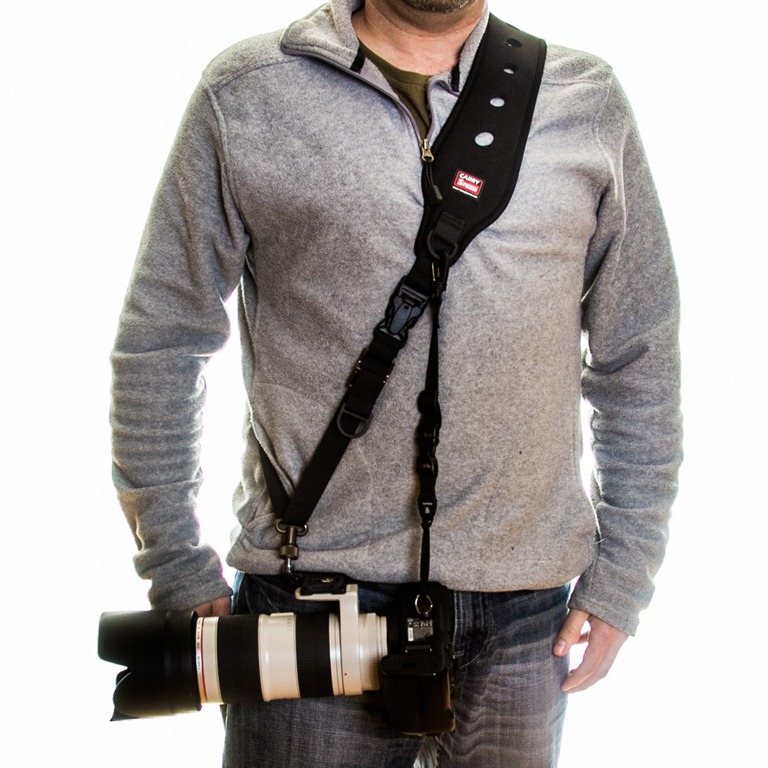
Much as I love my Black Rapid sling straps I’ve never been 100% happy with them. So I was keen to find out how the Carry Speed FS-Pro 2 measured up.

CarrySpeed1
Verdict: There’s no denying that Carry Speed FS-Pro 2 is a well designed and well built piece of kit. The inclusion of a folding, tripod mountable plate is ingenious but only if you fit it correctly to your camera.
   
Overall Rating

4-Star

Design & Features 5-Star
Performance

4-Star

Price

4-Star

+ Plus Points
    + High levels of comfort
    + Clever mounting plate
    + Front Quick Adjustment
Minus Points
    Locking “O Ring” can slip
    Easy to fit back to front
 
Price (at time of review) £56.00 ($70.00 USD)

Suppliers website www.carryspeed.com

The Carry Speed FS-Pro 2 is really a strap of two parts. First there’s the very cleverly designed F1 foldable mounting plate and the strap itself and I’ll tell you right now, they’re both brilliant.

The Strap
The first thing I noticed about the FS-Pro was it’s huge shoulder pad and to be honest I wasn’t keen on it initially. If, like me, you normally like your camera gear to be discreet then I’d suggest looking at the Carry Speed FS-Slim as a more subtle alternative.

But this strap isn’t trying to hide away, this strap is designed to make light work of carrying heavy cameras and to that end it’s amazing. In fact I’d go so far as to say it’s possibly the most comfortable camera strap I’ve ever used.

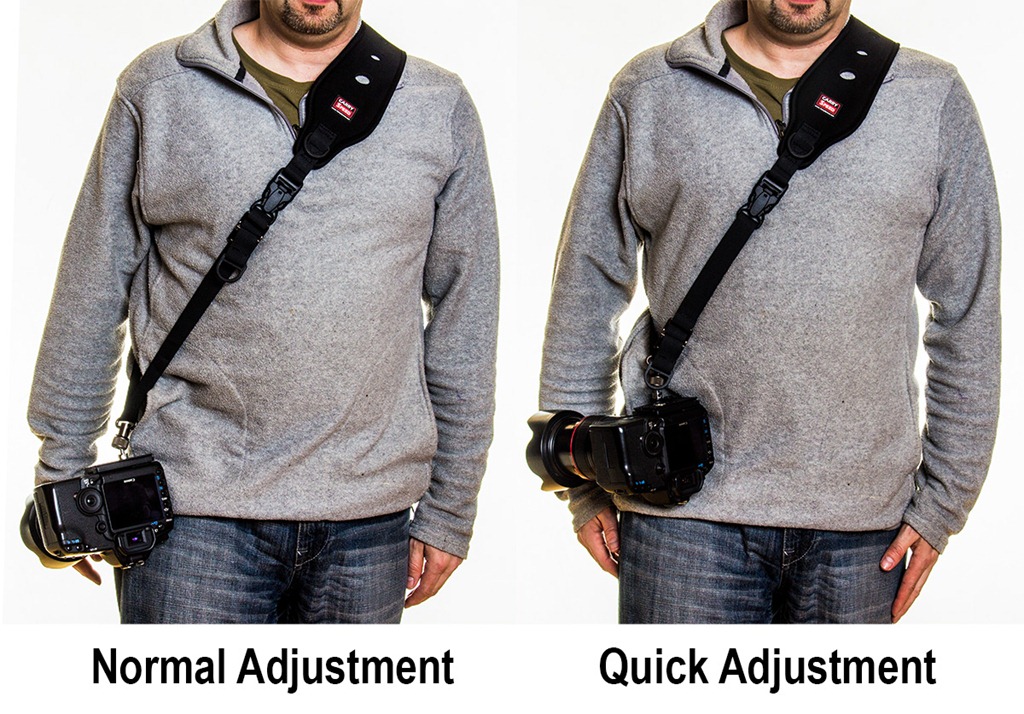
CarrySpeed2The comfort factor comes from the shoulder pad being made from a combination of stretchy neoprene and rubber. The strap can be adjusted in length to suit your size, although if you’re particularly tall or wide you might want to contact Carry Speed to check the exact length.

On the front of the strap is a couple of D-Rings for attaching links like the included uni-strap which helps spread the load of long lenses by attaching the strap to both the lens and camera body’s tripod mounts.

One of my favourite features is the front quick adjustment. Here’s how it works… when I’m not shooting with the camera and I want to keep it close to my body, all I have to do is give a sharp pull on a D-Ring and the strap instantly tightens up. Clever stuff!

The mounting plate
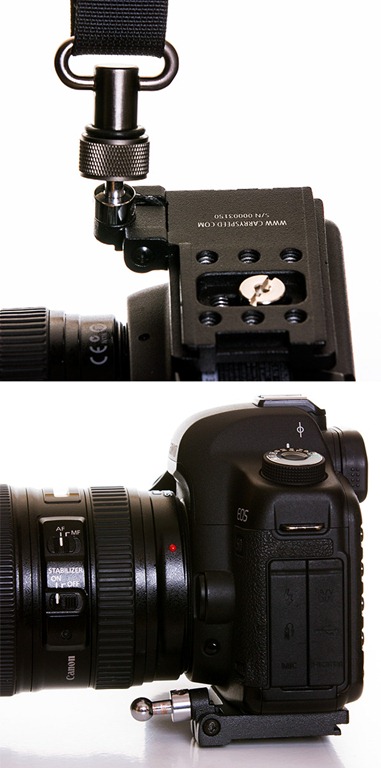
CarrySpeed3I’ve used sling straps for years and much as I love them, things like not being able to put the camera down flat are an annoyance. But having to remove the strap before I can use a tripod is probably top of my gripe list.

With the F1 mounting plate, Carry Speed have side stepped both those problems because it folds down flat AND it has six tripod holes meaning you can attach pretty much any quick release plate and still use the strap. The design may not be pretty but they work really well.

It’s not all good news though. The mounting plate is attached to the strap by a ball and socket which is huge! I also had concerns about the thread on the ball joint unscrewing. Carry Speed have added a rubber O-Ring which is supposed to prevent accidental unscrewing but it doesn’t. Fortunately in all of my testing I didn’t have any issues but I did keep a weather eye on the ball joint… just in case.

One really important thing to note is that the mounting plate MUST be fitted the correct way round and as there’s no clues on the plate as to which way is the correct way, it’s easy to get it wrong (just like I did the first time). When the plate is fitted back to front the whole system is worse then useless as the folding ball joint will poke you in the face. Ouch!

Conclusion
There’s so much to like about the Carry Speed FS-PRO 2. It’s super comfortable in use, very well made and supports the camera well. I do have some reservations about the design of the ball joint but that’s not enough to stop this strap becoming my “go to” sling strap for use with heavy gear.

Create "Art Paper" in Photoshop

Isn’t it always the way… You really want to add an art paper texture to your photos but you just don’t have the right image to hand. So what do you do?

Art PaperWell, in this video I’ll show you how to create you own art paper texture completely from scratch using nothing more then the standard filters found in Photoshop or Photoshop Elements. I’ll then show you how to blend the texture and the photo together to create a couple of different looks.

You’ll notice in the video I access the filters Halftone, Water Paper and Sprayed Strokes from the Filter Gallery rather then directly from the filter menu. If you use Photoshop CS6 (as I do in this video) that’s the only way you can access these supposedly less useful filters. Photoshop CS5 and earlier can either use the filter gallery or the usual filter menu, the effect will be the same.

Extract Detail Action

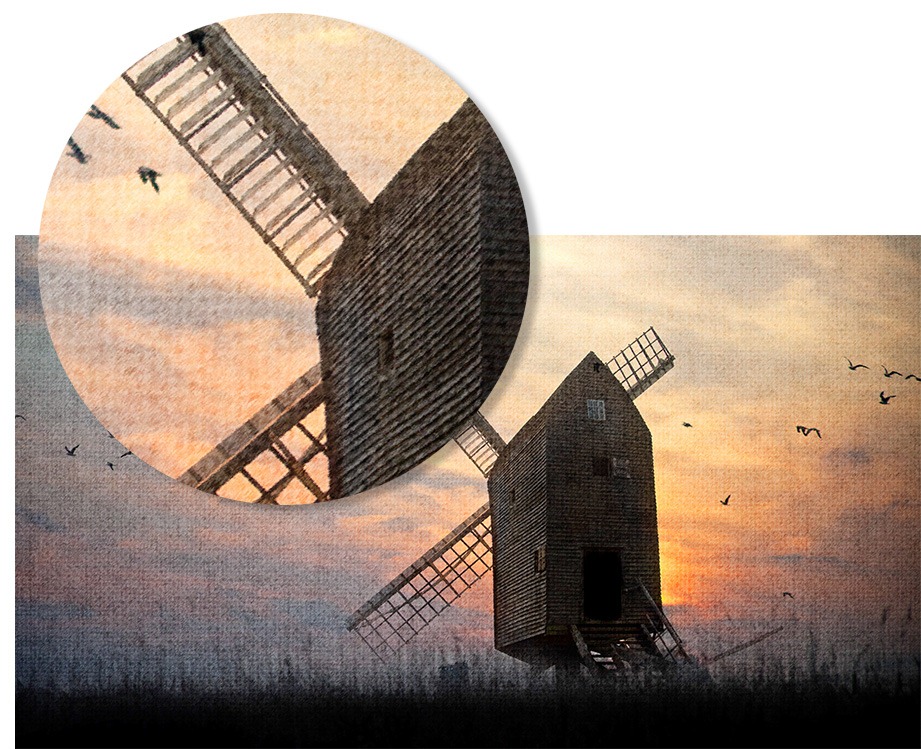
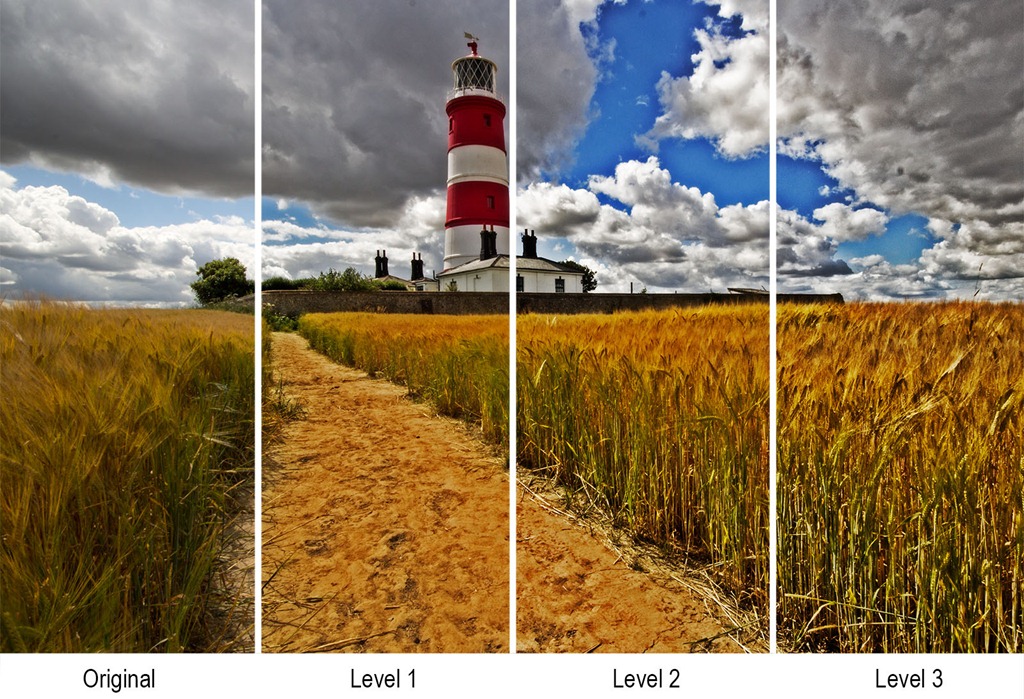
This weeks Friday Freebie is a brilliant little action that pulls out and amplifies the small detail and textures in your photos.

FF-detail-1As with all actions the strength of the effect will vary according to the number of pixels in the image but this one gives great results with pretty much any sized photo. You’ll need a copy of Photoshop (CS2 or later) to make the action work and at the moment it’s untested on Photoshop Elements but should work OK.

Once installed you’ll find there are three actions in the set. They’re level 1, 2 and 3 and basically it’s the same effect with three different strengths.

The action is fully self contained which means you don’t need to do anything other then click the play button. It also makes a copy of your photo (called Extract Detail) so you can copy and paste it back on to your original photo and blend in the effect as you wish.

You can download the action from here www.gavtrain.com/free/extract-detail.zip

FF-detail-2

Usual rules apply. The action is copyright Gavin Hoey 2012. You may use it for personal, non-commercial purposes only and please do not redistribute without permission. Thank you and enjoy Smile

Paint Splash Photography

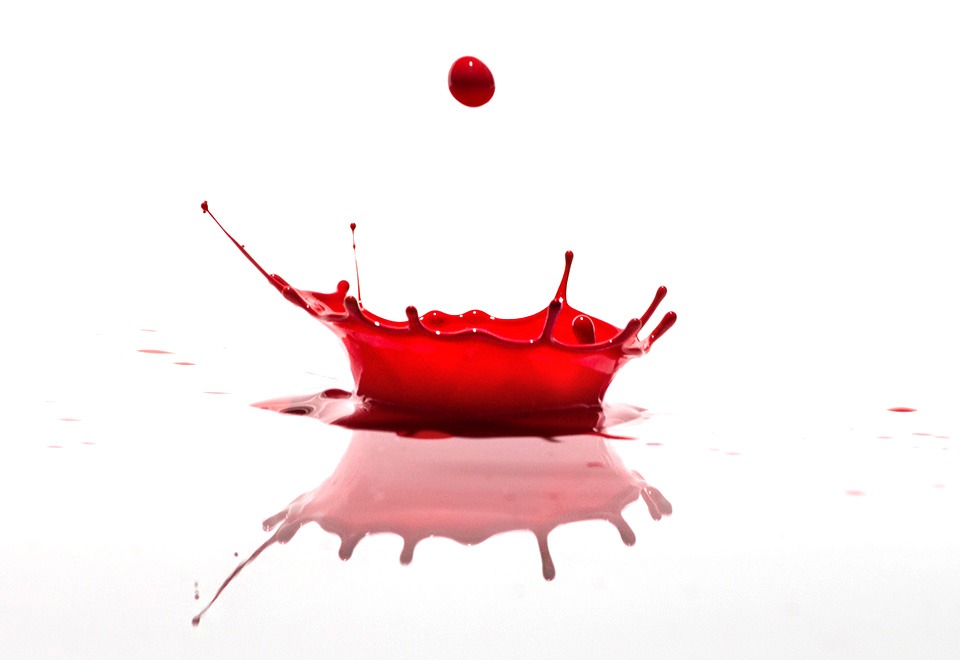
I’ve photographed water drops on many occasions and I’m always amazed by the stunning images that something as hum drum as a drip of water can create. The only problem with water is it’s transparent nature. That’s fine if you want a dark background but a real problem if you’re after a white background.

Paint-Adorama-FinalFor a white background you’ll need an opaque liquid to photograph and after a bit of trial and error I found the best thing to use was paint.

If you fancy having a go yourself, there’s a couple of extra tips I can pass on as well as the video below.

Water and paint
The paint I used was a ready mixed water based paint that’s made for children. That’s important as it really does go everywhere, fortunately water based paints can be cleaned up with a damp cloth even when its dried. I also watered the paint down a lot. It was roughly 10 parts water to one part paint. That created big splashes but maintained the all important opaque property of the liquid.

Burst Mode
I used the camera’s pop up flash to trigger the main flash. It worked well but I had to wait for the pop up to recycle before I could take the next shot. However if you have a set of Pocket Wizard radio triggers (or any other make for that matter) then you can shoot in continuous shooting or burst mode making bagging the perfect splash much MUCH easier.

Here’s a list of the equipment I used in the video.
Canon 60D
Canon 70-300m USM
Light stand + Boom Arm
Canon 580 EX II Flash
Flash bracket
Canon Remote Switch
Manfrotto 190 pro Tripod
Adobe Photoshop CS6

3 Questions to ask before buying a camera

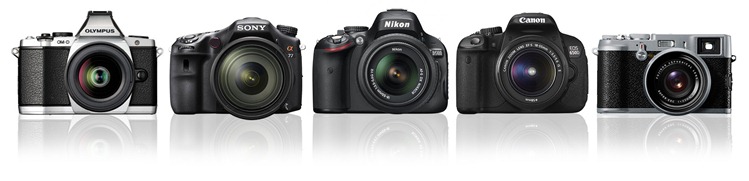
What camera should I buy? With the huge and confusing choice of cameras on the market today, it’s a question that I’m asked time and again. I may be wrong but I get the feeling that most people who ask me that question want a short answer like… “You want to buy Camera X” Sadly it’s not that easy so here’s three tips to help you choose wisely.

Which CameraWhat are you going to photograph?
This should be the first thing you ask yourself before going any further. Sports or wildlife photographers will want different features then portrait and wedding photographers. The dream of one camera fits all is getting closer but it’s not here yet.

Things to consider might include:
Are you photographing moving subjects? If so then look for a camera with good autofocus and a fast frames per second (FPS) count.

Are you going to be shooting in low light? If so then a full frame sensor camera might be for you as they generally have much lower noise at higher ISO settings

Do you mostly shoot with long zooms? If you need to get close to your subject (from a distance) then a crop sensor camera will magnify the focal length of your lenses by around 1.5 times.

Do you need an SLR camera? If you’re shooting street photos or simply prefer to travel light then one of the new breed of mirrorless cameras might well be perfect for you.

What’s your brand?
This one’s really simple… If you currently have a Canon buy another Canon. The same rule applies for Nikon, Sony etc. Yes I know it seems like that other brand has all the best features but if you own more than two lenses you’re looking at a very big bill to swap brands.

So what if you’re new to photography, have had all your gear stolen or you only owned the kit lens that went with your old camera. What brand do you buy now?

That’s easy too. Buy whatever brand of camera your friend, colleague or neighbour has. That way you can swap gear and share knowledge with someone you trust.

How much do you have to spend?
At the end of the day it really is all about the money. Cameras are not cheap items so you want to buy the best one you can.

Before you rush out with your credit card let me remind you there is a big difference between the “best camera” and the “most expensive camera”.

Set yourself a budget which will include the things that aren’t in the box. Things like:

  • Memory cards (lots of them)
  • Spare Battery
  • Camera Bag
  • A lens or two

That last one is important. A new camera body may last you three years, maybe five if you’re lucky. A decent lens should last you 10 years or if you’re lucky it might last a lifetime. Invest in lenses whenever you can… but that’s another story.

Teaser ~ 15 Minute Photo Challenge

I keep getting asked to make more 15 minute photo challenge videos and I keep promising that I will. So here’s a short teaser clip from a brand new 15 Minute Photo Challenge video that will we filmed last week at one of my favourite places to visit.

This video was made possible by the kind assistance of Canon, who loaned me a new EOS M camera for the day (full review is coming soon) and Adorama who are my video sponsors.

But the biggest thanks has to go to Gatwick Aviation Museum who were kind enough to let me loose at their museum once again. It’s a fabulous place to visit and every time I go there’s something new to photograph.

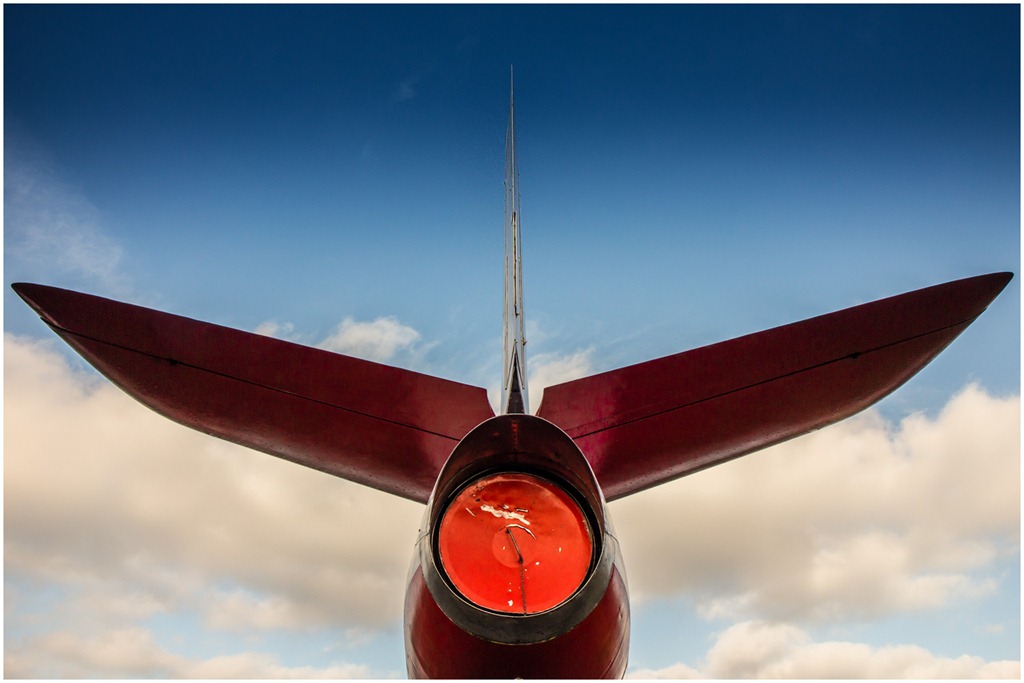
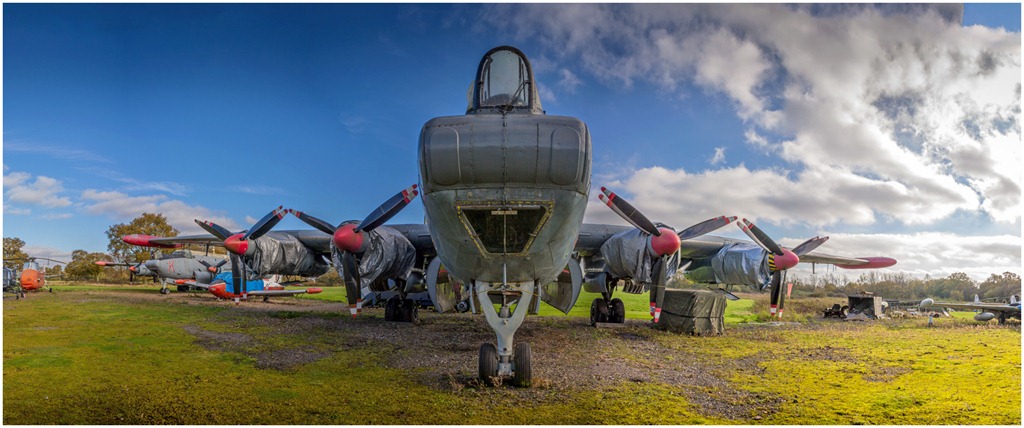
The full Video will be released later this month but as you can see from the teaser video and the photos below, it’s going to be worth the wait!

Gatwik-2

Gatwik-1

Kingston Ultimate 600X ~ Review

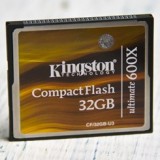
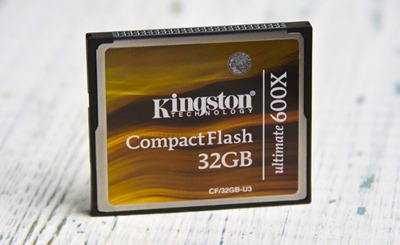
In this review I’m looking at the Kingston ultimate 600X, it’s a compact flash memory card that promises to really pack a punch when it comes to speed and capacity. Lets see how well if fares in the real world.
Kingston-600x-gavtrain
Verdict: The Kingston ultimate 600x performed very well in terms of its speeds. In real world use it’s proved itself to be very dependable. Just make sure you have a compatible camera and card reader.
   
Overall Rating

4-Star

Design & Features 4-Star
Performance

4-Star

Price 5-Star
+ Plus Points
    + High Capacity
    + Excellent value
    + Very fast Speeds
Minus Points
    USB 3 reader required for max speed
    May not be suitable for older cameras
    32GB maximum size available
Price (at time of review) 32GB around £60.00 $80.00 from Adorama 

Suppliers Website: www.kingston.com

The Kingston ultimate 600x is not the newest card on the block nor is it the fastest but it’s certainly one of the best value cards around. It uses UDMA technology which is short for Ultra Direct Memory Access and that means it’s quick. All UDMA cards can achieve a write speed of at least 45MB per second but with the ultimate 600x Kingston is claiming a read and write speed of a whopping 90 MB/s. Add to that the inclusion of a lifetime limited warranty and access to Kingston’s mediaRECOVER software via a download (activation key is in the box) and this card is shaping up very well indeed.

Capacity
The Ultimate 600x comes in two sizes, 16GB and 32GB. Which you prefer will depend on the pixel count of your camera, if you shoot in RAW or JPG format and your personal feeling about whether having more photos on less cards is safer then having less photos on lots of cards.

Using my Canon 5D Mark II photos as a guide a 32 GB card stores around 1050 RAW files or 4900 JPG’s.

Speed Tests
If you need to shoot lots of photos very quickly without camera buffering then this card is aimed squarely at you. That said fast cards are not just for the Kingson 600x speedsports shooters amongst us, we all have to download images on to our computers and when we do a fast card will reward you handsomely.
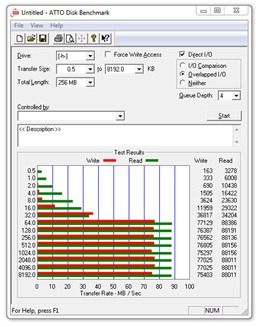
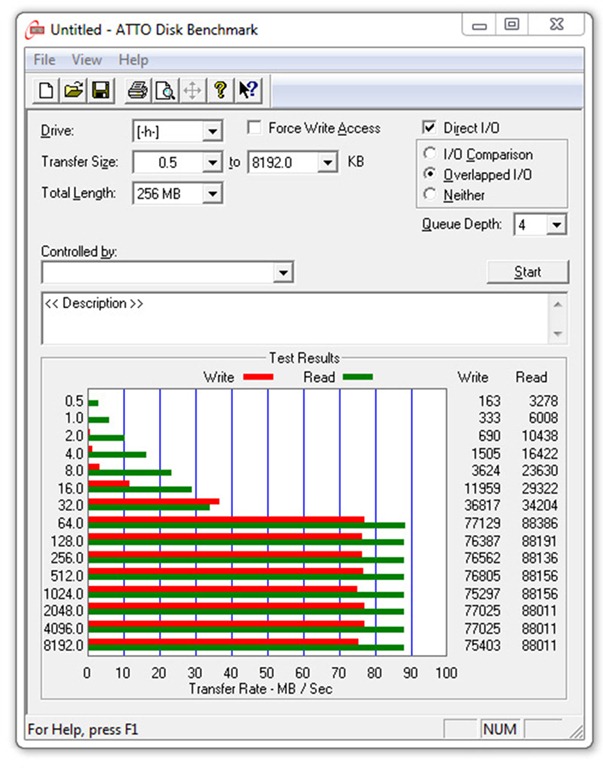
If technical charts are your things then the ATTO test will give you a fair idea of the speeds the card can reach. A quick glance at the chart will show you that the write speeds were very consistent at around 76 MB/sec and read speeds were slightly better at 88 MB/sec

The read speed is where the the biggest time saving comes when transferring files from the card to your computer so faster is definitely better here.

The write speed is a little disappointing as it misses the advertised speed of 90 MB/sec, however the read speed is bang on. It’s worth noting that there will be  slight variation in speeds results from one computer to another and I’m sure a top line computer in lab conditions would meet the claimed speeds with ease.

To test the card in the real world I copied 4GB of data from my SSD equipped PC to and from the card and found the writing 4GB of data to 70.5 seconds whilst reading it took 53.5 seconds.

Performance
I’ve used this card for a few weeks now in a number of photo situations including damp, cold landscape sessions and fast paced studio portrait shoots. Always shooting in RAW I can happily report that the card had no problems dealing with the conditions. There was no buffering, no missing files and no corrupted images.

Potential issues
Just when you thought that everything was going well there’s a snag… well actually there’s two but neither are specific to the Kingston Memory card on test here but you should be aware of them none the less.

First there’s the read speed. In order to transfer the photos at their maximum speed you need a card reader that can handle UDMA compact flash cards and it will have to be USB 3. If not then the read speed will drop considerably and the speed advantage you thought you would be getting becomes lost.

The second issue could be a deal breaker. UDMA technology comes in a couple of different flavours and not all cameras support all UDMA cards types. My Canon 5D Mark II had no issues with the Kingston card but it’s well worth checking with your camera manufacturer to see if your camera is compatible with this memory card. I’ve checked with Kingston who also assure me that the card is now fully compatible with Nikon cameras too.

Conclusion
The Kingston Ultimate 600x is a seriously fast memory card at a price that’s almost half that of some of it’s competitors. That alone makes this a great deal but do check you have the correct equipment to handle all that speed.

There’s no shortage of choice when it comes to memory cards but getting the wrong one could result in slower performance for your camera and more time sat in front of the computer. The Kingston Ultimate 600X isn’t the fastest or newest card around right now but that means you’ll find some brilliant deals out there. I say grab one while you still can.


Friday Freebie ~ Sticky Tape Brush

This weeks Friday freebie is a little different as it’s not an action or an image but a Photoshop brush. Of course if you wanted to be technically correct it is an image or at least it started out as an image before I turned it into a brush.

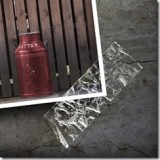
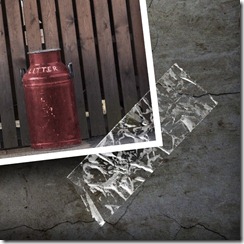
Sticky-tape-smallThis brush makes a line of sticky tape or Sellotape as we call it round here. It’s perfect for all your grungy projects, as a border round an image or in a composite image. Use your imagination and let me know if you found it useful.

You can download the brush from here:
https://www.gavtrain.com/free/Sticky-Tape-gavtrain.zip

It’s around 1mb in size so shouldn’t take too long to download. You can then unzip it and you’re ready to install it into Photoshop or Elements.
Please read the terms of use at the bottom of this post.

How to load the Brush
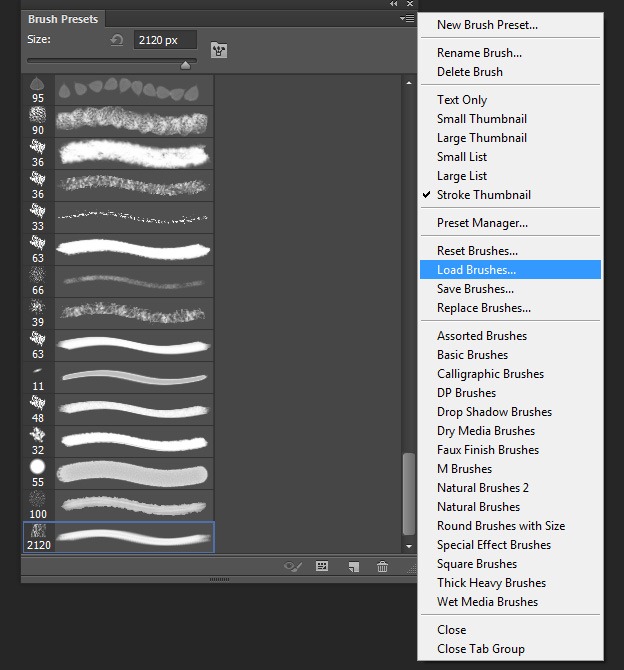
The quickest way to load a new brush is simply drag and drop the unzipped brush into Photoshop or Elements. Just make sure there are no other images open.Load Brushes

1) Download and unzip the file. You can save it anywhere as long as you can remember where that is.

2) Open Photoshop and go to Window – Brush Presets

3) Click the menu icon in the top right corner, it’s the one with a small down arrow and 4 little lines.

4) Click Load Brushes and find the unzipped file you downloaded

NOTE: Do not try and install the zipped file, it won’t work!

How to use the Brush
I know what you’re thinking… It’s a brush, so how hard can it be? The best advice I can give you is to make you paint with white as your foreground colour and paint each piece of tape on it’s on own layer. That way you can twist and resize the tape with Free Transform CTRL+T

Sticky-tape-big

Usual rules apply. The brush is © copyright Gavin Hoey 2012. You may use it for personal, non-commercial purposes only and please do not redistribute without permission. Thank you and enjoy Smile