Droste Effect – Video

In my last post I showed you how to install Pixel Bender from Adobe Labs. In this post I’ll show you how to add a brand new filter effect to Pixel Bender and then how to use it to create this amazing image. Believe it or not this photo started life as a snap of the clock on my office wall.

The filter we’re going to install is called the Droste effect and can be downloaded from Adobe’s Pixel Bender Exchange. Did I mention both the Pixel Bender plugin and the Droste filter are FREE!

Remember Pixel Bender doesn’t come with Photoshop as standard, so you’ll need to install it. Also you’ll need to be running either Photoshop CS5 or Photoshop CS4.


Pixel Bender

Adobe_Pixel_Bender_ToolkitWhen Photoshop CS5 was launched it came with a whole raft of improvements and new features, but one area that was identical to Photoshop CS4 was its filters.

But Adobe hasn’t dropped the ball when it comes to filters, in fact they’ve been working hard in the background to develop a whole new generation of filters. Best of all you can download them right now for free.

Pixel Bender is a Photoshop plugin which uses the speed and power of your graphics card or GPU as it’s known.

You can download Pixel Bender from Adobe Labs, just make sure you get the right one for your copy of Photoshop (CS4, CS5, CS5.5)

To make life easier I’ve made a three minute video that shows you how it’s done.

Once installed go and checkout the amazing Oil Paint filter as used in my video below.

Lexar USB 3 Card Reader ~ Review

USB-3-3Hopefully every photographer reading this already knows that the best and fastest way to get your images from a memory card to your computer is via a card reader. For the past few years I’ve been using either the internal card reader fitted to my PC or an external Compact Flash card reader. Both have been great, but all of a sudden they’re out of date!

So what’s changed? Well my new PC is fitted with the a couple of USB 3 sockets and on paper USB 3 is up to 10 times faster then USB 2 which powers my existing card readers. Now the important words in that last sentence were “on paper" and “up to” because as the saying goes… results may vary.

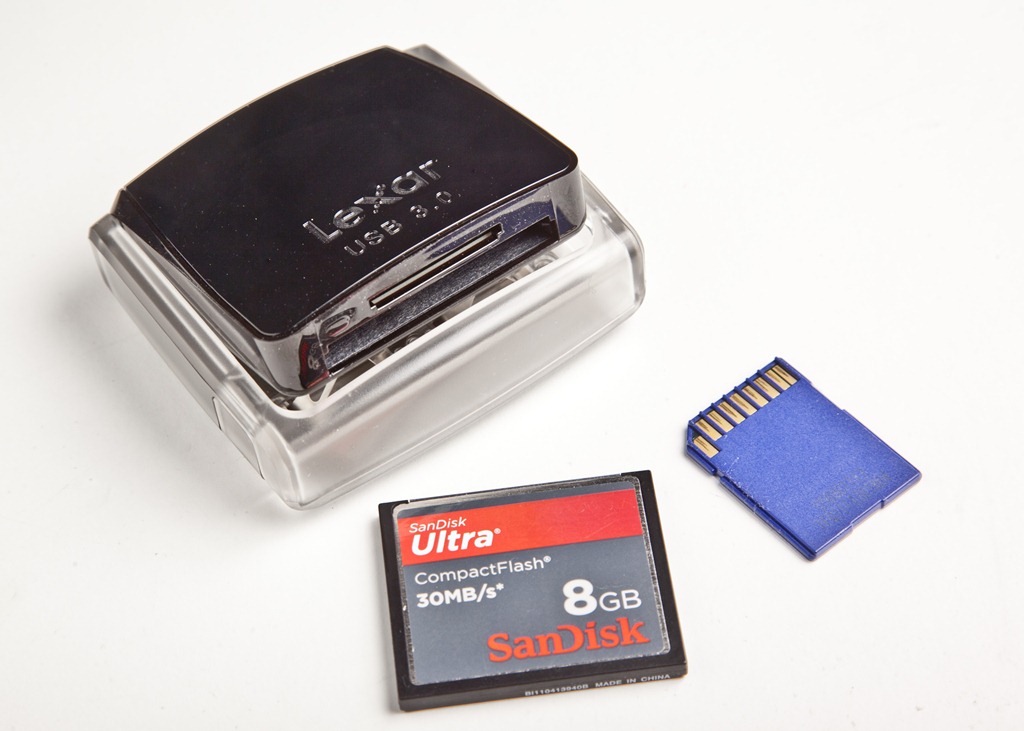
I really wanted to test the speed claims for USB 3 so I bought a Lexar USB 3 card reader, but before I get to the speed test, lets take a closer look at what I bought.
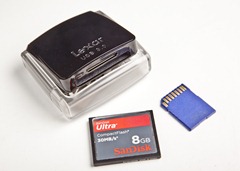
USB-3-1Lexar USB 3
There’s loads of card readers on the market, but the Lexar caught my eye for a couple of reasons. First up it’s a true USB 3 reader, so it should be fast. Next was the build quality, which from previous experience of Lexar readers I hoped would be excellent. Finally at £25 it’s sits nicely in the middle of the price range for card readers.

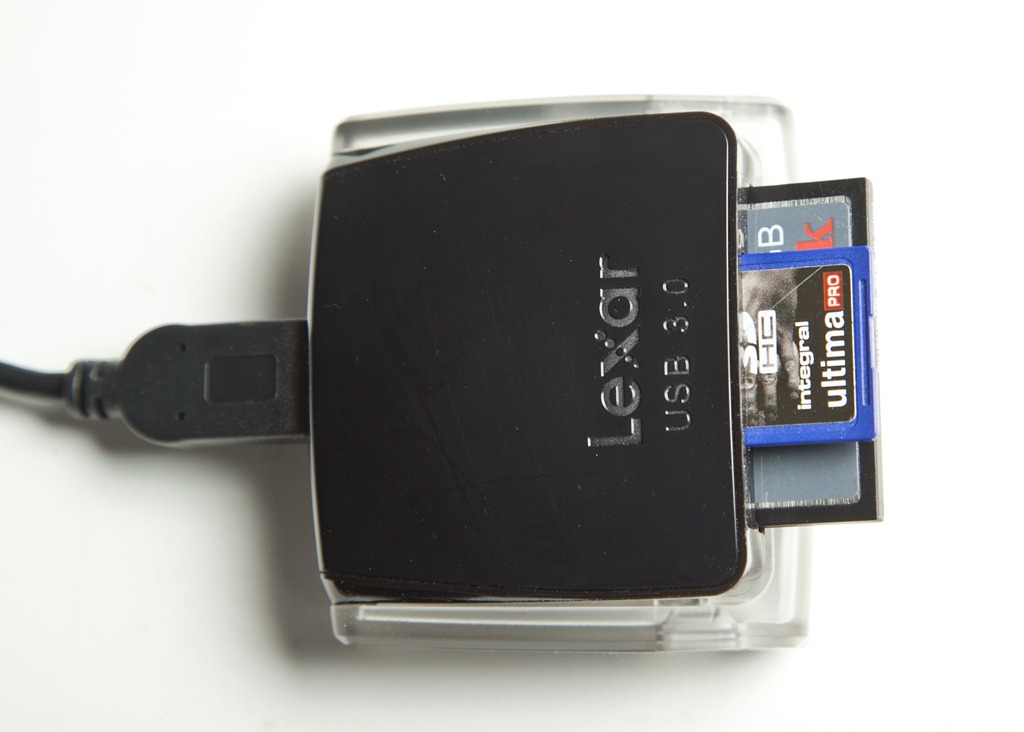
OK, I admit it’s hard to get excited about a card reader and the Lexar isn’t going to change that fact. For the record it’s a duel card reader accepting all types of SD and Compact Flash cards. It features a pop up design which Lexar says is to stop dust getting onto the contacts… Hold on, dusty contacts. Really? Marketing hype aside, the pop up / snap shut design is a nice fun touch.

It might just be me, but I’ve broken loads of Compact Flash card readers and the problem is always the same. Bent / broken pins.  The good news here is The Lexar USB 3 is more like a DSLR in as much as it keeps the pins deep inside the unit. It makes pushing the card in at an angle almost impossible, so the pins won’t get bent. That may not sound like a big thing, but trust me it is.
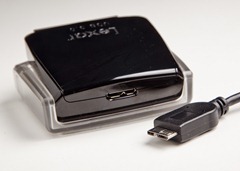
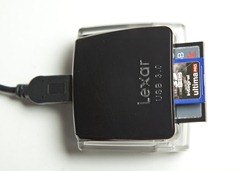
USB-3-2The USB Cable
I found two areas of concern and frankly neither is that bad. First is the use of shiny black plastic, which looks great of course, but it’s a dust and fingerprint magnet. Mind you half the gadgets I own have exactly the same problem. One day the matte finish will become fashionable again… I hope.

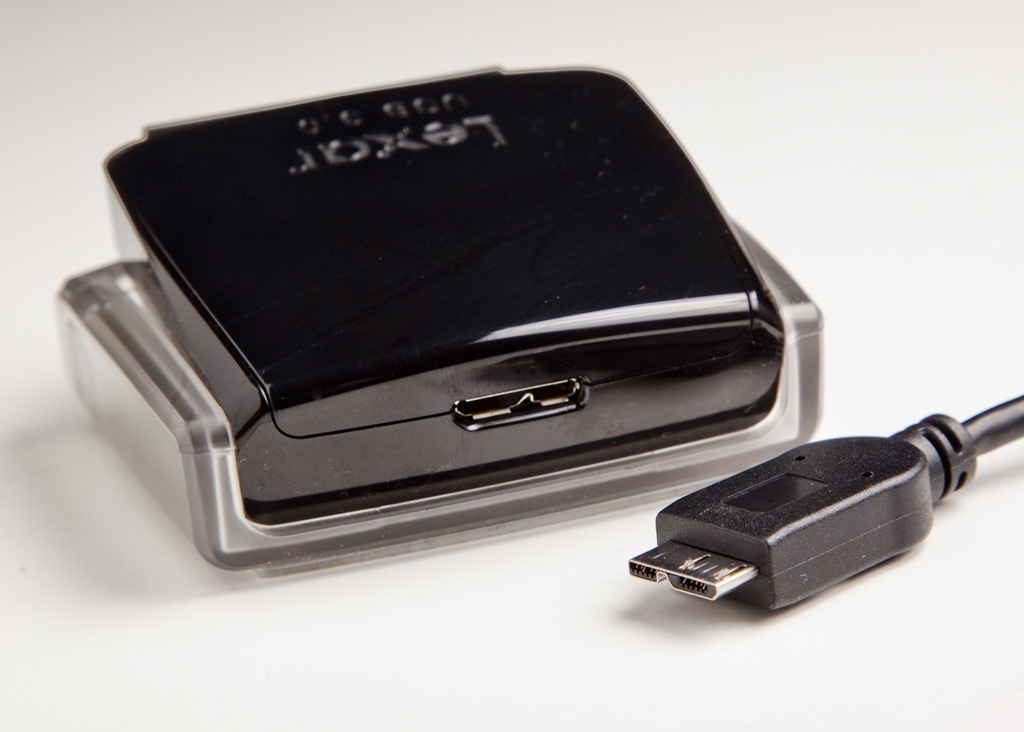
Then there’s the USB cable. At roughly 1 meter in length, it’s a bit short for me, but it also features a strange new connector. OK so the end that plugs into the PC is a normal USB plug but the end that connects into the reader is unique amongst my collection of cables (see update below). Not a problem unless like me, you’re planning to travel with the unit and you tend to lose cables.

UPDATE: It appears the cable is a new mini USB3 standard fit, so as this become more common losing a cable should be less of a problem.

Speed test
So I started this review by talking about speed and lets face it that’s why I bought the darn thing in the first place. As this is a USB 3 device you’ll need a USB 3 socket to take advantage of the increased speed. I should point out that it’s backwards compatible so will work on USB 2 but at a slower speed.

I tested the unit with a SanDisk 30MB/s card which is the fastest I own and represents the most common type of card I see photographer use.
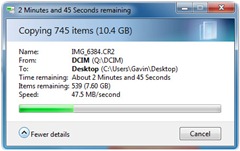
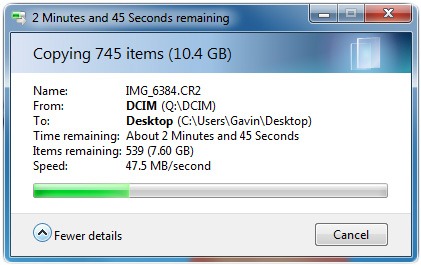
USB-3UBS 3 Read speed (Ave.) 48 MB/s (megabytes per second)
UBS 3 Write speed (Ave.) 30 MB/s 
UBS 2 Read speed (Ave.) 24 MB/s 
UBS 2 Write speed (Ave.) 21 MB/s 

As you can see using the USB 3 socket halved the time it took to get my photos off the memory card. Pretty impressive considering the card isn’t expected to go that quick. Writing times were less impressive, but then that’s not something I do very often.

By the way my internal card reader (USB 2) only averaged 17 MB/s moving the same files, so even on a USB 2 PC there was a small speed benefit

Summery
The Lexar USB 3 is a great bit of kit, well designed, well built and I’d recommend it to anyone wanting a new external card reader.

However if you want the “speed” of USB 3 then you’ll need the right type of memory card such as UDMA Compact Flash and SDXC SD memory cards.

Olympic Area Photography – Industrial Zone

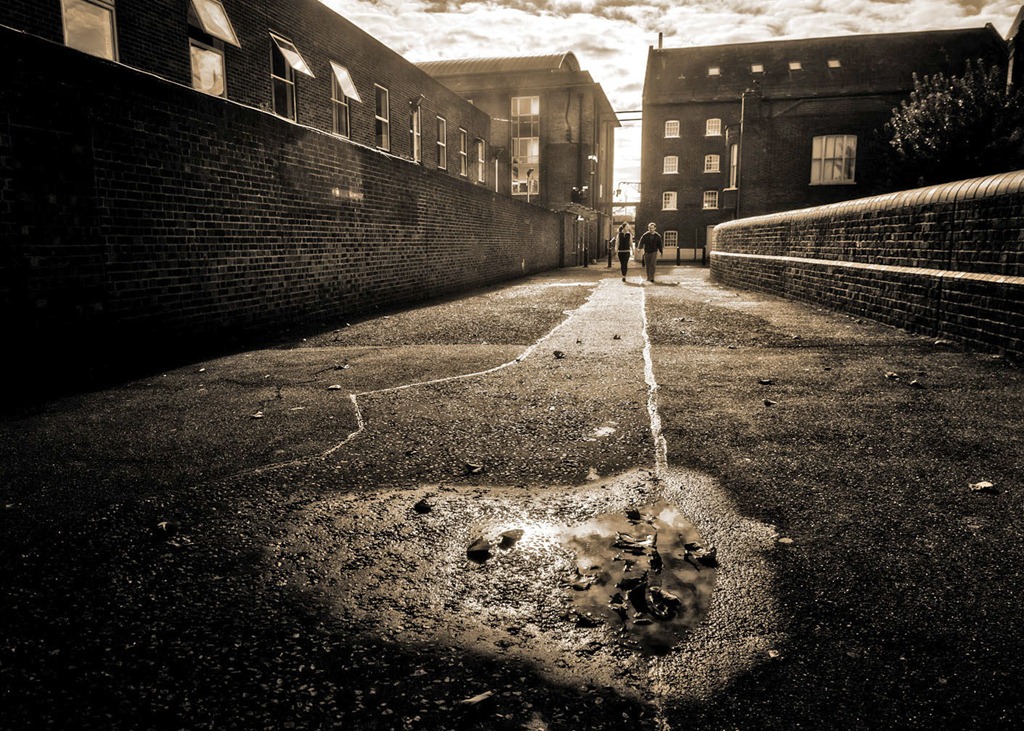
Untitled_HDR4Last month Sam organised another mystery photo challenge for me. All I was told was it’s in London, it would be outside and take a couple of hours to complete. So I packed my trusty Canon 5D mark 2 with my usual Canon 24-105L lens but I also added a Canon 70-300 IS lens, which turned out to be a good call.

So the mystery location turned out to be the “London Olympic Walk” which was a guided walk with a large group of tourists being shown around the building site that will become the 2012 Olympic Park. But before we could admire the park itself we had a tour of the old industrial area outside the Olympic park and that’s what you’ll see in this video.

All New RAW to the Core T-Shirts

The original RAW to the Core T-shirts have been around for less then a year, but they’ve proved incredibly popular. In fact we expanded the first order by adding two extra colours and sizes, many of which have now totally sold out.

So I decided it was time to revamp the RAW to the Core t-shirt and after many hours works and several failed attempts I came up with a design that keeps the original RAW to the Core message but blends it into a design that’s a little more easy on the eye of the non photographers out there.

More details are here

The new design is available right now in the Gavtrain store, but please be aware that the stock is very limited.

If you’re after the original design RAW to the Core T-Shirt you can find them here. Many sizes and colours are totally sold out, but you might get lucky Smile

Building a Photoshop Power PC – Part 2

DSC_0255A few weeks ago I wrote Building a Photoshop Power PC – Part 1 in which I went through the rather enjoyable process of choosing components for my power PC. I used a couple of different companies to supply the parts for my PC which saved me money but cost me a bit of time as everything didn’t arrive together.

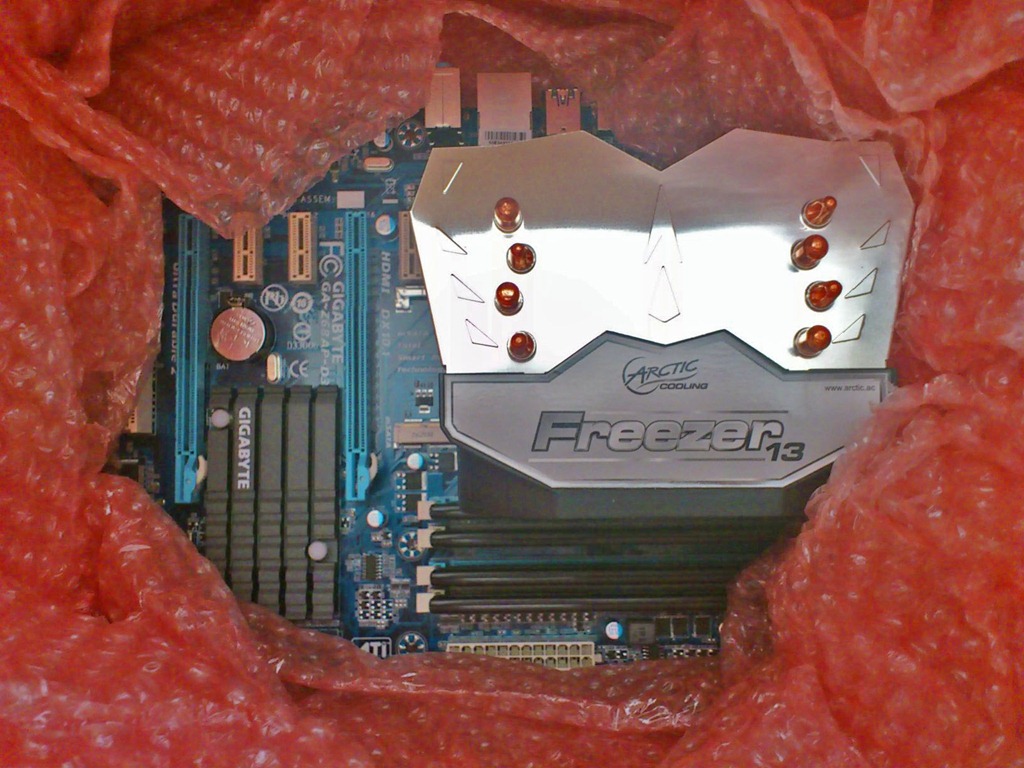
The last thing to arrive was the most vital. I ordered my CPU, Motherboard and RAM as a complete bundle. The advantage of a bundle was it’s made to order, overclocked to increase speed and tested before being dispatched. It arrived heavily wrapped in bubble wrap, which is always good to see and was ready to install and use.

Before launching myself into the unknown of my first ever build I armed myself with a little knowledge courtesy of an excellent how to build a PC video from new egg. It’s a long one, but packed full of useful build tips.

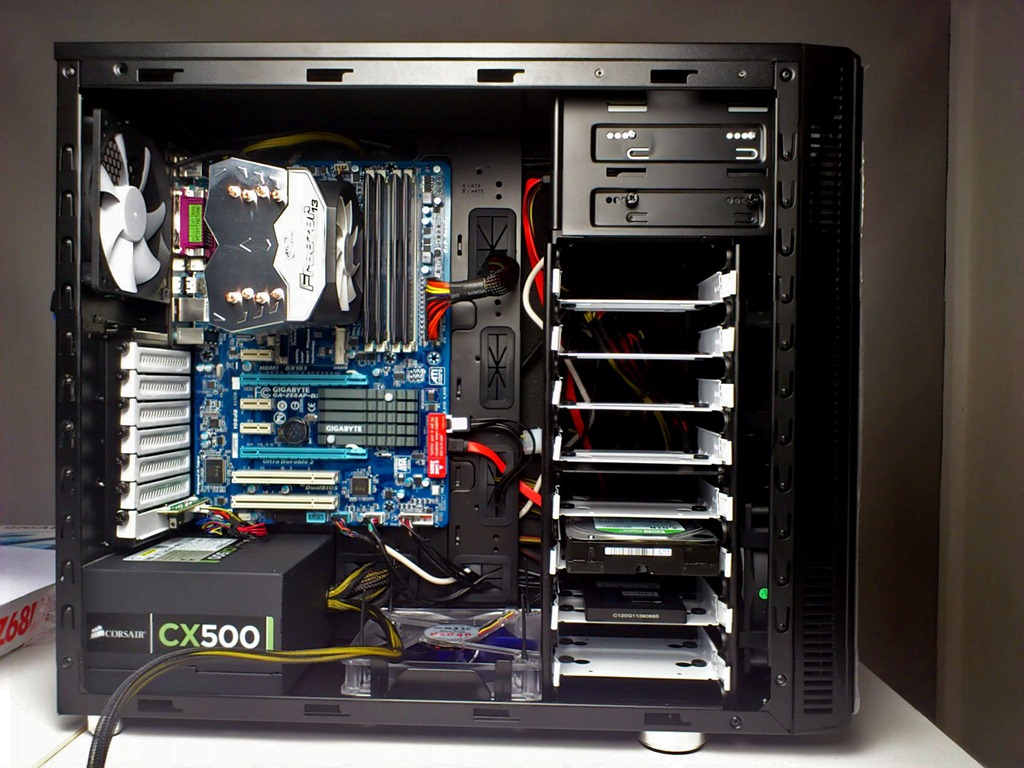
DSC_0265Despite my lack of experience at PC building, I completed the build without any problems in around 3 hours. The real star of the build was the Fractal R3 case which turned out to be a real boon when it came to keeping the masses of cables tidy. The R3 case has a 2 cm gap between the case and the back panel. It may not sound much, but it’s just wide enough to hide cables and keeping cables out of the case gives better airflow, which in turn means a cooler PC.

So there you have it, a shiny new PC is built. Unfortunately building the PC isn’t the end of the story. There’s the small matter of installing an operating system, adding all the software I need to do my work and moving my files from my old PC to the new.

That’s what I cover in Building a Photoshop Power PC – Part 3 (coming soon)

Super quick painterly effect in Photoshop

Painterly-FinalIf like me you couldn’t paint a picture to save your life then you’ll love this easy to follow, three filter Photoshop effect.
Best of all everything is used is a standard feature of both Photoshop and Photoshop Elements (PSE).

So have a bit of fun with your photos and if you come up with some great photos upload them to your Facebook, Flickr or Google+ account and leave a link in the comments below.

How to photograph Fireworks

Fireworks-1Tomorrow night is the 5th of November and here in the UK, that means it’s bonfire night. For those that don’t know Bonfire Night it’s also known as Guy Fawkes night which celebrates the failed attempt by a group of plotters to blow up the houses of Parliament in London 400 years ago.

Leaving aside the politics of 400 years past, bonfire night is really just our excuse to let off a load of fireworks and have a bit of a party. It’s also a great photo opportunity, so here’s my top 5 tips on capturing your best firework photos ever.

1 Be Prepared
Preparation is the key, so be ready BEFORE the display starts. Check you have a fully charged battery in your camera, a clear memory and the front of your lens is nice and clean.

2 Rock Solid Support
The most important piece of equipment you’ll need (after a camera) is a tripod and the sturdier the better. To really capture the spectacular shapes and colours of the fireworks you want the shutter to be open for a few seconds or longer and that’s far longer then you can handle without a tripod.

Fireworks-23 Manual Metering
Forget the auto and semi auto modes all that black sky is going to totally confuse your cameras meter. That means it’s up to you to take control and that means switching the camera to manual mode (M). Start by enter an aperture of f8 a shutter speed of 2 seconds and ISO 200. It’s not an exact science and factors like light pollution and personal taste may well dictate a change of settings (see 5)

4 Aim for the stars
You’re ready to take pictures, so point your camera to where the fireworks will be and wait.

5 Fire at will
As the fireworks start going off take a shot or two and review the results. If the sky or fireworks are too bright use a smaller aperture (f11, f16 etc.) If the firework trails are too small use a longer shutter speed (4 seconds, 8 seconds) but remember to reduce the aperture (bigger number) to stop the image getting too bright.

OK there you go. Follow the five steps above and you’ll get great firework photos every time. If you’ve mastered the basics then here’s three more useful tips…

Bonus Tips
A cable release is very handy for this work. It stops you touching and therefore moving, the camera which can cause blurred images.  If your camera is having trouble focusing switch to manual focus and set it to infinity. Don’t use flash.

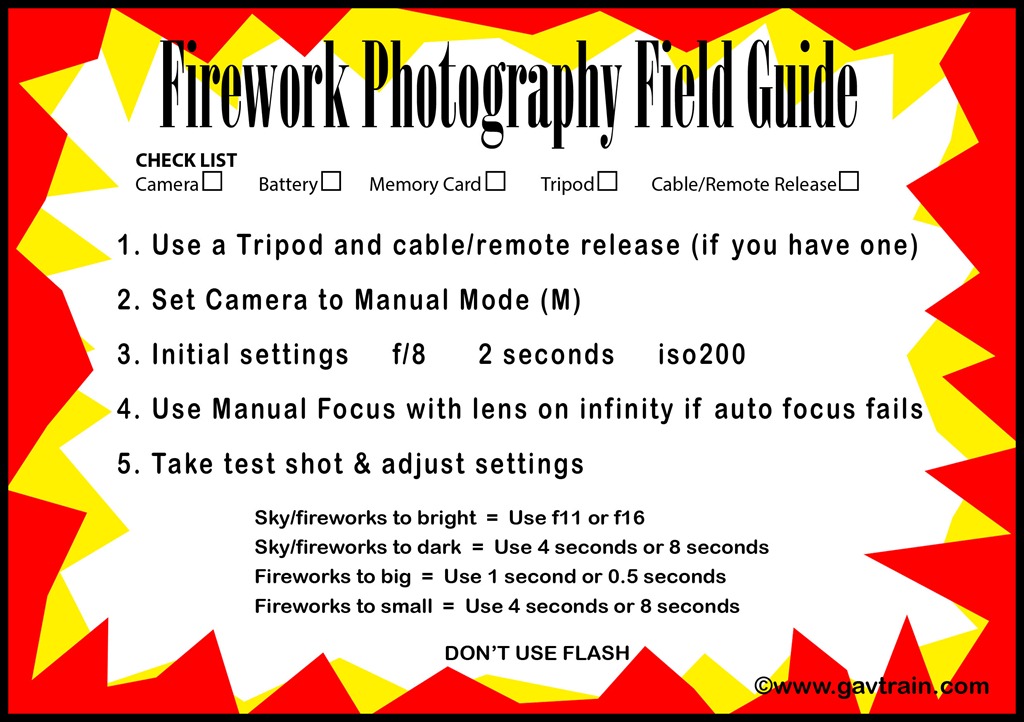
To Help you remember, print off my handy Firework Photography Field Guide by clicking the image below.

Fireworks Guide

Pumpkin Lantern

spooky streetIt’s Halloween and that means children around the world will be dressing as ghosts, witches and wizards for an evening of spooky fun. I’m sure we’ll have the usual steady stream of kids knocking on our front door asking for a trick or treat. I’m tempted to offer them a free Photoshop tip, but I suspect their idea of a treat isn’t the same as mine… kids today!!!

Love or hate Halloween you have to admire one of its highlights. Pumpkin carving or Jack-O-Lanterns as they’re sometimes called, range from the classic jagged “scary” face through to ornate and artistic carvings.

In this video tutorial I’ll show you how to make a basic face on a photo of a pumpkin. I’ll add depth and texture to create a pretty realistic final effect.

Want to try this yourself? Download my pumpkin image from here: http://a.yfrog.com/img619/6639/7w2z9.jpg

HDR Winchester

As I mentioned in my last post, I recently paid a visit to Winchester to present a photo talk. Of course I couldn’t pass up the opportunity of spending a few days in this incredibly beautiful and historic city. Despite the British weather doing it’s very best to interfere with the photography, I still managed to bag some great shots.

Of late I’ve been spending a lot of time shooting HDR images and I was able to loads of HDR in Winchester. Why HDR? Because on the 1st December I’ll be running an eSeminar for Adobe UK and the subject is… You guessed it, HDR.

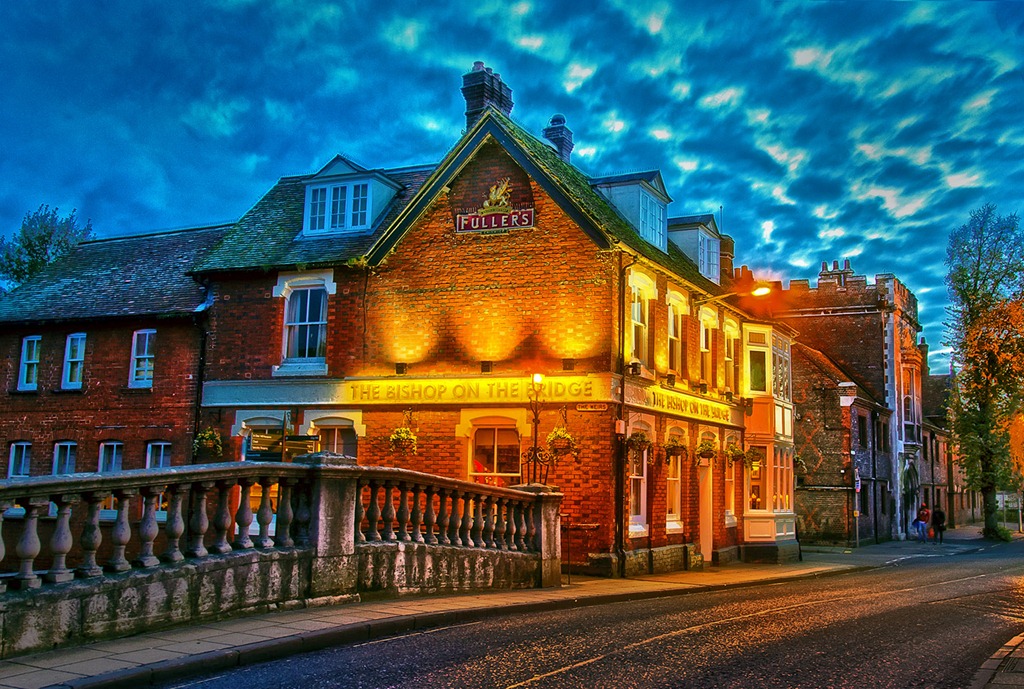
Here’s one of my favourite HDR’s from Winchester. Although many of my HDR’s have a subtle look, I know lots of people prefer the more processed look for their HDR’s and in this case, so do I.

Winchester-HDR

I used three RAW images shot two stops apart. I then used Merge to HDR pro in Photoshop CS5 to combine and enhance the image. I then applied a few other tweaks in Photoshop, but to see those you’ll need to watch the eSeminar… details to follow.