Photoshop Elements 11 ~ First look

I’ve always had a soft spot for Photoshop Elements. It’s 90% cheaper then Photoshop, its bigger brother, and yet it still does 90% of everything I need Photoshop to do.
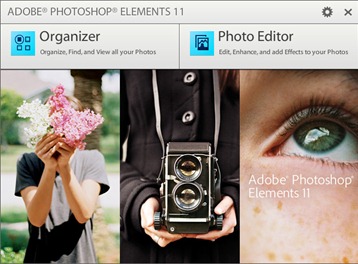
Elements-1Traditionally Elements is updated every 12 months and in the past it’s fair to say some of those updates have been rather meagre… but not this one. From the moment you start Elements 11 it’s obvious things have really changed this time.

The first thing you’ll notice is the new light grey interface but look a little closer and you’ll notice a raft of other changes both big and small.

The default editing setting is now “Quick” rather then “Expert” (formally known as Full), the options bar has moved from the top to the bottom and many of your favourite features aren’t where you left them. These may be superficial changes but they all add up to make Elements 11 feel very different to Elements 10.

So what’s new?
Elements-2Well, there are lots of new features in Organiser but the good news for me is that it remains totally optional and that’s the best thing I can say about it.

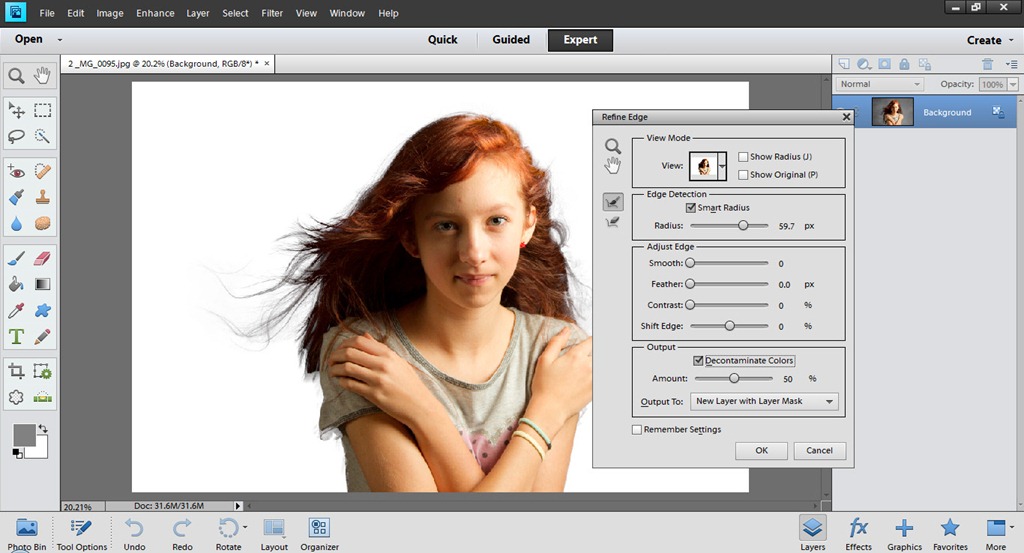
Moving into the photo editing section of Elements the star of the show in my book is the new Refine Edge feature which is shamelessly lifted lock, stock and barrel from Photoshop CS5. If you’ve never experienced Refine Edge before then you’re in for a treat. As of now making complex selections of things like hair in Elements is as easy as using a paint brush.
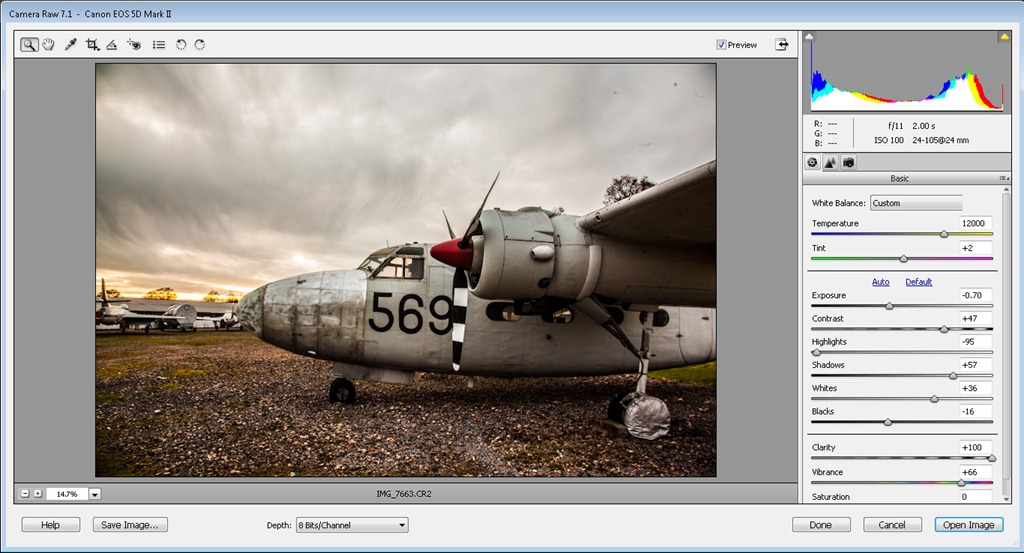
Elements-3Elements has had a slimmed down version of Adobe Camera RAW for some time but sadly it’s never had the advanced tools of Lightroom and Photoshop like the brilliant Adjustment Brush. There’s no change on that score but Elements 11 does get the update to Adobe Camera RAW 7.1 which has all the latest and greatest adjustments like the wonderfully enhanced Clarity slider… have I ever told you that I love a bit of Clarity?

It would have been great to get some form of local adjustments in RAW but maybe that’s asking too much. On the plus side the noise reduction options in Adobe Camera RAW have been brought up to spec with the same options as Photoshop and Lightroom.

Guiding lite
The biggest number of changes in the editor can be found in the guided section. New step by step effects include creating the “perfect portrait”, adding vignettes around photos and creating a reflection below a photo.
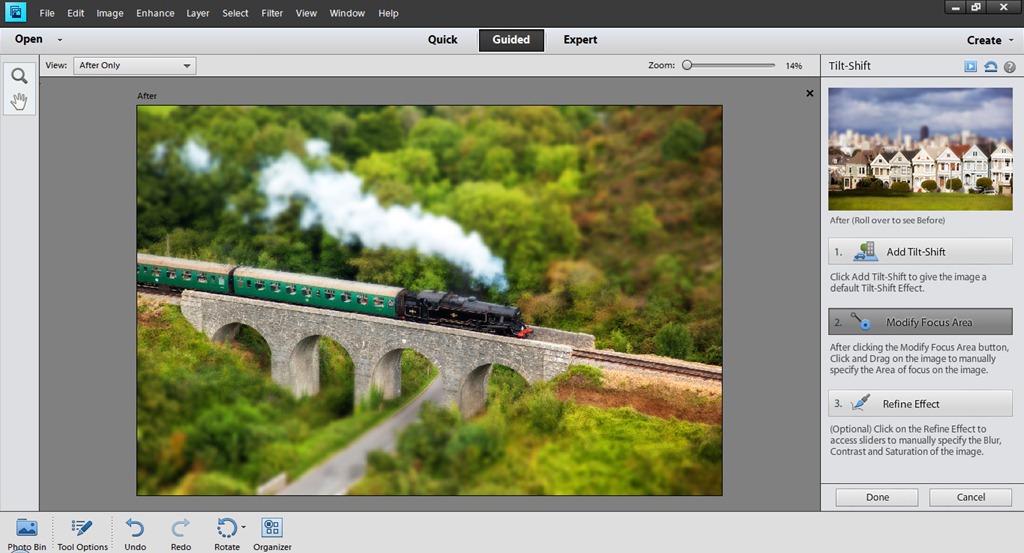
Elements-4As with all the guided techniques these are not new tools but they’re designed to remove the skills barrier required to achieve the effect and to that end they’re very successful.

My favourite new guided effect has to be Tilt-Shift. The whole effect can be created in just two clicks and on the right photo, it’s very convincing.

Other new guided edits include Hi-Key and Low-Key effects and worthy of a mention is the new Actions panel which makes loading and playing (still no recording) actions a whole lot easier.

Not in Photoshop
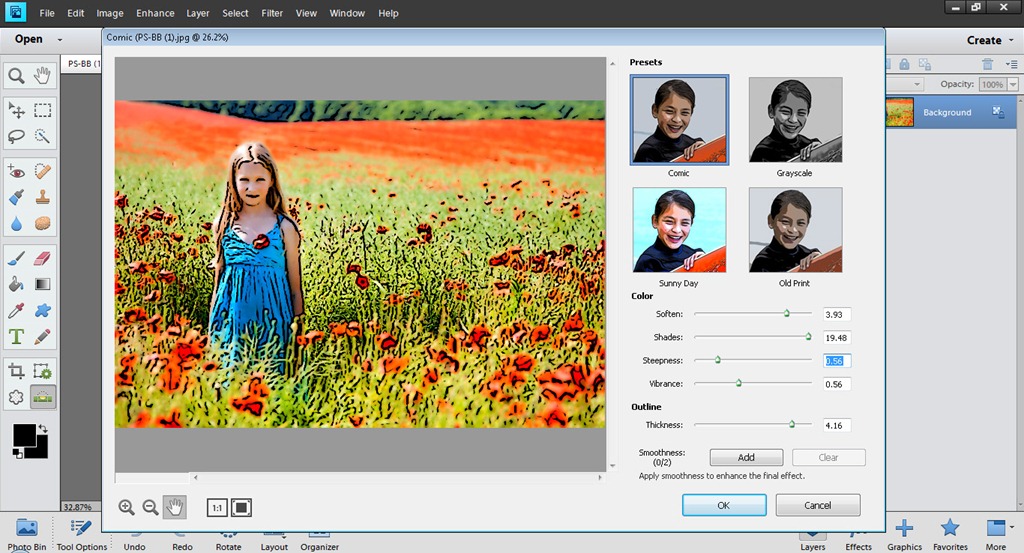
Elements-5Yes you read that right. Elements 11 gives you not one but three new filters that you won’t find in Photoshop. If you don’t like filter effects you may say that’s a good thing but I know from experience that filter effects are always popular with a large number of Elements and Photoshop users alike.

The three filters are all found under the Sketch section, which gives you an idea where these are heading. They are Comic, Graphic Novel, and Pen & Ink filters and although they are all different the effects are all variations of a similar style and are a welcome addition

Conclusion
From the moment you launch Photoshop Elements 11 it’s clear Adobe have worked hard to make this version appeal to it’s target market of amateur and serious amateur photographers. Anyone moving up from a previous Elements will find the changes take a little time to get used to but before too long you’ll feel right at home.

The new and improved features of Elements 11 are all very welcome and whilst it would have been nice to find a few more of Photoshops newer tricks filtering through to Elements it’s really not missing that much.

You can try it yourself right now for free by downloading the 30 day trial http://www.adobe.com/uk/products/photoshop-elements.html

RAM vs Photoshop

Recently I wrote about how swapping a traditional hard disk drive with a modern solid state drive or SSD for short. If you missed it, you can catch it here but in short it speeded up Photoshop by 30% and made using Windows 7 a lot more snappy.KngstonhyperX

Many people suggested that adding more RAM would also speed up Photoshop and they’re right. RAM is a cheaper and easier upgrade then adding a SSD but the question I wanted to answer is, how much RAM do you need and what are the real world speed benefits?

Thanks to the good people at Kingston Technology, who supplied me with some RAM sticks, I was able to test various RAM configurations.

The Test
Once again I’m using my now infamous Photoshop Speed Test action to push the computer and it’s RAM to the max. The test computer is my PC which runs Photoshop CS6 with an Intel i7 processor and a speedy new SSD. To standardise things, I removed the overclocking I usually use.

Basically the only thing that will change for each test run will be the amount of RAM.

I started with 4GB of RAM which is a very common amount of RAM found in many shop bought PC’s. I then continued to add RAM at a rate 4GB at a time, each time running the speed test several times and averaging out the results.

The Results
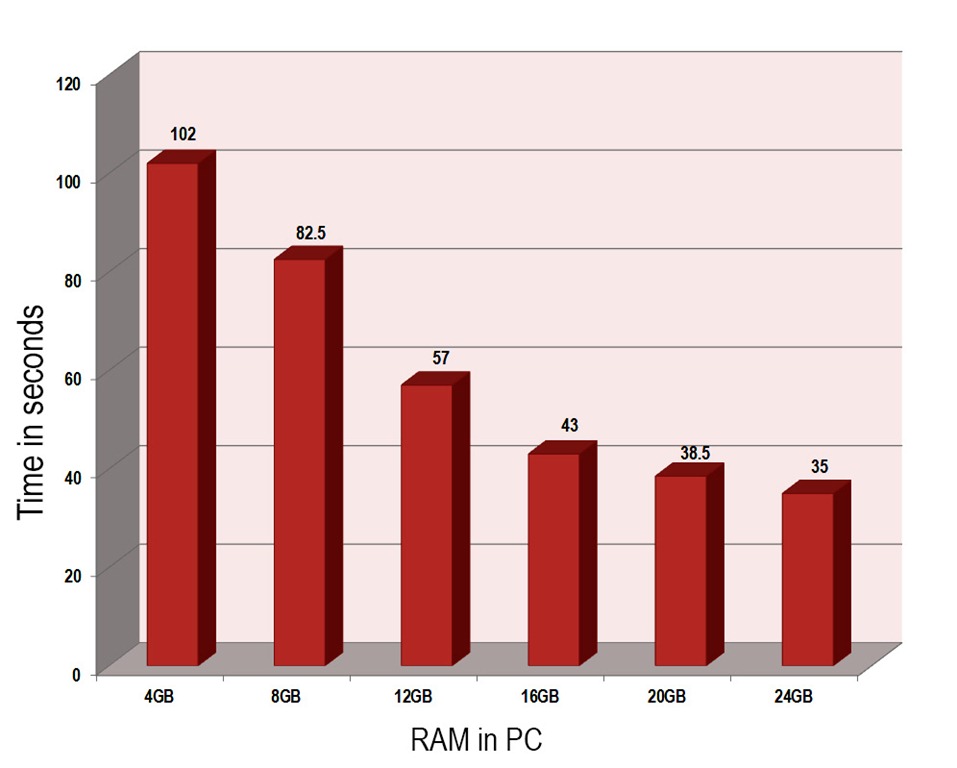
I could write reams of information but the graph below says it all.Speed test RAM

Not surprisingly Photoshop ran faster as more RAM was added. But look closely and you’ll see it’s not a straight line.

How much RAM?
Between 4GB and 16GB the speed gain with each new 4GB RAM stick is fairly consistent. However the improvement in Photoshop performance between 16GB and 24GB is much less impressive.

If you’re currently running 4GB of RAM and you want to double the speed of Photoshop you need to jump to 16GB of RAM. To me 16GB of RAM seems to be the perfect level for balancing price and performance.

About the RAM
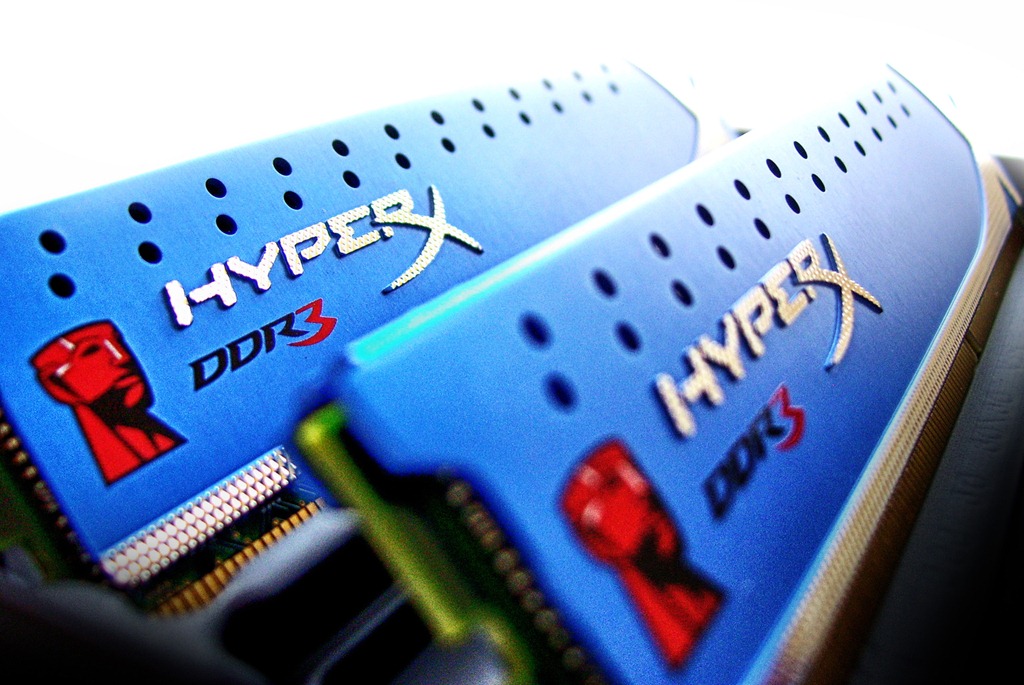
memory finderFor this test I used 4GB sticks of Kingston HyperX DDR3 memory. It’s rated at a speed of 1866MHz which means it’s very fast but not the fastest memory around. Fitting the RAM was as easy as opening the PC case and pushing in the RAM stick. If you’ve never tried it before, adding more RAM is the easiest upgrade you can make.

You can find out more about Kingston RAM and other products by visiting their website

I’d also suggest taking a look at Kingston’s support page if you are unsure about what RAM your PC or motherboard can support

Conclusion
There’s no doubt that Photoshop performs better with more RAM but looking at the results I can draw two possible conclusions. Either my speed test action doesn’t push the RAM hard enough or there is a diminishing return from adding more RAM.

Either way it’s worth remembering that a 64bit operating system is required in order to access Ram beyond 4GB.

For me it would appear that 16GB of RAM is the perfect amount to run Photoshop with speed but it also had an unexpected benefit. The speed tests run at 4GB and 8GB gave the widest range of times which indicates that using Photoshop at lower RAM levels left it open to slow downs caused by the operating system taking priority for RAM access. By the time I hit 16GB the results were all within a few seconds of each other and by time I was up to 24GB the results were all within half a second.

So more RAM equals more Photoshop speed, plus a more stable operating system and therefore a more enjoyable time on the computer.

Shooting the show with Canon

Earlier this week and quite out of the blue, I received an email from Canon with an offer to shoot a fashion show during London Fashion Weekend. This wasn’t some PR event organised just for photographers, it’s a real fashion show, sponsored by Canon and shot by randomly selected Canon CPN listed photographers (which is how I got an in) and a group of photography students. They were a really great bunch of people with plenty of friendly banter. So what’s it like shooting a show with Canon?

IMG_8813

The briefing
The day started with a comprehensive briefing from the Canon team about what to expect, what to shoot and how to get the best results. It was a good idea, especially as more then half the 30 or so photographers were students studying for degrees in fashion photography and this would be their first taste of a professional assignment.

We were also given some great camera tips such as using ai servo to track focus on the models as they walked towards us. Canon recommended using just the centre focus point for older Canon cameras like my 5D mark II but for the more modern 7D, 5D mark III and 1Dx a larger centre cluster was suggested.

IMG_8877

Perfect Exposure
The Canon briefing made a big point about getting consistency from one image to the next… as you can see in the photos above. So to help out Canon had already worked out the ideal shutter speed, aperture, ISO and white balance. Now normally I prefer to shoot in Aperture Priority mode and auto white balance, however the whole catwalk was evenly lit with manmade lighting that didn’t change once the show had started. As a result I shot the show in Manual Mode and with a fixed white balance to ensure total consistency.

Hence every photo in this post was shot at 1/640th sec, f/4, ISO640 and with a white balance of 3000k

If you’re wondering why consistency is important, put yourself in the shoes of a fashion magazine or website editor. They’re not looking for creative flare from us photographers, they’re looking for photos that perfectly represent the outfits time and time again.

IMG_8687
Click to enlarge
Nailing the shot
Timing in photography is important in many types of photography but at a fashion show there’s no reruns and no second chances. So getting the perfect shot needs either lots of practice or a bit of luck. So to shorten the odds in my favour I worked in continuous shooting mode and shot in short bursts. Take a closer look at the five shots above. All but number 4 are duds but I only needed one good shot.

IMGP7694

The Pits
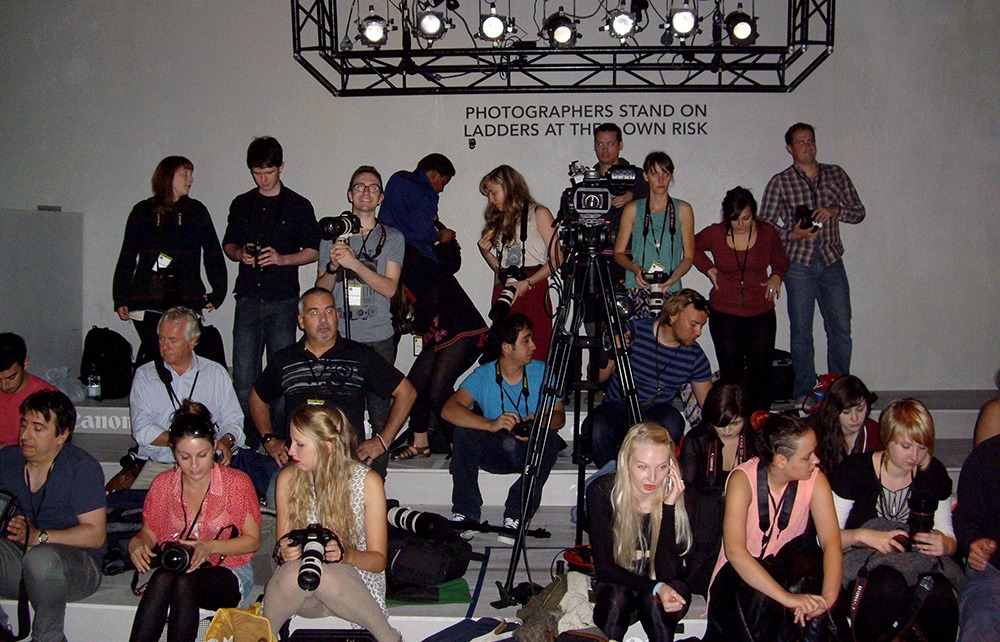
OK so above is a crappy shot from my compact camera but this is the photography “pit” where we were allowed to shoot from. Getting a spot in the centre i sthe goal of all the photographers as it gives the best angle to shoot from. See the gap just left of the video tripod… guess who bagged that spot Smile

The Gear
When it came to gear I kept it simple. All the photos were shot on my Canon 5D mark II with a Canon 70-200 f/2.8 IS lens. It proved to be the perfect combination for the day. I also packed my Canon 24-105L f/4 but that never came out of my bag.

I know from experience that the Canon 70-200m f/2.8 gets very heavy very quickly so I used my Giottos monopod all the time. I also spent a lot of time kneeling down so I was very glad I packed a small cushion, although with hindsight a folding tripod stool would have been even better as would a small step ladder… if you were prepared to take the risk.

I have to say my 5D mark II did a great job but  I could tell my autofocus wasn’t always tracking the action and the 3.5fps continuous shooting speed is very pedestrian. However the student next to me who was using a brand new 5D mark III was able to shoot at 5.5fps and even tweak the continuous focusing system to suit the situation… the results looked pretty darn good too!

IMG_8660IMG_8698

I need to say a huge thank you to Canon UK for making the day happen and for their perfect hospitality. If you ever get the chance to take part in a Canon event I suggest you either grab it with both hands or forward it on to me Winking smile

IMG_8787FB

Focus Stacking ~ T+MGP 07

Depth of field is one of those fundamental skills that photographers learn. If you’re new to photography then the principle behind depth of field can be simplified to a choice of aperture. A small f number gives a smaller depth of field and a bigger f number gives a bigger depth of field.

Final-stackedOf course in the real world there’s more to depth of field then simply the aperture used. You also need to take into account the focal length of the lens and the size of the cameras sensor.

But no matter what combination of focal length, aperture and sensor size used there will always be a limit to the depth of field that’s achievable. So if you want a truly massive depth of field then a single photo isn’t going to cut it. No, what you need is a series of photos of the same scene, all taken at different focal points. These can then be joined together using a technique known as focus stacking.

Focus stacking is a clever Photoshop trick which combines together the sharpest parts of a number of photos to create one image that has amazing depth of field. It’s quick, simple and if you have Photoshop CS4, CS5 or CS6 you can do it right now.

Equipment used in the video:
Canon 5D Mark II http://www.adorama.com/ICA5DM2.html?KBID=67338
Canon 24-105mm L f/4 IS http://www.adorama.com/CA24105AFU.html?KBID=67338
Gorillapod SLR Zoom Pro http://www.adorama.com/TPGPSLRZBC.html?KBID=67338

September Photo Challenge

Yes it’s back again for another month. It’s the photo challenge and for September the photo challenge your theme is…

Planes, trains and automobiles

planes trainsHow you decide to interpret that theme is entirely up to you. Perhaps you’ll want to take it literally and enter a photo of a vintage aeroplane, a stream train or your favourite sports car. Maybe you’ll try something a little less obvious. Perhaps you’ll move in close and shoot an interesting part of the object or maybe you’ll find a reflection or shadow cast by your plane, train or automobile.

Once you’ve made your photo you’ll then need to do three things…

1. Check your entry meets with the rules at the bottom of this post.
2. Upload your image to the Flickr Group page at http://www.flickr.com/groups/2064982@N24/

REMEMBER: Although it’s not a rule, the idea behind the photo challenge is to encourage you to go out and shoot a new photo rather then entering an existing image.

I’m very happy to report that the Photo Challenge is once again being sponsored by Print Yours. They are an independent print lab who specialise in creating small run, high quality prints. Check out their web site for more information http://www.printyours.co.uk/

So what will the winner receive? Well, Print Yours have generously offered to print the winning entry on their 270gsm Photo Satin paper up to a whopping 24”x16”. That’s an £18 print for FREE! If you’re the lucky winner then all you need to do is send a high res version to Print Yours (via email) and they’ll do the rest.

RULES
One entry per person
Entries must be uploaded to the correct Flickr group by 3rd October 2012
Entrants agree to the use of their image on the Gavtrain webpage / Facebook page solely for the purpose of announcing the results
The image (including any manipulation or added elements) must be the sole work of the entrant
The winner will be selected by Gavin Hoey and his decision will be final
No alternative prizes are available
The winner will be notified by Flickr direct message.
Only the winning picture will be printed
The winner will be required to email a high res (printable) version of the winning image to Print Yours by
31st October 2012
The winner will be announced on the
Gavtrain Facebook Page during October 2012

Good Luck

Flash Exposure Compensation

A few weeks back I wrote a blog post about exposure compensation. If you missed it it’s well worth checking out before continuing with this post. It’s very easy to confuse exposure compensation with flash exposure compensation and although they both work on the principle of overriding exposure, flash exposure compensation (or FEC for short) is a little more tricky to master.

Flash Exposure Comp2If you’re lucky you’ll have a flash exposure compensation button on your camera. Look for the lightning bolt symbol which differentiates this button from the standard exposure compensation. If there’s no button then you’ll need to dive into the cameras menu to make the adjustment. If you’re using a speedlight then you can make the adjustment directly on it’s LCD panel and you’ll often get a wider range of compensation settings that way too.

It’s all about flash
As the name suggests, flash exposure compensation only affects the flash where as regular exposure compensation effects the ambient light. 

Flash photography, also known as strobist photography, has become much simpler recently thanks to the TTL technology built into speedlights. Of course any TTL system is prone to errors from time to time and that’s where flash exposure compensation kicks in. Basically flash exposure compensation tweaks the flash power and produces more or less light to suit your requirements.

Flash Exposure Comp-2

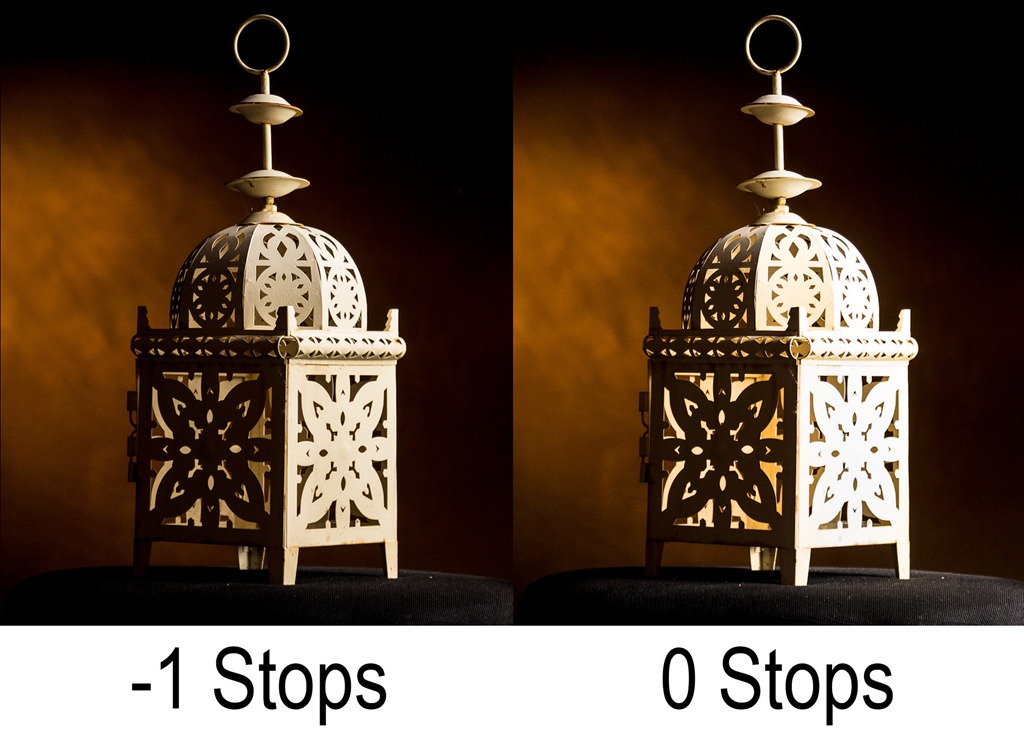
Take a close look at this photo. Left to it’s own devices (photo on the right) the flash produces a little too much light and detail in the metal is lost. By dialling in minus one stop of flash exposure compensation (photo on the left) I retain the all important highlight details.

Compensation in action
If you move the flash exposure compensation to the left (minus numbers) you’re lowering the flash output and your photo will be darker. This is great when you want to do some fill flash photography or when the flash part of the photo is simply too bright.

Moving exposure compensation to the right (plus numbers) makes your flash brighter, perfect for when the flash lit parts of the photo are a little dark, although it should be noted that if your flash was already firing at maximum power adding positive flash exposure compensation will not make it any brighter.

Flash Exposure Comp
Click to enlarge

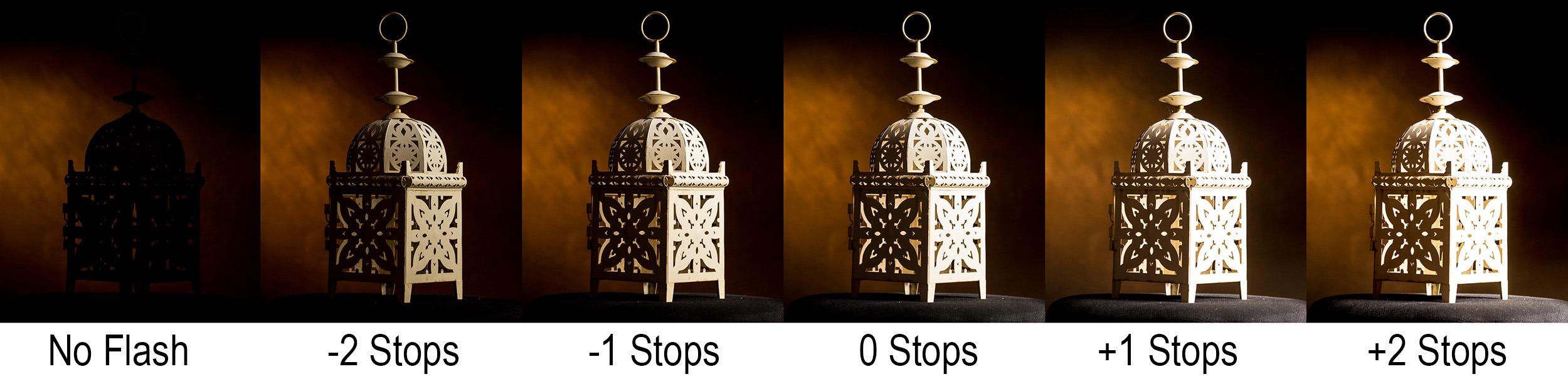
The photos above used off camera flash to light the white lantern from the side, the background was lit by the ambient light in the room. It’s worth noting that changes to the flash exposure compensation made a difference to the lantern but no difference to the background. Look closely and you’ll spot a slight lightening of the background at the +2 stops which is caused by the super bright flash bouncing around in the room and contaminating the background a little.

If you shoot TTL flash, learning how and when to use flash exposure compensation is vital. Once mastered you can get perfect fill flash when shooting outside or use it to get correct exposure when shooting in a studio. Of course you could set your flash to manual only, that way you can avoid the need for flash exposure compensation but you’d have to figure out the correct flash power for each and every shot.

Kingston HyperX SSD Upgrade

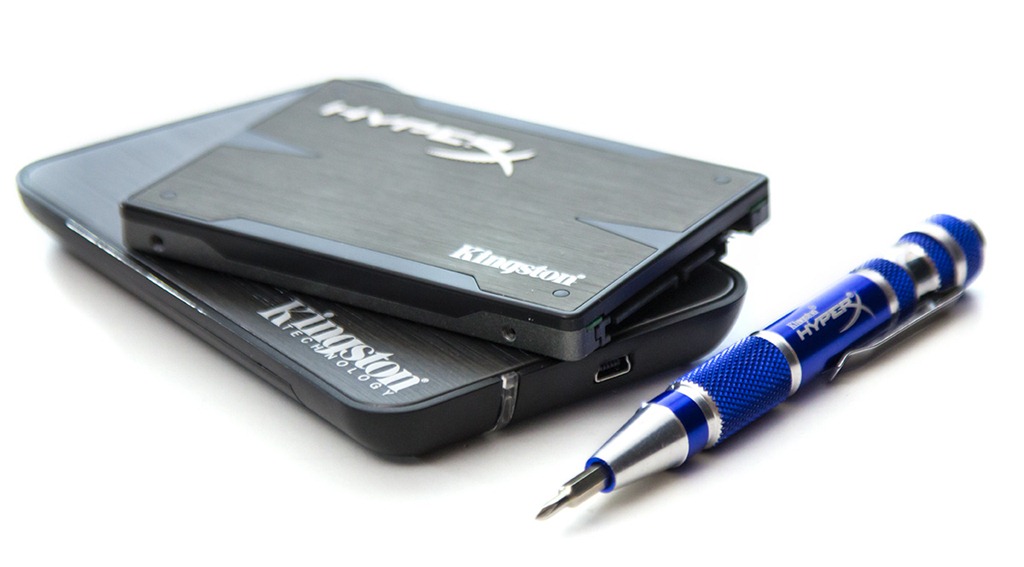
HyperXSSD1Recently I wrote about my two year old laptop which, compared to my main PC, is painfully slow when it comes to Photoshop. With maxed out RAM and Photoshop CS6 installed I thought my laptop was at the end of its life. However the people at Kingston Technology had other ideas and sent me one of their super fast, state of the art SSD upgrade kits to test.

If you’re new to the world of SSD’s (Solid State Drive) think of them as a giant camera memory card. With no moving parts they’re faster, use less power and are more durable then a traditional mechanical hard drive. All in all it sounds like a great idea, just so long as I can fit it.

How to upgrade
If the thought of upgrading a computer hard drive yourself fills you with dread than the Kingston SSD upgrade kit is worth a look. Everything needed to do the job is in the box as you can see in this video or read below.

What’s in the box?
You get a Kingston 256GB SSD Extreme X drive, a USB enclosure for cloning purposes and a CD with all the cloning software and instructions. The thoughtful people at Kingston even throw in a nifty little small screwdriver and you’ll be glad they did.

Although I’m using the kit to upgrade a laptop, the Kingston kit also includes all the cables, screws and adaptors you’d need to mount the SSD in a desktop case if you’d prefer.

It’s worth noting that the instructions are a PDF file on the CD so you’ll either need to print them out, put them on a second PC or memorise them before you begin. Fortunately the whole upgrade process can be summed up in three steps.

Check the space
The Kingston Extreme X SSD is 256GB in size but it’s replacing a 500GB drive. Now it doesn’t take a genius to realise that they don’t fit. Fortunately I’ve used less then 200GB of space which is lucky as otherwise I’d have had to move some data off the drive and on to a back up disc of some sort.

HyperXSSD2Replace the hard drive
After unplugging the power cable and removing the battery, I flipped open the cover that hides the laptops hard drive and removed the retaining screws. I then screwed in the new, empty Kingston SSD, replaced the screws and cover and reattached the power.

The old hard drive is then placed into the Kingston supplied hard drive housing and connected to the computer via the supplied USB cable.

Cloning the disc
The final step is the longest to do but also the easiest. Kingston supply a CD which has cloning software from Acronis which simplifies the disc cloning process to a couple of clicks. All I had to do was start the computer with the CD in the drive and it launches the Acronis software. There is an “Advanced” option but as suggested by Kingston, I selected the automatic option and away it went.

The cloning process took a little over 90 minutes to complete and once done I removed the CD, unplugged the USB cable and restarted the computer.

The results
From the very first time I started the laptop with the SSD installed I could see the improvement in speed. Where before I would have to wait a few minutes for windows to boot and “calm down” before I could do anything, now it’s ready to go within 60 seconds. Photoshop launches in 2 seconds flat and everything feels so much snappier.

Of course what I wanted was hard facts so I repeated my Photoshop speed test and the results were impressive.

With Kingston SSD: Photoshop CS5 = 105.5 sec      Photoshop CS6 = 95.5 sec

With Original HDD: Photoshop CS5 =157.5 sec       Photoshop CS6 = 139.5 sec

That means I’ve increased the performance of Photoshop by 1/3rd simply by changing the old hard drive for a new SSD. Now that’s impressive!

Geeky bit
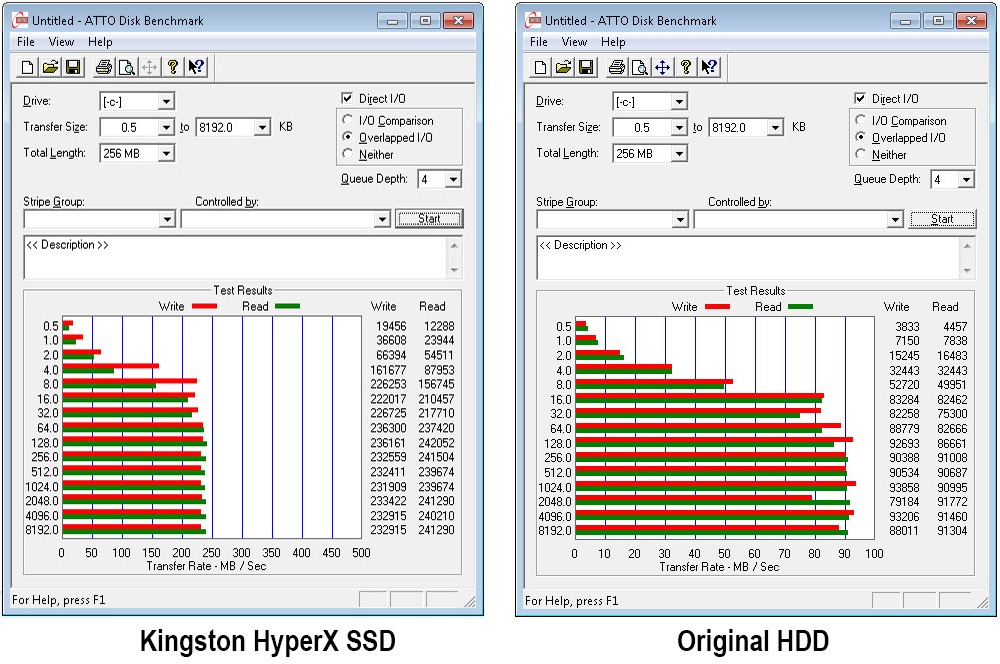
OK if you’ve made it down this far then lets talk about the technical stuff. The speed tests below show the Kingston HyperX SSD out performs the original hard drive in both read and write speeds by more then double.

HDD-speed test results-bothYes SSD’s are fast and in theory the Kingston Hyper X is about as fast as they come but to make use of that speed I need a SATA3 6GB/s interface. Not surprisingly my two year old laptop isn’t SATA3 compatible it may not even be the older and slower SATA2 but none the less it’s still faster then the stock HDD which had a spin speed of 5600K

Of course I’m also getting the advantage of longer battery life and the risk of HDD head failure has gone.

Critics of SSD’s will point out their theoretical limited life expectancy and high cost compared to a mechanical HDD but others will tell you the limited life issue has largely been solved and I’ll tell you that my laptop feels like new.

Final Thoughts
The Kingston HyperX SSD upgrade kit may cost a little more then a bare drive but that higher price tag brings with it the confidence of a successful upgrade.

I’ve been thinking about doing a SSD upgrade of a while but have always been put off as I thought it would be time consuming and probably cause more problems then it solved… I was wrong.

The Kingston Hyper X upgrade kit had everything that I needed and more. The instructions were easy to understand although I’d have preferred a printed “quick start guide” over a PDF.

The 33% improvement in Photoshop speed is great but that’s only half the story because of course EVERYTHING is faster.

If you’re sitting on the SSD fence the Kingston kit makes a great choice and I highly recommend it.

August Photo Competition ~ The Result

The theme for the August photo competition was “Beach and Sea”. If you’re a regular blog reader, you’ll be aware that it’s been some time since I ran one of these and this time I only gave you just under two weeks instead of the usual month.

None the less you lot really pulled out the stops with a whopping 134 photos being entered and I’d like to thank everyone that got into the spirit of the competition. You can view all the entries by going to the Flickr group page.

As always I looked at all 134 entries very carefully and over the course of a few days I whittled down the number. Usually the first photos I reject are those which are several years old as the idea is to encourage you to go out and take a photo for the competition, not upload an old favourite. However due to the short time scale I gave you I didn’t do that this time round.

There were so many amazing photos it all came down to personal taste (mine in this case), so I selected my favourite photos and the best of those made it into the top 10 as seen below.

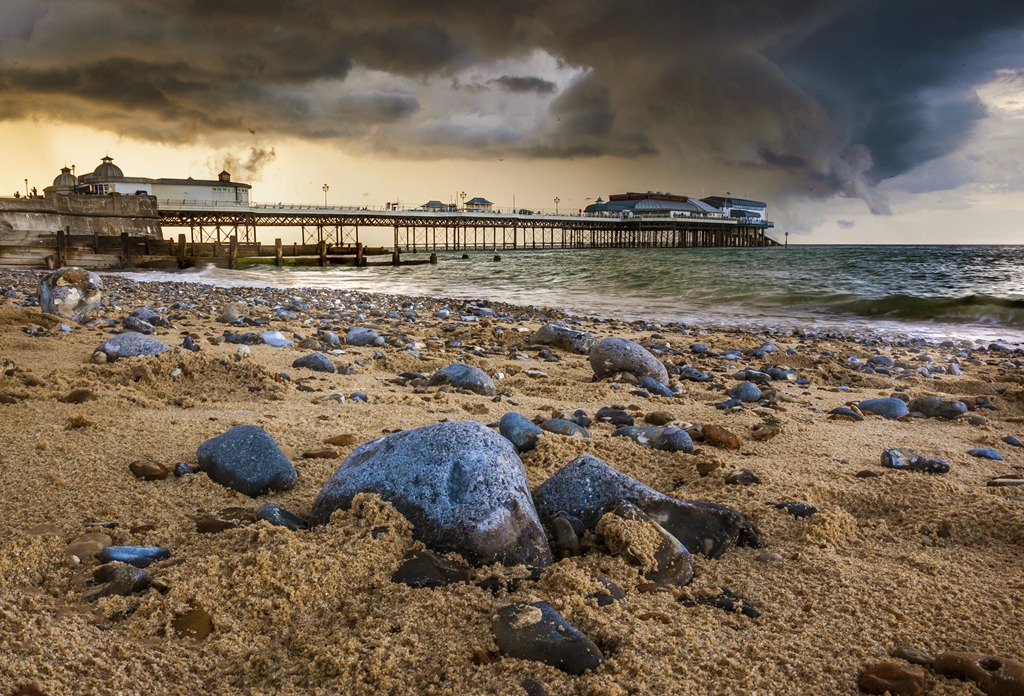
To be honest there were several photos which could have easily taken the top spot as I think they’re outstanding. However there can only be one winner and this month the winner is…Untitled By PhotoPcola

DSC_6925-Edit

David will be getting a copy of his print made by my good friends over at Print Yours.

Near Misses…
The runners up in no particular order are below (keep scrolling down to the find the photos). This time I’ve made a short video looking at why the top 10 are where they are, I hope it helps and remember all the opinions are mine so I don’t expect everyone to agree, especially if you took the photo Winking smile

Click on an image to view it large on Flickr. If you didn’t win this time there will be a new challenge. Details are coming soon.

Photo Restoration ~ T+MGP 06

Restored(Final-Original)When it comes to restoring old and damaged photos a flatbed scanner isn’t always the best option. Join me as I show you an easy two light setup that’s prefect for copying old photos. As always I’ll cover the Photoshop processing too 🙂

You might be wondering why I didn’t just use a scanner to copy the photo. It’s a good question that has many answers.

The first problem I have with using is a scanner is… I don’t have one. OK that’s not 100% true because I think I have one lurking at the back of a cupboard but it’s not something I’ve need for a very long time.

Handy as a scanner is, a camera offers many advantages. It has a higher resolution, it shoots RAW I can set and control the lighting and finally if I have lots of photos to shoot, it’s quicker to use this kind of set up.

You may also ask why I didn’t use flash. Well there’s no reason why I couldn’t use flash and the end result would have been just as good. The reason I love continuous lighting for restoration is simply that I can see exactly what the end result will be before I take the photo.

Equipment used in the video:
Flashpoint two light kit http://www.adorama.com/LTO2S.html?KBID=67338
Canon 5D Mark II http://www.adorama.com/ICA5DM2.html?KBID=67338
Canon 24-105mm L f/4 IS http://www.adorama.com/CA24105AFU.html?KBID=67338
Manfrotto 055 Pro http://www.adorama.com/BG055XPROB.html?KBID=67338

The Photo itself was brought into the studio by a local resident who was compiling a family history. This photo forms part of her family tree. At nearly 100 years old the photo and the album it was glued into were very fragile so careful handling was the order of the day. I’d like to thank the family for allowing me to use the photo in this video.

How fast is Photoshop?

speed-actionOver the next few weeks I’ll be posting some tips on how to squeeze more speed from your computer to make Photoshop run faster. Of course you may not be aware that your computer could run faster or even what the benefits are. In which case let me put it this way… The faster Photoshop runs the more enjoyable it is to use.

I use two PC’s on a regular basis. Now I wrote about upgrading my main PC a while back and its speed is unbelievable. My second computer however, is a small laptop that I use on locations and at talks. Recently I’ve had to use it quite a bit but compared to my regular PC it was painfully, frustratingly, annoyingly slow. Working with even medium sized images showed up its lack of power making using Photoshop a bit of a chore.

The Speed Test
Of course that was just my perception of speed so what I wanted was hard facts. Is Photoshop on my laptop really slow or am I impatient? So to put Photoshop through its paces I’ve created an action that will push it hard.

If you fancy testing you’re Photoshop then you can download my Speed Test action, grab a stopwatch close any images and run the action.

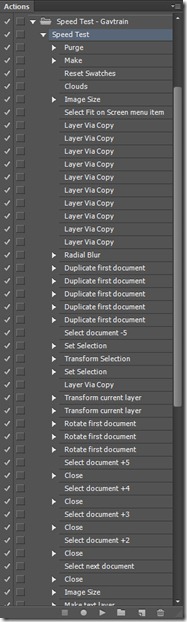
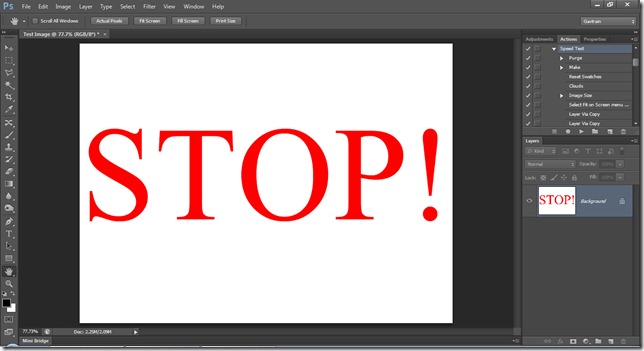
You can get an idea of what the Speed Test Action does by looking at the screen grab. Basically it creates an image, up samples, applies a few transformations, creates layers and fills Photoshop with data to really make it work hard. It will stretch the system RAM and scratch disc before tidying everything up and saying STOP! The faster your computer the quicker the action will play through.

The Results
I ran the speed test a few times and then averaged out the results. Adobe claim Photoshop CS6 is faster then CS5 so I also wanted to put that to the test, so I ran the same speed test in both versions.

Laptop:   CS5 = 157.5 Sec           CS6 = 139.5 Sec
Intel i5 with 8GB Ram

Desktop: CS5 = 36.5 Sec             CS6 = 27 Sec
Intel i7 with 24GB Ram and SSD scratch disk

OK so Adobe were right, Photoshop CS6 is faster then Photoshop CS5 but I was also right, my laptop is much slower then my main PC. So I’m left with three choices…

  1. Accept that’s the way it is and get on with life
  2. Upgrade the hardware where possible
  3. Retire my laptop and buy a new one.

Option 1 isn’t my style and option 3 is tempting but expensive. Stay tuned to see how well I get on with option 2.

If you’ve run the speed test on your computer add your results to the comments below. I’d love to know PC or Mac i3 i5 i7, how much ram and of course the time.

Speed Test