Spring Flowers

It’s just over two weeks until my all day workshop at Borde Hill Gardens and I’ve got some great plans for the day. So yesterday I paid my first visit of the year to the gardens to check out what was growing and to bag a few shots.

  The first stop of the day was to the Italian garden which has a beautiful ornamental pond surrounded by terracotta pots which are currently stuffed full of tulips. This one caught my eye at it was just coming into bloom. One thing we’ll be looking at during the workshop is the pros and cons of shooting in the shade. Let’s just say it’s easier to add contrast to a photo then it is to take it away.

  Borde-1

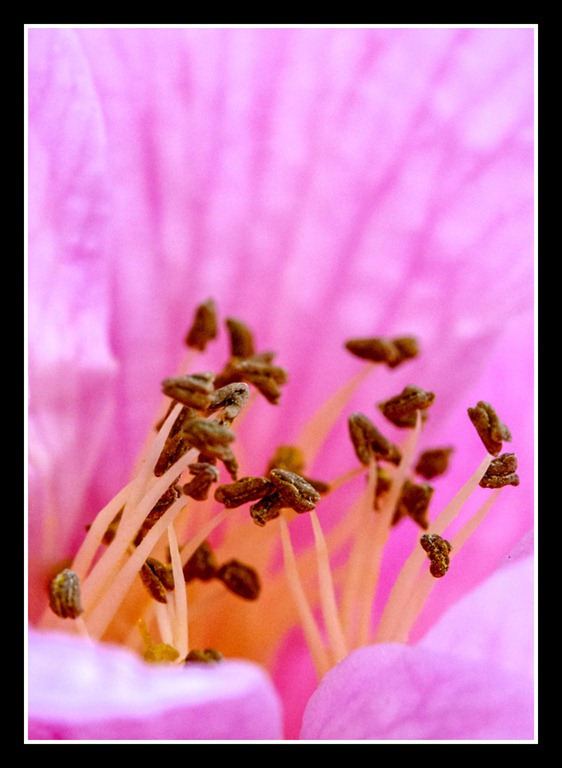
  Next up it was a spot of close up work with my Canon 60mm macro. In an ideal world I’d be using a tripod to keep the shots sharp and the ISO down. Sadly I didn’t have a tripod with me so this is a handheld shot at a fairly high ISO.
Macro photography needs time and practice and it’s not uncommon to get lots of failed shots before bagging one good photo.

  Borde-3
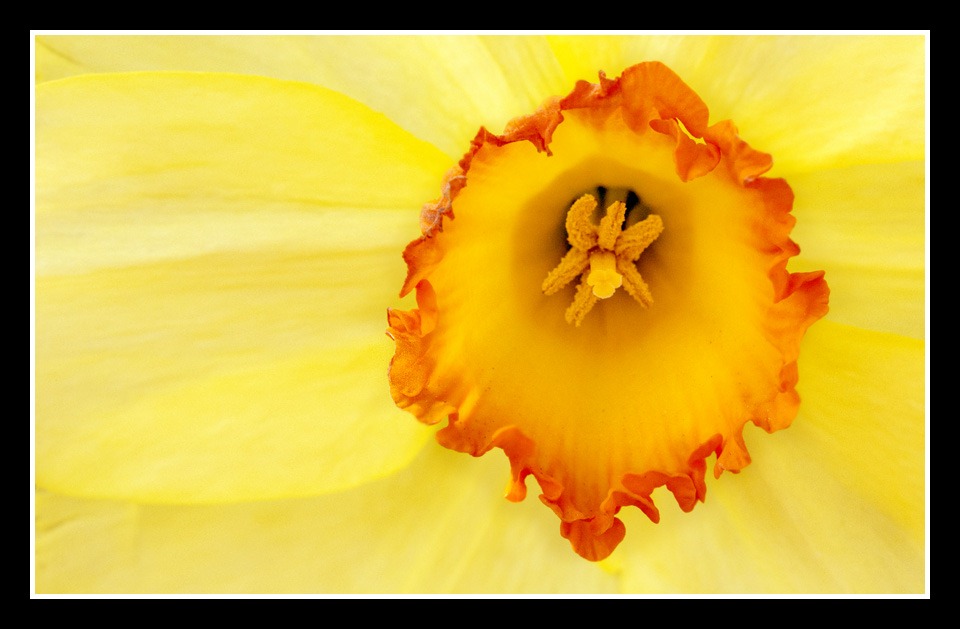
  Borde Hill is currently a riot of yellow as the daffodils are in full bloom. This is a close up isn’t all that it seems. Once again I’m shooting without the aid of a tripod, which required me to use a big the aperture in order to avoid a slow shutter speed and the dreaded camera shake. The downside was the depth of field wasn’t enough to get everything in focus in one shot… so I took two. Each photo was in focus on a different part of the flower and I used Photoshop to automatically stack the two focus points together.   Borde-2  

There are only a few places left on the workshop, so if you fancy coming along then follow this link https://www.gavtrain.com/?page_id=1195

Behind the image – Luke

A few days ago I was presenting an all day digital workshop for Ludshott Photo Club. After a morning of non stop Photoshop tips and tricks I was ready for some photography in the form of a live portrait shoot.

If you’ve ever had a bash at shooting portraits then you’ll understand that it can be one of the more tricky forms of photography to master. Well, imaging trying to do a portrait shoot on stage in front of a large audience with a model pulled from the audience. It certainly challenged me but that’s half the fun.

Luke-Flickr

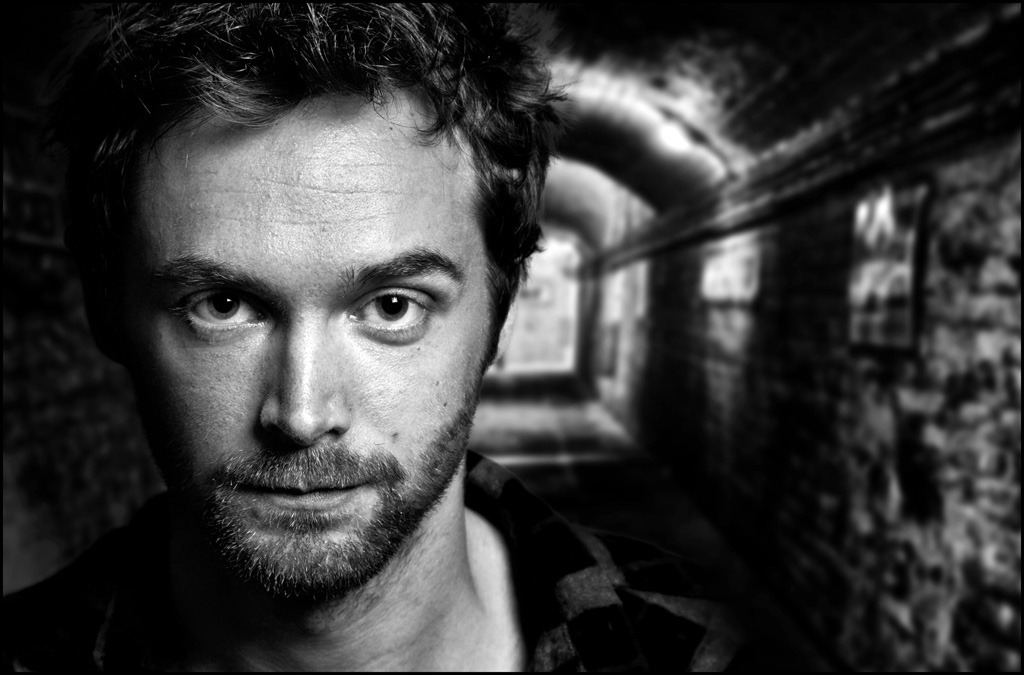
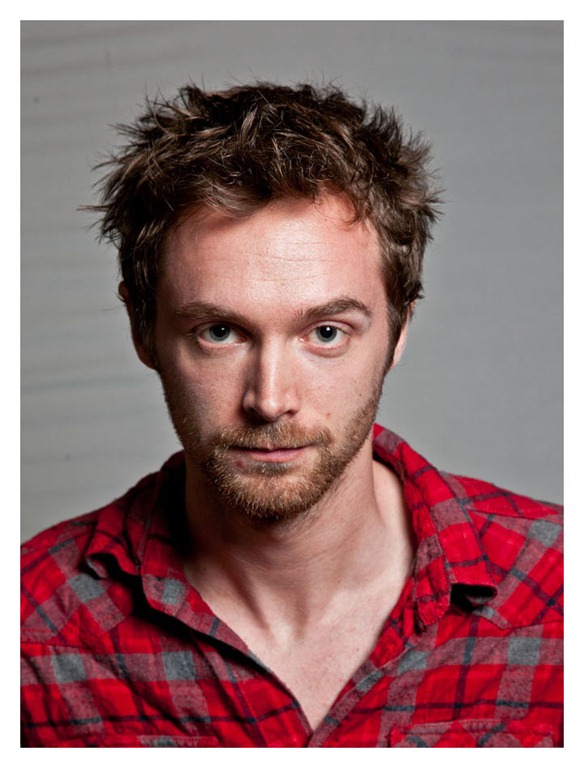
Fortunately I’d spoken to Luke earlier in the day and he was more then happy to stand in as my model for the shoot. As it turned out the shoot went without a hitch, Luke turned out to be a brilliant model and the final image (as seen above) was better then I had hoped.

Luke-1So how did I get to the final image? Well it’s a combination of two image. The  shot of Luke was taken during the workshop. He’s lit with a single speedlite fired through a small softbox from Smick. The background is also from Smick is a black/white reversible popup. Without a light to brighten the background it appears grey in the photo instead of white.

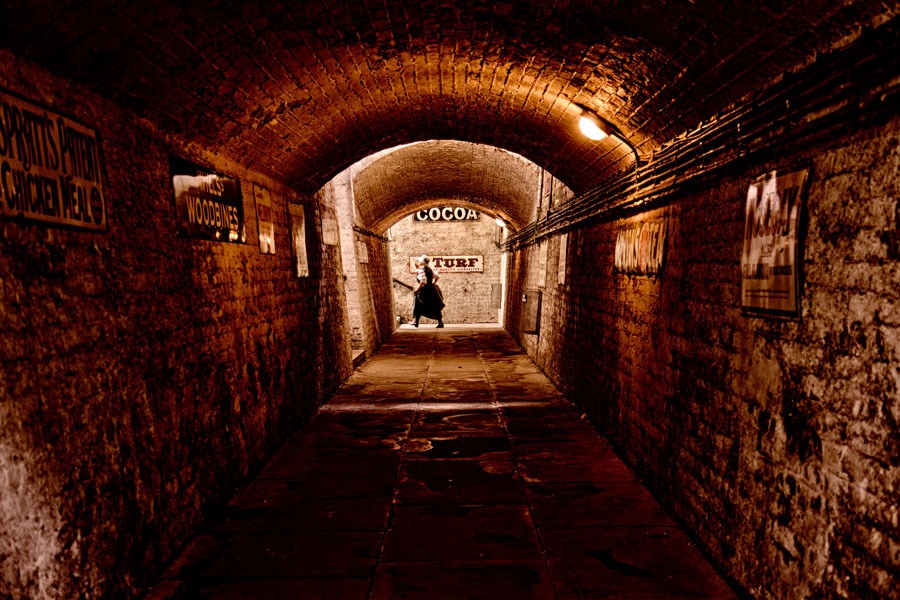
The second photo is one of my stock images. It’s a view down a passenger tunnel at a station on the Bluebell Railway in West Sussex. The grungy effect is a result of processing the original image in Nik Color Efex Pro 4.

Luke-2For the workshop I did a live demo on how to effectively cut out hair. To be honest its a job that’s been made incredibly simple thanks to the amazing Edge Detection found in Photoshop CS5’s Refine Edge. After Luke had been removed from the original background, it was a simple job to paste him onto the new background and apply a Black/White adjustment layer to hide the colour difference. Cop out? Yeah a bit, but hey. it was all done LIVE!

What’s new in Photoshop CS6 Beta

To download your copy of Photoshop CS6 Beta, follow this link http://labs.adobe.com/technologies/photoshopcs6
Please remember this is a BETA which means it’s still a work in progress which may contain bugs, be unstable and may not have a full range of tools. For that reason it is not recommended that you use this software for vital projects.

Photoshop CS5 has been with us for the best part of two years now, so with the launch of Photoshop CS6 Beta we finally get a chance to see what they’ve been up to all that time. Well, the good news is Adobe hasn’t been sitting idle for two years but have made a whole raft of improvements and snazzy new features for us to enjoy.

Dark Interface
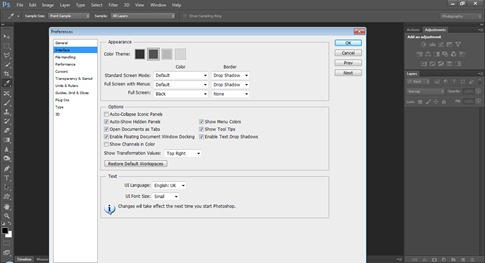
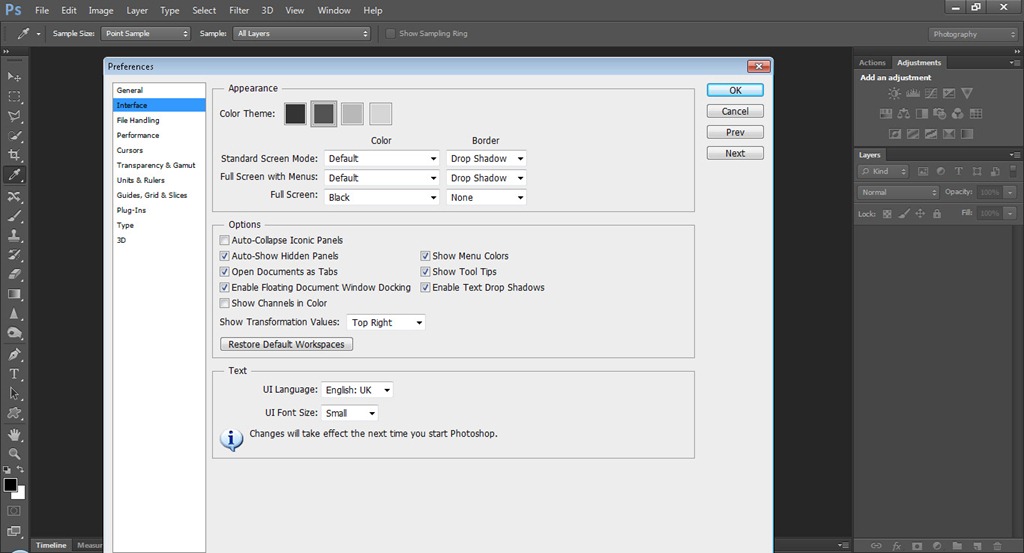
CS6-PB-0So the first thing you’re going to notice is that Photoshop CS6 Beta sports a new dark and moody interface. Lightroom and Photoshop Elements users will be familiar with this look, but this a big departure for regular Photoshoppers.

In the preferences it’s possible to alter the colour of the interface by selecting one of four looks, so if you’re pining for the old look it’s an easy job to switch back. Personally I prefer the dark look and I’m sure with use it will grow on you too.


Content Aware
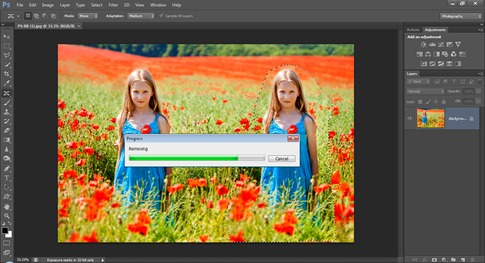
CS6-PB-3The content aware features of Photoshop CS5 were a revolution of me, in fact the spot healing brush is my “go to” tool for cloning. The main problem with the tool is its total lack of control when it comes to selecting where to sample from. The end result is often not quite what you’d have expected.

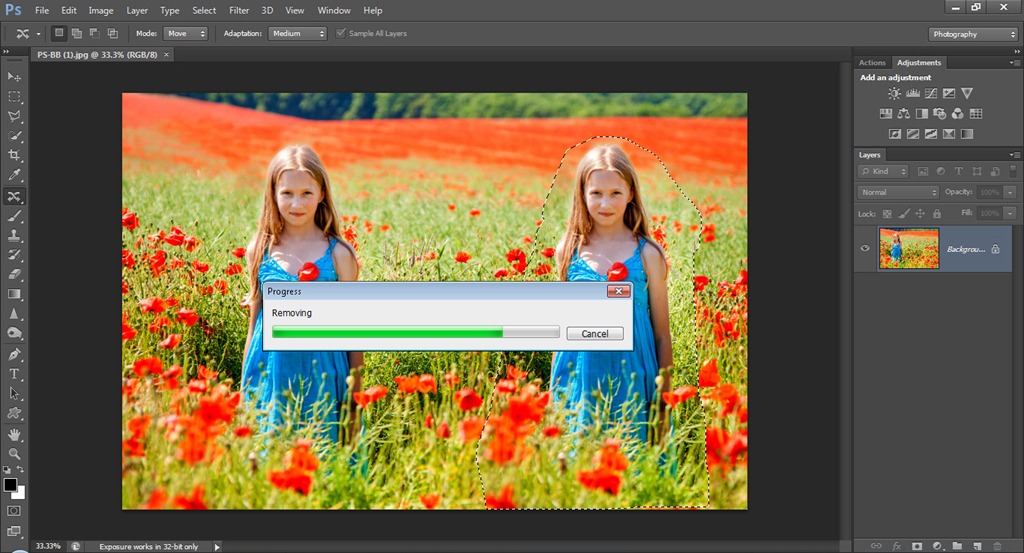
Photoshop CS6 Beta now has that problem covered by adding content aware abilities to the Patch Tool. Using the Patch Tool allows you to be very specific about which part of an image you sample from and the result is absolutely brilliant!

Not only that but there’s a new tool called Content Aware Move Tool. It has two settings which have a slightly different way of working. Move allows you to reposition objects within the photo and extend allows you to grow objects. With the right images it works like magic.


Crop Tool
The crop tool is one of those things that most of us use without thinking. Well the people at Adobe aren’t your average user and they’re taken a long hard look at the crop tool and given it a complete redesign.
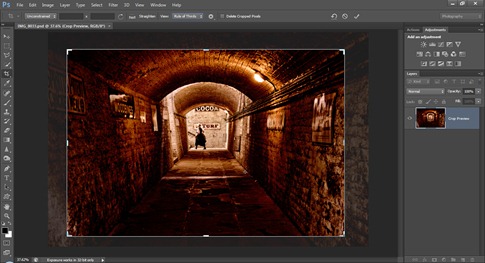
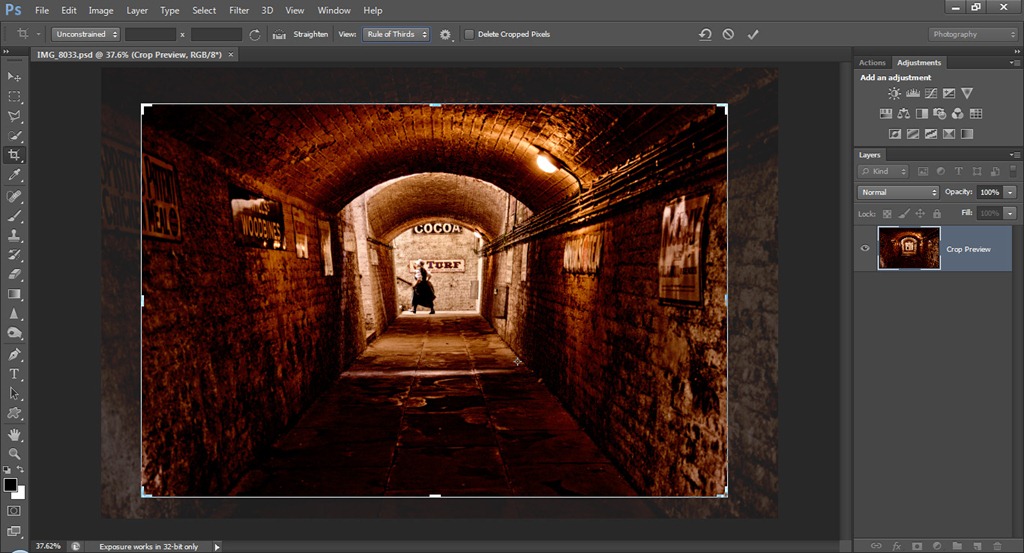
CS6-PB-1The first thing you’ll notice is that the crop tool is always live. In other words simply selecting the crop tool will automatically place a crop on the image. It’s still possible to drag out a crop and you can also choose from the list of preset crop sizes.

The main advantage of the crop tool is the fact that it is now non-destructive. Basically you now have the ability to recrop your image and regain the lost (cropped) areas at any point in the editing process.

Perspective cropping has also changed. Until now the perspective crop was a small check box only visible after cropping but not anymore. Now it’s been promoted and is a tool in its own right.

The crop tool is something you’ll love or hate. Lightroom users will be at home with it, but die hard Photoshop users may need a little longer to learn its new functions. Adobe seems to have realised not everyone likes change, so they’ve also added an option to revert the Crop tool back to its traditional function.


New filters
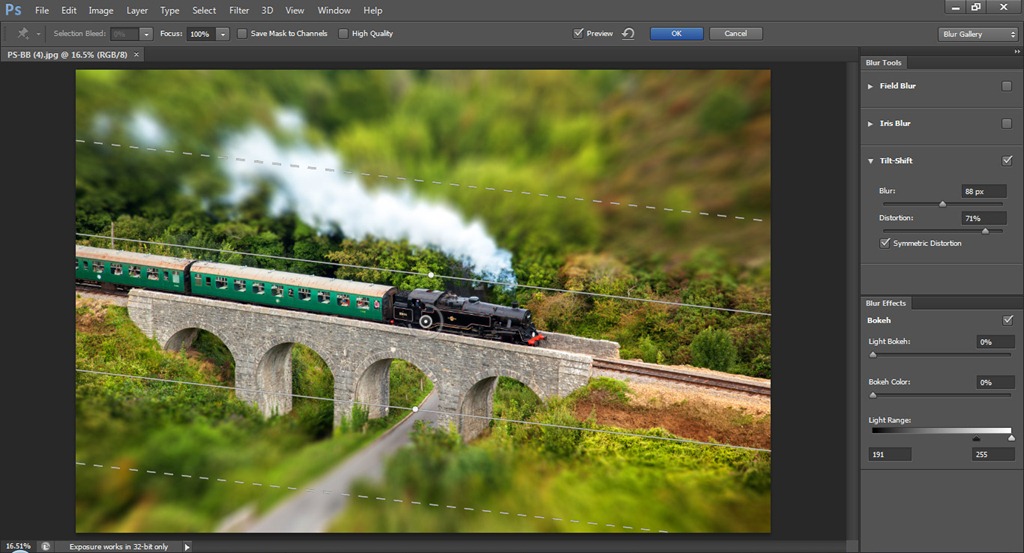
That’s right filters (plural). There are four new filters in Photoshop CS6 Beta. My favourite is the oil paint filter which is a hand me down from Pixel Bender. There are also three new blur filters.
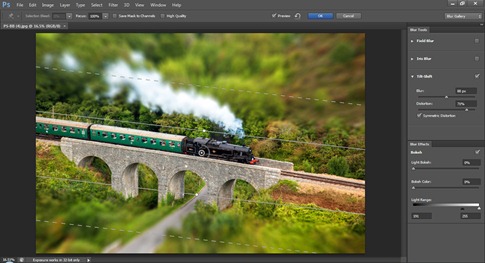
CS6-PB-2Field blur is an alternative to the classic Gaussian blur filter and gives a very nice photo real blurring. Iris Blur is the same as field blur but adds the ability to cut holes in the blur. It reminds me of the classic Cokin centre spot clear filters from my past. Finally Tilt-Shift uses the field blur but this time it slices through the blur to give a very convincing tilt & shift effect.

All the blur filters can be fine-tuned to a high degree and there’s even an option to add some digital “Bokeh”. It takes practice to find the right settings but could be very useful indeed.

All four blur filters are GPU powered which means you’ll need a newish graphics card to get the most out of them. No problem for desktop users, but I can imagine some older laptops struggling a bit.


Video Editing
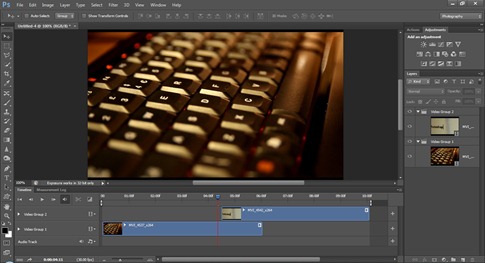
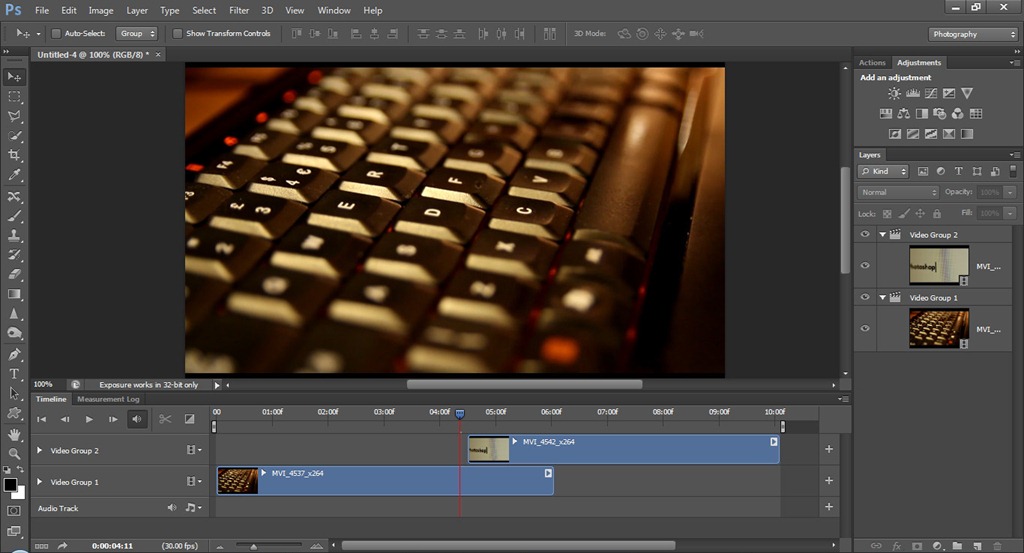
CS6-PB-4OK I know you’re a still photographer, but video is here to stay and increasing numbers of photographers are experimenting with video. If you have Photoshop extended than you may know that it’s already able to handle video files. But in Photoshop CS6 Beta that video capability has been completely reworked.

Now I can edit my video content using the familiar and powerful tools of Photoshop just like I can with still images. I can add cuts, video layers, audio, transitions and fades. Basically Photoshop is becoming a very nifty video editor.


Adobe Camera RAW 7
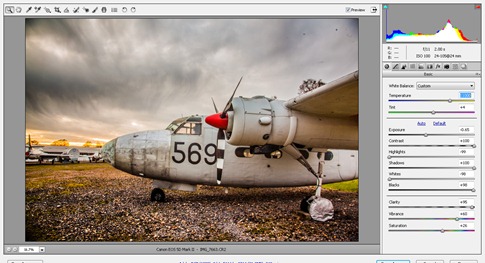
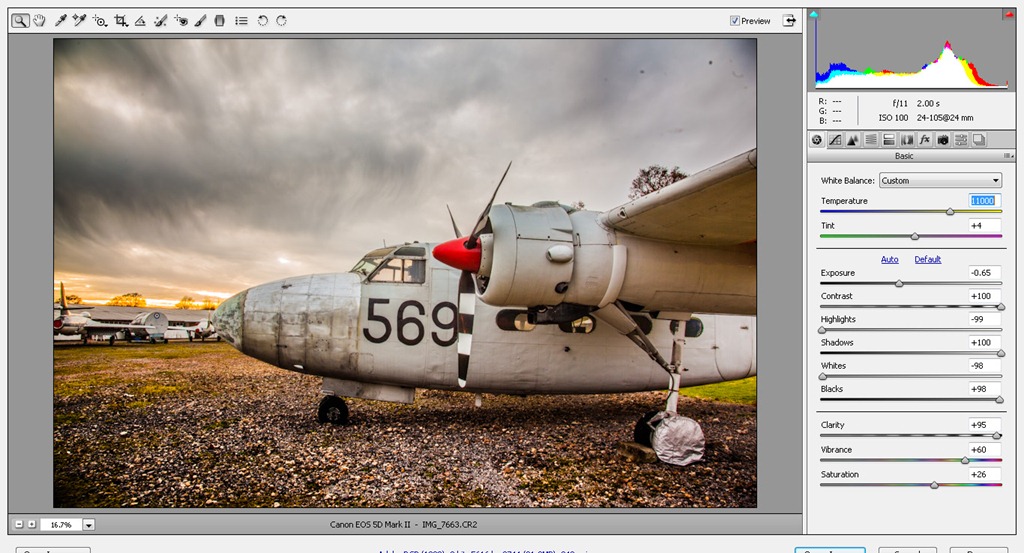
CS6-PB-5Finally (for now) we come to the all-new ACR7 and to be honest I’ve saved the best till last. As someone who spends a lot of my time in Adobe Camera RAW (ACR) I know it’s a hugely powerful photo editing tool and it’s also not perfect. It seems that Adobe agree with me because they’ve dumped many of the old sliders in the basic panel and replaced them with some new ones that work magic on my photos. Let’s just take one example, Clarity. I’m a self-confessed clarity junkie but I always had to rein myself in to avoid getting halos when using it on images with contrast. No more, as you’ll discover when you try the new clarity slider for yourself.

The new tools in ACR7 also extend to the adjustment brush and graduated filter too, so those already powerful tools are better than ever.

That wraps up this first look at what’s new in Photoshop CS6 Beta. I’ve only covered the tip of the iceberg when it comes to new features, so be sure to download it for yourself and see what’s new. There’s plenty of other features like new 3D options, improved HDR, tool recording actions, enhanced mixer brushes, properties panel… the list goes on.

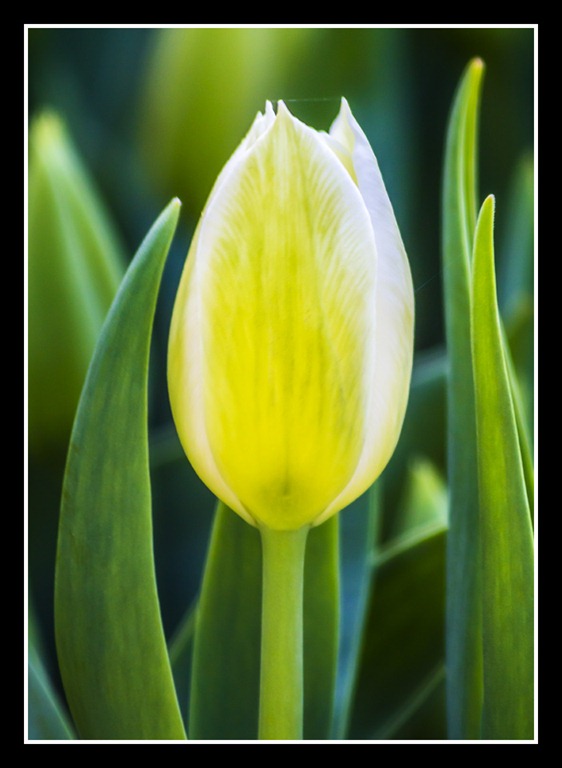
February Photo Winner

The theme for February’s photo competition was Elements, a simple word with many meanings. I left it completely open as to which meaning of the word should be used, so it’s not surprising that there was a big entry with a wide range of interpretations of the theme.

First up I’d like to thank everyone who got into the spirit of the competition. If you went out and took a photo just for this challenge then you should be proud of your achievement.

Choosing a winner proved much harder this time then the first photo contest I ran in January. The standard of the entries was just as high, so I started by narrowing down the entry to those that caught my eye. That helped narrow down the choice a bit but I was still left with a large number of photos, any one of which could have been the winner. So in the end I selected the photos that I felt best fitted the theme.

So the winner is…A Breeze By Tem Breum

Tem will be getting a copy of his print made by my good friends over at Print Yours.

Near Misses…
The runners up in no particular order are below. Click on an image to view it large on Flickr. If you didn’t win this time there’s a new challenge running until the end of March. Details are here

 
Raindrops By Baohan Nguyen
 
Splash!
By gibocaster
 
Oslo 0457 By HD love Photography
Agua Ardiendo
Agua Ardiendo By Nela_CroRose
Falling Diamonds..  
Falling Diamonds… 
By Shree Photography
Square of Fire
Square of Fire By Max Habich
Ledge Point 
Ledge Point By damo1275
SYSN1046watercolour 
Watercolour By stevesyson
Boy with torch
Boy with torch By sinnedh

Amazing Borders

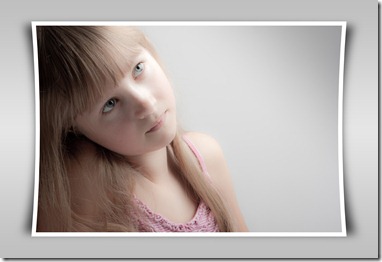
Bowed Image - Top and BottomI love making actions in Photoshop. OK, so what’s an action, I hear you ask. Well an action is simply a recording of steps you’ve made in Photoshop that can be replayed at a later date on another image to recreate an effect.

So useful are actions that I write them all the time. Sometimes I’ll make actions that record and recreate complex Photoshop effects, but mostly I make actions for mundane tasks such as resizing or colour adjustment.

As anyone who reads my posts will probably have noticed
I also love borders, so it’ll come as no surprise that I have quite a lot actions that create various styles of border.

My brand new “Amazing Borders No1 action set” is a collection of my favourite borders. They were all created by me, which means they’re all one click effects which you just won’t find anywhere else. Best of all, they’re ready for instant download at a bargain price.

You’ll find lots more information on the Amazing Actions page on the gavtrain store. You’ll also find a FREE SAMPLE action and examples of every border of which there are more then 30!!!

All actions are compatible with: Photoshop CS5, CS4 & CS3 For US English Photoshop only and are not suitable for Photoshop Elements… sorry.

March Photo Challenge

Food for thoughtThe theme for March is FOOD FOR THOUGHT and all you need to do is take or make a photo that fits with that theme. How you interpret the theme is up to you. You could take the theme literally and shoot your favourite food, fruit or drink. Alternatively you could come at this in a completely different angle and come up with an image that makes the view stop and think.

Use a bit of imagination and make it eye catching. Click on the apple image for more ideas.

Once you have your photo you’ll then need to upload it to the Flickr Group page at http://www.flickr.com/groups/1944562@N23/

At the end of the month I’ll review all the images but this month the competition will be judged by my wife Sam who runs www.samskitchen.net.

I’m very happy to report that the Photo Challenge is once again being sponsored by Print Yours. They are an independent print lab who specialise is creating small run, high quality prints. Check out their web site for more information http://www.printyours.co.uk/

So what will the winner receive? Well Print Yours have generously offered to print the winning entry on their 270gsm Photo Satin paper up to a whopping 24”x16”. That’s an £18 print for FREE! If you’re the lucky winner then all you need to do is send a high res version to Print Yours (via email) and they’ll do the rest.

RULES
One entry per person
Entries must be uploaded to the correct Flickr group by 31st March 2012
The images (including any elements or manipulation with in the image) must be the sole work of the entrant
The winner will be selected by Sam Hoey
No alternative prizes are available and only the winning picture will be printed
The winner will be required to email a high res (printable) version of the winning image to Print Yours
The winner will be announced on my Facebook Page during April 2012

Good Luck

Focus on Imaging 2012

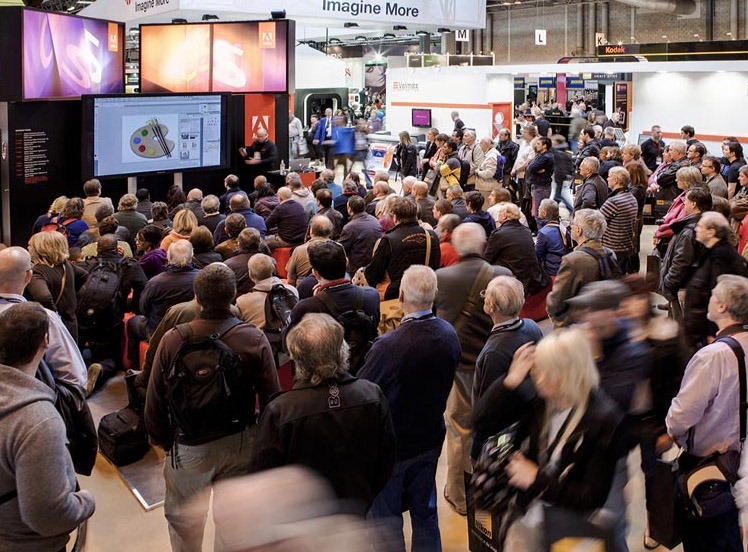
FocusThere’s just one week left until the doors to UK biggest photography event swing open once again. Focus on imaging is a four day feast of camera, lenses lighting, albums, software… in fact if it’s connected to photography you’ll probably find it at Focus on Imaging.

The show runs from Sunday 4th to Wednesday 7th March at the NEC in Birmingham. It is primarily a giant trade show with hundreds of smart looking stands and helpful sales staff ready to sell you your dream lens or that “must have” gizmo you’ve never heard of before.

Over recent years I’ve noticed an increasing number of stands offering free training demos which can really make a visit to Focus a great way to gain some free education and inspiration.

This year I’ll be there for the full four days and I’m thrilled to be representing Adobe UK once again. You’ll find me on the stands of various suppliers passing on my Photoshop know how. I hope to give you exact times and places very soon.

So if you’re planning to make a visit to Focus (or any trade show around the world) here’s my top tips.

Register online
The queues to get in to Focus can be long, but if you’ve already registered in advanced and have received your show entry badge then you can glide past the queues and walk right in. There’s still time to register (just) if you go here.

Research and budget
There really are some bargains to be had at the show. Discounts, offers and free extras are very common, but it makes sense to do your research before you go. If you’re looking for new kit, narrow the choice down by checking internet reviews. Have an idea of the best internet price before going to the show. Once at the show you’ll be able to get  your hands on the real thing and make an informed decision.

Choose a day
Focus on Imaging starts on a Sunday and it’s not surprising that it’s also the shows busiest day by far. The Wednesday is usually a bit quieter, but by then the exhibitors are exhausted and sometimes they’ve sold out of that one thing you really wanted. The flip side is there are often some great end of show bargains to be had on the Wednesday afternoon.

What to wear.
It’s a long day and you’ll be on your feet a lot, so comfortable shoes and clothes are the order of the day. Don’t weigh yourself down with heavy bags either.

Camera or no camera
Although it’s a camera show there’s really not much to photograph. Yes some of the stands will have mini studio shoots and models, but they’re always swamped with people and you’re unlikely to get anything more then a grab shot. Unless you need to bring your DSLR for a specific reason (e.g. for a sensor clean or to try a new lens), do yourself a favour and leave it at home.

Eat & Drink
Food and drink at any trade show or conference is always going to be pricey and the NEC is no exception. Bring a packed lunch and a drink and spend the money you save on photo goodies. Just remember the car park is huge, so if you leave your lunch in the car you’re in for a long walk.

Arrive early
Focus gets busy, really REALLY busy but if you get there as the doors open you’ll find you get to talk to three or four key suppliers in the first hour of the show before the really big crowds arrive.

Listen to the talks
For me the very best part of any trade show is the free talks that many exhibitors lay on. Famous and talented photographers are on hand to pass on their knowledge and techniques throughout the day. It’s a great way to pick up new skills and see different styles of photography.

Gatwick Aviation Workshop

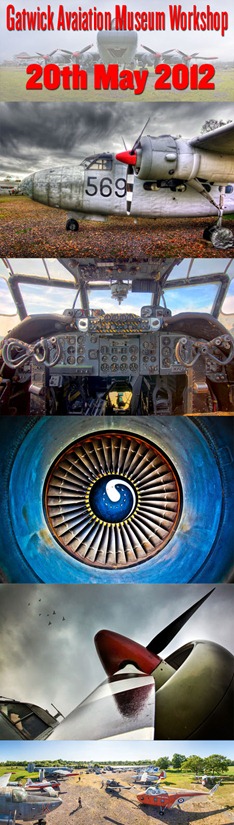
Gatwick-Aviation-MuseumSome of you may know that last year I held a one day photography workshop at the Gatwick Aviation Museum in Surrey. It proved to be very popular, so much so that I’ve been asked if I’ll be repeating the workshop again this year. So I’m very excited to announce that we’ve now secured the exclusive use of the Gatwick Aviation Museum once again.

The all important date is Sunday 20th May 2012 and places will be limited to just 12 Photographers. You can find further details and booking information here

So what can you expect from this years workshop? Well like all my workshops, it’s all about having fun, learning new skills and taking LOTS of photos.

The day is split into several sections which will cover things like learning to spot the best images or even mastering new photo skills. They’ll also be plenty of time for a spot of Photoshop too.

We’ll also arrange access to several of the aircraft during the workshop, so you’ll get a unique opportunity to take lots of amazing photos inside some classic British airplanes. 

How much will it cost?
It’s just £95.00 per person, which will include all day entry into the museum, access to the planes and tea/coffee during the day. Click here to go to the booking page.

Where is the Gatwick Aviation Museum?
The museum is located in Charlwood, Surrey. Link to Google Map
If you’re traveling by car it’s a 12 minute drive after leaving the M23 at Junction 9.
If you’re traveling by train then go to either Gatwick Airport or Horley train stations and take a taxi from there.

Who will be leading the workshop?
That’ll be me (Gavin Hoey) but fortunately I won’t be alone. I’ll be assisted on the day by Steve and Steve (yes two Steve’s) who both know a thing or two about photography and are regular visitors to the Aviation Museum. All three of us will be on hand throughout the day to make sure you get all the help and advice you’ll need.
Sam (of Sams Kitchen) will also be there with a selection of tasty treats Smile

What will we be photographing?
We have the museum pretty much to ourselves for the day, so we can photograph anything that catches our eye. To get a better idea take a look at this slide show of photos taken by the photographers on last years workshop.

As you’ll see the museum really lends itself to images that have detail and texture… just my cup of tea.

What equipment do I need?
Not much really. A Digital SLR camera with a kit lens is ideal. I’d also highly recommend a sturdy tripod and plenty of memory cards/batteries. If you have a wide angle lens, telephoto lens or a macro lens then definitely bring them too. Similarly if you have a laptop and would like to process your own pictures then you’re welcome to do so.

Is the workshop weather dependant?
No we’ll be going ahead whatever the weather. Last year is was warm and sunny for the workshop, but I’ve taken great photos at the museum is all weathers.

What camera skills will I learn?
If you’ve never taken a panoramic image before then trust me, you’ll be a pano master by the time you finish the workshop . If you’ve always fancied trying your hand at HDR but have never perfected it, then this is the place to get it right. If you’ve ever been somewhere new and couldn’t figure out how to take eye catching photos, then I’ll point you in the right direction.

Will I get any free time during the day?
Yes you will. Much of the day will be planned, but they’ll be plenty of time in the afternoon for you to wonder off, do your own thing or ask questions away from the group.

Will we get to go inside the aircraft?
Most of the planes interiors are not accessible, but we can usually get inside the Sea Prince and both helicopters. The stars of the show are the two Shackleton’s, one of which has a fully fitted out interior. Space inside is very tight, so we’ll be allocating time slots so everyone can get their photos.

There you go. For more details or to book click here and I hope to see you soon.

More Photoshop Sneak Peeks

Over the past few weeks there has been a steady stream of short sneak peek videos from the team at Adobe. So far there have been four videos released which give a glimpse of some of the new or improved features of a future Photoshop.
In case you missed them I’ve gathered them all together for you.

Sneak Peek No. 4
In this video Bryan O’Neil Hughes takes a look at the improvements and new features of the Content Aware tools.

Sneak Peek No. 3
In this video Zorana Gee takes a quick look at enhancements for graphics designers, such as a dashed stroke

Sneak Peek No. 2
In this video Zorana Gee demos background save and a speeded up Liquify filter

Sneak Peek No. 1
In this video Bryan O’Neil Hughes takes a look at the new Adobe Camera RAW tools & dark interface

Winters Walk

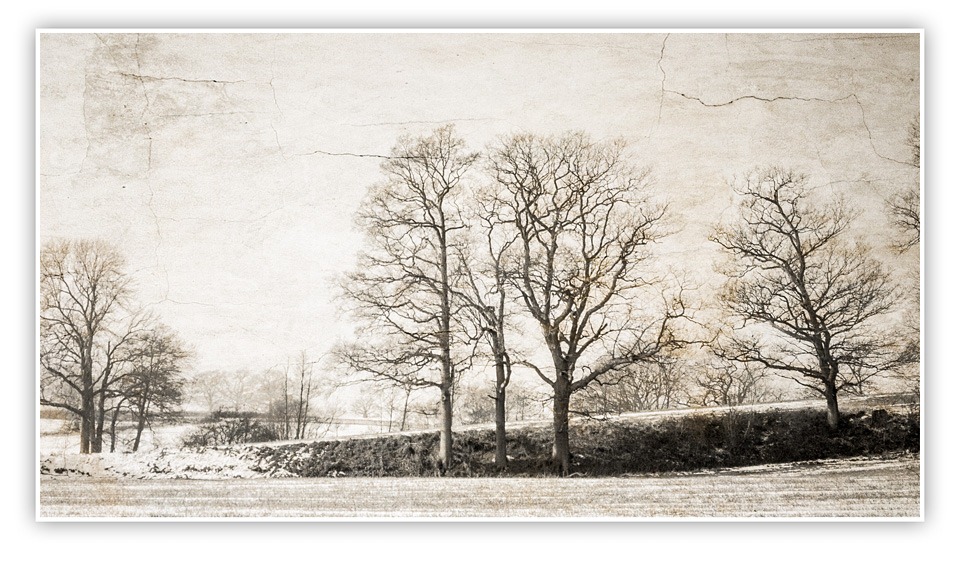
Balcombe-winter-FBIt doesn’t happen very often but sometimes I know exactly how I want a photograph to look even before I’ve pressed the shutter, which is exactly what happened with this photo. I took the photo of the trees as part of one of my one to one training courses. I was out with David, who is a great technical photographer but was looking for help with “seeing the photos”.

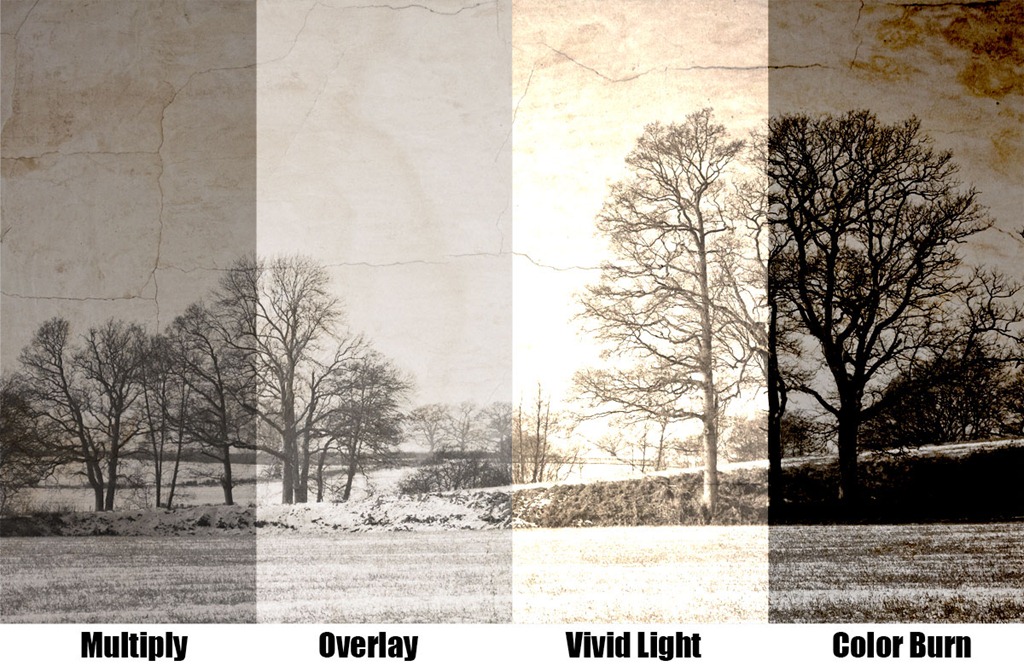
To be honest I’m not totally sure David believed me when I said could visualise the final image, especially as the original image of the trees wasn’t blessed with much excitement. I mean there was no foreground interest, no lead in lines and the lighting wasn’t that interesting either. But it was the sky that caught my eye. A blank sky is an ideal candidate for a spot of texture blending and I have a whole folder full of texture images just waiting to find the perfect partner.

Make a mono
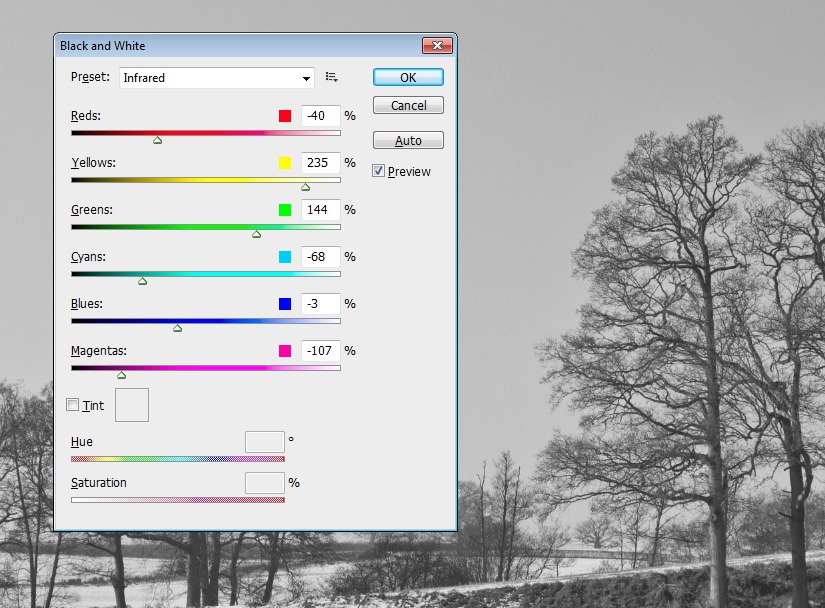
The first step was to remove the colour from the image. There are many ways to do this and I’ll often use HSL/Greyscale in RAW. Alternatively you can use Image – Adjustments – Black and White, which what I used here. In this case I used the Infrared preset.
Trees-3a
Trees-3d Add a texture
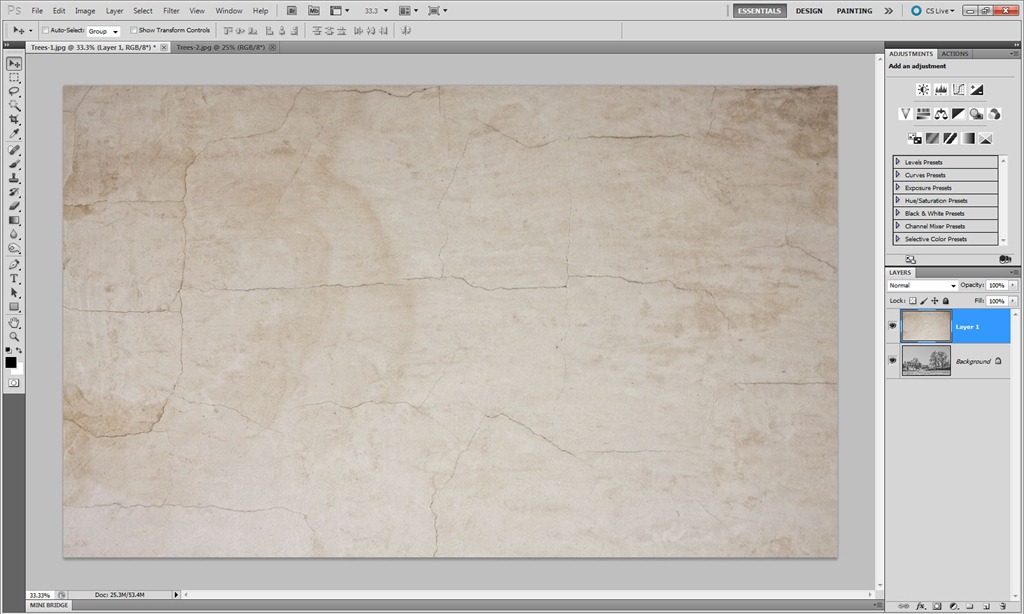
Although I have a large selection of textures I often find the best ones to use are the smoother textures. In this case it’s an image of dried and cracked plaster and paint. I copied the image and pasted it onto the main photo. The two images are different sizes so I used Free Transform (CTRL+T) to resize the texture to fit over the trees.
Blend them together
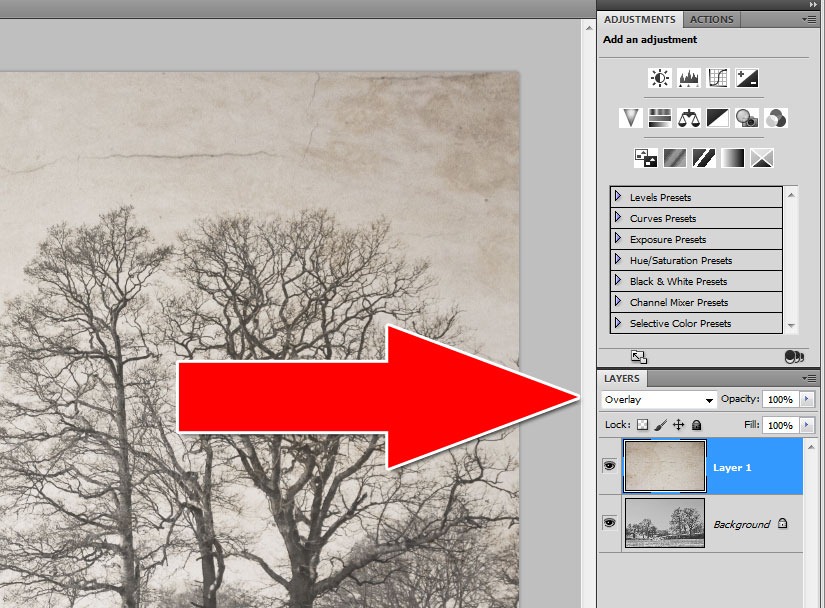
The last step is to choose a blending mode. Normally I’d use Multiply, but this time Overlay seemed to be more fitting to the final image. It’s amazing how many different looks you can get simply by altering the blend mode.
Trees-3b

Trees-3c