It’s Friday again, which is lucky because I’ve just finished another Friday Freebie exclusive to gavtrain.com.
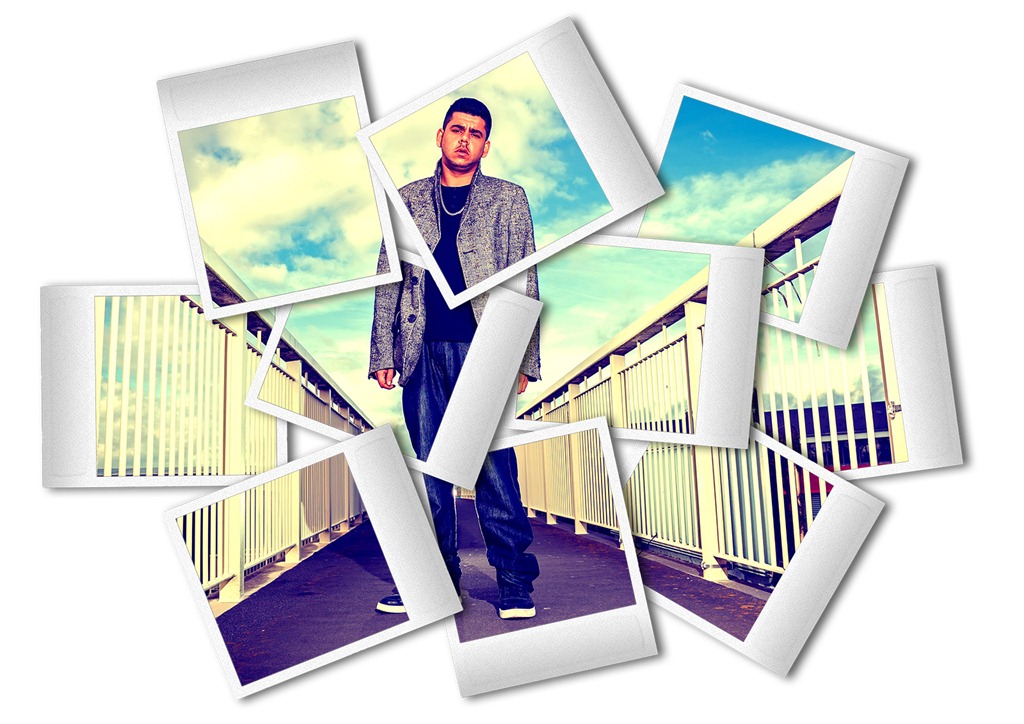 This week it’s a PSD template that has a scattering of 10 Polaroid style frames. Being a PSD template it’s nice and simple to use (see below). It’s also 100% compatible with Photoshop and the more recent versions of Photoshop Elements.
You can download the 30mb high res file from here
Go to the bottom of this post if you need help downloading.
How to use the template:
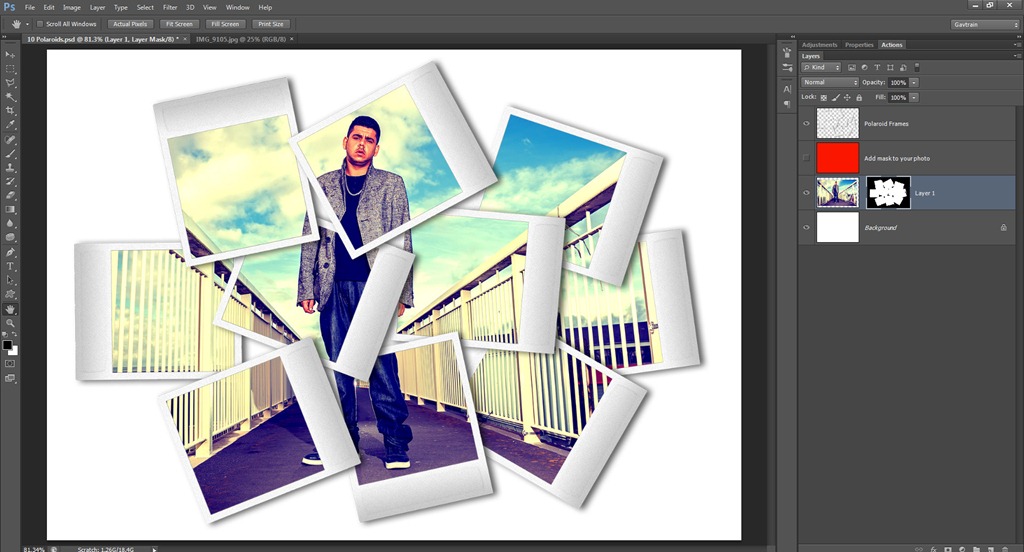 Open the template in Photoshop. Open the image you’d like to add and Press CTRL+C to copy it.
Return to the template and press CTRL+V to paste it. Use Free Transform (CTRL+T) to resize the photo so it covers the polaroid frames.
Photoshop:
Drag the layer mask from the RED layer and drop it on to the layer with your photo.
Elements:
Click on the visibility icon of the red layer, then Alt click the mask,
Press CTRL+ A then CTRL+C
Click twice on the visibility icon of the red layer
Make your photo the active layer by clicking the layer thumbnail
Add a layer mask and then ALT click the new white mask.
Press CTRL+V and then click the layer thumbnail for the photo… done!
Thanks to Julie for the tips here
If you do use the template and create an image that you share on Facebook, Flickr, 500px, Google+ etc. then remember to leave the link in the comments below.
Usage rules
The image is copyright Gavin Hoey 2013. Use is limited to any personal, non-commercial purposes. Please share the Friday Freebie by linking back to this page. Do not redistribute the original image without my permission.
Download instructions
Click the link https://drive.google.com/file/d/0B_Mmmm3K1utNR2RyVGE5ajV1aWM/view?usp=sharing
1. Click the Download button 
2. The download should start automatically
Thanks for this. I’m just getting started in Photoshop and this is very simple to use.
http://www.flickr.com/photos/stweedle/8056740926/in/photostream
Thank u very much Gavin!
cant get this to work with elements 9.. it wont drag over my photo
Don’t drag it onto the photo, drag it and drop it on to the photos layer (drop it just right of the photo’s layer thumbnail)
thanks gav… as soon as i try to drag the layer it comes up with a black circle with a cross through it and will not drop anywhere
Thanks, Gavin. Very quick and fun.
For Sam’s question about PSE – To move the mask from the red layer to the image layer, try this:
Click on the thumbnail of the layer mask on the red layer. Then,
Alt – click to reveal the mask,
Ctl – A to select all,
Ctl – C to copy the mask
Now, add a layer mask to the image layer. Click on that layer mask and:
Ctl – V to paste the mask
Alt – click on the new layer mask thumbnail to reveal the image layer in the workspace again.
Smashing template mate! Really enjoyed playing with it – makes even my photos look interesting.
@ Sam Russell, I too found the mask wouldn’t move to the image layer. If Gavin doesn’t have a fix I could post up a work around at a later date for elements users
Here’s my offering done in elements 10
http://www.flickr.com/photos/gaseousclay1/8057525163/in/photostream/lightbox/
Thanks a bunch! I prefered to use it this way I hope u aprove, since u have been my teacher even when u don’t know me yet. 🙂
https://www.facebook.com/photo.php?fbid=363725993707738&set=a.277089965704675.66864.276616155752056&type=1&theater
Same issues with Elements 8. I hope a fix can be determined, as it does look like a great effect.
Thanks!
The post has now been updated with instructions for Elements users 🙂
@Julie.. Thanks for that! :0) tested.. Here’s the proof :0) My wife got a little “funny” that I didn’t use an image of her the first time, so I did this for her :0) http://www.facebook.com/photo.php?fbid=322881617810293&set=a.213984768699979.44586.100002653737554&type=1&relevant_count=1
Nice! Thanks Julie & Gavin for the elements work-around.
Here’s my version of The Birds using Gavin’s Friday Freebie plug in.
http://www.flickr.com/photos/60267143@N08/8060345914/in/photostream
Here’s my offering, I used PSE10 and I too had a little problem with moving the laymask. I just created a new one on the photos layer, and pained with black to remove the unwanted parts. :0) worked a treat. :0) http://www.facebook.com/photo.php?fbid=322739631157825&set=a.244368238994965.52431.100002653737554&type=1&relevant_count=1
… I forgot to say Thank You Gav! I love it! :0)).
Stuck as I am with Elements 7, I was between a rock and a hard place! I simply magic wand selected all the red from the mask, inverted the selection and erased all of my photo that was erasable with that mask. Worked for me. http://www.flickr.com/photos/justjimwilldo/8058931510/
Apologies to Julie whose post was obviously awaiting moderation when I posted ( it makes it look as though I disregarded your advice ) 😉
Thanks to Gavin for the PSD file.
Just a quick pointer for the elements users. Don’t forget to click on the link icon between the image and layer mask, as in the original layer Gavin created, this will enable you to recompose the donor image without the mask moving too. 🙂
Thank you Gavin for the template. Works very well. Here is my photo using your template. Thank again.
https://sphotos-b.xx.fbcdn.net/hphotos-snc6/255566_530422803638033_1496984024_n.jpg
Thanks gav for the template I found using it with Elements 10 I ctrl clicked on the layer mask to make a selection then just added a layer mask to my photo layer
Here is a link to my offering.
http://www.facebook.com/home.php#!/photo.php?fbid=4650902479847&set=a.1454876421193.2059352.1511813644&type=1&theater
Another from me with assorted images
http://365project.org/darrenellis/365/2012-10-06
Here’s my effort.
http://www.flickr.com/photos/73302176@N04/8059521813/in/photostream/
Thanks Gavin for the cool template. Here is my effort.
http://tinyurl.com/polaroid-collage
Thanks for sharing this Gavin. I am using Photoshop CS1. I just cannot drag the mask to the picture layer. I always get the same “NO CAN DO” icon every time I try it. Can anyone please help?
Try following the instructions for Elements and see how that works out.
Yaaaay! Thanks Gavin. Thanks for sharing this with all of us. I have learn a lot from your tutorials, photography and Photoshop.
Here is my contribution: http://carloantonio25.deviantart.com/art/Keila-at-Fun-331095018
Amazing gift Gavin , thanks for this .
Thanks gav . . You the man . . Will post my offering soon
Still wont work . . When I paste the layer mask it just adds into a brand new layer and doesn’t work
Any one please help I really want to use the
Thank you so much Gavin, yet another great photoshop tool to use, worked really well even managed to put in individual images,
Thanks again
Phil
http://www.facebook.com/photo.php?fbid=391509417587961&set=a.196933233712248.48466.113264335412472&type=1&theater
Nice template…..
http://www.facebook.com/?ref=logo#!/photo.php?fbid=232638930196487&set=a.137505086376539.24471.100003511440772&type=1&theater
I wasn’t sure about the tutorial but the result looks OK, even though I did it wrong by accident
http://i1227.photobucket.com/albums/ee436/digitalsoup/art/10-Polaroids_zpsdcedb506.jpg
Thanks Gavin. LIKE 🙂
http://www.debroampsehei.nl/gallery/main.php?g2_itemId=2456
Hey Gavin,
Just a quick thank you from South Africa for this funky template. As a practicing professional photographer I very much appreciate the impact good design and retouching brings to the table (and the time it saves from having to improvise it yourself). But I digress! In keeping with the rules of the game, here’s my effort: I used your template – which I stumbled upon by accident – in a more unusual way as a contact / business card for myself. You can see it here: http://www.mullerfoto.com/about
Regards
Cornelius
Thanks Gavin, Great Friday Freebie, easy to use and top results. I have learned a lot from your online tutorials and will continue as long as you upload. Any chance of you doing a workshop on the Isle of Wight at any time?
Many Thanks.
Garry.
Very cool template and easy to use.. Here is my offering Gavin.
https://www.facebook.com/photo.php?fbid=10151301996491862&set=a.10150922250901862.406622.566981861&type=1&theater
Great template Gavin, thank you.
http://500px.com/photo/36664606
Here’s my first attempt.
http://www.flickr.com/photos/inthebag_golf/9048136814/
Gavin,
I am having trouble using this template. When I open the photo that I want to use this template on – I can’t copy it. The “copy” option is greyed out even. I am not sure why this is the case. Any ideas?
Thanks,
Marcus
Two possible answers spring to mind. You either have a layered image and the active layer is empty or you don’t have an active selection. Press CTRL+A and see if Copy is still greyed out.
Here’s my photo using Gavin’s Friday Freebie plug in.
https://www.facebook.com/PhotographesGargolas/photos/a.738595256156700.1073741828.738554289494130/1099098423439713/?type=1&theater
Thanks Gavin….Merci beaucoup !
Love your Friday Freebies and tutorials! Here is my first take at it! Thanks! https://flic.kr/p/vfubtw
just discovered your Friday Freebies….briliant fun…have been playing with the polaroid one in particular; will pop 1 or 2 on instagram and will tag you.